Repository navigation
The Monitor Page
The Monitor page is where you start Compressarr working, and watch it happen live. It's the page you'll probably look at the most.
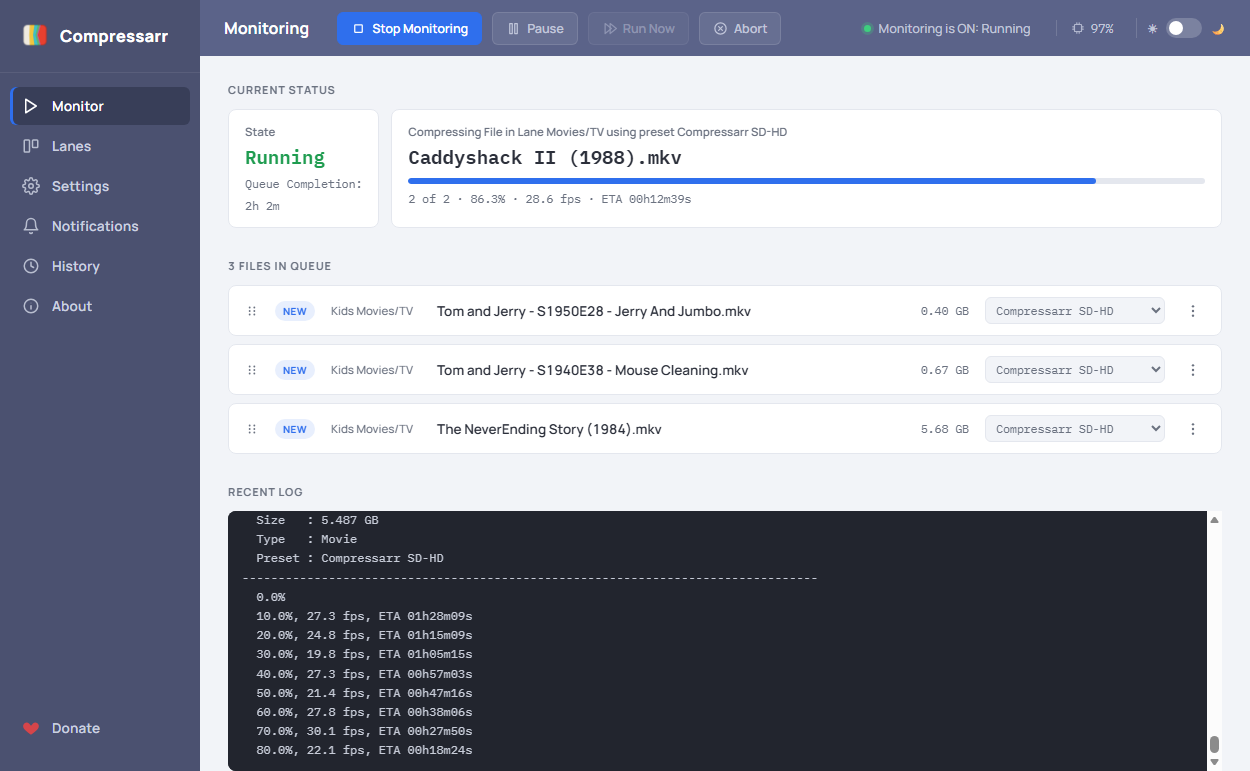
At the top of the page, next to the page title, are the main controls:
-
Start Monitoring / Stop Monitoring — one button that toggles Compressarr's watch loop on and
off. While it's on, Compressarr checks your Lanes' Input folders on a repeating schedule (how
often is set on the Settings page) and compresses anything new it finds.
- Clicking Stop Monitoring does not interrupt a file that's already being compressed — it finishes that one file normally, and then stops before starting the next.
- Pause / Resume — pauses (and resumes) the file currently being compressed, without stopping monitoring altogether.
- Run Now — skips the wait and checks for new files immediately, without waiting for the next scheduled check. Only available while monitoring is on and nothing is currently compressing.
- Abort — immediately stops the file currently compressing, right where it is (unlike Stop Monitoring, which lets it finish). Use this if a file is genuinely stuck or you need to stop right now.
This card shows what's happening right now: which Lane and file Compressarr is working on, which preset it's using, and a live progress bar with percentage, speed (fps), and an estimated time remaining for the current file. When nothing is being compressed, it simply says "Waiting for files."
It also shows a Queue Completion estimate — how long until the whole queue finishes, not
just the current file — based on real observed encoding speed. It shows "Estimating" until enough
data exists to calculate from. Choose whether this displays as an absolute date/time or a
countdown duration like 2d 5h 36m from the Queue Completion display setting on the Settings
page.
Below Current Status is the list of files waiting to be compressed, across every Lane, in the order Compressarr will actually process them. The heading itself always shows a live count, e.g. "4 Files In Queue."
A file's place in line is locked in the moment Compressarr first sees it. A new file always joins at the end of the queue — never ahead of files already waiting, even if its name would sort earlier — and from then on only you can move it (by dragging it, or with Move to top / Move to bottom). Changing a file's preset, skipping it, or other files arriving later never reshuffles anything. A file that's dropped back into a Lane's folder after it was already compressed once is treated as a new arrival too, so it also goes to the end.
Each row shows:
- A small ⠿ grip handle on the left — click and drag it up or down to change that file's place in line. You can drag a file from one Lane ahead of files in a completely different Lane — the order shown here is exactly the order things will be processed in, regardless of which Lane each file belongs to.
- A colored badge: New (never seen before), Resumed (Compressarr is picking back up after being interrupted), Skipped (see below), Error (the last attempt failed), or Unmatched (only if FileBot pre-processing is on — FileBot couldn't confidently rename this file, so it was left as-is).
- The Lane name, filename, and file size.
- A dropdown showing which preset will be used for that file. You can click it and pick a different preset just for that one file, without changing the Lane's overall default.
- A ⋮ (three-dot) button opening a small menu with:
- Skip — leaves the file in the queue (dimmed, so you can still see it) but Compressarr will never actually compress it until you un-skip it from the same menu.
- Move to top / Move to bottom — jumps the file to the very front or back of the whole combined queue (across every Lane), a faster alternative to dragging it a long distance by hand.
- Use Lane Preset — only shown if you've picked a custom preset for that file; resets it back to the Lane's normal default.
- Remove from queue — takes the file off the list entirely. The file itself is left alone on disk; it just won't be picked up again unless it changes or you remove-and-rescan.
An Error row (a file that failed) shows a plain Remove button instead — clicking it clears the error so Compressarr can pick the file up again fresh on its next scan, without touching the file itself. (If your queue is showing something confusing or stuck and none of this fixes it, see Troubleshooting for how to reset it completely.)
The black panel at the bottom shows a live, scrolling log of what Compressarr's doing — scan results, progress updates, and any errors — useful if you want to see exactly what happened during a run without waiting for the full report.
Once you're comfortable with the queue, take a look at Settings Reference to fine-tune how Compressarr behaves, or Notifications to get a message when a run finishes.