Repository navigation
Selecting and Moving
Drag their portrait. Or focus the portrait (click it, or Tab to it) and use the arrow keys. Hold Shift with the arrow keys for smaller steps.
People can be put down on the open paper around the map as well as on it. The map grows to take in everybody.
- Shift-click portraits to add them to the selection, or take them out of it. With a portrait focused, Shift+Enter does the same.
- Shift-drag a box on open paper. Everyone inside it is selected.
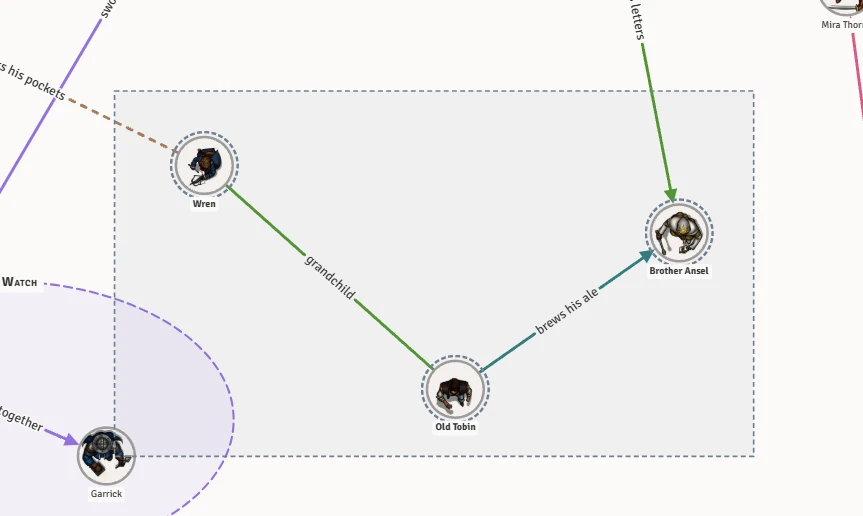
Selected people get a dashed ring:
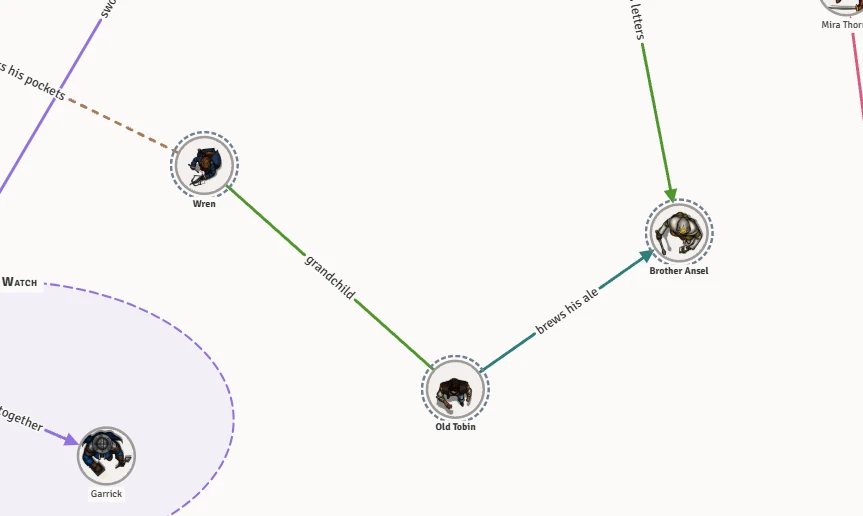
Drag any of them, or use the arrow keys, to move them all together. The whole move is one undo step.
A plain click on open paper, or Escape, lets go of the selection.
With people selected, you can also press Group to put them in a new group at once. See Groups.
| To | Do this |
|---|---|
| Pan | Drag open paper. Or right-drag from anywhere, even on top of a line or a face. |
| Zoom | Use the mouse wheel. The map zooms round the pointer. |
The two arrow buttons under the map take back your last change on this map, and do it again.

| Button | Keys | |
|---|---|---|
| Undo | Curved arrow pointing left | Ctrl+Z |
| Redo | Curved arrow pointing right | Ctrl+Shift+Z |
Undo only ever takes back your own changes, never anybody else's at the table. Each map keeps its own history. Rest on the buttons to see what they'll undo or redo.
Undo covers moving people, adding and taking people off, drawing, changing and deleting lines, moving words along a line, and drawing, changing, resizing and deleting groups.