Repository navigation
Web UI Managing Certificates
Documentation for the image tag 1.0.0-rc3. See Versions for the documentation of a release.
Part of Using the Web UI. Once a request is issued it becomes a certificate you can inspect, download, renew, annotate and revoke. Viewing needs certificates.view; revoking, editing and deleting need certificates.manage; renewing needs certificates.create.
Under Certificates in the sidebar:
- All Certificates shows every issued certificate, including revoked ones, with the requester, status, valid-from and valid-to dates and the time remaining. Show only valid certificates is ticked by default: it leaves out certificates that are expired, revoked or being revoked, or signed under a CA whose certificate is revoked or expired. A renewed certificate stays until it expires, so during the overlap you see both the original and its renewal, which tells you the new one still has to be installed. Chips filter by Valid (not expiring within 30 days), Expiring, Expired, Revoking (a revocation that is queued but not yet done) and Revoked, each with a count; the last three appear when the box is unticked. The search box finds a common name or requester.
- Expired lists certificates past their end date. An empty list says so and tells you all active certificates are within their validity period.
- Revoked lists certificates revoked before they expired, with their original validity period and the time they were revoked.
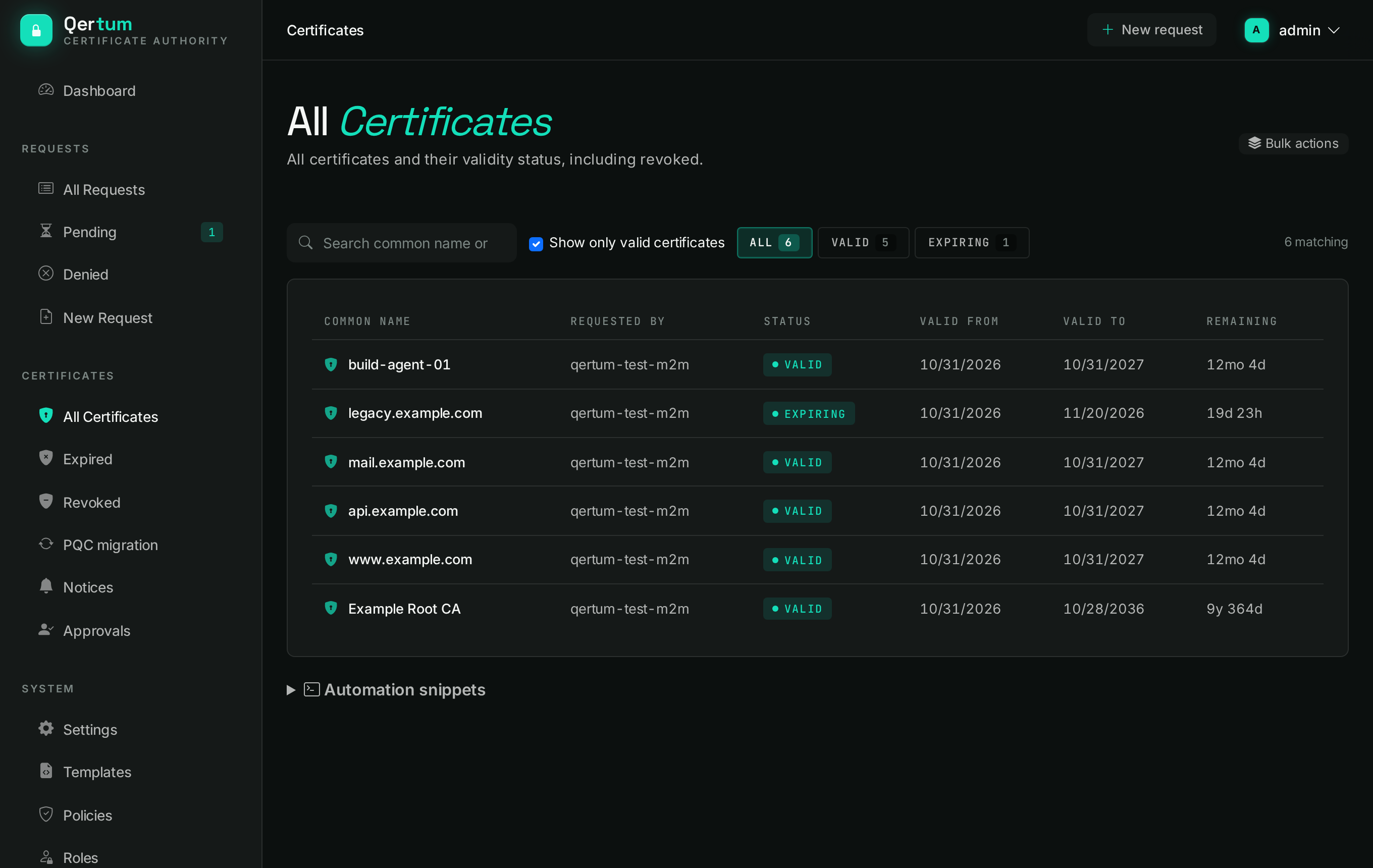
The Bulk actions button on the all-certificates list opens bulk revoke and renew.
Click a certificate to open it.
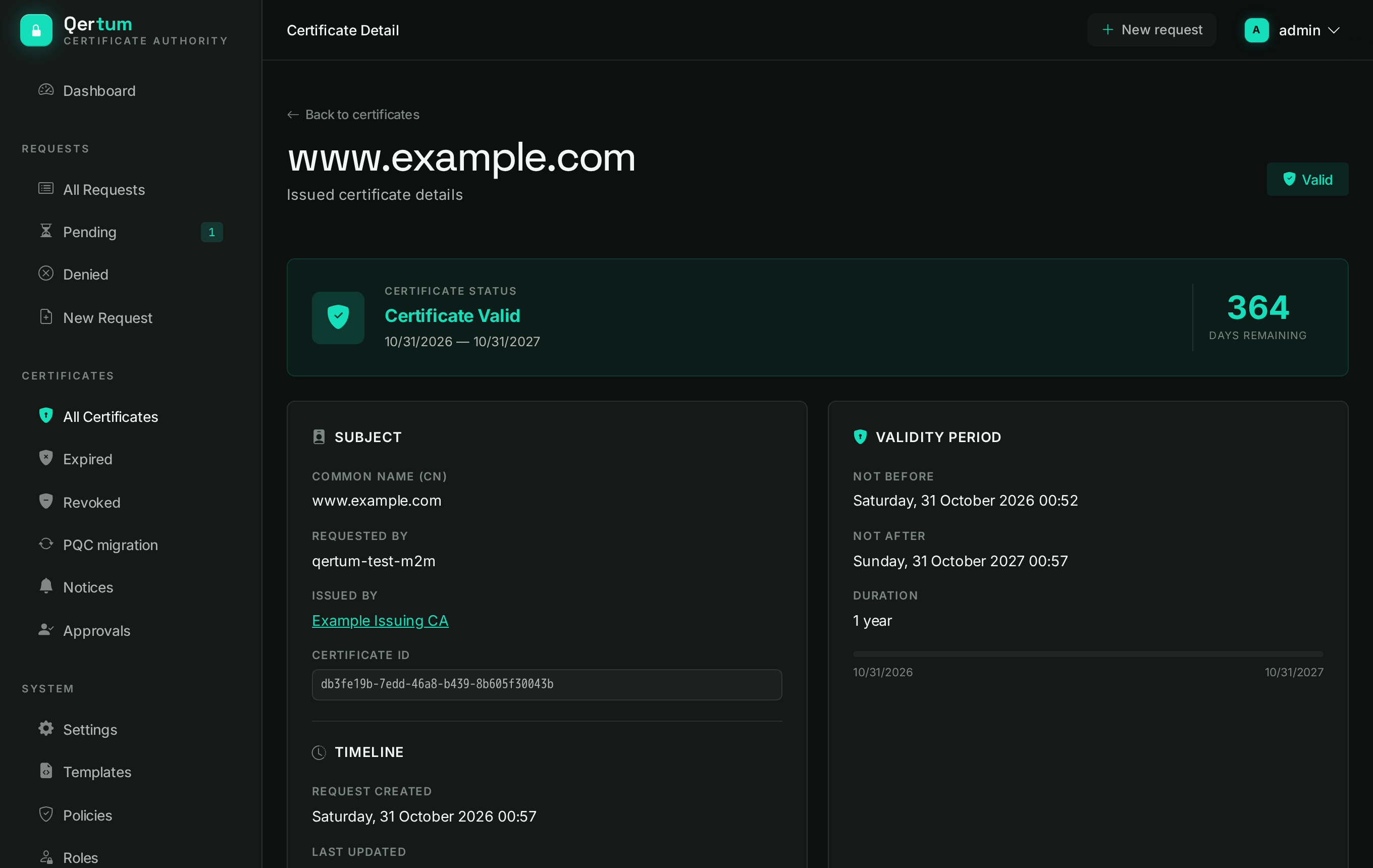
At the top a status banner says whether the certificate is valid, and how many days remain. Below it:
- Subject and Validity period: common name, who requested it, which CA issued it (a link to that issuer), its ID, creation time, and the not-before and not-after dates with a progress bar.
- Recorded facts, described below.
- Certificate data: subject, issuer, thumbprint, the subject key algorithm and the issuer signature algorithm. A plain-language line states what that means; for a certificate signed with ML-DSA by an ML-DSA CA it says the certification path is post-quantum end to end, and adds that this covers authentication only, not key exchange.
- History and notes, as on the request page.
Two buttons in the certificate data panel go deeper:
- Extended Properties lists the serial number, version, the key algorithm and every X.509 extension: basic constraints, key identifiers, key usage, extended key usage and subject alternative names. Basic View returns to the short form.
- View Raw Data shows the certificate as PEM text. The private key is never shown in the browser; a Download Private Key button hands it over as a file instead, which works only where Qertum generated the key and only for the owner or an administrator.
Qertum can record who a certificate belongs to, which is what makes a notice actionable at three in the morning. Press Edit to fill in six fields: owner team, contact email, purpose, target system, ticket reference and compatibility note. Unfilled fields show as Unknown; leaving a field empty keeps it unknown. They are facts only, never keys or secrets. Every edit is audited, and a renewal starts with a copy of them. They can be edited by the certificate's owner or by anyone with certificates.manage.
The Download button opens a menu of formats, each with a line on when to use it:
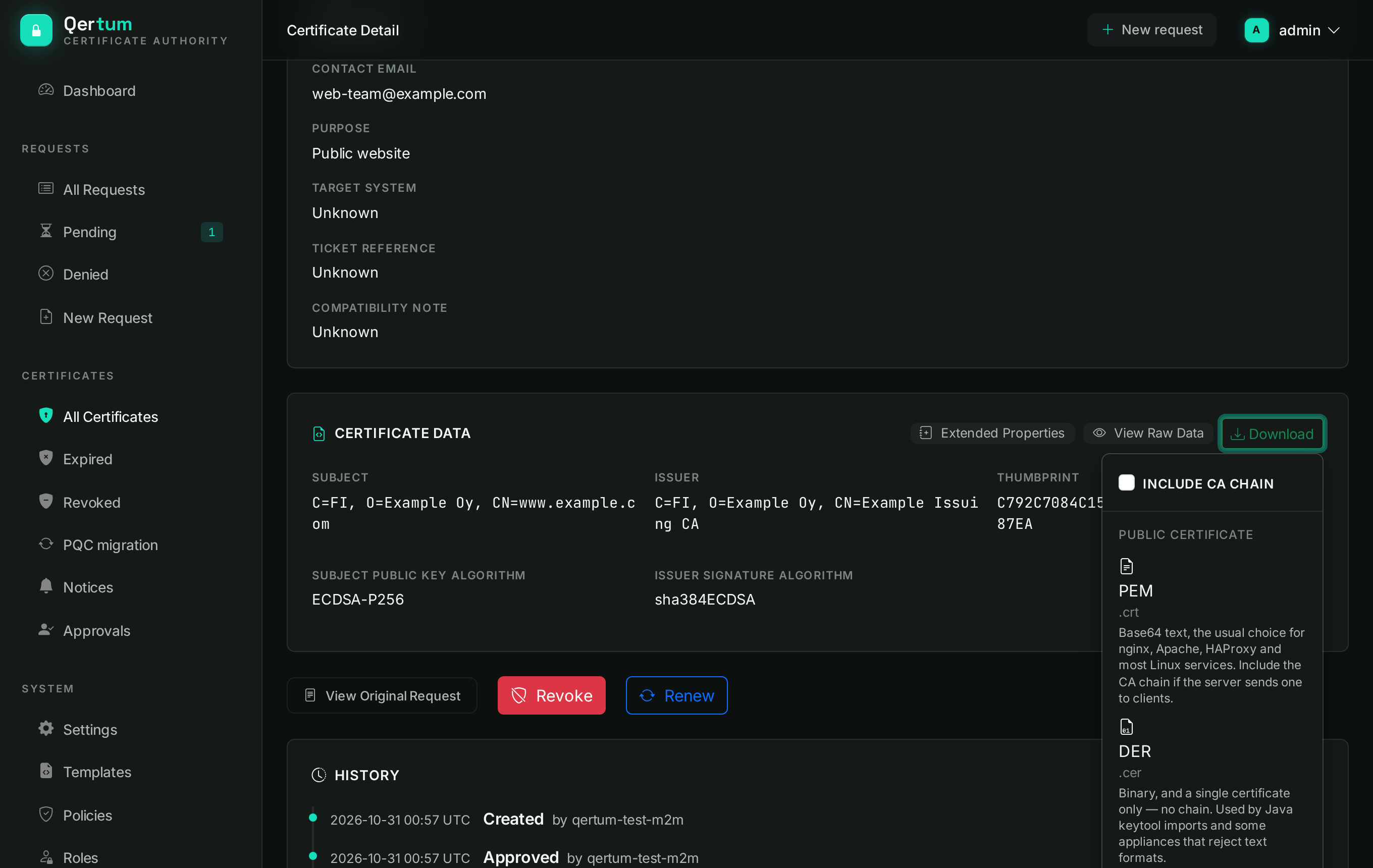
| Format | File | Use it for |
|---|---|---|
| PEM | .crt |
Base64 text; the usual choice for nginx, Apache, HAProxy and most Linux services |
| DER | .cer |
Binary, a single certificate with no chain; Java keytool imports and some appliances |
| PKCS#7 | .p7b |
The certificate chain in one file, nothing else; to hand someone the chain or import it into Windows |
| PKCS#12 | .pfx |
One password-protected file with certificate, chain and private key; Windows, IIS and Java keystores |
Include CA chain adds the issuing chain to the PEM download, which a server needs if it sends the chain to clients. PKCS#12 carries the private key, so it follows the same rule as the key download below. For post-quantum keys the menu warns what the target must support: a .pfx carrying an ML-DSA or SLH-DSA key uses the standard encoding that OpenSSL 3.6 imports but some platforms, .NET on macOS for one, do not; then download the certificate and the key as separate PEM files.
Downloading a private key or PFX is limited to the certificate's owner and administrators, is audited, and may ask you to sign in again with a stronger method if your organisation has turned on step-up authentication.
Revoke (a red button on the certificate page) opens a confirmation:
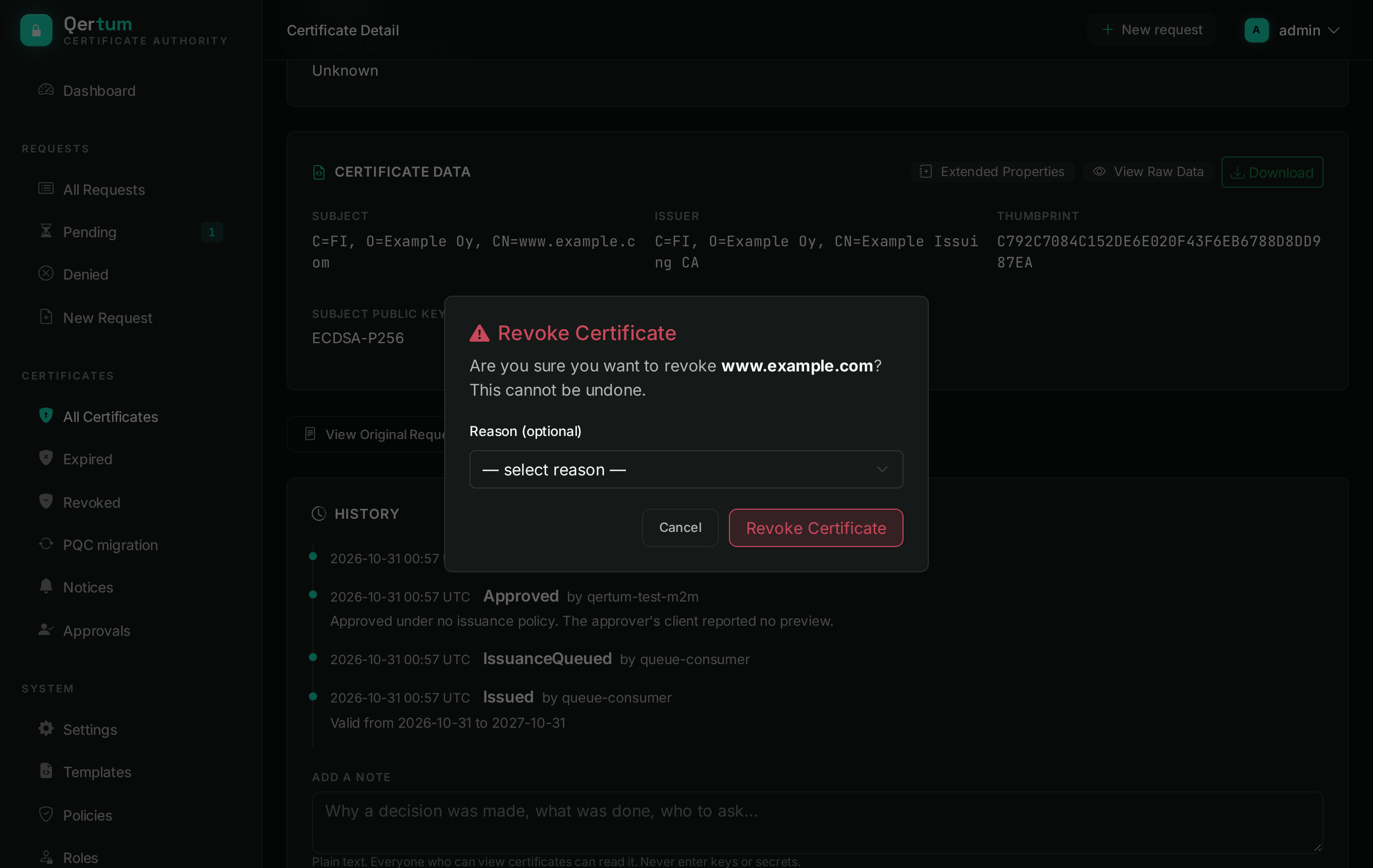
Choose an optional reason: Key Compromise, Superseded, Affiliation Changed, Cessation of Operation or Unspecified. The dialog warns that this cannot be undone. The certificate is first marked as Revoking, then Revoked once the CA has processed it; after that it appears in the CRL and the OCSP responder answers it as revoked. Clients only notice if they check revocation, so keep certificate lifetimes short too.
Revoking a CA certificate shows an extra warning. For the root, the CA stops issuing until it is renewed or replaced. For any other CA certificate (an intermediate, or any certificate marked as a CA), every certificate it signed fails for clients that check revocation, and if Qertum issues from that CA it stops signing at once, by default together with every CA below it. If it was the default issuer, all issuance stops until another CA is made the default on the Issuers page. A revoked CA keeps answering CRL and OCSP for what it signed. Settings, Issuance, When a CA certificate is revoked chooses whether the CAs below it stop too.
Renew files a new request for the same certificate, copying the common name, type, algorithm, names and validity. The new request goes through approval like any other. By default the old certificate stays valid until it expires or you revoke it, so the rollout has an overlap; an administrator can instead have Qertum revoke the old one automatically when the renewal is approved, see Settings. View Original Request jumps to the request the certificate came from.
Renewing the root CA certificate works differently: once the renewal is approved, the CA gets a new key under the same name, organisation, algorithm and validity, and that new root becomes the default issuer. The old root is retired, not destroyed, so what it signed stays checkable through its CRL and OCSP; it is never revoked automatically. Clients must trust the new root. This is also the way back after the root certificate was revoked: renew it from Revoked instead of setting up a new CA. Install the new root on every relying party, then renew the certificates the old root signed.
For mass changes, open Bulk actions from the certificate list.
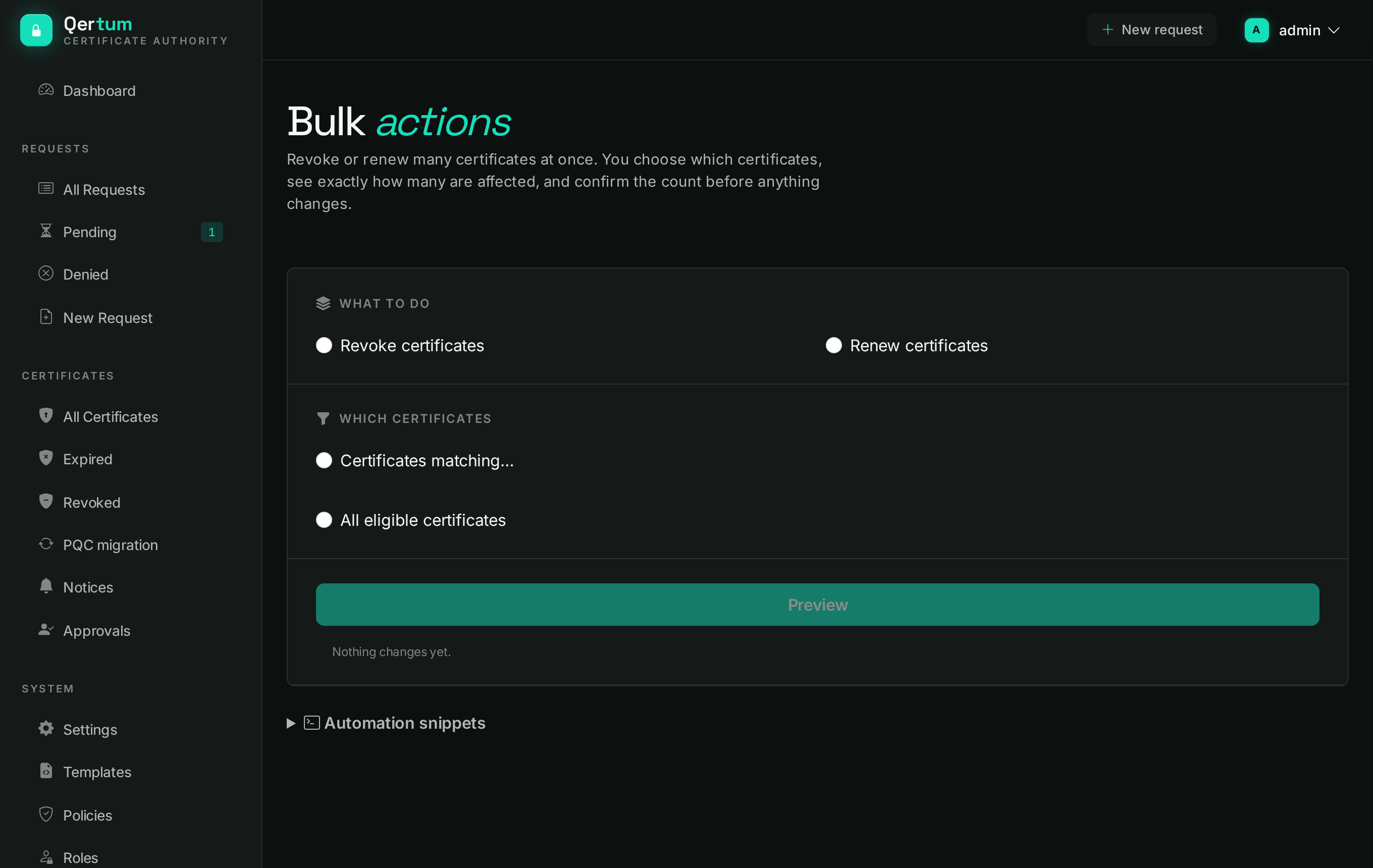
- Choose what to do: revoke or renew.
- Choose which certificates: those matching criteria such as issuer, template, owner, time until expiry or name, or all eligible certificates.
- Press Preview. Nothing changes yet: the page shows how many certificates would be affected.
- Confirm by entering the count you were shown. The count must match the preview, so a changed set cannot slip through.
The work then runs in the background, and a preview that was never executed can be cancelled. A bulk revoke is one of the sensitive operations that can require step-up authentication and a second administrator if your organisation enabled them.
- Requesting Certificates and Approving Requests for how a certificate comes to exist.
- Issuers and Trust for the CA that signed it and the chain clients need.