Repository navigation
Web UI Requesting Certificates
Documentation for the image tag 1.0.0-rc1. See Versions for the documentation of a release.
Part of Using the Web UI. The New Request wizard (also the New request button in the top bar) walks you from "what is this for?" to a queued request. It needs certificates.create.
The wizard is guidance, not paperwork: you say what the certificate is for, and it recommends a template, key and route, then checks your choice against the issuance policy before anything is filed.
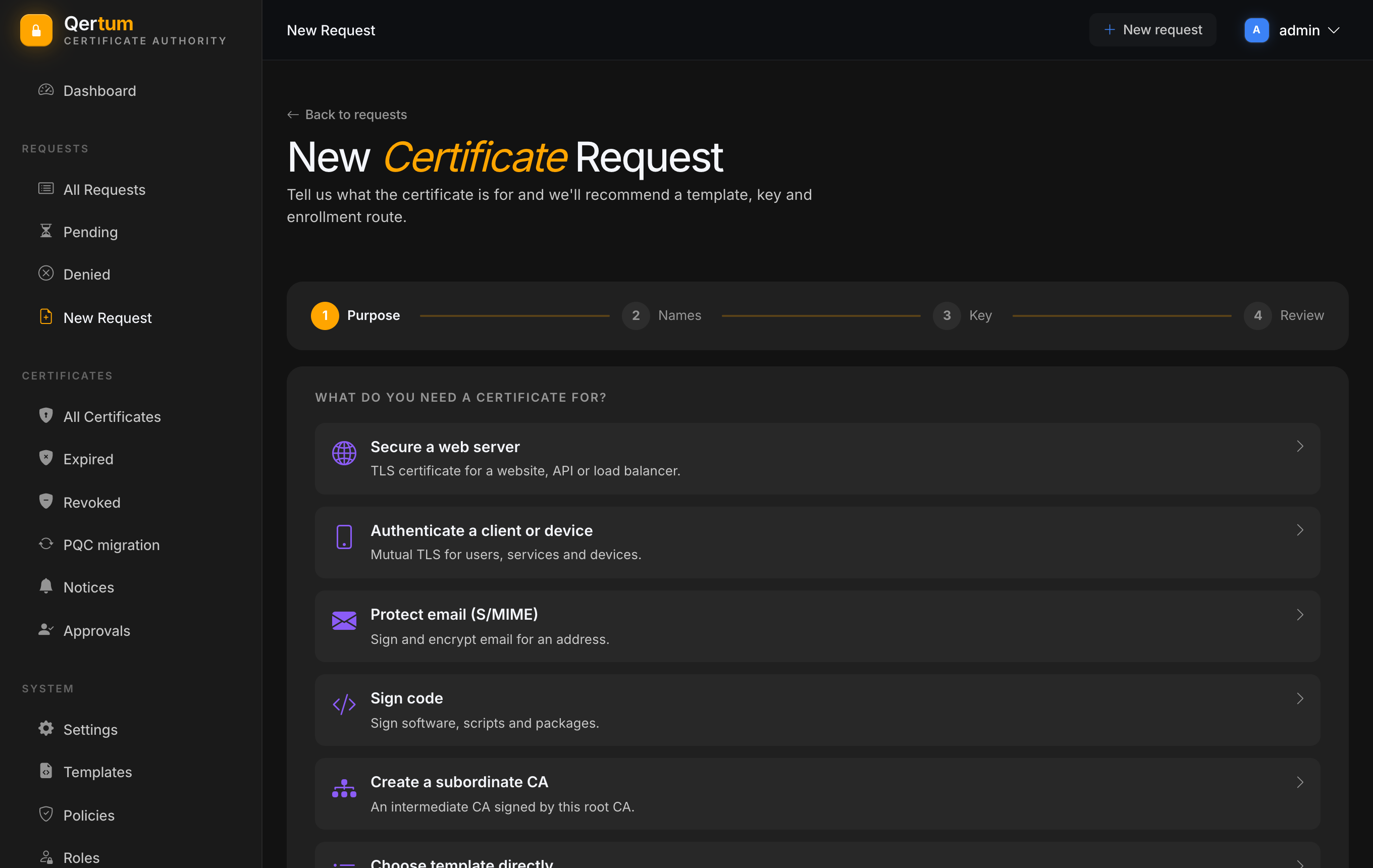
Pick what you need:
| Choice | Template it leads to |
|---|---|
| Secure a web server | Web Server (TLS): website, API or load balancer |
| Authenticate a client or device | Client Authentication: mutual TLS for users, services and devices |
| Protect email (S/MIME) | S/MIME Email: sign and encrypt mail for an address |
| Sign code | Code Signing: software, scripts and packages |
| Create a subordinate CA | Subordinate CA: an intermediate signed by this CA. Needs the certificates.ca permission |
| Choose template directly | Skips the guidance and lists every template, including ones your administrators added |
For purposes that can be automated, you choose between two routes:
- Request here: Qertum generates the key. You fill in the details and, once the certificate is issued, download it together with its key. Best for one-off certificates and for devices that cannot run an ACME client.
- ACME: your client keeps the key. certbot, cert-manager and other RFC 8555 clients request and renew automatically. Qertum never sees the private key.
Choosing ACME ends the wizard with a ready-made enrolment page instead of a form:
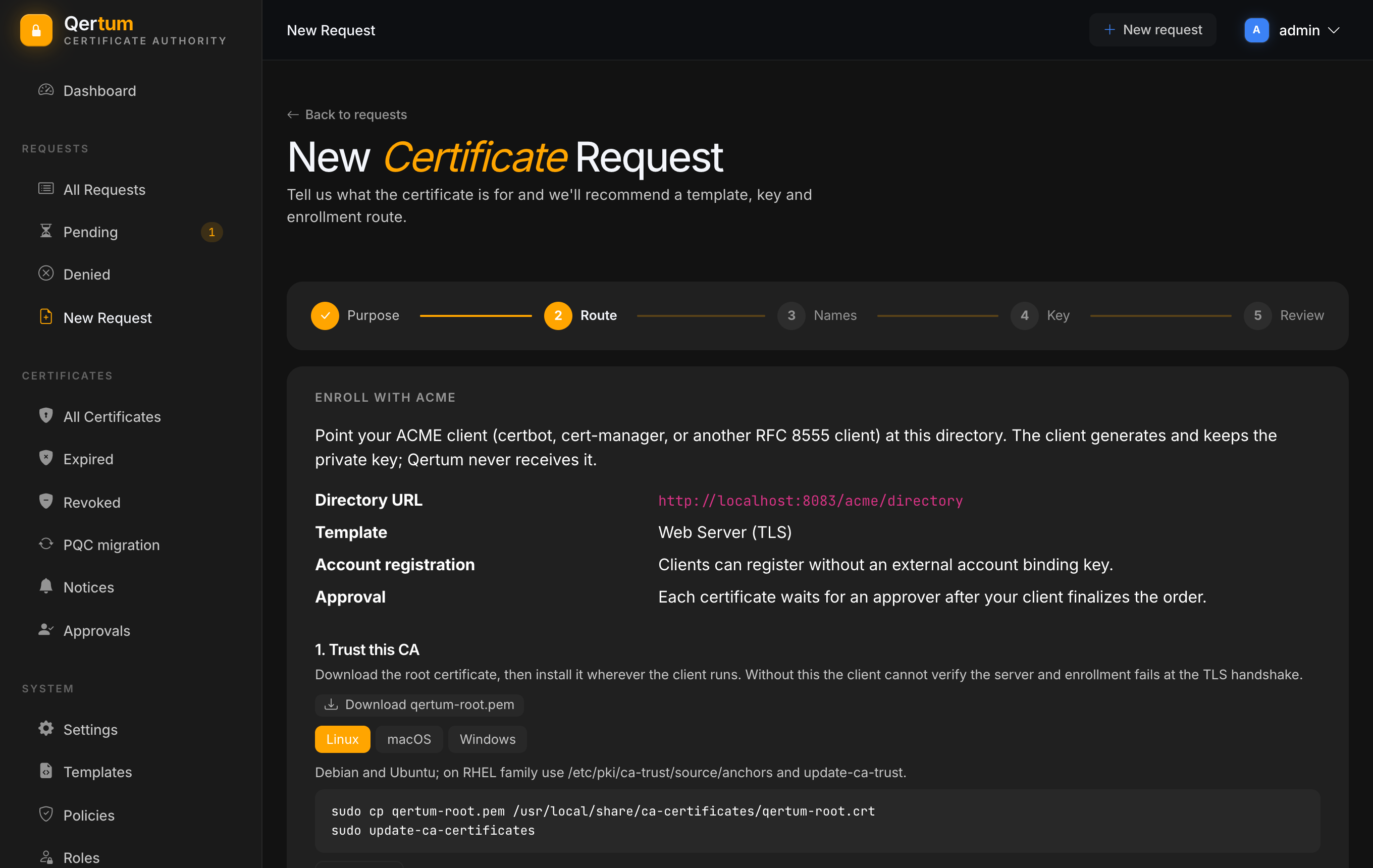
- Directory URL, the template ACME orders are filed under, whether an external account binding key is required, and whether each certificate waits for an approver or is approved automatically. Those last two are Settings your administrators control.
- 1. Trust this CA: download the root certificate and install it where the client runs, with copy-paste commands for Linux, macOS and Windows. Without this the client cannot verify the server and enrolment fails at the TLS handshake.
- 2. Enrol: copy-paste commands for certbot, cert-manager and acme.sh, with your server's directory URL filled in.
Credentials are never filled in. An external account key is shown once, when an administrator creates it, and EST passwords are issued separately.
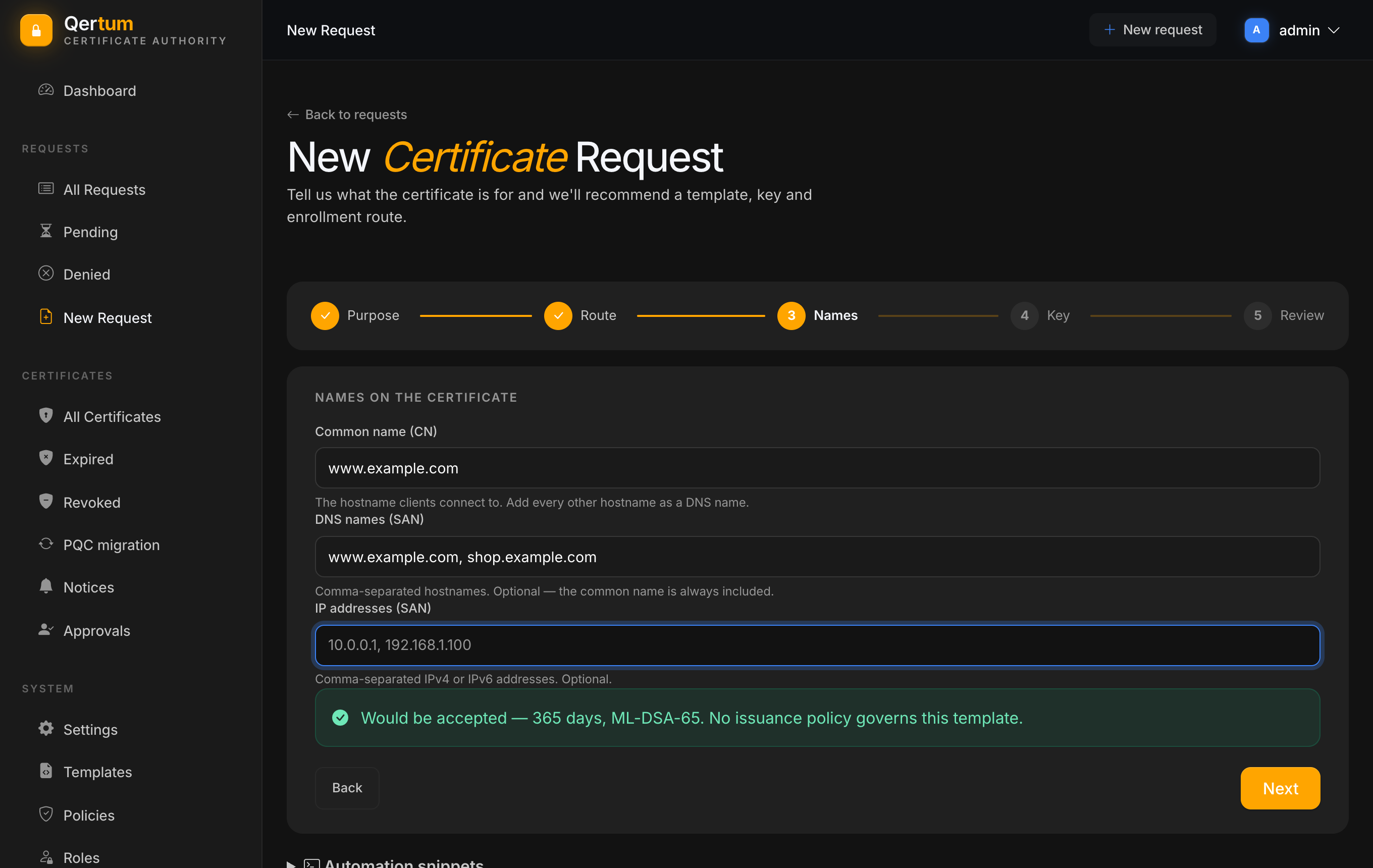
Enter the common name (for a web server, the host name clients connect to) and optionally further DNS names and IP addresses as comma-separated lists. The common name is always included among the names. Other templates ask for what suits them; S/MIME, for instance, requires an email address.
You choose the key algorithm and, if you wish, the validity in days. The list depends on the template and on the post-quantum stage in force: when classical keys are refused, only post-quantum, paired and composite choices are offered, with a one-line explanation of each, for instance "ML-DSA-65: post-quantum signature (FIPS 204, level 3); every relying party must support ML-DSA". Unset validity uses the template's default, or the CA's.
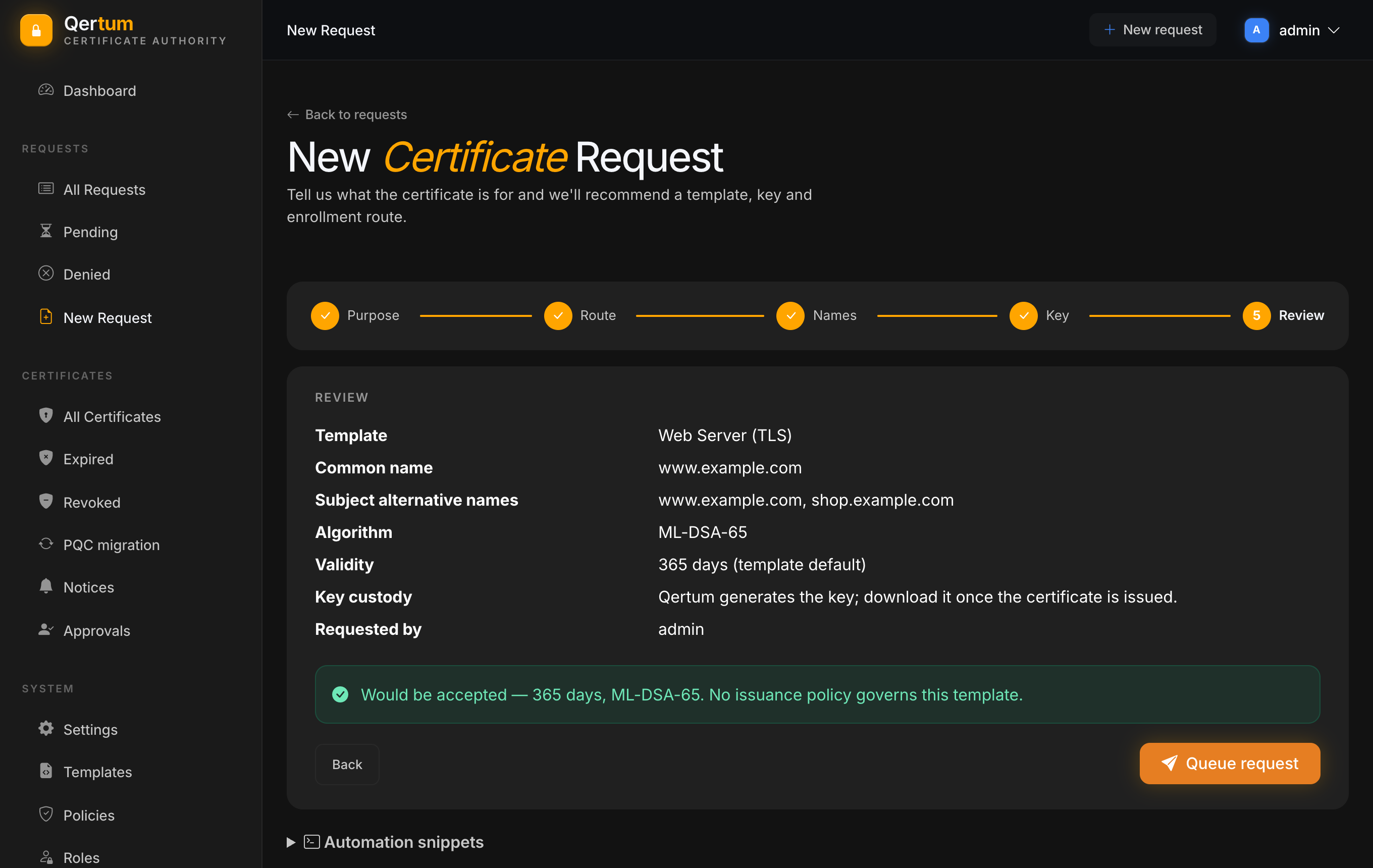
The review lists everything that will be requested, who the requester is (always you, taken from your sign-in), and the policy verdict before you commit: Would be accepted, or the reason it would be refused.
Queue request files the request as Pending. Nothing is issued until someone with certificates.manage approves it; see Approving Requests.
You land on the request list. Open your request to follow it from Pending through Approved to Issued, and download the certificate from its page, see Managing Certificates. If it is rejected it moves to Denied and the history says by whom.
Renewal is a button on an issued certificate, not a wizard: it files a new request copying the name, type, algorithm, names and validity. It goes through the same approval. Your administrators can also switch on automatic renewal in Settings.