Repository navigation
Using the Web UI
Documentation for the image tag 1.0.0-rc1. See Versions for the documentation of a release.
The web UI is where people request, approve, download and revoke certificates, and where administrators run the CA: templates, policies, issuers, settings, roles and the audit log. It is served by the webfrontend service, by default on port 8080: http://<QERTUM_HOST>:8080.
This page is the map. Each area has its own page with what you can do there, what the screens show, and what happens when you press the buttons, so you can get a feel for Qertum without installing it.
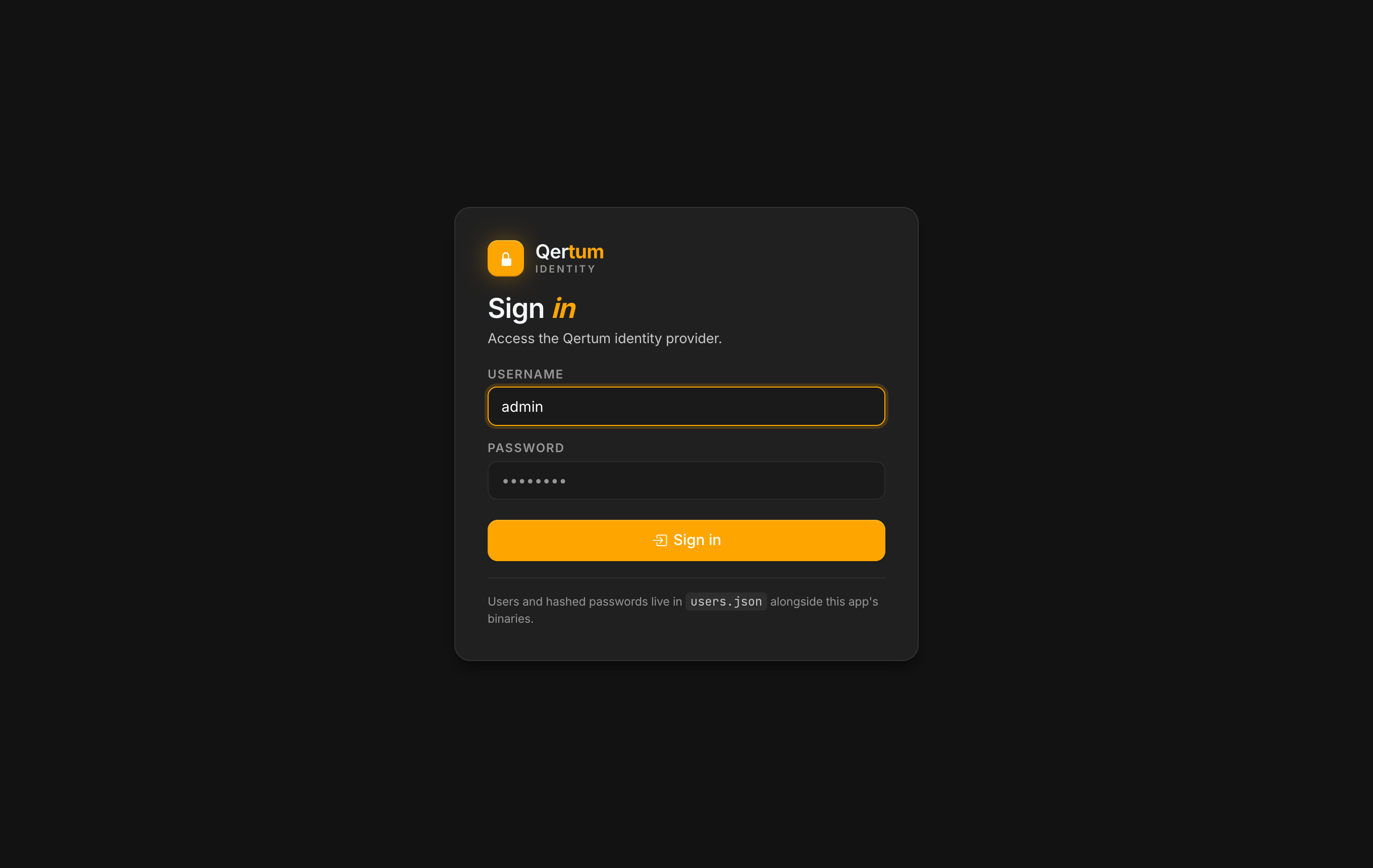
You sign in with a user of your identity provider. The built-in provider seeds an admin user on first run; see Single Container. Signing in sends you to the identity provider's page and back.
An administrator signing in to an empty CA lands on the CA setup page, which offers to create the root CA. See Issuers and Trust.
A sidebar on the left lists the pages, grouped as Requests, Certificates and System. The top bar has a New request shortcut and your user menu with Profile, Change password, My access and Sign out. Entries you are not allowed to use are not shown, so two people can see quite different menus.
| Permission | Lets you |
|---|---|
certificates.view |
See requests, certificates, notices, templates, policies and issuers |
certificates.create |
File and renew certificate requests |
certificates.manage |
Approve, reject, revoke, edit and delete requests |
certificates.ca |
Request and approve certificates that can sign other certificates, such as a subordinate CA |
settings.edit |
Change settings, templates, policy drafts, webhooks, ACME and EST credentials |
policies.publish |
Put an issuance policy into force |
admin role |
Roles, issuers, PQC exceptions, the audit log and the CA key operations |
My access lists your roles and every permission, marked granted or not. Look there first when a button is missing. Details are in Access and Approvals.
| I want to... | Page |
|---|---|
| See what needs attention, and expiry warnings | Dashboard and Notices |
| Ask for a certificate, or enrol an ACME client | Requesting Certificates |
| Approve or reject what is waiting | Approving Requests |
| Download, renew, revoke or annotate a certificate | Managing Certificates |
| Revoke or renew many certificates at once | Managing Certificates |
| Define certificate types and the rules they must obey | Templates and Policies |
| Set up or roll over the CA, export the trust bundle | Issuers and Trust |
| Change how the CA behaves | Settings |
| Decide who may do what, or require a second approver | Access and Approvals |
| Plan the move to post-quantum keys | Post-Quantum |
| Send events to other systems, or debug an ACME client | Webhooks and ACME Orders |
| Find out who did what | Audit Log |
- A colleague files a request, or an ACME client does.
- The Dashboard shows it under pending. You open Pending, read the details, and approve or reject.
- Approval starts issuance in the background; within moments the certificate is Issued and the requester can download it.
- Weeks later the Notices page warns that it is nearing expiry, and the owner recorded on the certificate is the person to ask.
- A renewal is filed (by hand, or automatically if you switched that on) and goes through the same approval.
- If a key leaks, you open the certificate and Revoke it with a reason; the CRL and the OCSP responder reflect it.
Everything above can also be done from a script: see Using the CLI and Using the REST API.