Repository navigation
Web UI Access and Approvals
Documentation for the image tag 1.0.0-rc1.1. See Versions for the documentation of a release.
Part of Using the Web UI. Qertum separates who you are (your identity provider) from what you may do (permissions the CA grants to roles). This page covers the pages that show and change that, and the optional second-approver rule for sensitive operations.
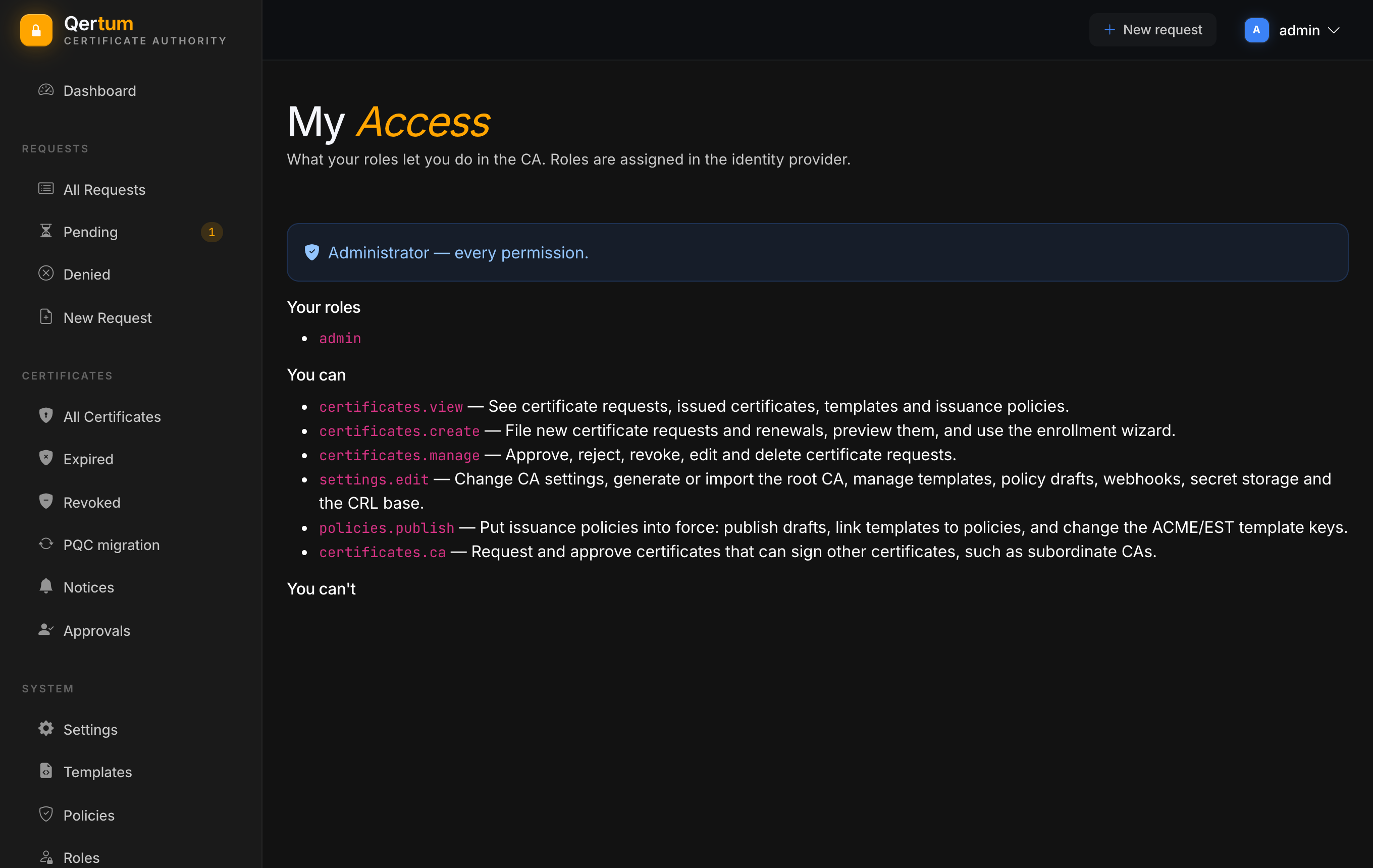
Open My access from the user menu (it needs nothing but a sign-in).
It shows your roles and, split into You can and You can't, each permission in plain language, for example certificates.manage: approve, reject, revoke, edit and delete certificate requests. An administrator is told so at the top. When a button is missing or a page returns forbidden, this page tells you why.
The user menu also has Profile and Change password, which are handled by the identity provider.
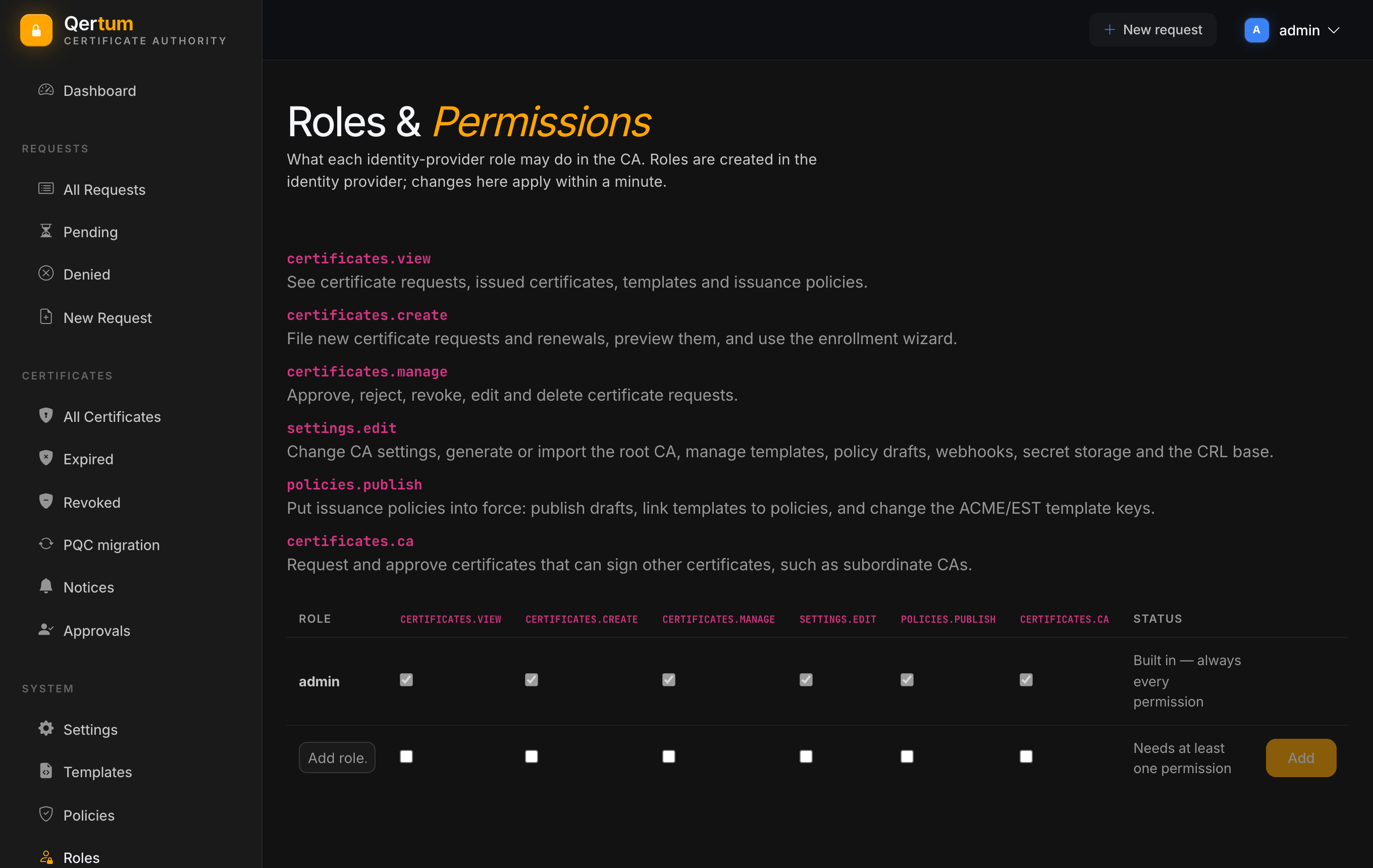
Roles (the admin role only) is a matrix: roles down the side, the six permissions across the top.
| Permission | Meaning |
|---|---|
certificates.view |
See certificate requests, issued certificates, templates and issuance policies |
certificates.create |
File new requests and renewals, preview them, use the enrolment wizard |
certificates.manage |
Approve, reject, revoke, edit and delete requests |
settings.edit |
Change settings, generate or import the root CA, manage templates, policy drafts, webhooks, secret storage and the CRL base |
policies.publish |
Put policies into force: publish drafts, link templates to policies, change the ACME and EST template keys |
certificates.ca |
Request and approve certificates that can sign other certificates |
Roles are created in the identity provider (for the built-in one, on its admin pages); this page decides what each role may do in the CA, and changes apply within a minute. The built-in admin role always has every permission and cannot be removed. To add a role to the matrix, type its name, tick at least one permission and press Add. Roles can be renamed, and changing grants is itself a sensitive operation.
For example, you might split roles into viewer (view), requester (view and create), approver (view and manage) and a small group with settings.edit and policies.publish, so that the people who write policy are not the ones who enforce it.
Some operations are risky enough that one administrator should not be able to do them alone. When an administrator switches on two-person approval in Settings, these operations need a one-use grant approved by a different administrator, within a time window, before they are carried out:
- exporting a certificate's private key or PFX when you are not its owner
- exporting a CA private key or PFX
- changing issuers: create an intermediate, install a certificate, upload a CRL, make default, retire, archive, delete
- bulk revoke
- publishing a policy
The Approvals page (every signed-in user) is the inbox for it.
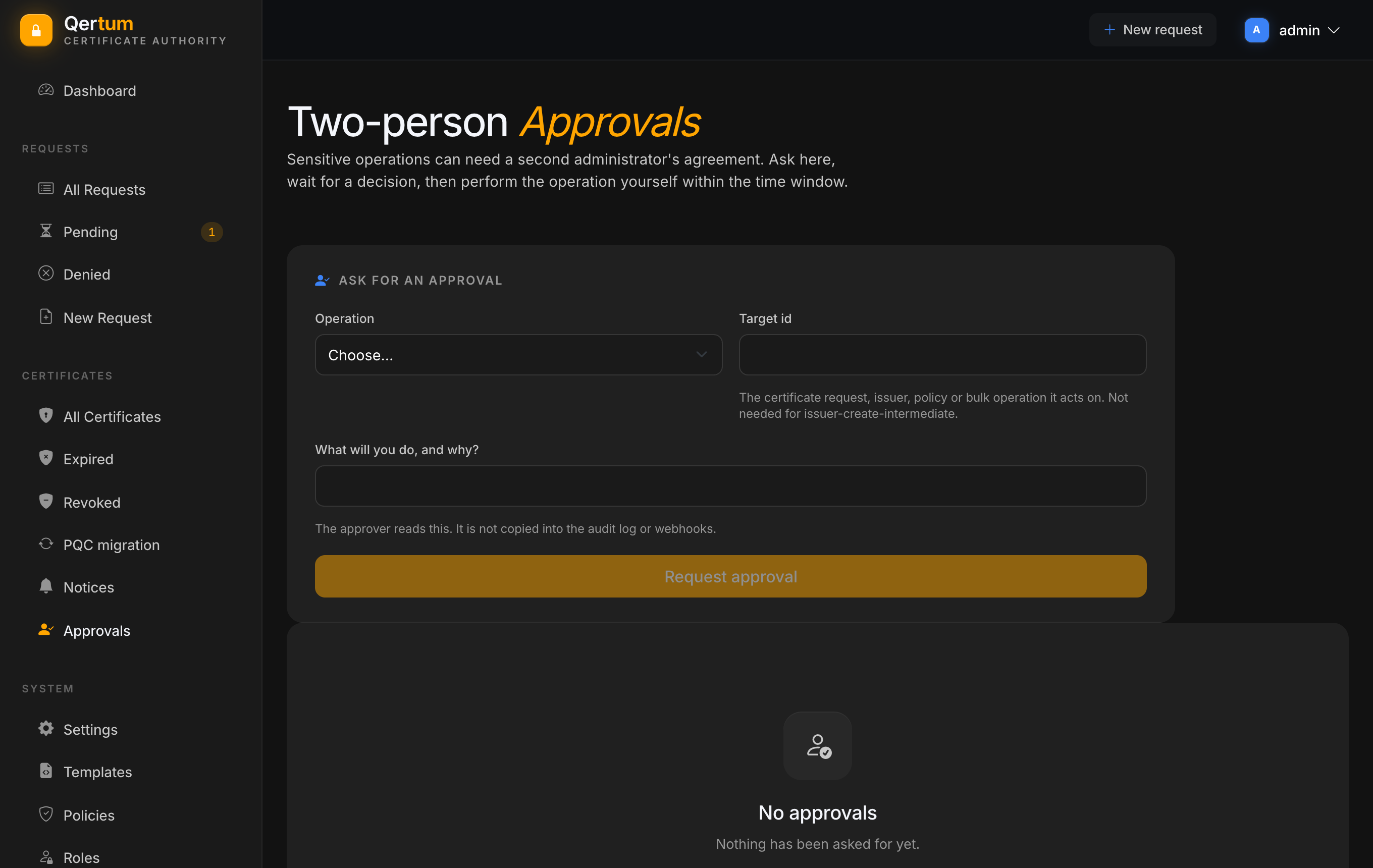
- Under Ask for an approval, choose the operation, enter the target id (the certificate request, issuer, policy or bulk operation; not needed for creating an intermediate) and a note saying what you will do and why. The approver reads the note; it is not copied into the audit log or webhooks.
- A different administrator opens Approvals and approves or denies. They cannot approve their own request.
- Once approved, you perform the operation yourself in the usual place, within the time window. The grant is used up by doing so.
The list on the page shows each request with its status. The switch is off by default, only an administrator can change it, and turning it off needs no approval.
Two-person approval is separate from step-up authentication, where the identity provider must have recently verified you with a stronger method before the most sensitive operations (key and PFX download, issuer changes, bulk execute, role changes, policy publish). Qertum reads the result from your sign-in token; if it is missing or too old, the operation is refused until you have authenticated with the required strength. See the identity provider notes shipped with the release for how to configure it.
- Audit Log records every grant, approval and sensitive action.
- Using the REST API for how machine clients get their roles.