Repository navigation
Backups and Recovery
Back up and restore the library, check and compact it, recover from settings problems, and clean up temporary and leftover files. Read it before an import, a large scan or an upgrade, and when Animatic reports a damaged database or unusable settings.
| I want to… | Use | Section |
|---|---|---|
| Save a copy of my library | File → Back up library… | Back up and restore |
| Go back to a backup | File → Restore library… | Back up and restore |
| Find out whether the library is damaged | Tools → Check library | Check and compact |
| Shrink the library file | Tools → Compact library… | Check and compact |
| Back up or move the settings | copy settings.json by hand |
What to back up |
| Understand the Settings recovered window | The recovery window | |
| Delete leftover files safely | Leftover files |
Do this before anything that rewrites a lot of data (see A consistent copy by hand), and before you restore or change anything you are unsure about.
Back up the library:
- Wait for running jobs to finish, or cancel them. Backup is unavailable while a job runs, an import or the review of imported settings is open, or a restore is in progress.
- Choose File → Back up library….
- In the file dialog, pick a folder outside synchronized folders and keep or change the
suggested name
animatic-backup-YYYYMMDD-HHMMSS.sqlite3. - Wait for the status bar. The Log shows
Library backed up to <path> (<size>).
Animatic copies the library with SQLite's online backup. What you get:
- A consistent snapshot, even while background work, the command queue and the write-ahead log are busy.
- One self-contained file (no
-wal/-shm). - No half-written file after a failure: the copy is written to a temporary file (
.animatic-copy-*.tmp) in the folder you chose and renamed into place. A failure is reported asBackup failed: <error>. - No overwriting of the library itself: Animatic refuses to write over it.
A backup holds the library and queue only. Copy settings.json yourself (see What to back up) and keep both files as secret as the library.
Restore a library backup:
- Make sure no job, import or settings review is running and that the status bar does not
show
N commands not saved yet. The menu item says why when it is unavailable. - Choose File → Restore library… and pick the backup file. Animatic checks it in the
background without changing anything: it must be a readable SQLite database that passes
SQLite's integrity check, contain the Animatic tables, and carry a database schema version
that this version supports. A damaged file, a database that is not an Animatic library, a
library written by a newer Animatic and the current library file itself are refused with
Restore refused, the current library was not changed: <reason>; your library stays exactly as it was. - A confirmation window shows what the backup holds (anime, MyList entries, hashed files, queued commands, size). Choose Restore or Cancel.
- On Restore a Restoring library window says
Do not close Animatic until this is finished.Animatic stops its background work, closes the database, keeps the current library next to it as<database>.before-restore-YYYYMMDD-HHMMSS(a damaged library is copied byte for byte, with its-walif that was not yet merged), replaces the database file, restarts its background work and reloads every page. The Log saysLibrary restored; the previous library was kept as <path>. Settings are not touched. - Tick Work offline and look at Queue before using the network. A restored queue can contain commands you already ran on a later date.
If the files cannot be swapped, Library restore failed: <error> names the kept copy; if the
library cannot be opened afterwards, a Library unavailable window asks you to quit, and the
.before-restore-* copy is the way back. Animatic never deletes those copies.
Tools → Check library runs SQLite's integrity check and foreign-key check on a separate read-only connection in the background. It never changes the library. To run it:
- Wait until no job is running (see the status bar) and no import or settings review is open.
- Choose Tools → Check library. The status bar shows
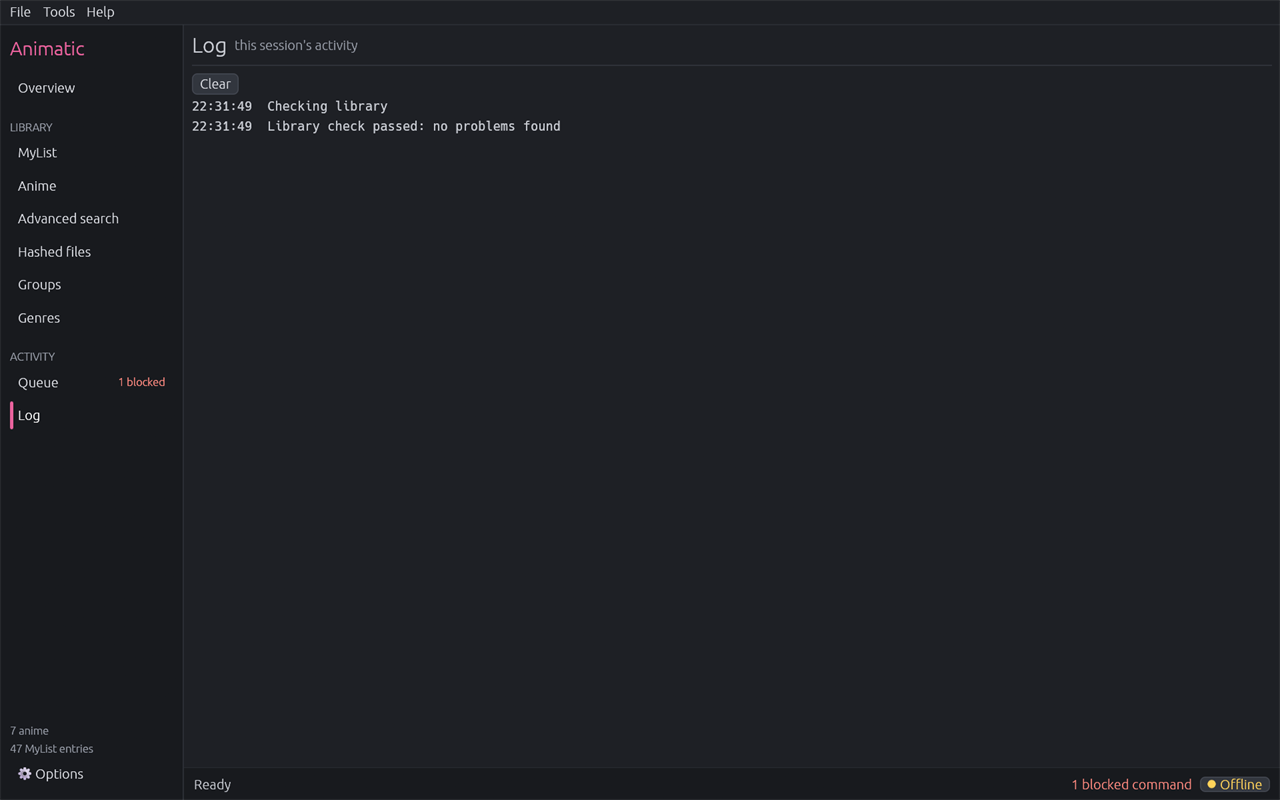
Checking library. - Read the result in the Log page. A healthy library logs
Library check passed: no problems found.
The Log page after a healthy check:
Otherwise the Log first lists up to 20 findings (a cannot open the database: … or
cannot read the database: … line can appear instead), then the status bar shows Library check FAILED: N integrity problem(s), M foreign key violation(s) (with (list truncated) when there were more), and the message says Nothing was repaired; restore a backup with File → Restore library…, naming the latest backup made in this
session, if any. Nothing is ever repaired automatically. If the check cannot run at all the
message is Library check failed: <error>.
Tools → Compact library… asks for confirmation and then runs SQLite VACUUM in the
background. It rewrites the library without its unused space and reports the size before and
after (Library compacted: <before> → <after> in the Log). It changes no data, needs free disk
space (see Disk space) and blocks other background
work until it finishes. It helps most after you deleted a lot of data, for example with
Remove from list… on many files; a library that only grew gains little.
The confirmation window explains what compacting does:
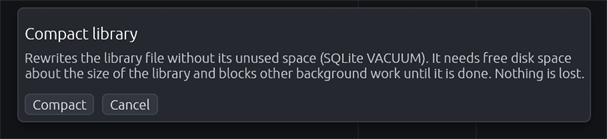
Choose Compact to start or Cancel to leave the library alone.
Both are unavailable while a job is running, an import or settings review is open, or a restore
is in progress. The status bar then says why, for example Library not backed up: Wait for the running task to finish, or cancel it, first.. Failures read Compacting failed: <error>
(usually a full disk).
| Data | Files | Sensitivity |
|---|---|---|
| Library and queue |
animatic.sqlite3 plus its -wal and -shm files if present |
Viewing history, file paths, hashes, queued edits |
| Settings |
settings.json and settings.json.bak
|
No credentials while the system keystore holds them; plain-text AniDB password, API key and AVDump key when Options reports that no keystore is available |
| Credentials | Windows Credential Manager or Linux Secret Service, entries named animatic
|
Not in any file copy; back them up with your operating system's tools. Moving a settings file changes its entry names, so credentials must then be entered again |
Treat every backup of the library as a secret, and of the settings as one too whenever they may
hold credentials. Store it somewhere only you can read. Animatic does
not encrypt anything itself; if you need an encrypted backup, use your own encryption tooling.
settings.json.bak holds the previous valid settings, so in the plain-text fallback it can
still contain a password or key you have since changed or removed.
The database runs in SQLite WAL mode, so committed changes can live in the -wal file until
SQLite folds them back into the main file. Copying only animatic.sqlite3 while Animatic is
running, or after it exited without a clean shutdown, can produce a copy that is missing
recent changes or is inconsistent. Do not copy an open database "blind".
-
Finish or cancel background work. Watch the status bar. Wait for a running job to finish or press Cancel. Do not quit while it shows N commands not saved yet (see Database busy and unsaved commands).
-
Close Animatic with File → Quit and make sure the process has ended. Quitting cancels a running job, drains accepted statistics and hash exports and writes settings (unless the recovery guard holds).
-
Copy the files as one set into a new folder, for example one dated folder per backup:
animatic.sqlite3and, if they exist,animatic.sqlite3-walandanimatic.sqlite3-shm, plussettings.jsonandsettings.json.bak. After a clean close the companions are often absent; after an unclean exit they can hold committed data, so copy whichever exist and keep them together with the database file. Never delete a-walfile to "tidy up" after a crash. -
Keep the copy outside the repository and outside synchronized folders (see Cloud sync, roaming profiles and network drives).
-
Verify without touching the backup. Copy the backup set to a scratch folder and start Animatic against that copy, never against the backup itself (opening a database creates WAL files and applies idempotent schema upgrades):
ANIMATIC_DB=/scratch/check/animatic.sqlite3 \
ANIMATIC_SETTINGS=/scratch/check/settings.json \
animatic
$savedDb = $env:ANIMATIC_DB
$savedSettings = $env:ANIMATIC_SETTINGS
try {
    $env:ANIMATIC_DB = "$env:TEMP\check\animatic.sqlite3"
    $env:ANIMATIC_SETTINGS = "$env:TEMP\check\settings.json"
    .\animatic.exe   # returns when you close the window
} finally {
    $env:ANIMATIC_DB = $savedDb
    $env:ANIMATIC_SETTINGS = $savedSettings
}
Use a copy of the settings with Work offline ticked, so a check can never send anything to AniDB, then look at the Overview, MyList, Hashed files and Queue pages. The SQLite command-line shell is not shipped with Animatic; if you have it, its
PRAGMA integrity_check;or.backupcommand on a closed copy is an additional option, but that is SQLite's own feature and the project has not recorded using it.
Take a backup before anything that rewrites a lot of data: importing an AOM databank, running a scan with Remove missing files from the library on a rule, choosing Clear queue…, upgrading to a build with schema changes (upgrades are applied when the database is opened and no downgrade is provided or tested), or editing the settings JSON by hand.
- Close Animatic.
- Move the current database, its
-waland-shmfiles and the current settings files into a "before restore" folder. Do not delete them until the restored library is confirmed. - Make sure no stale
-walor-shmfrom the old database remains in the target folder. A write-ahead log belongs to the database file it was written for; leaving one beside a different database file can apply unrelated pages. - Copy the backed-up database file (and its
-wal/-shm, if the backup set has them) and the settings files into place under their original names. - Start Animatic. If the settings are not offline, tick Work offline first and check the Queue before using the network: a restored queue can contain commands you had already run on a later date.
If a restored settings file is invalid, follow Settings problems.
If startup fails with a SQLite message such as database disk image is malformed or file is not a database, Animatic cannot open the library and its menus are not available: restore a
backup by hand as described above. If Animatic starts but you suspect damage, use
Tools → Check library and then File → Restore library….
Animatic has no repair path. SQLite's own recovery tools
may salvage rows from a damaged file; they are not part of Animatic, and the project has not
verified their output against its schema, so work on a copy and re-check the result.
- The Windows default locations are in the Roaming profile. If your environment synchronizes or roams that folder, the database and its WAL files can be uploaded or copied piecemeal while Animatic is running.
- SQLite's WAL mode needs the database on a local filesystem. Do not place the database on a
network share, and avoid cloud-synchronized folders (OneDrive, Dropbox and similar) because
a sync client can copy the main file without its
-wal. - Prefer a fixed local disk, for example by setting
ANIMATIC_DB(or--database) to a path outside synchronized folders on every launch. - Do not synchronize the settings file between machines: it can contain credentials (and the keystore entries do not travel with it), and two machines saving at once will overwrite each other (the save is atomic per machine, with no merge).
- Do not run two Animatic processes on the same settings file either. Saves share the same
settings.json.tmpandsettings.json.bak.tmpnames, so concurrent saves can fail or cross-write; the outcome is not a predictable "last writer wins". - Do not run two Animatic instances against the same database. The lock file next to the database only lets a launch that is given media files hand them to the running window (One window per database); a launch without files opens another window, and SQLite's file locking and busy timeouts are the only protection, so the second instance will compete for the write lock.
For field-level behavior see the Settings reference and, for loading and recovery, Settings files.
-
Load reads
settings.json. If it is valid, that is the result. If it is missing or invalid, it triessettings.json.bak. If that is valid, Animatic loads it, forces Work offline, shows the Settings recovered window, and changes no file. If both are missing, defaults are used. If the primary cannot be read (permissions, a folder where the file should be, an I/O error), Animatic stops with an error naming the file and does not fall back to the backup. If the primary is invalid and the backup is invalid or unreadable, Animatic stops with an error naming both files. -
Valid means a JSON object at the root that deserializes into the settings. A
wrong type for any single value, a truncated file, or a root of
[],null,42,"text"ortruemakes the whole file invalid. Missing keys are fine and take defaults. -
Save writes
settings.json.tmp, flushes it, copies the previous primary tosettings.json.bakthroughsettings.json.bak.tmponly if that previous primary is still valid, then renames the temporary file oversettings.json. An invalid primary never replaces a good backup. A failed save removes the temporary file and leaves the old primary in place. A failure while rotating the backup is ignored, so the primary can be replaced whilesettings.json.bakis stale or absent. -
When saves happen: Save options, applying reviewed AOM settings, Hide on the
Overview's Getting started card, clicking the Online/Offline indicator in the status
bar, the Go online button on the Overview, and closing the application. Edits in Options take effect in memory at once and
are written when the application exits even if you never click Save options (unless
the recovery guard holds), so a mistaken edit does not need a click to become permanent.
A failure of the exit save is silent; the others report
Could not save settings: ….
Consequences of the one-generation backup: the backup is the state before your last save, so recovered settings can be older than you expect, and a wrong but syntactically valid edit becomes the backup on the next save, which can be the exit save. Make your own copies before manual edits.
Messages report only the failure class and a position, never file contents (so a bad
credential line is not echoed). At startup they follow the prefix settings: . The classes are invalid JSON syntax, truncated JSON,
unexpected field type or value and read error, each with at line N column M.
| Message | Meaning and action |
|---|---|
cannot read settings file <path>: <os error>; the file was not modified |
The primary exists but cannot be read. Fix permissions, or remove a folder or other object occupying the name. The backup is not consulted. |
settings file <path> is not valid (<class> at line N column M) and backup <path> does not exist; neither file was modified. Repair or remove them to start with default settings |
Open the file in an editor, go to the reported line and column, and correct it (or restore it from your own backup). To start over, move both files into a safe folder and start Animatic. |
… and backup <path> is not valid (…) or … cannot be read (…)
|
Both copies are unusable. Repair one, restore from your own backup, or move both aside to start with defaults. |
Could not save settings: <error> |
The save failed (see below). The previous primary is still in place. |
Truncated JSON (an empty file included) is reported as truncated JSON. A root array or other
non-object is reported as an unexpected value near line 1.
The Settings recovered window says that the settings file could not be used, that the backup was loaded, that Animatic is offline, and that the original file has not been changed. Do the following:
- Dismiss it with OK and look at Tools → Options…. The values come from the backup and can be one save behind.
- Decide whether to keep them. Closing Animatic does not write settings while the recovery guard holds, and neither do Hide on Getting started, the Online/Offline indicator or Go online. Your changes in this session exist only in memory.
- To adopt the recovered settings, choose Save options. That writes them (including
offline: true) over the unreadable primary. The invalid old primary does not replace the backup. Afterwards untick Work offline only when you are ready for network use. - To keep the original file for inspection, copy it somewhere safe before saving; saving replaces it.
Applying reviewed AOM settings counts as an explicit save and also releases the guard.
Could not save settings: … is shown with the operating-system error. Typical causes:
- the folder is read-only or the disk is full (see Disk space, temporary files and leftovers);
- another program holds the file open (an editor, an antivirus scanner, a sync client) and the final rename fails;
- a folder or file occupies
settings.json.tmp(a directory in that place makes every save fail until you remove it).
Remove the obstacle and use Save options again (the Options window stays open after a failed save, so
your edits are still there); the exit save does not report errors, so
use Save options when you need to be sure. A settings.json.tmp or
settings.json.bak.tmp left by a crash or power loss is transient: with Animatic closed and a
valid settings.json in place, delete them. Do not rename a leftover temporary file into
place as a recovery step; it may be incomplete.
Move settings.json and settings.json.bak into a backup folder (a copy that still holds
credentials if no system keystore was available) and start Animatic: with neither file present it uses defaults and creates no
file until you save. A fresh configuration has offline set to false and no account, so the
first thing to do is open Tools → Options…, tick Work offline, and save.
| Operation | Where it needs space | Notes |
|---|---|---|
| Database growth and the WAL | The database folder | The -wal file grows during large writes and is folded back by SQLite later. A full disk produces a SQLite database or disk is full error; the transaction is rolled back |
| Settings save | The settings folder | A temporary file and the backup are written there |
| Anime titles download | The system temporary directory | The download is spooled into a private SQLite temporary database, then merged atomically. The download limits are 32 MiB compressed, 128 MiB decoded, 250,000 anime, 2,000,000 titles and 2,048 bytes per name. Keep comfortable free space on the volume that holds the temp directory |
| Back up library | The folder you choose | A temporary .animatic-copy-*.tmp file of about the size of the library, renamed into place when complete |
| Restore library | The database folder | A staging copy of the backup plus the .before-restore-* copy of the current library: about twice the library's size on top of the library |
| Compact library | The system temporary directory and the database folder |
VACUUM writes a rewritten copy to a temporary file of about the size of the library's used data, then folds it back; keep that much free |
| Update download | The system temporary directory (a private staging folder) and the executable's folder | Up to the archive (limit 256 MiB) plus the extracted executable (limit 512 MiB) are staged in the temporary directory; the install then needs room for a copy of the new executable beside the current one |
| Rename to another drive | The destination folder | A hidden .animatic-move-*.tmp copy of the file, verified and then renamed into place; the original is removed only afterwards, so the destination volume needs room for the whole file |
| AOM databank import | The system temporary directory (a marked animatic-legacy-import-* folder) |
One decrypted collection at a time, roughly the size of the largest source .data file in addition to the database growth |
Close Animatic first, confirm no import is running, and keep anything you are unsure about until you have a verified backup.
-
animatic-legacy-import-*folders in the system temporary directory (left by an AOM databank import): each holds decrypted plaintext SQLite copies of your private databank collections (<name>.sqlite, where<name>is a collection such asanimesormylist) and a marker file.animatic-legacy-import. The importer removes the folder when it ends, whether it succeeded, failed or was cancelled. A crash, a kill or a power loss can leave it behind. At the next start Animatic lists such folders (those with the name prefix and the marker that no running import uses) in Leftover import files and removes them only if you choose Remove; it never touches anything else in the temporary directory. If you prefer to delete one yourself, close Animatic, make sure no import is running, and delete only a folder that has this name prefix and contains the marker file. A folder namedimport-tempbeside the database comes from an older version: it is not offered, may hold files that are not Animatic's, so look inside first, delete only the<collection>.sqlitefiles you recognize, and remove the folder once it is empty. The original databank is never modified. -
settings.json.tmp,settings.json.bak.tmp: see Save failures and leftover files. - SQLite's anonymous temporary files (the title spool and sort temporaries) are removed by
SQLite. After a crash a leftover can remain in the system temp directory (SQLite's temporary
file names typically begin with
etilqs_); delete such files only when no Animatic process is running. -
.animatic-copy-*.tmpin the folder you backed up into, or beside the database: a backup or restore that was interrupted. Safe to delete when Animatic is closed. A finished backup is never a.tmpfile. -
.animatic-move-*.tmpbeside a renamed file's destination: a copy to another drive that was interrupted by a crash or power loss (a cancel or failure removes it itself). The original file and its library entry were never touched, so it is safe to delete with Animatic closed. See Renaming files. -
animatic.sqlite3.restore-stagingbeside the database: the half-made copy of a restore that was interrupted. Safe to delete when Animatic is closed; the next restore replaces it anyway. -
animatic.sqlite3.before-restore-YYYYMMDD-HHMMSS(and, rarely, a matching-wal): the library that File → Restore library… replaced. Kept on purpose and never deleted by Animatic; delete it yourself once the restored library is confirmed (it holds your previous viewing history, file paths and queue). -
-waland-shmbeside the database: not leftovers. See A consistent copy.
- Troubleshooting for the symptom index and the index of messages.
- Data locations for where the database and settings live.
- Settings files for the full recovery matrix.
- FAQ for moving to another computer.