Repository navigation
External Tools
Animatic can start three kinds of outside programs: media players (to watch, open or queue a hashed file), AVDump (AniDB's file analysis tool) and ffprobe (to read duration, resolution and codecs for the hash export). All three are optional and off or empty by default; Animatic starts nothing until you configure it and click. All three live on one page, Tools → Options… → Players and tools.
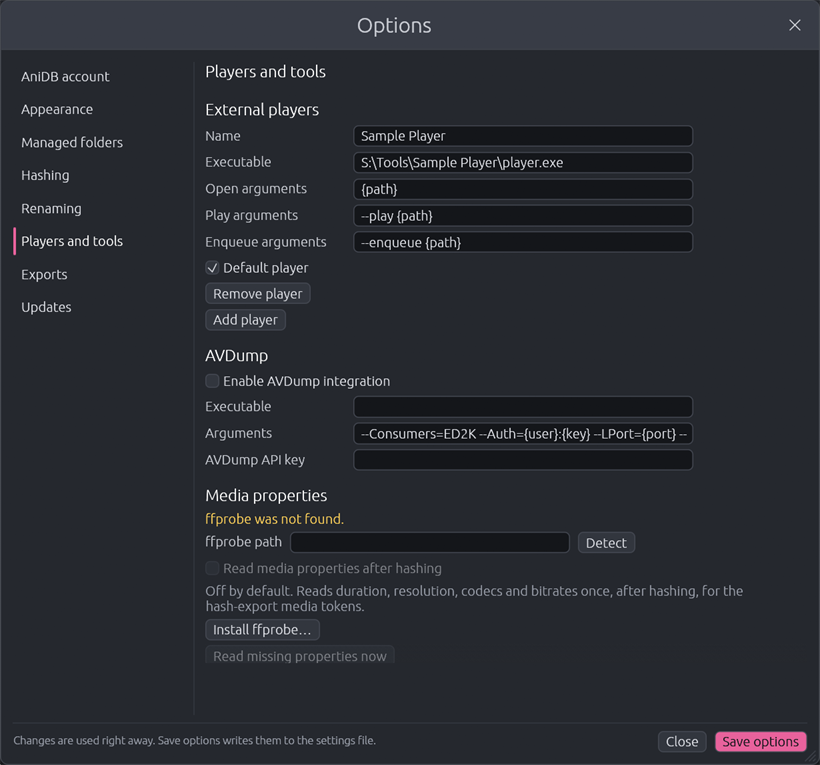
The Players and tools category of the Options window: External players, AVDump and Media properties sections. In this sample profile no ffprobe was found yet.
Each player has the fields below. Add player appends a blank block; Remove player deletes the block it sits in.
| Field | What it holds |
|---|---|
| Name | The label shown in the player chooser when you have several players. An unnamed player appears as Player N (its position in the list). |
| Executable | The program to start: a full path (for example S:\Tools\Sample Player\player.exe) or a program name that is found on your PATH. Empty gives an error when you use the player. |
| Open arguments | Arguments for Open in player. Leave empty to hide that action for this player. |
| Play arguments | Arguments for Play. Without {path} or %file% the file is appended as the last argument. An empty box just passes the file. |
| Enqueue arguments | Arguments for Enqueue. Leave empty to hide that action for this player. |
| Default player | The player used until you pick another in the chooser. Ticking it makes this player the only default. If none is marked, the first one is the default. |
- Open Tools → Options… → Players and tools and click Add player.
- Type a Name (
Sample Player) and the Executable (the full path of the player's program). - In Play arguments type what the player needs to play a file, with
{path}where the file belongs:--play {path}. If your player just takes a file name, leave the box empty. - Optional: fill Open arguments and Enqueue arguments (for example
--enqueue {path}) to get those actions too. - Click Save options.
Check it: select a file on Hashed files and click Play. The player starts with the file. If it does not, the status bar shows an error such as Could not start player: … (see If something goes wrong).
With a file selected on Hashed files:
-
Play starts the chosen player with its Play arguments. The button is always shown. With no player configured it reports
No external player is configured. - Open in player and Enqueue start it with its Open arguments or Enqueue arguments. They appear only for a player whose template for that action is not blank, so a player that only plays shows just Play.
- With several players configured, a chooser next to Play picks the player for all three actions (the Name of each player). It starts on the player marked default, else the first, and goes back to that whenever you remove a player. The choice lasts for the session and is not saved.
- Open file (the toolbar button) opens the file with your system's default program for its type. It does not use a configured player.
- A double-click on a path in the Path column does the same as Open file.
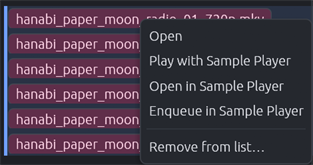
Right-click a file name: Open, Play with Sample Player, Open in Sample Player, Enqueue in Sample Player and Remove from list….
Right-clicking a file name opens a menu with the same actions for the chosen player: Open (the system default program, the same as Open file), Play with …, Open in … and Enqueue in … (the last two only when the player defines them), then Remove from list…. A right click on a file outside the current selection selects it first. Remove from list… only forgets Animatic's records; it never deletes the file.
| Token | Replaced by |
|---|---|
{path} |
The full path of the selected file. |
%file% |
The same; accepted for AOM-style templates. |
There are no other tokens for players. If a player's template contains neither token, the file is appended as one more argument. Examples:
| Play arguments | Command that is started |
|---|---|
| (empty) | player.exe "S:\Anime\Lanterns of Kiriyama\[NJF] Lanterns of Kiriyama - 01 [D7E2987E].mkv" |
--play {path} |
player.exe --play "<that path>" |
--start 0 /play "%file%" --close |
the arguments --start, 0, /play, the path, --close
|
AVDump is AniDB's separate tool that analyzes a file and prints its hashes. Animatic does not include it: download it from AniDB, then fill in:
| Field | What it holds |
|---|---|
| Enable AVDump integration | Off by default. The AVDump button on Hashed files is grayed out until this is on and a file is selected (hover text: Turn on AVDump in Options, Players and tools). |
| Executable | The path of the AVDump program. |
| Arguments | The argument template. |
| AVDump API key | Your AniDB UDP API key for AVDump (the old "AVDump password"). It is kept in the system keystore where one is available, like the other credentials. The box is masked like the AniDB password, so the key is shown as dots while you edit it. |
The default arguments are:
--Consumers=ED2K --Auth={user}:{key} --LPort={port} --PrintEd2kLink "{path}"
Placeholders in AVDump arguments:
| Token | Replaced by |
|---|---|
{path} |
The file. |
{user} |
The AniDB username from Options → AniDB account. |
{key} |
The AVDump API key. |
{port} |
The AniDB local UDP port (anidb.local_port, default 29456; it is not shown in Options). |
Unlike players, AVDump never gets the file appended automatically: put {path} in the arguments. An empty Executable gives Could not start AVDump: external executable is not configured, and a disabled integration Could not start AVDump: AVDump integration is disabled.
The template is split into words with POSIX-shell rules first (spaces separate words; '…', "…" and \ quote; # starts a comment), then the placeholders are substituted inside each word, and the program is started directly, without a shell. For a player whose arguments do not contain a path placeholder the file is appended as one argument. Consequences:
- A path, username or key with spaces, quotes or option-like text always arrives as part of the one argument that held its placeholder; it cannot add or split arguments. Quoting a placeholder is unnecessary.
- A backslash typed into the template escapes the next character, except inside single quotes. Inside double quotes only
\",\\,\$and\`are escapes, so a Windows path in double quotes works unless it ends in\just before the closing quote. Substituted values are never affected. - Unbalanced quotes are rejected:
invalid external command arguments: …. - Animatic does not wait for, capture or import the program's output: the ED2K link AVDump prints is not shown or stored by Animatic (a console program may open its own console window while it runs). The arguments, including your API key, are part of the program's command line, which other programs on your computer can usually read.
More examples and the stored-field details: settings reference.
| Message | Cause |
|---|---|
No external player is configured |
Play or another player action with an empty player list. |
Could not start player: player executable is not configured |
The player's Executable is empty. |
Could not start player: this player has no open arguments configured (or enqueue) |
The action's template is blank. |
Could not start player: invalid external command arguments: … |
Unbalanced quotes in the template. |
Could not start player: … followed by an operating-system message |
The program was not found or could not be started. Check the Executable path. |
Could not start AVDump: … |
The same checks for AVDump (see above). |
Animatic can read the duration, resolution, frame rate, codecs, sample rate and bitrates of your hashed files with ffprobe, the media-inspection tool of FFmpeg. It is optional and off by default: nothing is read and no process is started until you enable Read media properties after hashing in Options → Players and tools → Media properties, and that checkbox stays disabled until an ffprobe is found. The values fill the media tokens of the hash export (%fps%, %length%, %height%, %width%, %vcodec%, %vbitrate%, %acodec%, %asample%, %abitrate%); they are not shown elsewhere and do not change the rename objects. Animatic parses no media itself.
- Open Tools → Options… → Players and tools and look at Media properties. While Animatic searches, it shows
Looking for ffprobe…. When it finds one it showsffprobe <version> (<source>)and the path; otherwiseffprobe was not found. - If none was found, either click Install ffprobe… (below) or type an ffprobe path and click Detect.
- Tick Read media properties after hashing. The line under it says
Off by default. Reads duration, resolution, codecs and bitrates once, after hashing, for the hash-export media tokens. - Click Save options.
- For files you hashed earlier, click Read missing properties now (enabled when
ffprobeis found and the checkbox is on).
Options shows the version it found, which of the places it came from (configured path, installed by Animatic or found on PATH), and its path:
| Order on Windows | Order on Linux |
|---|---|
| 1. The ffprobe path in Options (an executable, or the folder that holds it) | 1. The ffprobe path in Options |
2. Animatic's own copy, tools\ffprobe\ffprobe.exe in the data folder
|
2. An ffprobe on PATH (a distribution package is preferred when present) |
3. An ffprobe on PATH
|
3. Animatic's own copy, tools/ffprobe/ffprobe
|
A candidate counts only if ffprobe -version answers with an ffprobe version … line. A path in Options that is not usable is reported under the version line and the search goes on. Entries of PATH that are not absolute are ignored. The search runs in the background when Animatic starts, with Detect, and after Save options changed the path.
Install ffprobe… downloads a pinned FFmpeg build for you, after you confirm. The button is offered on 64-bit Windows and 64-bit Linux only; elsewhere Options says A download is only offered for 64-bit Windows and Linux. Install ffprobe yourself and set its path.
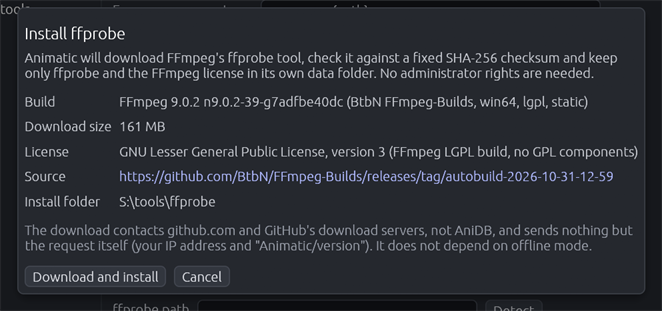
The confirmation lists the build, the download size, the license, the source page and the install folder.
- Click Install ffprobe….
- Read the window Install ffprobe: Build, Download size, License, Source and Install folder.
- Click Download and install, or Cancel.
- The Log says
Downloading ffprobe…and a progress barDownloading ffprobe: X of Yshows the download; Cancel download stops it. When it finishes the Log saysffprobe <version> is ready (<path>)and Options shows the new tool.
The pinned build (the values are compiled into Animatic; for developers, the source holds them):
| Windows (x86-64) | Linux (x86-64) | |
|---|---|---|
| Build | FFmpeg 9.0.2, n9.0.2-39-g7adfbe40dc (BtbN FFmpeg-Builds, win64, lgpl, static) |
the same release, linux64
|
| Archive | .zip |
.tar.xz |
| Exact size | 168,715,328 bytes (shown as 161 MB) | 136,027,168 bytes (shown as 130 MB) |
| SHA-256 | 9d37c564e0d01c18cde184a079fa6ef04d7d2783ada41da81d04165cc8f1a650 |
6046d6731b26f58887e953561551d254a6eec9fbca4100dfeab56e19af8328d5 |
| Source page | the BtbN release autobuild-2026-10-31-12-59 on GitHub |
the same |
| License | GNU Lesser General Public License, version 3 (FFmpeg LGPL build, no GPL components) | the same |
What the install does:
- Contacts
github.comand GitHub's download servers only (github.com,release-assets.githubusercontent.com,objects.githubusercontent.com; HTTPS, at most 5 redirects), never AniDB, anonymously: GitHub sees your IP address andAnimatic/<version>; nothing about your library is sent. It works even with Work offline on, because you asked for it. The download is bounded in size and has a 30 minute limit, and Cancel download stops it. A failure showsffprobe was not installed: <reason>in the Log and under the button. - The build is BtbN's FFmpeg-Builds static LGPL build (no GPL components). Animatic checks the exact size and the SHA-256 checksum of the download against values built into the program and refuses anything else before it opens the archive. That proves it is the pinned file; it does not authenticate the publisher.
- It keeps only
ffprobeand the FFmpeg license,LICENSE-ffmpeg.txt, intools/ffprobe/of the data folder (the confirmation shows the exact folder); every other file in the archive is skipped without being written. It needs no administrator rights, and it never touchesPATH. The release archives of Animatic do not containffprobe. - If you cancel, the Log says
ffprobe download cancelled. If the unpacked program does not start on your system, the Log and Options sayffprobe was not installed: the downloaded ffprobe does not start on this system (…). - Installing again replaces the two files. To remove the tool, delete the
tools/ffprobefolder (and untick the option). A newer pinned build arrives with a newer Animatic; installing again then upgrades the copy. - On Linux the button stays available even when a distribution
ffprobeexists, which is preferred over the download. The project records no runtime verification of the Linux download or install.
After a hashing or scan job finishes, a separate background job probes the files that job hashed (progress shows as Reading media properties; Cancel stops it). Hashing itself never reads the file a second time for this. If the first search for ffprobe is still running at that moment, the files wait for its answer.
Files that were hashed before you enabled the option are read with Read missing properties now, which probes every hashed file without figures for its current content. When the job ends the Log says Read media properties of N of M files (with (cancelled) or ; ffprobe could not be started when that applies). A database failure during the job is logged as Media properties: <reason>.
Each probe runs ffprobe -v error -protocol_whitelist file -print_format json -show_format -show_streams -i <file> directly (no shell, and on Windows without opening a console window, like the ffprobe -version check) with a 60 second limit and at most 4 MiB of output, and may open only local files: a playlist that points at a network address is not followed.
- A file
ffprobecannot read is logged (Media properties of <path>: ffprobe could not read the file …) and recorded as tried, so it is not tried again. A file that is not there (for example an unplugged drive), a timeout or an unstartableffprobeare logged but not recorded. - The figures belong to the file's content: renaming or moving a file keeps them, hashing the file again to different content discards them until it is read again, and removing the file from the library removes them.
- A value
ffprobedoes not report (no audio stream, unknown bitrate) stays empty; the export then keeps that token's constant. Cover art is not treated as video.
- Exports for the media tokens.
- Hashed files toolbar and table for the buttons that start players.
- Options window for the other Options pages.
- Settings reference for stored keys and more template examples.
-
Data locations for where
tools/ffprobelives.