Repository navigation
Managing MyList
How to do the everyday MyList tasks in Animatic: read the MyList page, change a state or watched mark, edit an entry, add files, remove entries, check your account statistics and load your whole MyList from an AniDB export. Every task works offline: Animatic saves your change first and sends it to AniDB later, when you run the command queue. The mechanics (merging, priorities, limits, failures) are in AniDB synchronization; every column and button of the page is listed in Library pages.
MyList is your list on AniDB: the files you own or have seen, each with a state (where the file is), a watched mark with a date, and free text for storage, source and other. Animatic keeps a local copy and shows it on the MyList page. The copy comes from an AOM import, from files you identify or add, and from a MyList export. Animatic never downloads your whole MyList entry by entry; Refresh from AniDB re-reads only the entries you select.
When you change something:
- The change is saved in the command queue and applied to the local entry in one step, so the table shows the new value at once and the change survives a restart.
- The Queue column of the row says
Edit queued(orRemoval queued) until the change is sent. - The change is sent when you run the command queue with Tools → Run command queue
(
Ctrl+Shift+S), or automatically if you turned on Run the command queue automatically (never for removals). After AniDB confirms, the mark in the Queue column disappears.
- To send changes you need your Username and Password in Tools → Options… → AniDB account and Work offline cleared (see Going online for the first time). To queue changes you need nothing: they wait.
- The Online / Offline button at the right of the status bar shows which mode you are in.
- Your MyList page is empty until entries exist locally. If it is, add files (below), import an AOM databank or load an export.
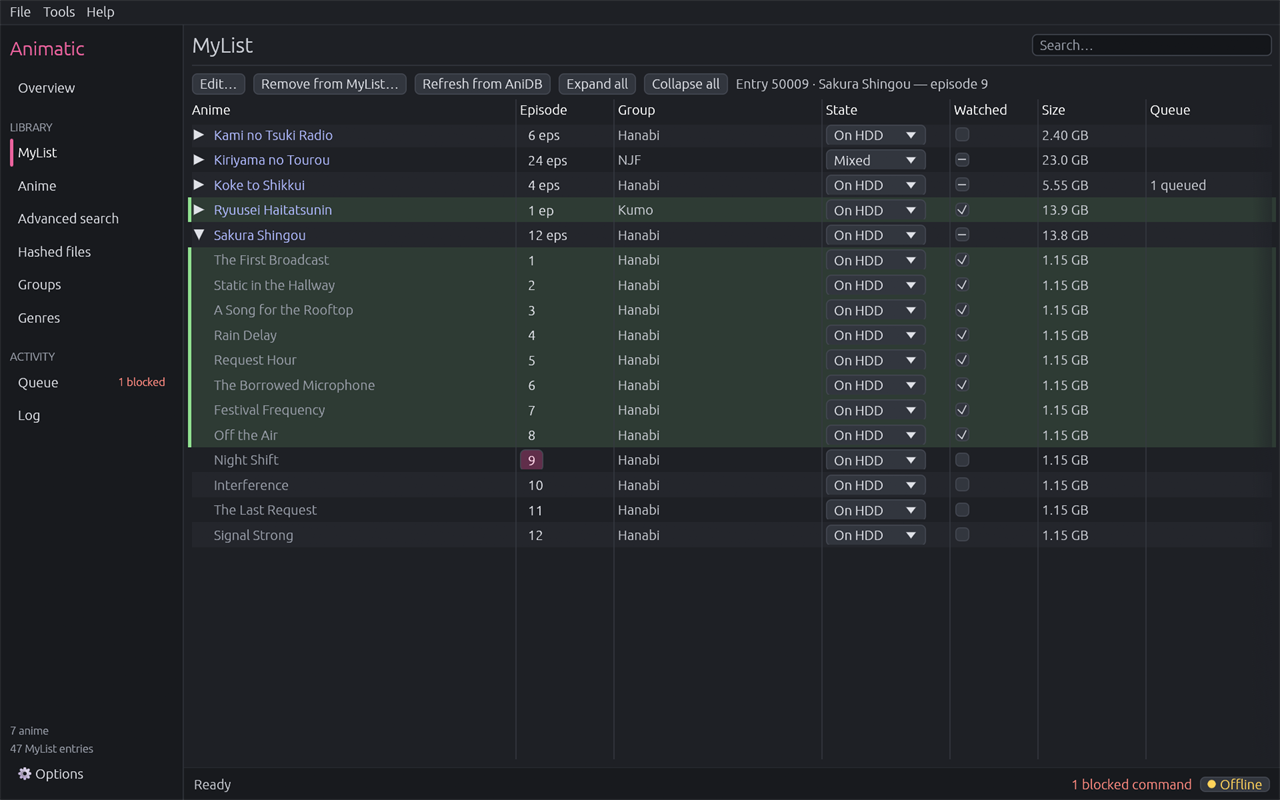
The MyList page of the sample library: one anime expanded, episode 9 selected.
Open MyList in the sidebar (Ctrl+2). Each anime is one row (collapsed at first); its
entries (episodes and files) are the child rows.
- Expand or collapse. Click the arrow in front of a title, or use Expand all and Collapse all in the toolbar.
-
Search. The box at the top right (
Ctrl+F) filters by anime title: a matching anime shows with all of its entries. -
Select. Click an entry's Episode cell to select that entry. Click an anime row's episode
count (for example
12 eps, or15 fileswhen an episode has several files) to select all entries of that anime. The toolbar says what is selected:Entry 50009 · Sakura Shingou — episode 9, orSakura Shingou · all 12 entries selected. Clicking a title opens the anime's detail window instead; it does not select. -
Read the columns. State is the entry's state; Watched is a checkbox (a dash on an
anime row means some entries are watched and some are not); Queue shows changes still
waiting:
Edit queued,Removal queued,Edit blocked,Removal blocked. An anime row counts them, for example1 queuedor1 queued, 1 removing, 1 blocked. Hover a blocked mark to see the error. - Row color. A fully watched entry or anime is tinted (see the row colors).
The State values are Unknown, On HDD, On CD/DVD, Deleted and Remote/Shared.
This is the fastest edit and needs no window.
- Expand the anime.
- On the entry's row, choose a State from the drop-down, or tick or untick Watched.
- The row updates immediately and
Edit queuedappears in the Queue column.
On an anime row the same controls act on every entry of that anime in one step:
- The State drop-down shows the common state, or
Mixedwhen entries differ. Choosing a value sets it on all entries (hover:Sets the state of every entry of this anime). - The Watched checkbox marks every entry watched, or none (hover:
Marks every entry of this anime watched, or none of them). Clicking the dash of a partly watched anime marks all entries watched; click again to unmark them all.
Entries that already have the value are left alone: nothing is queued for them and their watched
date is not changed. Entries that wait for removal are skipped; the log says
N MyList entries are pending removal or missing; edit ignored.
Marking an entry watched stamps the moment you clicked, not the moment AniDB hears of it. Unmarking clears the date. If you change the same entry several times before it is sent, the changes are merged into one command (the last watched or unwatched choice wins).
If you edit an entry that is waiting for removal, nothing happens and the log says Mylist entry N is pending removal; edit ignored.
Use the editor when you want the view date, storage, source or other as well.
-
Click the entry's Episode cell to select it.
-
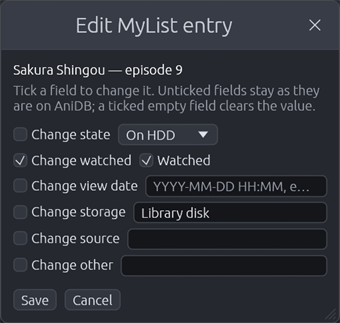
Click Edit… in the toolbar. The Edit MyList entry window opens, with the anime and episode below the title.
-
Change what you want. Each field has a Change checkbox that ticks itself when you edit the value; you can also tick it yourself:
Field Notes Change state A drop-down of the five states Change watched + Watched Tick the second box for watched, clear it for unwatched Change view date Offered only while the entry is watched. Type YYYY-MM-DD HH:MMorYYYY-MM-DDin your local time zone (a date alone means midnight). Ticked with no text means now (hintYYYY-MM-DD HH:MM, empty = now)Change storage, Change source, Change other Free text. Spaces around the text are trimmed An unticked field stays as it is on AniDB. A ticked field with empty text clears the value on AniDB. If you type something Animatic cannot read as a date, the window says
View date "…" must look like 2025-03-04 18:30 (local time)and Save stays disabled. -
Click Save. The window closes, the row shows the new values at once, and the log says
Queued an edit of MyList entry N. Save stays disabled while nothing is ticked (the window saysNothing is ticked yet.); hover it forQueues the change and shows it here at once; it is sent to AniDB when the command queue runs. Cancel,Escor the × close the window without queueing anything.
Good to know: marking an entry that is already watched as watched again changes nothing (the date is kept). Correcting only the view date of a watched entry keeps it watched.
- Click the anime row's episode count to select all its entries.
- Click Edit…. The window title names the anime and the number of entries
(
Sakura Shingou — 12 entries) and saysTick a field to change it for every one of these entries; entries that already have the value are left alone. A ticked empty field clears the value. - Tick the fields and click Save. The log says, for example,
Queued an edit of 9 MyList entries (3 already as asked).
A watched mark without a typed date carries no date: entries that are already watched keep theirs,
and the others are stamped with the time of your click. A date you type is set on every entry.
Entries waiting for removal are left out. If every selected entry gets queued for removal while
the editor is open, it says This entry is waiting to be removed from MyList; edits are refused.
You add files you have hashed. Animatic needs the file's hash to tell AniDB which release you own.
-
Hash the files first (File → Add files…, a managed folder or the command line). See Hashing and identification.
-
Open Hashed files, select the files (click,
Ctrl+click,Shift+click) and click Add to MyList…. The Add to MyList window opens.
The header says
N files will be queued for your MyListand lists them. Under it you may see notes:N of them are not identified yet: AniDB looks them up by hash first, and a file it does not know is skipped.-
N already in MyList (edit them on the MyList page): those files are left out. -
N already waiting to be added: their add is already queued.
If nothing can be added, the window says
None of the selected files can be added.Further copies of the same file content are listed once. -
Optionally set values for every file: Set state, Set watched + Watched, Set view date (while watched is ticked), Set storage, Set source, Set other.
Tick a field to set it for every file; unticked fields keep AniDB's defaults. -
Click Queue add. The log says
Queued N files for MyList; run the command queue to send them. Until then Hashed files showsAdd queuedin the MyList column. -
Run the command queue. Each file is one
Add to mylist: …command (priority 0, ahead of lookups).
What happens next, per file (the log lines in backticks):
| Situation | Result |
|---|---|
| Added |
added as mylist entry N; the entry appears on the MyList page with your values |
| Already in your MyList on AniDB | The entry is refreshed and your values are applied as an edit: mylist entry updated
|
| AniDB does not know the file |
file unknown to AniDB; nothing is added and the command leaves the queue |
| AniDB has no such file id | AniDB has no file N |
You can also let a folder add files for you: in Options → Managed folders, tick Add identified
files to MyList on a folder rule and set the values it should use (state, watched, storage, source,
other). Those files are queued as Identify file … + add to mylist once they are hashed, provided
Identify files with AniDB after hashing (Options → Hashing) is on. A file that no rule covers
is identified but not added. See
Managed folders and scans.
Removing deletes the entry on AniDB. It never deletes your media file or its record in Animatic's list of hashed files.
-
Select an entry (or an anime row, to select all its entries).
-
Click Remove from MyList…. A confirmation opens:
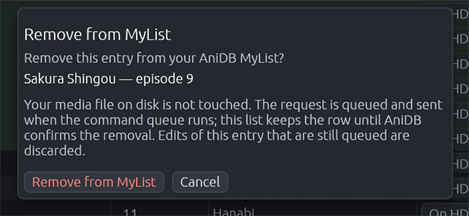
It names the entry (
Remove this entry from your AniDB MyList?) or the anime with its entry count (Remove all of these entries from your AniDB MyList?) and explains that the media file is not touched, that the request is queued and that edits of the entry still queued are discarded. -
Click Remove from MyList (red) to queue
Remove mylist entry Nfor each entry, or Cancel (orEsc) to do nothing. The log saysQueued removal of MyList entry N; run the command queue to send it. -
The rows stay, marked
Removal queued, until AniDB confirms. Then they disappear. While a removal waits you cannot edit that entry (Edit… is disabled).
Things that are different for removals:
- Automatic runs never send removals. Even with Run the command queue automatically on, a removal waits until you click Run command queue on the Queue page or choose Tools → Run command queue. The Queue page tells you how many removals wait.
- If the removal fails permanently, the row shows
Removal blocked(hover for the error) and stays in the queue until you click Retry failed or clear the queue. - There is no way to withdraw one queued removal. Clear queue… discards every queued command, so use it only when you mean to.
- AniDB saying the entry is already gone counts as success: the local row is removed.
Refresh from AniDB queues Refresh mylist entry N for the selected entry, or one for each entry
of the selected anime. Use it after you changed an entry on AniDB's website or in another
program. The reply replaces the cached row but never overwrites a change you made that has not
been sent. If AniDB says the entry no longer exists, the row is removed, unless changes for it
are queued.
Each entry is one UDP command, spaced by the flood protection, so refreshing a long anime takes a while.
Identifying a file works as a refresh too: if AniDB's reply for a hashed file says it is in your MyList, the entry is stored; if AniDB says it is not in your MyList, Animatic deletes the local entry for that file unless you have queued changes for it.
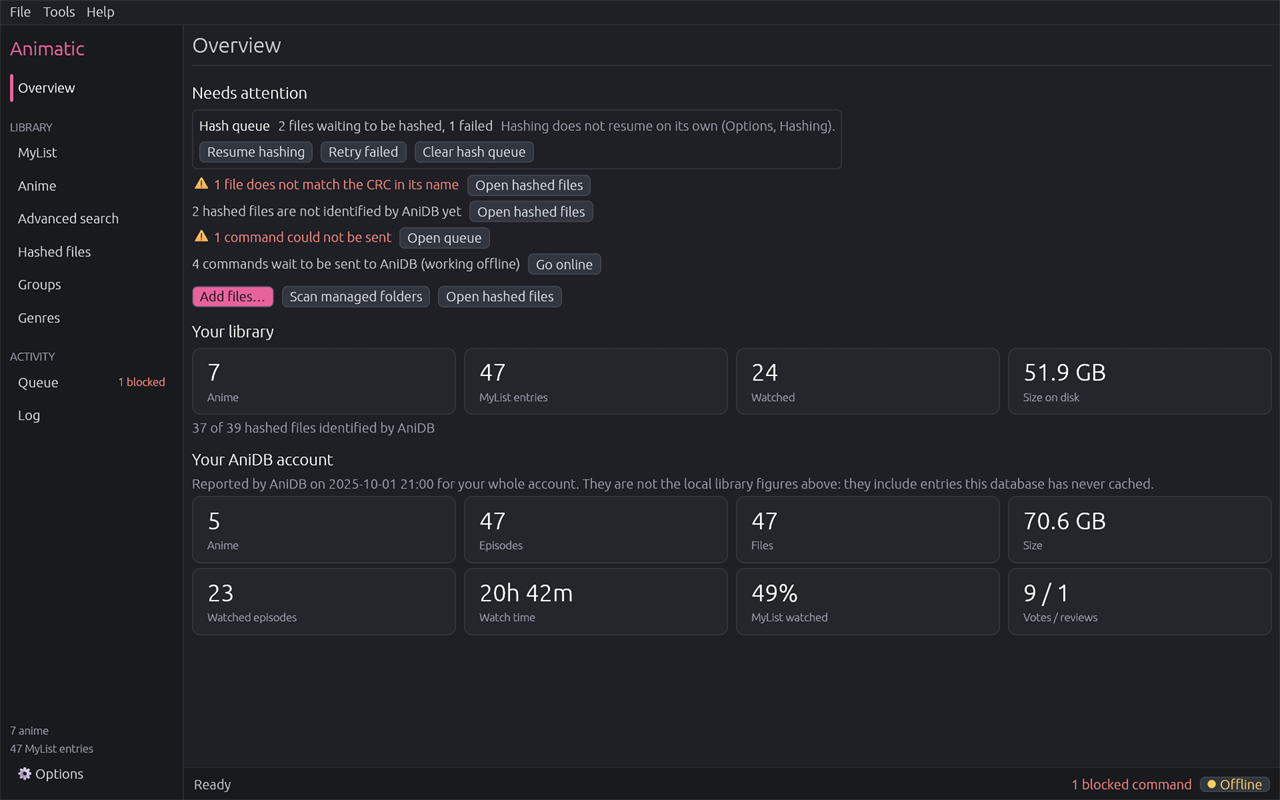
The Overview shows two sets of numbers: Your library (what is stored in this database) and Your AniDB account (what AniDB reports for your whole MyList).
- Click Fetch MyList statistics in the Your AniDB account section (the text beside it is
No account statistics yet.), or use Tools → Fetch MyList statistics. This only queues the request. - Run the command queue. The log says
N anime, N episodes, N files in mylist. - The section now reads
Reported by AniDB on <time> for your whole account. They are not the local library figures above: they include entries this database has never cached.with eight tiles: Anime, Episodes, Files, Size, Watched episodes, Watch time, MyList watched (percent of the MyList watched) and Votes / reviews.
The figures are saved in the database and shown again after a restart; each new answer replaces the old. The account figures usually differ from the local ones, because the local ones count only what you have stored. To make them match, load your whole MyList with an export.
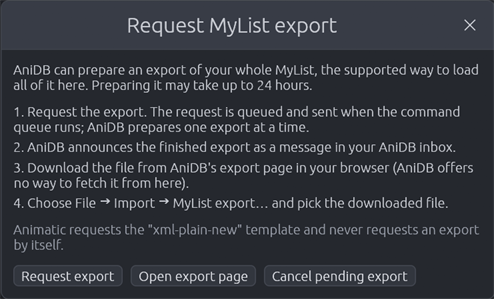
AniDB does not let a program read your MyList entry by entry, so there is a supported route that has four steps and one wait. Nothing runs by itself.
-
Choose Tools → Request MyList export…. The window lists the four steps. Click Request export. This queues one command; the window closes and the log says
Queued a MyList export request; run the command queue to send it. AniDB may take up to 24 hours and announces the export as a message.-
Request export is disabled right after a request, with the line
MyList export not requested: one was requested recently …and the time a new request is allowed. Animatic allows one request per 24 hours and never requests an export on its own.
-
Request export is disabled right after a request, with the line
-
Run the command queue (with Work offline off). The log says
MyList export requested: AniDB announces it as a message when it is ready (up to 24 hours); …. If one was already on its way you seeA MyList export is already queued on AniDB; wait for its message, then download it from the export page; that is not an error. -
Wait for AniDB's message in your AniDB inbox. Animatic does not check for it.
-
Click Open export page (in the same window) to open AniDB's export page in your browser, and save the file AniDB prepared. Animatic cannot download it for you.
-
Choose File → Import → MyList export… and pick the file. It may be an archive (
.tgz,.zip,.tar), a compressed.gzor a plain.xml; Animatic recognizes the kind from the content.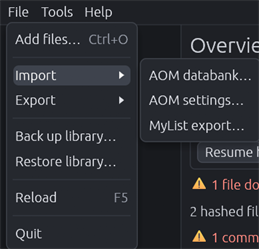
-
Watch the status bar (
Importing MyList export). The log ends withMyList export imported: N entries in N anime (N added, N updated, N unchanged)and, where they apply, notes on entries kept because of queued changes, entries left alone because they name another file, library entries that are not in the export, and anime without files.
To abandon a request, open Tools → Request MyList export… again and click Cancel pending export; it queues a cancellation, and AniDB answers when you run the queue. A cancellation does not shorten the 24-hour wait for a new request.
How the import treats your library:
- All or nothing. The whole file is checked first; a damaged, truncated, too large or unknown file is refused with a message and your library is untouched. Cancel in the status bar has the same effect.
- Queued changes win. An entry with a queued add, edit or removal is not touched.
- Nothing is deleted. Entries missing from the export stay (the export may be a day old). Remove them yourself with Remove from MyList….
- Local data stays richer. Missing anime, episodes, files and groups are created; known ones only get empty fields filled. An existing entry takes the export's state, watched flag and view date (plus the date added and storage text when the export has them).
- Repeatable. Importing the same file again changes nothing. Anime that are only on your wishlist are skipped.
File → Import → MyList export… is disabled, with the reason as hover text, while a task is running, an import is going or a settings review is open. Details, limits and the unverified-layout note are in AniDB synchronization.
While Work offline is on:
- You can edit, add, remove and refresh as usual. Everything is queued and the table shows the new values.
- The sidebar Queue badge and Overview → Needs attention show how many commands wait
(
N commands wait to be sent to AniDB (working offline)). - Nothing is sent. Go online with the status bar button (or Go online on the Overview), then run the command queue.
Your queued edits are safe across restarts. They are lost only if you use Clear queue…, and even then the table keeps showing the local value; a later refresh from AniDB may overwrite it.
| What you see | Why | What to do |
|---|---|---|
| Edit… and Remove from MyList… are disabled | Nothing is selected, or every selected entry waits for removal | Click an Episode cell (hover: Select a row (click its episode) that is not being removed) |
Edit blocked in the Queue column |
AniDB refused this edit permanently, for example because the entry no longer exists on AniDB | Hover for the error. Use Refresh from AniDB on the entry, or clear the queue, then Retry failed on the Queue page |
Removal blocked |
The removal failed permanently | Read the error on the Queue page, then Retry failed or clear the queue |
| Edits never reach AniDB | Work offline is on, a cooldown is active, or the queue was never run | Check the status bar, then Run command queue. See Network and sync problems |
Mylist entry N is pending removal; edit ignored |
The entry waits to be removed | Wait for the removal, or retry/clear it |
N commands not saved yet in the status bar |
The database was busy; Animatic keeps retrying | Wait a moment; see Network and sync problems |
The log says file unknown to AniDB after an add |
AniDB has no record of that exact file | The file may be a new release or a re-encode: add it on AniDB through Tools → Edit AniDB data and try again later |
| Local MyList differs from the website | The local copy is only as new as your last refresh or import | Refresh from AniDB, or import an export |
| The export import is refused | The file is damaged, too large or in an unexpected layout | Read the message; nothing changed. See The library is missing entries |
- AniDB synchronization: the command queue, request limits and failures.
- Library pages: every column and button of the MyList and Queue pages.
- Managed folders and scans: add files to MyList automatically.
- Network and sync problems: when changes do not go out.
- Glossary: MyList, file states, lid, command queue.