Repository navigation
Quick Start
This page walks you through your first session with Animatic, from the downloaded archive to your first renamed file. You install and start the program, decide whether to work offline or enter your AniDB account, tell Animatic which folders hold your anime, hash files, let AniDB identify them, see them in your library and rename one. Every step says what to expect. Nothing here deletes a media file, and nothing contacts AniDB until step 7.
The examples use the invented sample library from the pictures: a download folder S:\Downloads,
a library folder S:\Anime, a release group called Hanabi and a file named
hanabi_paper_moon_radio_01_720p.mkv. That file is not on your computer: use your own folders and
files (on Linux, paths look like /home/you/Downloads).
You need:
- A Windows or Linux (x86-64) computer and a few media files you want to organize. Start with two or three files, not your whole collection.
- Optional: an AniDB account (sign up at https://anidb.net). Steps 1 to 6 work without one; you need it from step 7 on to identify files. Animatic can only rename a file that is identified: either AniDB identified it (steps 6 and 7) or an AOM import brought it in already identified.
- Time. Hashing time depends on file size and disk speed; identification time depends on AniDB's request spacing (see the safety notes).
- The Log page (sidebar,
Ctrl+9) is where Animatic writes what it did, one line per event, for the current session. When a step says "the Log shows…", look there.
Safety notes for the whole tutorial:
- Offline first. Animatic talks to AniDB only when you run the command queue (or switch on automatic runs, which are off by default) and, while Work offline is off, when you open an anime detail window whose cover is not on disk yet (the Download anime covers when a detail window opens option). Hashing, browsing, searching and local edits never use the network. See AniDB synchronization.
- The queue is durable. Things that need AniDB wait in the command queue and survive closing Animatic and restarting the computer. You can queue commands today and send them next week.
- Flood protection. AniDB bans clients that send too many requests, so Animatic spaces them out: UDP packets at least 2 seconds apart for the first five of a burst and 4 seconds apart afterwards, HTTP requests 2 seconds apart, and nothing is repeated sooner than AniDB's limits allow. A queue of 100 files therefore takes many minutes; that is not a hang. After a refusal or network failure Animatic pauses all requests for a while (a cooldown). Never try to bypass these limits. See Request limits and Cooldowns and bans.
- Your files are safe. Renaming moves a file only after you confirm it (or, if you switch on Auto rename for a folder, after you confirmed that setting). Removing records (Remove from list…) forgets Animatic's record and never deletes the media file. Removing a MyList entry is never sent by an automatic run.
- Rehearse if you like. A throw-away profile with its own library and settings lets you practice without touching your real one: Portable and rehearsal setups.
- Open the project's Releases page, https://github.com/RetroHazard/animatic/releases, and under
the newest release download the archive for your platform
(
animatic-vVERSION-windows-x86_64.ziporanimatic-vVERSION-linux-x86_64.tar.gz) andSHA256SUMSinto the same folder. If your browser warns about the files, see the note below. - Check the download against
SHA256SUMS. On Windows, open the download folder in Explorer, click its address bar, typepowershelland pressEnter; in the window that opens, copy the script from Installation, Option A and change the file name in its first line to the one you downloaded. On Linux, open a terminal,cdinto the download folder and run thesha256sumcommand from the same page. Expected result:checksum OK(Windows) orOK(Linux). If you see anything else, delete the download and fetch it again: do not unpack or run it. - Unpack the archive (Explorer's Extract All…, or
tar -xzfon Linux) into a folder you can write to.
Expected result: a folder holding animatic.exe (Windows) or animatic (Linux), LICENSE, NOTICES,
README.md, CHANGELOG.md and a docs folder with this guide (without its pictures). There is no
installer and the program is unsigned, so Windows or your browser may warn that it is unrecognized
(this guide cannot promise what such a warning looks like); that is why step 2 matters. Read
Status and limits once.
On Windows, double-click animatic.exe. On Linux, open a terminal, cd into the unpacked folder
(for example cd animatic-v2026.11.0-linux-x86_64, using your version) and run ./animatic. A window
titled "Animatic — AniDB library manager" opens on the Overview page with a Getting started
box on top. Starting the program a second time opens a second window on the same library; use one.
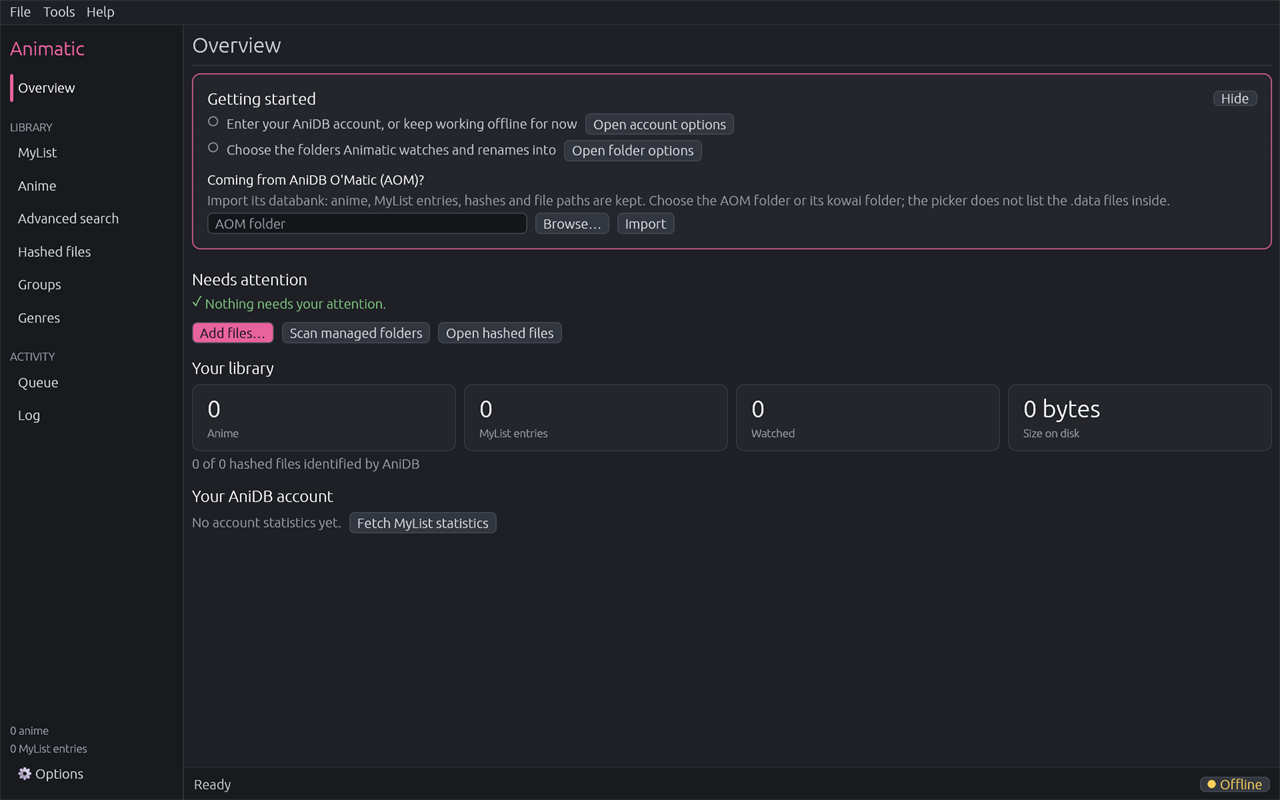
The first start of the sample library. The picture was taken with Work offline already on, so the
button at the bottom right shows Offline; a brand-new profile shows a green Online button.
The status bar says Ready.
Expected results:
- The status bar shows
Loading library…and thenReady. - The library figures read 0 (and
0 bytesfor the size), and0 of 0 hashed files identified by AniDBappears under them. - The button at the right of the status bar reads Online (green) on a brand-new profile. That only means a queue run would be allowed to contact AniDB; nothing has been sent and the queue is empty.
- At every start, unless you switched off Check for updates at startup or work offline, Animatic asks GitHub whether a newer release exists. It only looks; it downloads nothing. See First launch.
- Minimizing the window hides it to the tray icon by default; click the icon or choose Show Animatic to bring it back. Closing the window quits Animatic.
Details of the window and its command line: Running Animatic.
Choose now and change your mind later at any time.
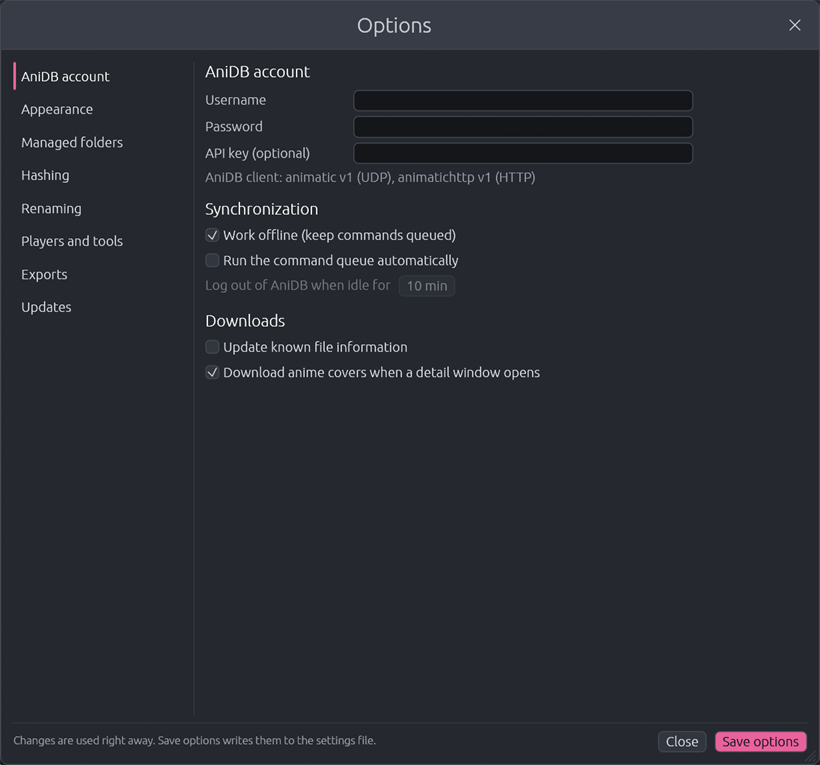
Options → AniDB account. In the picture Work offline is ticked and the account fields are empty.
Recommended for the first run: work offline.
- Click Open account options in the Getting started box (or choose Tools → Options…,
Ctrl+,). - Under Synchronization, tick Work offline (keep commands queued).
- Click Save options. This writes the settings and closes the Options window (if the file cannot be
written, the window stays open and the status bar says
Could not save settings: …); reopen it from Options at the bottom of the left panel whenever you need it.
Expected result: the status bar button now reads Offline (amber). While it is on, Run command
queue answers Offline mode is enabled; commands remain queued and sends nothing.
You can also click the Online / Offline button in the status bar to switch; that saves at once.
If you already want to go online: enter your AniDB Username and Password, leave API key (optional) empty unless you set one in your AniDB profile, and leave Work offline ticked until step 7. Entering the account does not contact AniDB. Animatic keeps the password in the system keystore when one works; see Settings files. More on this page and on AniDB client registration: First launch.
While you are in Options, note Download anime covers when a detail window opens (on by default). It only downloads when you open an anime detail window while online, and never twice.
A managed folder (a folder rule) tells Animatic where your files are, what to do with new files found there, where renamed files go and what to put in MyList for them. You can skip this step and add files by hand (step 5), but folders make scanning and renaming much easier.
-
Open Tools → Options… and choose Managed folders.
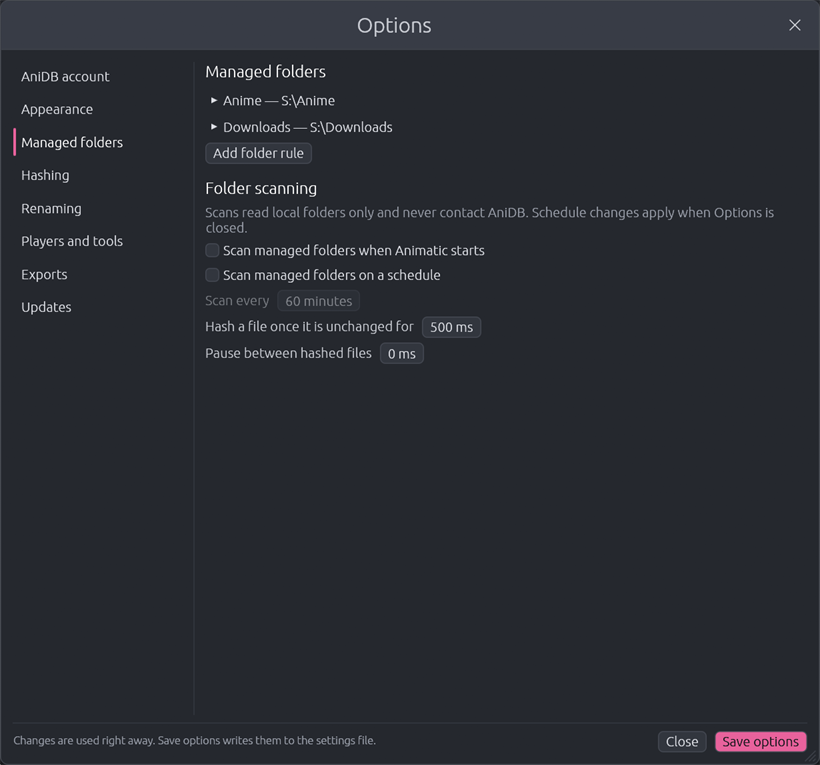
The sample library's Managed folders page: two folders, Anime and Downloads. A brand-new profile lists no rules.
-
Click Add folder rule. A rule named New folder appears; click the small triangle left of its name to open it.
-
Fill in the rule:
Field What to enter Name A label, for example Downloads.Path The folder to watch, for example S:\Downloadsor/home/you/Downloads. Type or paste the full path, or choose the folder with Browse….Move renamed files to another folder Tick it to send renamed files elsewhere: a Destination field (with Browse…) appears, for example S:\Anime. Leave it unticked, or the destination empty, to rename inside the file's own folder. With the built-in naming conventions all renamed files go directly into this folder, without a folder per anime.Include subfolders On (default): look in all folders below. Off: direct children only. Hash new files Tick it. A scan only hashes new files in a rule with Hash new files (or Rehash changed files) on. Off by default. Add identified files to MyList Tick it if identified files from this folder should be added to your AniDB MyList when the queue runs. Leave it off to only identify them. Leave Rehash changed files, Remove missing files from the library, Remove folders a rename leaves empty and Auto rename off for now. Remove missing files from the library forgets records of files that disappear from disk; Auto rename renames without asking, per folder. Both are covered in Managed folders and scans.
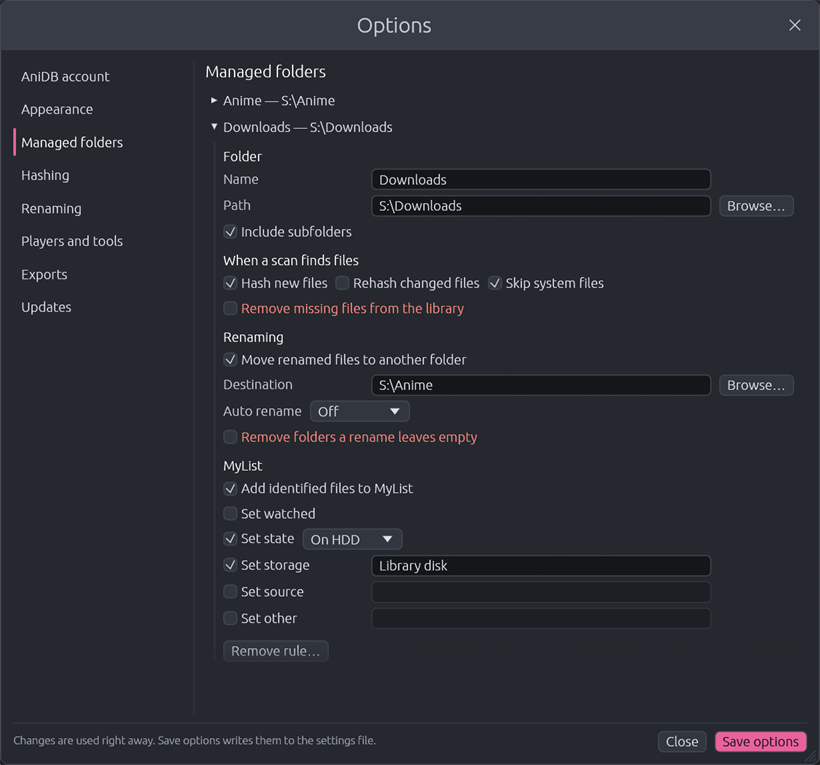
A finished rule: Hash new files and Add identified files to MyList are on, files are added as On HDD with the storage text
Library disk, and renamed files go toS:\Anime. -
If the rule adds to MyList, review the MyList group: Set state is ticked with On HDD for a new rule; tick Set watched (then Watched appears) only if you want files added as watched, and leave it off to add them unwatched; Set storage, Set source and Set other are optional texts.
-
Click Save options.
Expected result: the folder's rule is listed under Managed folders, and nothing else happens. Folder rules do not scan by themselves. (The Folder scanning options at the bottom can scan when Animatic starts or on a schedule; they are off by default, and scans never contact AniDB.)
What about files outside every rule? There is no Default rule: a new profile has no rules at all. A file that matches no rule (for example one you add by hand from outside your folders) is identified as usual when Identify files with AniDB after hashing is on, but it is not added to your MyList, it is renamed in its own folder, and a scan never walks it. To add such files to MyList, create a rule whose Path covers them and tick Add identified files to MyList.
Hashing reads each file once and computes the fingerprints AniDB uses to identify it (ED2K and CRC32, plus MD5 and SHA-1) without changing the file.
By hand:
- Press
Ctrl+O(File → Add files…; also a button on the Overview and on Hashed files). - In the dialog titled "Add files to hash", select two or three files and confirm.
Or by scanning your folder rules: choose Tools → Scan managed folders (also on the Overview). A scan hashes every new file whose extension is in the list under Options → Hashing, in rules with Hash new files on. It hashes a file only once the file has been unchanged for 500 ms, so a download in progress is left for the next scan. A scan that finds nothing new finishes without a message; if nothing was hashed, check the list in If something goes wrong.
Expected results:
- The status bar shows a progress bar with the file name and
(n/total), plus Pause and Cancel buttons. Pausing and cancelling are safe: a cancelled run leaves the unhashed files in the hash queue. - Open Hashed files (sidebar,
Ctrl+5). Each file is listed with its size, the AniDB column readingNot identified, the MyList column readingAdd queued(the file's folder rule has Add to MyList on;—if it is off), its CRC and its path. - The Log has a line
Hashed <path> (local #N, <ed2k>)per file.Nis Animatic's own number for the hashed file;<ed2k>is its ED2K hash.
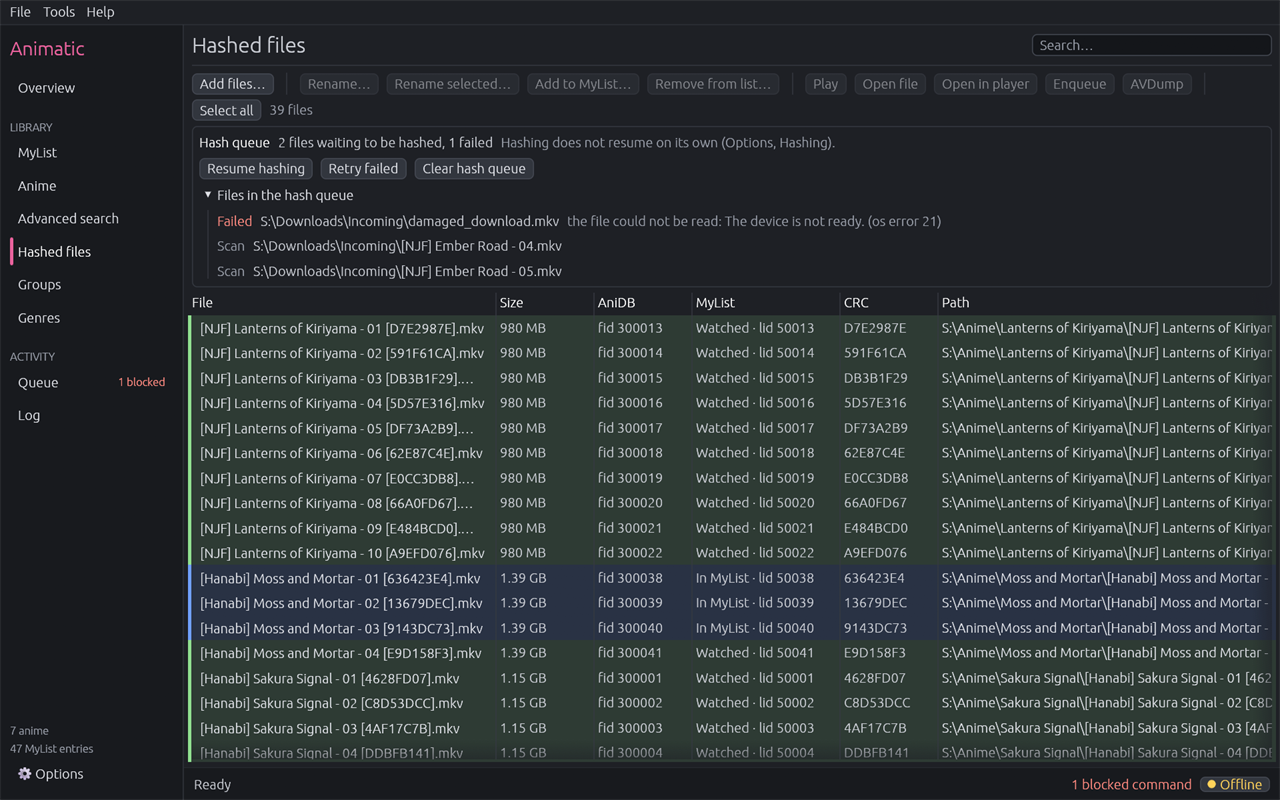
The Hashed files page. The Hash queue panel above the table lists files still waiting or failed;
the table lists hashed files. In the sample library most files are already identified (fid …).
Good to know:
- Files waiting to be hashed are saved in the hash queue in your library, so they survive a restart. If hashing does not continue on its own, the panel offers Resume hashing; a file that could not be read shows as Failed with its reason until you use Retry failed or Clear hash queue. See Hashing and identification.
- Hashing is local work. It does not depend on Work offline.
- The CRC column shows
Mismatchwhen AniDB knows a different CRC32 than the one Animatic computed for the file, which usually means a damaged or modified file. It reads—until hashing finished.
With Identify files with AniDB after hashing on (the default), every newly hashed file that is not identified yet queues an Identify command. If the file's folder rule has Add to MyList, the command also carries the rule's MyList settings.
- Open Queue (sidebar,
Ctrl+8). - Read the list: one row per command, with its ID (
#1), the Command (for exampleIdentify file 7c577651c9e490ca785f7767d79c2b6b (734003200 bytes), with+ add to mylistat the end when the folder rule adds to MyList), its Status (Pending) and any Last error.
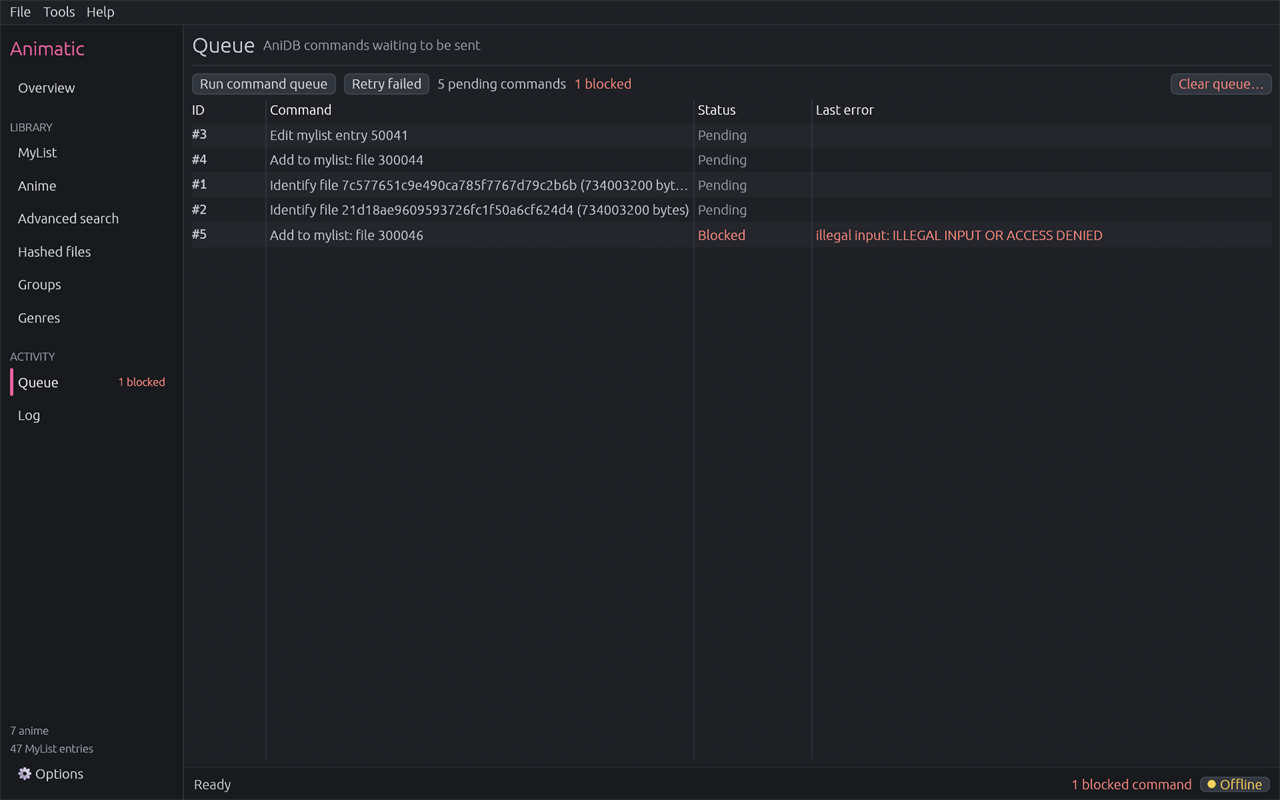
The Queue page of the sample library: five commands, one of them Blocked: Add to mylist: file 300046 with the last error illegal input: ILLEGAL INPUT OR ACCESS DENIED. The toolbar counts the
blocked command among the five.
Expected results:
- The sidebar shows the number of pending commands next to Queue. A red
N blockedappears instead when commands failed permanently. - The button at the right of the status bar reads Offline and nothing is sent.
- On the Overview, Needs attention lists the same facts with buttons:
N hashed files are not identified by AniDB yet,N commands wait to be sent to AniDB (working offline)with Go online, and so on.
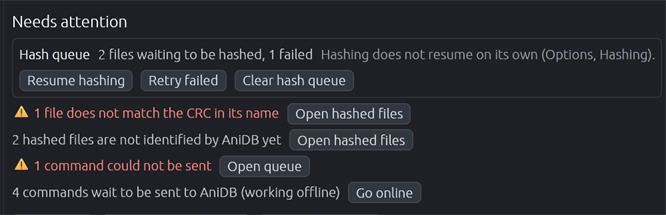
The Needs attention list: queued commands wait, shown with Go online while you work offline.
Commands stay in the queue until they succeed. Closing and reopening Animatic does not lose them. If you stop here and only wanted to hash files, you are done; the rest of the tutorial needs your account.
Do this when you have your AniDB account and want identification.
- Open Tools → Options… and choose AniDB account.
- Enter Username and Password (and, optionally, API key (optional)).
- Untick Work offline (keep commands queued).
- Click Save options. The status bar button reads Online.
- Leave Run the command queue automatically off. An automatic run sends the queue 30 seconds after new commands arrive and every 15 minutes; switch it on only after you have seen a manual run work (Automatic runs).
- Choose Tools → Run command queue (
Ctrl+Shift+S), or click Run command queue on the Queue page.
Expected results:
- The status bar shows the command being sent (for example
Identify file …) with Pause and Cancel buttons; the Log starts with the lineSynchronizing with AniDB. Animatic logs in when the first command needs it and logs out when the run ends. - Each command takes a few seconds because of the request spacing. The Log shows what happened to
each one: for example
known file F (anime A), mylist entry L. A file AniDB does not know logsfile unknown to AniDB; its command leaves the queue and the file stays Not identified (see File and import problems). - Finished commands leave the Queue. Hashed files now shows
fid Nin the AniDB column for identified files, andIn MyList · lid N(orWatched · lid N) for files added to MyList.
If something fails:
- A command is Blocked (a permanent failure such as a wrong password): read Last error, fix the cause and use Retry failed. See Failure handling and Network and sync problems.
-
The status bar says
AniDB sync paused until …: a cooldown is active. Wait; nothing can clear it, and clicking more does not help. -
The Log shows
no reply to the AniDB loginorcannot bind UDP port: see Network and firewall. A desktop firewall may ask whether Animatic may use the network; this guide has not recorded what it looks like.
Identification fills the local library with what AniDB told Animatic about each file: the anime, its type, year and episode count, the episode number and name, and the release group. Look at it:
-
Overview (
Ctrl+1): Your library shows the number of anime, MyList entries, watched entries and the size on disk;N of M hashed files identified by AniDB. Fetch MyList statistics under Your AniDB account (or Tools → Fetch MyList statistics) queues AniDB's own account figures, which are shown apart from the local ones.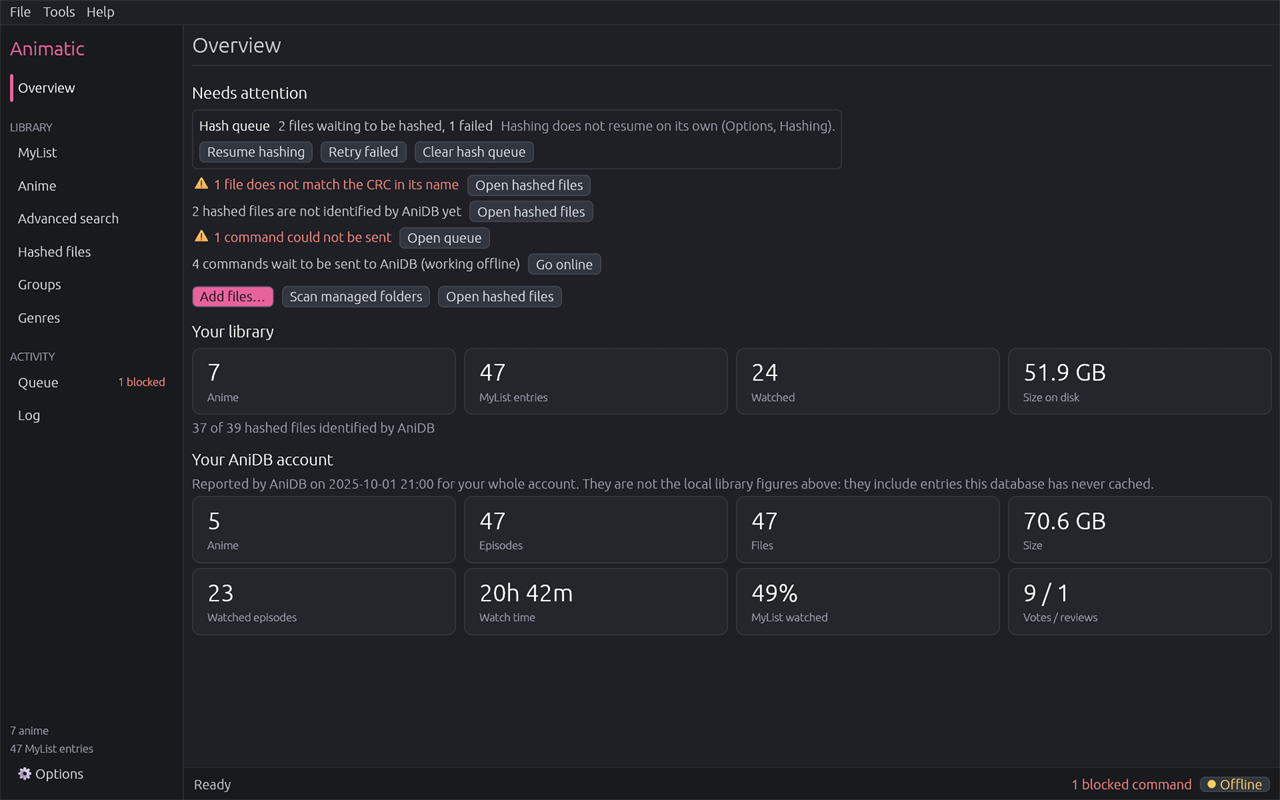
The Overview of the sample library after a time of use.
-
MyList (
Ctrl+2): your entries grouped by anime. Click an arrow to open an anime and see its episodes, with the State, Watched box, size and any queued change in the Queue column.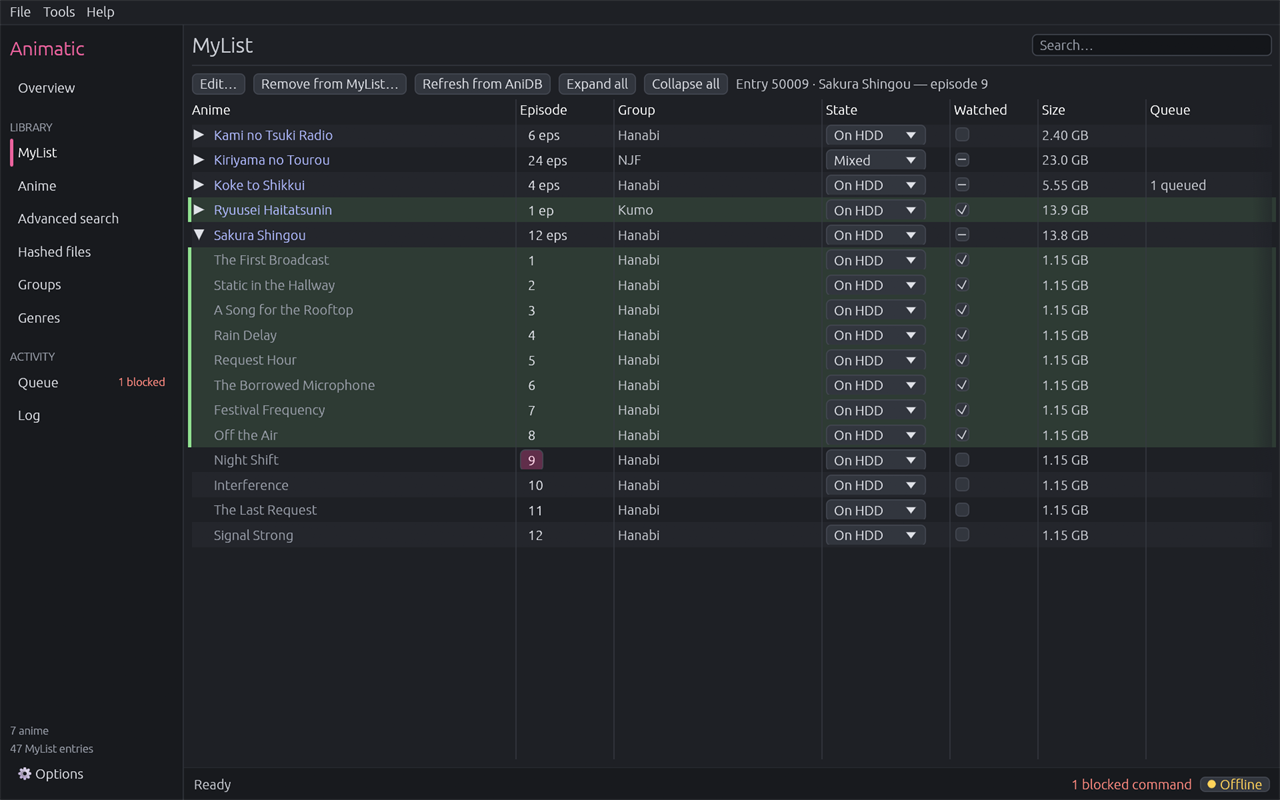
The MyList page with one anime expanded and an entry selected (shown in the toolbar).
-
Anime (
Ctrl+3): every anime stored locally, with a MyList column such as12 eps / 12 files. Click a title to open its detail window.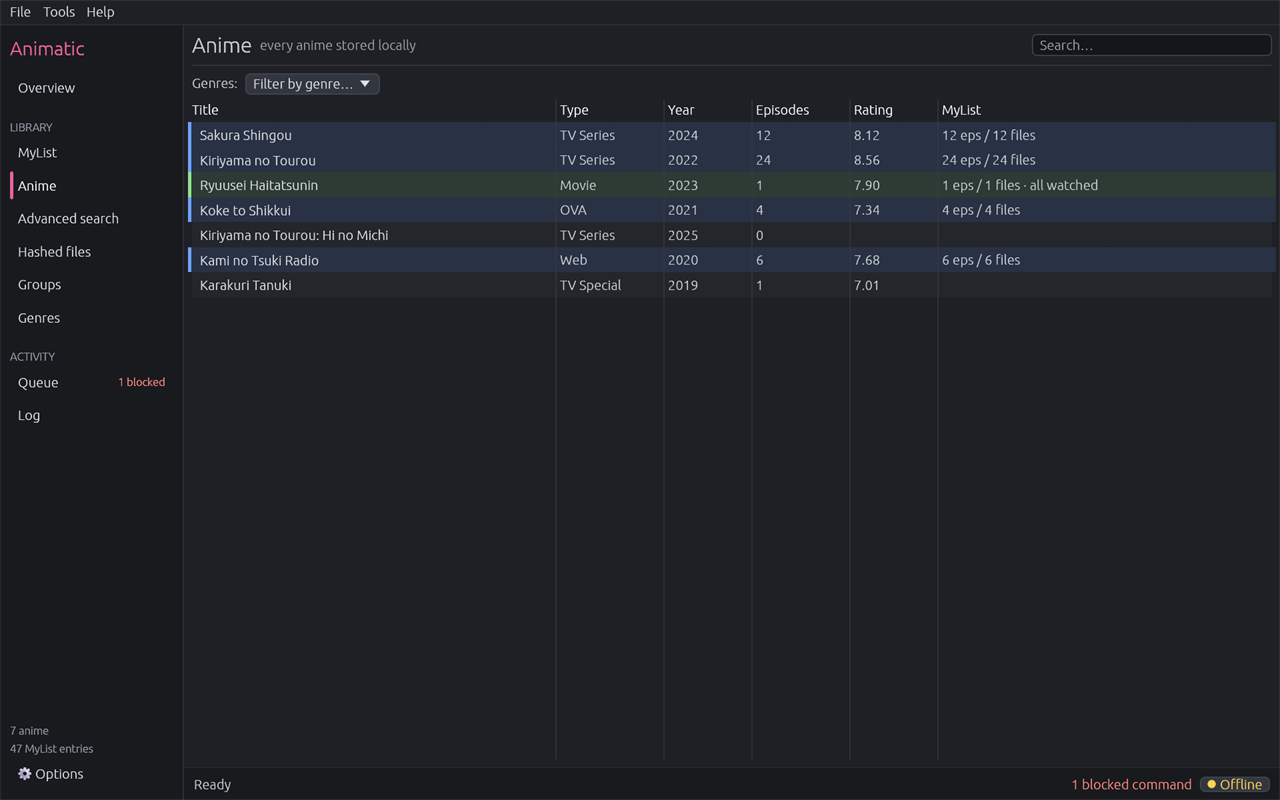
The Anime page. Anime that are not in MyList show a blank MyList column.
An anime's description, episode list, genres and relations come from a separate refresh of that anime (the Refresh from AniDB button in its detail window, or Tools → Full update…); identifying a file stores only the basics. Note that Tools → Full update… and Tools → Download anime titles also add AniDB's whole title list, so the Anime page and the sidebar count then include every anime on AniDB, not only yours (see Anime titles list in the Glossary). See also Library pages and Managing MyList.
Renaming is manual and confirmed by you unless you switch on Auto rename for a folder. A file can
be renamed once it is identified (its AniDB column shows fid N). Planning uses only the local
library, so you can rename while working offline.
-
Open Hashed files and click the file's name (in the sample,
hanabi_paper_moon_radio_01_720p.mkv; use one of your own identified files). -
Click Rename…. The Confirm rename window shows the Current path and the New path the current naming convention produces. The default convention is
[Group] Title - episode [CRC], and the folder is the rename destination of the file's managed folder.
S:\Downloads\hanabi_paper_moon_radio_01_720p.mkvwould becomeS:\Anime\[Hanabi] Kami no Tsuki Radio - 01 [3E56B578].mkv. -
Check the new path. Problems (an invalid name, missing anime or episode data) appear in the window and block Rename file. If a file or folder already exists at the new path, the window says
A file or folder already exists at the target path, labels the path(rename blocked)and disables Rename file; rename the other file or choose another rename destination. If the window says the anime title or the episode number "has not been fetched yet" or "is not known yet", open the Anime page, click that anime's title and click Refresh from AniDB in its detail window (for a missing episode number use the Refresh button of that episode in the episode list), run the queue (step 7) and try again. A freshly identified file normally has both. -
Click Rename file. The file moves, Animatic's record follows it, and the Log says
Renamed <old> to <new>.
To rename several files at once, select them (Ctrl+click toggles, Shift+click extends) and use
Rename N selected…. To change the naming convention, use Tools → Options… → Renaming. See
Renaming files and Rename targets and apply.
Make your first backup now that the library holds something: choose File → Back up library… and keep the file safe; it is as private as the library itself (Backups and recovery). Then:
| I want to… | Read |
|---|---|
| Learn the window, searching, sorting and shortcuts | Main window and Library pages |
| Edit MyList (state, watched, add, remove) | Managing MyList and AniDB synchronization |
| Scan folders on a schedule or rename automatically | Managed folders and scans and Renaming files |
| Bring in an AOM library | Migrating from AOM |
| Download the whole MyList | Full-account MyList import |
| Change a setting | Options window and Settings reference |
| Look up a word | Glossary |
| Answer a quick question | FAQ |
| Fix a problem | Troubleshooting |
| Keep Animatic up to date | Updating Animatic |
| Symptom | What to do |
|---|---|
| The library looks empty or settings look reset | You started Animatic with a different database or settings file. See Which files is Animatic using?. |
| A scan hashes nothing | The rule needs Hash new files (or Rehash changed files) on, an existing Path and files with an extension from the list under Options → Hashing; a file that no rule covers is never scanned. See Scans and managed folders. |
Rename… reports The selected file is not identified by AniDB
|
Identify the file first (steps 6 and 7). |
| Commands never leave the queue | Work offline is on, a cooldown is active, or the commands are blocked. Look at the right of the status bar, then the Queue page. |
login failed: wrong username or password |
Correct the credentials in Options → AniDB account, Save options, then Retry failed. |
- First launch: the Getting started box, safe settings and AniDB client registration.
- Hashing and identification and AniDB synchronization.
- Glossary and FAQ.
- Troubleshooting.