Repository navigation
Installation
This page covers how to get Animatic running: download a published release archive, check it and unpack it, or build it from source. Read Status and limits first: it says what the project has and has not verified. After the program starts, continue with Quick start for a guided first session, Running Animatic for the command line, Data locations for where your library and settings are kept and First launch for safe first-run settings.
-
Platforms. Windows and Linux (x86-64) are the supported targets. Published releases carry an unsigned Windows ZIP and an unsigned Linux tar.gz (see Option A); CI builds and tests both platforms.
-
What has been run. Native Windows runs were exercised during development. Linux runtime behavior and production AniDB traffic have not been exercised (see the v2 verification record). Treat a Linux desktop launch and any real AniDB exchange as unverified.
-
No installer, no signing. Releases are plain archives. They are published as GitHub Releases when a maintainer merges a reviewed release pull request; see Releases. A CI build artifact is not a release. Because the files are unsigned, your browser or Windows may warn that the download is unrecognized (this guide cannot promise what such a warning looks like; it has not been tested on a clean machine). The SHA-256 check below is how you confirm that a download is the file that was published.
-
AniDB contact. Animatic never contacts AniDB at startup. It talks to AniDB in three cases:
- when you run the command queue (Tools → Run command queue,
Ctrl+Shift+S, the Run command queue button on the Queue page or the tray menu); - when Animatic starts a run itself because you switched on Run the command queue automatically (off by default);
- while Work offline is off, when you open an anime detail window whose cover is not on disk yet (Download anime covers when a detail window opens, on by default).
See Synchronization. Work offline is off in a fresh profile, so the first thing to do is turn it on (first launch). Animatic sends its own registered AniDB clients (
animaticfor UDP,animatichttpfor HTTP), so you need only your AniDB username and password; there is no client to register or enter (AniDB client registration). - when you run the command queue (Tools → Run command queue,
-
GitHub contact. Separately, an update check at every start (
updates.auto_check, on by default) asks GitHub for a newer release on your update channel (stable by default) unless Work offline is on or the settings were recovered from a backup. It only looks for a version: nothing is downloaded or installed until you choose Download and verify and confirm the installation (Updating Animatic). On a brand-new profile that means a request to GitHub (your IP address and the Animatic version) at the very first start; see Portable and rehearsal setups to avoid it.
| Item | Requirement |
|---|---|
| Operating system | 64-bit (x86-64) Windows or Linux. Other platforms are not built or tested. The built-in updater only works on these two. |
| Desktop | A graphical session. Animatic is a window program; it has no text-only mode (the command-line options only change how the window starts). |
| Linux libraries | A desktop session with X11 or Wayland and the xkbcommon library. The build instructions below list the packages CI installs for building; which of them are needed to run the release binary is not verified (see Status and limits). |
| Disk | The executable plus your library. The optional ffprobe download is about 161 MB on Windows and 130 MB on Linux (External tools). |
| Account | An AniDB account is only needed once you want to identify files or edit MyList. Everything local works without one. |
Choose Option A unless you want to change the code or run a version that has no release yet.
Releases come in two streams: stable (YYYY.M.PATCH) and beta (YYYY.M.PATCH-rc.N, shown on
GitHub as a prerelease). Betas are for testing: the in-app updater offers them only if you switch
Options → Updates → Release channel to Beta; otherwise download a beta from its release page
and install it manually, as below. A stable release is offered by the updater on both channels once
it is published.
Releases are listed at https://github.com/RetroHazard/animatic/releases. Each GitHub Release lists three assets (if the project has published one):
| Asset | Content | Platform |
|---|---|---|
animatic-vVERSION-windows-x86_64.zip |
animatic.exe plus LICENSE, NOTICES, README.md, CHANGELOG.md and this user guide as docs/*.md
|
Windows |
animatic-vVERSION-linux-x86_64.tar.gz |
animatic (executable) plus the same license and documentation files |
Linux |
SHA256SUMS |
SHA-256 of both archives | both |
Each archive has a single root folder named after the archive, for example
animatic-v2026.11.0-windows-x86_64/. The Linux binary keeps its executable bit. The archives hold
no settings, databases, media or credentials: Animatic creates its own data at first run
(Data locations). The examples below use the illustrative version 2026.11.0;
replace it with the version you downloaded.
Open https://github.com/RetroHazard/animatic/releases, find the newest release (beta releases are
marked as a prerelease) and open Assets. Download the archive for your platform and
SHA256SUMS into the same folder. If your browser or Windows warns that the file is unrecognized or
not commonly downloaded, that is expected for an unsigned program; do the check in step 2 before you
run anything.
Do not unpack a file that fails this check.
Windows (PowerShell). Open the folder that holds both downloads in Explorer, click its address
bar, type powershell and press Enter (or right-click an empty spot in the folder and choose
Open in Terminal, where your Windows version offers it). In the window that opens, paste the
script below. Change the file name in the first line to the file you downloaded (it must match
SHA256SUMS exactly, including the version).
$archive = 'animatic-v2026.11.0-windows-x86_64.zip'
$lines = @(Get-Content .\SHA256SUMS | Where-Object { $_ -match '^\S+\s+\*?(.+)$' -and $Matches[1] -ceq $archive })
if ($lines.Count -ne 1) { throw "expected exactly one SHA256SUMS entry for $archive" }
$expected = ($lines[0] -split '\s+')[0]
$actual = (Get-FileHash -Algorithm SHA256 -LiteralPath $archive).Hash
if ($actual -ieq $expected) { 'checksum OK' } else { throw "checksum mismatch for $archive" }
Linux. Open a terminal, change to the folder that holds both downloads (for example
cd ~/Downloads) and run:
sha256sum --check --ignore-missing SHA256SUMSExpected result: PowerShell prints checksum OK; sha256sum prints OK for the archive you
downloaded. Any other result (checksum mismatch…, expected exactly one SHA256SUMS entry…,
FAILED) means the download is damaged, is not the published file, or you typed the wrong file name:
check the name first, then delete the download and fetch it again.
A SHA-256 check detects a corrupted or mismatched download. It is not a signature and does not
prove who produced the file. If the release page shows it as Immutable, GitHub also attests the
release; with the GitHub CLI, gh release verify-asset vVERSION FILE -R RetroHazard/animatic
confirms a downloaded archive is exactly the one published in that release (it does not make the
program signed). The full command reference is in
Releases.
Windows: in the same PowerShell window run Expand-Archive -LiteralPath $archive -DestinationPath .,
or right-click the ZIP in Explorer and choose Extract All…. Linux, in the same terminal:
tar -xzf animatic-v2026.11.0-linux-x86_64.tar.gzPut the folder where you want to keep the program. Choose a folder you can write to: the in-app
updater replaces the executable in place without elevation and needs write access to its folder
(a location such as C:\Program Files normally does not qualify).
Windows: double-click animatic.exe in the unpacked folder, or run it from a terminal. Linux: open a
terminal, cd into the unpacked folder (cd animatic-v2026.11.0-linux-x86_64, using your version) and
run ./animatic. A window titled "Animatic — AniDB library manager" opens on the Overview page.
Nothing is installed: the program creates no registry entries, services or shortcuts of its own. It
writes its data folders (see Data locations), the optional file-menu entry that
you can switch on later (see
Shell entries and the lock file) and, when you
install an update, a few files next to the executable (see Updating Animatic).
Start from a terminal if you want the command-line options.
Then follow Quick start. Start Animatic offline on the first run: see First launch.
| File | What it is |
|---|---|
animatic.exe / animatic
|
The program. |
LICENSE |
Animatic's license (MIT). |
NOTICES |
Licenses of the third-party components built into the program. |
README.md, CHANGELOG.md
|
The project overview and the list of changes. |
docs/*.md |
This user guide, the same pages as the project wiki at the release commit. Links between the pages work offline; links to developer documentation and source files point to GitHub and need a network. The pictures are not included (image links in the offline pages stay empty), and neither is developer documentation. |
An installed release can replace its own executable with a newer published release through
Help → Check for updates… (Windows and Linux x86-64, writable folder required, no elevation). It
also replaces LICENSE and NOTICES beside the executable; the README, changelog and guides stay at
the version you unpacked.
Download a new archive by hand when you want the newer guide pages. Details and limits:
Updating Animatic. A checkout built from source can run the updater, but it
only replaces the compiled binary, never the source: use git pull and rebuild, and update
package-manager installations with that manager.
You need these tools to build:
| Item | Requirement |
|---|---|
| Rust toolchain | The current stable release. No version is pinned; the project uses recent language features, so an old compiler fails. |
| C toolchain and linker | Whatever Rust needs on your platform (the MSVC build tools on Windows). SQLite is built into Animatic, so you need no separate SQLite. |
| Debian/Ubuntu libraries |
libgtk-3-dev libxkbcommon-dev libwayland-dev libssl-dev (build-time development packages, as the project's CI installs them). |
Linux (Debian/Ubuntu):
sudo apt-get update
sudo apt-get install -y libgtk-3-dev libxkbcommon-dev libwayland-dev libssl-dev
cargo build --release -p animatic
Windows (PowerShell) and any other platform with the toolchain installed:
cargo build --release -p animaticRun these from the repository root. The executable is target/release/animatic
(target\release\animatic.exe on Windows). Release builds are optimized and stripped of debugging
symbols. For a quick trial without building a release binary, cargo run -p animatic starts
the application (see Running Animatic). Other distributions
need the equivalent packages; they are not documented or tested here.
A build from source has no bundled guide: read the pages in the repository's
wiki/ folder or on the project wiki.
Animatic is free software under the MIT license. Both texts ship with the program, so you can read them without any file next to the executable: choose Help → About Animatic.
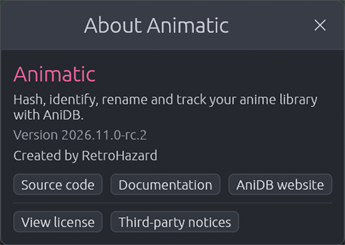
The About window shows the version, who created the program and five buttons: Source code, Documentation (this wiki), AniDB website, View license and Third-party notices.
-
View license opens the Animatic license window with the MIT text. It is the same text as
the
LICENSEfile in the archive. -
Third-party notices opens a scrollable, selectable list of every open-source component built
into this version, grouped by license, with the license texts and copyright lines. It is the same
text as the
NOTICESfile in the archive. The list covers the dependencies of the Windows and Linux release builds.
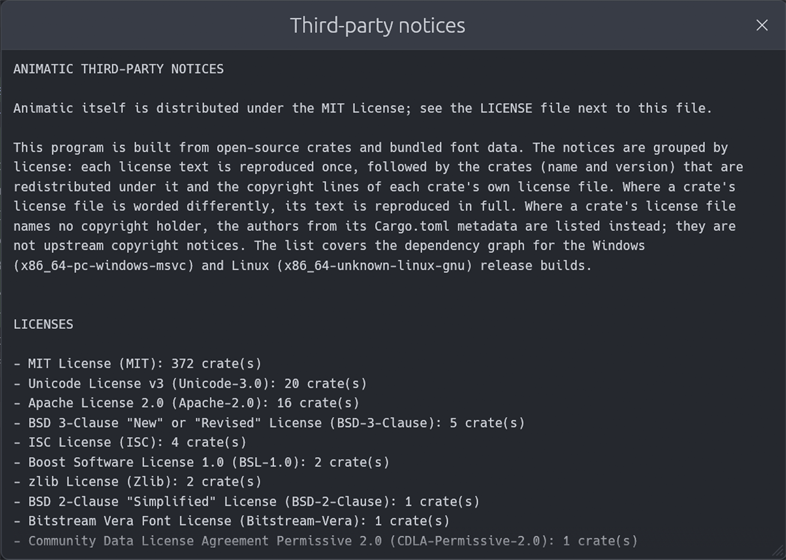
The notices start with a summary of licenses and how many components use each.
The optional ffprobe download for media properties is a separate program with its own license:
Animatic keeps its license text beside it (LICENSE-ffmpeg.txt) and shows the license in the
confirmation before it downloads anything (External tools).
The AniDB covers and the data you read through AniDB are subject to AniDB's own terms; Animatic does
not license them (Cover pictures).
There is no uninstaller because nothing was installed. To remove Animatic completely:
- If you ever switched on Add "Hash with Animatic" to the file menu (Options → Hashing), switch it off and press Save options first. Deleting the program does not remove that entry.
- Quit Animatic (File → Quit; closing the window also quits).
- Delete the unpacked program folder.
- Optionally delete your library and settings. Back up the library first if you may want it again: this deletes your hashes, MyList cache and queued edits. The folders are listed in Where data lives.
- If you saved an AniDB password, API key or AVDump key, delete the entries in the Windows Credential Manager or your Linux Secret Service front end; deleting the folders does not remove them (credentials and the keystore).
Your media files are never touched by any of this.
- Quick start: your first session, step by step.
- First launch: what to set before Animatic talks to AniDB.
- Updating Animatic: checking, verifying and installing a newer release.
- Troubleshooting: startup problems and recurring messages.