Repository navigation
First Launch
What you see the first time Animatic starts, which few settings to review before anything talks to AniDB, and the AniDB clients Animatic uses for online work. This page is the short, safe route; the Quick start continues from here with files, hashing, identification and renaming.
On a fresh profile (no settings file yet) every setting has its default, the library is empty and nothing has contacted AniDB. A first launch with default settings does perform an automatic update check against GitHub (and so does every later start unless you switch it off; see status); to avoid it on the first start, create the settings file before then (Avoiding the startup update check).
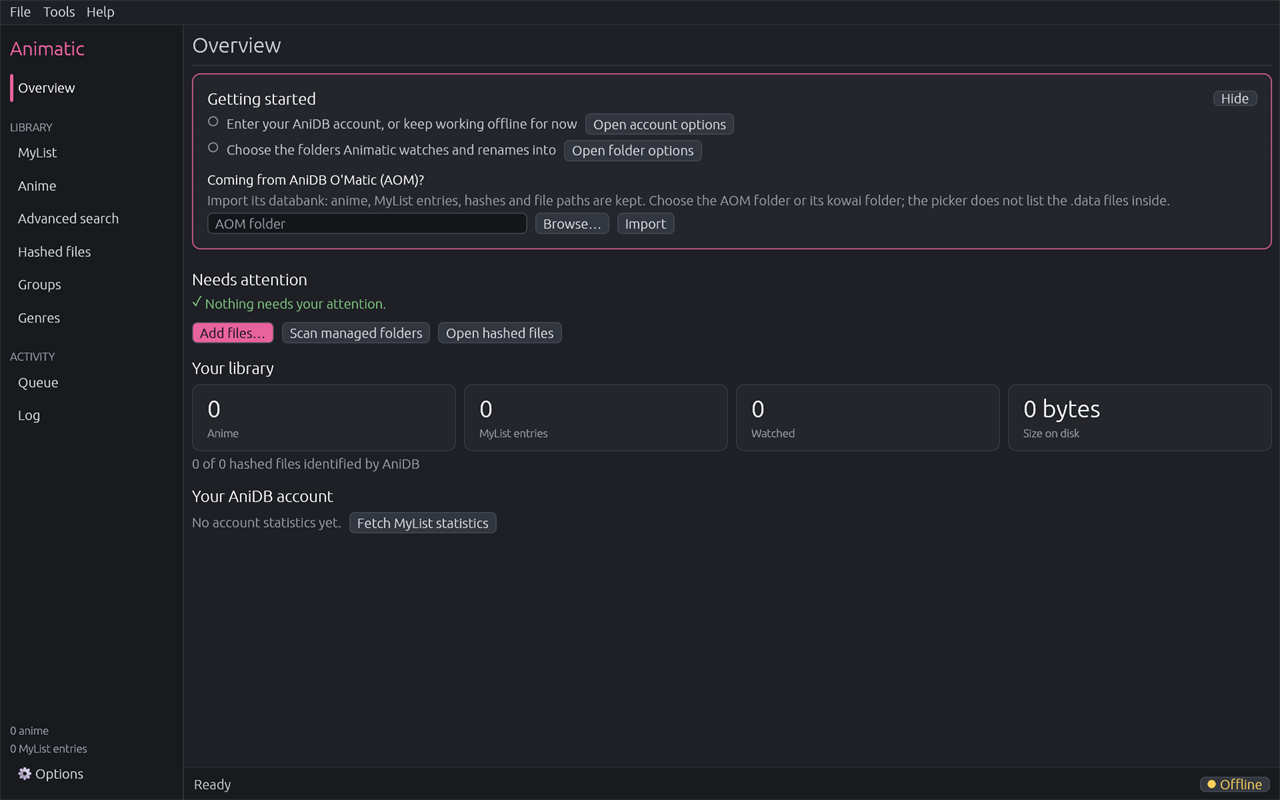
The Overview after the first start of the sample library. The picture was taken with the sample's
Work offline turned on, so the status bar shows Offline; a real first start shows a green
Online button (see below). The second step shows ✓ because the sample has folder rules of its own.
-
Startup. The database is created and opened first, then settings are loaded: a missing
primary and missing backup mean defaults; a valid primary loads; an invalid or missing primary
with a valid
.bakloads the backup offline and shows a "Settings recovered" window; unreadable settings or two unusable files abort startup. Details: Settings problems. -
Status bar shows
Loading library…and thenReady. The left panel lists the pages (Overview, MyList, Anime, Advanced search, Hashed files, Groups, Genres, Queue, Log) and an Options button; Overview is shown. At the right of the status bar, a button reads Online (green dot) or Offline (amber dot). A new profile reads Online because Work offline is off by default. "Online" only means the queue is allowed to contact AniDB when you run it; nothing is sent until then. - Update check. At every start, unless you switched off Check for updates at startup or work offline, Animatic asks GitHub whether a newer release exists (Updating Animatic). It only looks; nothing is downloaded or installed.
- Overview "Getting started" box appears on top of the page because the profile is still new, until you click Hide. It is described next.
- Nothing else runs. No scan, no hashing, no AniDB request. The queue is empty.
The box has two steps and an optional AOM import. Each step has a mark (○ open, ✓ done) and a
button that opens the matching category of the Options window.
| Step | Button | Opens | Shows ✓ when |
|---|---|---|---|
| Enter your AniDB account, or keep working offline for now | Open account options | Options → AniDB account | A Username is entered (an empty or blank name leaves ○). Choosing to work offline does not tick it. |
| Choose the folders Animatic watches and renames into | Open folder options | Options → Managed folders | A folder rule that you added has a non-empty Path. |
| Coming from AniDB O'Matic (AOM)? | Browse… and Import (the AOM folder field) | Picks the AOM folder or its kowai folder and imports the databank |
Not a checklist step: see Migrating from AOM. |
- The second step shows
○on a brand-new profile, because there are no folder rules yet. It turns to✓only when you add a folder rule and give it a path (Quick start, step 4). -
Hide removes the box and sets
first_launchto false. Hiding writes the settings file immediately (a first save), unless the settings were recovered from a backup (then the change stays in memory until you save in Options). A normal exit also saves the settings. The box does not come back by itself; a new settings file (or an AOM settings import for an account-less profile) brings it back. - The box is only guidance. Neither button changes a setting; they open Options.
-
Coming from AOM? Import before you do anything else with a new library. The picker does not
list the
.datafiles inside the folder. See Migrating from AOM.
Do these once, before the first run of the command queue.
-
Open Options. Click Open account options, or choose Tools → Options… (
Ctrl+,), or click Options at the bottom of the left panel. -
Work offline. Under Synchronization, tick Work offline (keep commands queued). (A
shortcut: click Online in the status bar, which switches to Offline; that click also saves
the choice at once.) While it is on, Run command queue reports
Offline mode is enabled; commands remain queuedand sends nothing, and the startup update check is skipped. The factory default is not offline, which is why you do this first. - Leave the account fields empty until your AniDB account is at hand. Username, Password and API key (optional) are only used when the queue runs. Enter them later, when you are ready to go online (below).
- Note that there are no folder rules yet. Under Managed folders, a fresh profile has no rules until you add one, so nothing is added to your AniDB MyList automatically: files you add by hand are identified (when Identify files with AniDB after hashing is on) but not added to MyList, and renaming one keeps it in its folder. To add files to MyList, create a rule and tick Add identified files to MyList in it. See managed folders.
- Decide about the update check. Under Updates, Check for updates at startup is on by default. Untick it if you do not want Animatic to contact GitHub when it starts; Help → Check for updates… works whenever you ask.
- Press Save options. Changes take effect right away, but Save options writes them to the settings file and closes the window. (A normal exit saves too.)
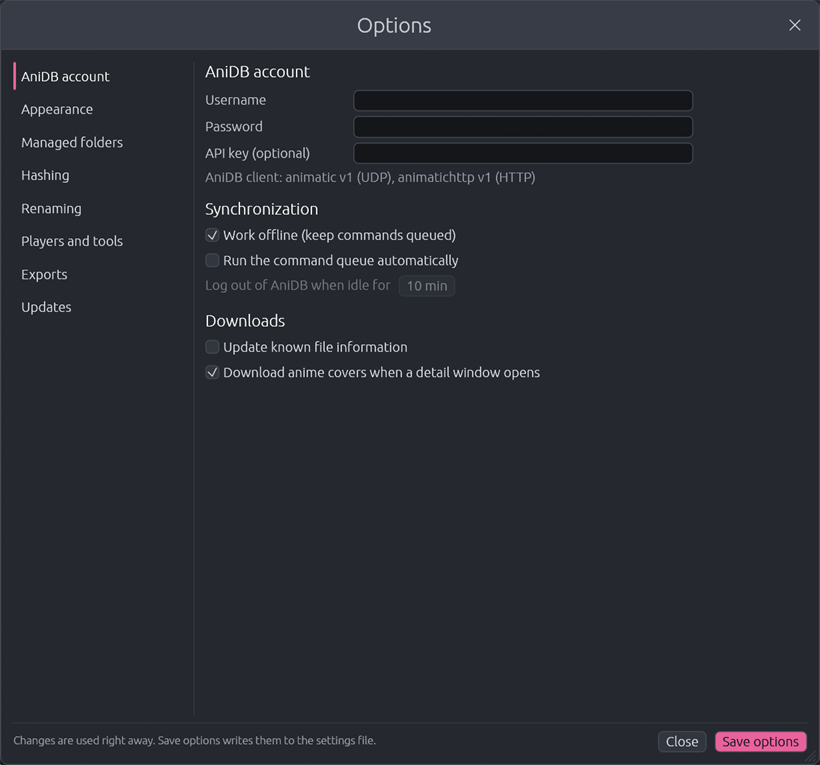
Options → AniDB account on a fresh profile with Work offline ticked. The credential fields are empty; the read-only line under them names the AniDB clients Animatic uses.
Expected result: the status bar button reads Offline (amber). You can now hash files and browse without anything leaving the computer.
When you are ready:
- Enter your AniDB Username and Password under Options → AniDB account. The API key (optional), set in your AniDB profile, turns on encrypted UDP sessions.
- Untick Work offline (keep commands queued).
- Press Save options. The password and key go to the system keystore when one works
(credentials and the keystore); Options
shows a warning when it does not and the values stay in
settings.jsonas plain text. - Start the queue yourself (Tools → Run command queue,
Ctrl+Shift+S) with only a few commands waiting. Requests are spaced out by Animatic on purpose (Request limits); a long queue takes a long time and that is not a hang. Leave Run the command queue automatically off until you have seen a manual run succeed.
These are the values a new profile starts with (see the Settings reference for every key).
| Area | Default |
|---|---|
| Appearance | Dark theme, Sakura color scheme, UI scale 1.0, status colors on (Soft), tray icon on and minimize to tray on |
| AniDB | UDP server api.anidb.net:9000, local UDP port 29456, image server cdn.anidb.net; Work offline off; Run the command queue automatically off (idle logout 10 min when on); Update known file information off; Download anime covers when a detail window opens on |
| Hashing |
Start hashing automatically on; Identify files with AniDB after hashing on; Restrict file extensions off; hash export template %fulled2k%
|
| Managed folders | No folder rules; scan at start off; scheduled scan off (60 minutes when on); Hash a file once it is unchanged for 500 ms; Pause between hashed files 0 ms. A rule you add has Include subfolders on, Skip system files on, and Hash new files, Rehash changed files, Remove missing files from the library, Remove folders a rename leaves empty, Add identified files to MyList and Auto rename (Off) all off. |
| Updates | Check for updates at startup on; channel Stable |
| Other | Statistics export off; media properties (ffprobe) off; the file-menu entry off |
A rule with the path \\ covers every network path (one that starts with \\ on Windows); you can
create one yourself, but none exists by default.
An error dialog or a message in your terminal means Animatic could not open its database or settings; the message names both files. See Running Animatic and Troubleshooting.
AniDB refuses unregistered API clients, and AniDB registers a client per API. Animatic has
its own registered clients, built into the program: animatic version 1 for the UDP API (login,
file identification, MyList) and animatichttp version 1 for the HTTP API (full anime records).
You do not register, enter or change anything: Options shows them read-only under the account
fields ("AniDB client: …"), and there is no setting for them. Updating Animatic never changes
them; they change only in a release that ships a newly registered client version. What to know:
- You only need your AniDB Username and Password (an AniDB account; sign up at https://anidb.net). The API key (set in your AniDB profile) is optional and turns on encrypted UDP sessions.
- The local UDP port (
anidb.local_port, default 29456) and UDP server have no Options control; you change them insettings.json. If the port cannot be bound, the run stops with an error that names the setting; Animatic never switches to another port by itself (AniDB bans many different source ports). - An empty user name or password makes the queue stop at the first command with an authentication error and blocks every pending command until you correct it and use Retry failed (queue failure handling).
- Settings files from older versions may still hold
client_name,client_version,http_client_nameandhttp_client_version. They are ignored and dropped the next time the settings are saved. - If AniDB refuses the built-in client (reply 503 or 504, or an HTTP client rejection), the commands are blocked with that reason; update Animatic, and report it if you already run the latest release (Network and sync problems).
- The project has not recorded production AniDB traffic as verified (status), so treat your first real queue run as a small, supervised test.
The HTTP API endpoint is plain http://api.anidb.net:9001/httpapi; the title list comes
from https://anidb.net/api/anime-titles.xml.gz; UDP uses api.anidb.net:9000 by default.
Transport details: storage and network contracts.
- Work through the Quick start: managed folders, hashing, identification and your first rename.
- Hash and identify files, edit MyList, run scans: Hashing and identification, AniDB synchronization, Managed folders and scans.
- Import an AOM library and its settings: Migrating from AOM.
- Understand or edit stored options: settings reference.
- Write a rename pattern: rename language.
- Unfamiliar words: the Glossary.
- Developer documentation (architecture, storage and network contracts) is indexed in the developer docs.