Repository navigation
Detection
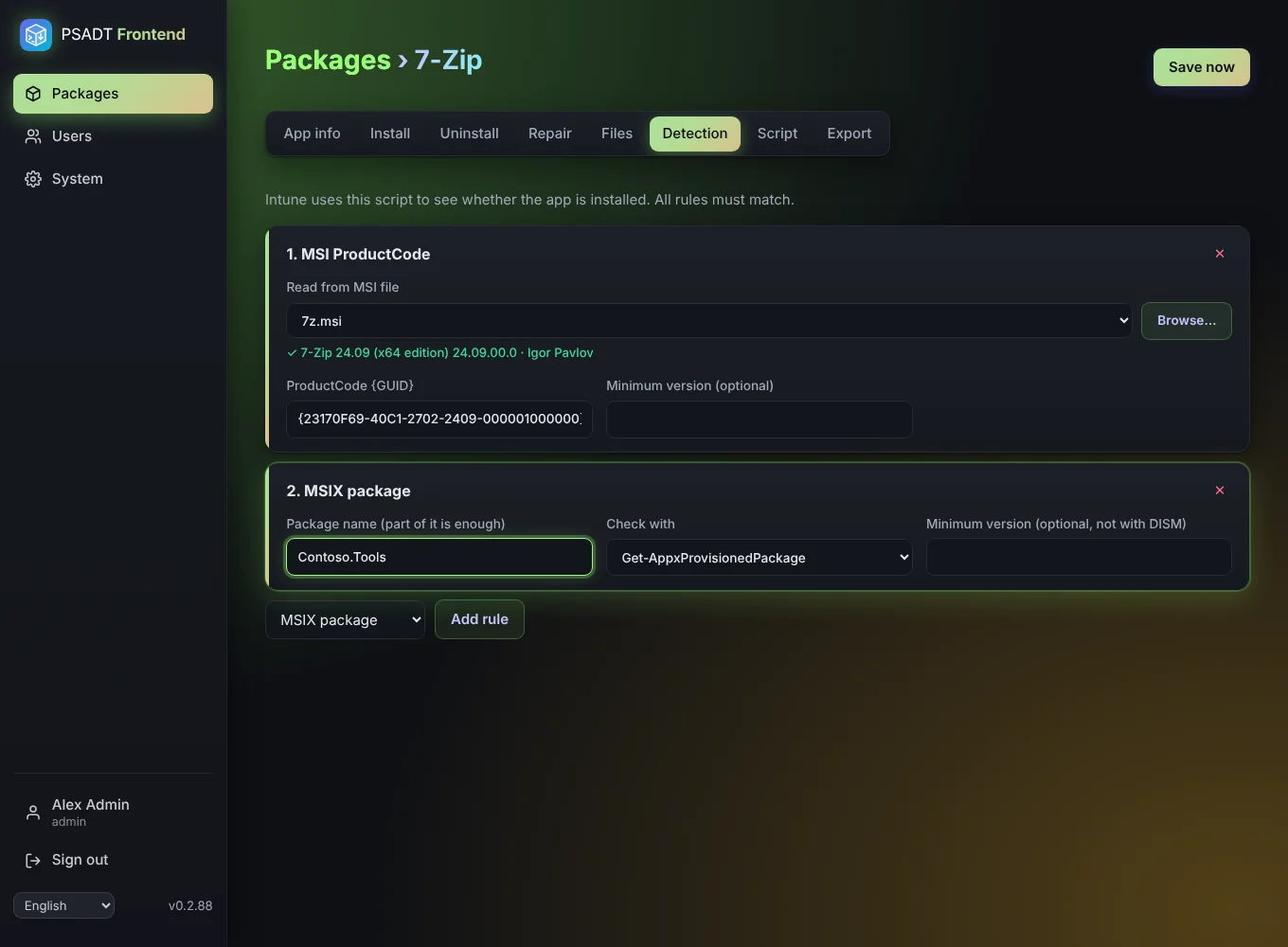
Intune needs to know whether the app is installed. PSADT Frontend writes a custom detection script from the rules on this tab. All rules must match for the app to count as installed.
| Rule | Checks |
|---|---|
| MSI ProductCode | The MSI with this ProductCode is installed, optionally with a minimum version. |
| File | A file exists (e.g. %ProgramFiles%\Acme\app.exe), optionally with a minimum file version. |
| Registry | A key exists, or a value exists, or a value has the expected content. |
| MSIX package | A provisioned MSIX/AppX package exists whose name contains your text. |
You don't have to look up the ProductCode yourself. Under Read from MSI file, choose an uploaded .msi with Browse…, or upload one from your PC there. The app reads the MSI on the server straight away and fills in the ProductCode. It also shows the product name and manufacturer, so you can check you picked the right file.
The MSIX rule offers two ways to check:
-
Get-AppxProvisionedPackage, the same as
Get-AppxProvisionedPackage -Online | Where-Object DisplayName -like "*name*". Supports a minimum version. -
DISM, the same as
dism /online /get-provisionedappxpackages | findstr /i "name". No version check.
Part of the package name is enough.
The detection script is shown on the Export tab and can be downloaded separately. In Intune choose Use a custom detection script and upload it.