Repository navigation
Install and uninstall steps
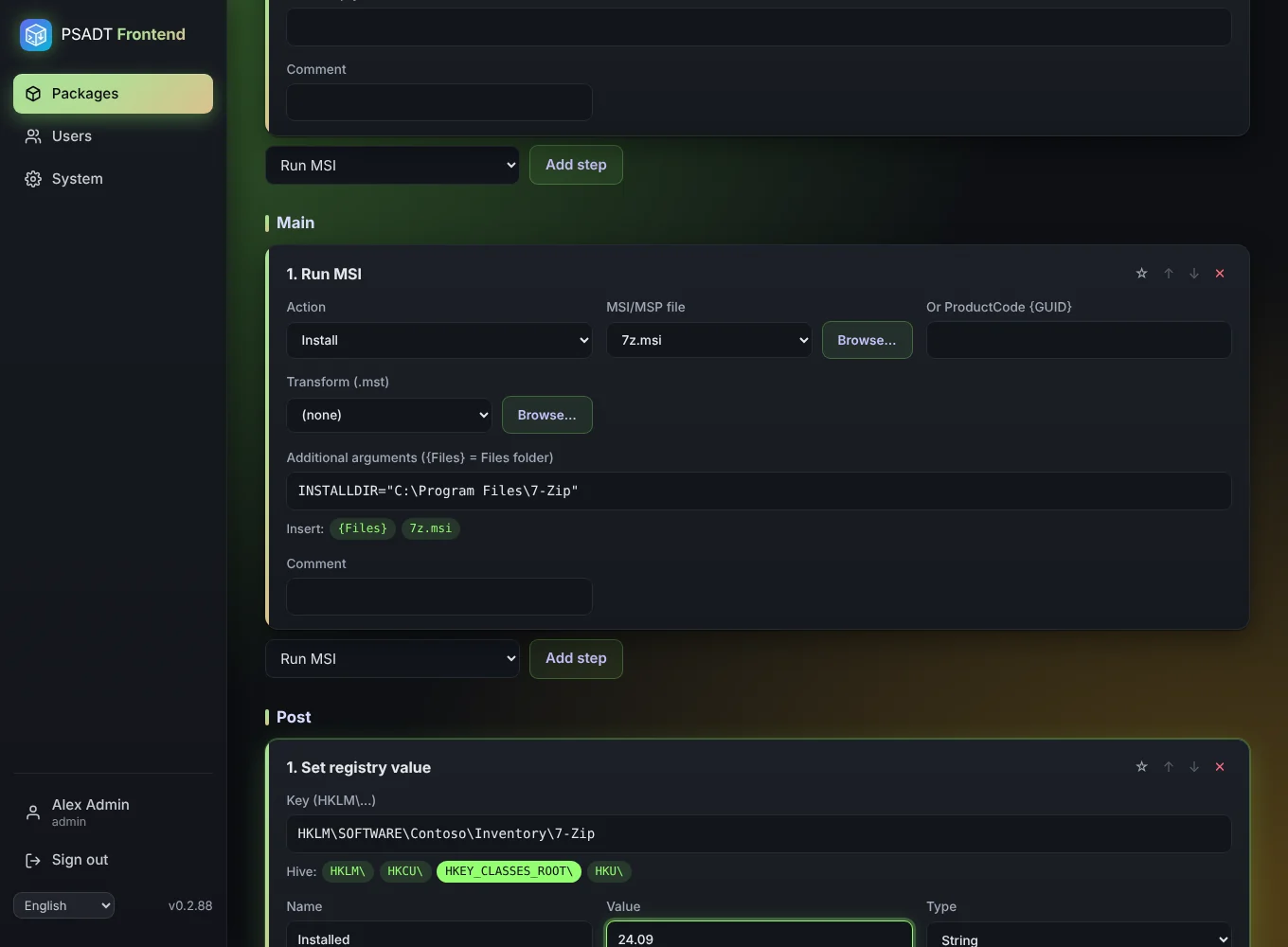
The Install, Uninstall and Repair tabs each have three phases:
- Pre: before the main work, for example the welcome dialog that closes running apps.
- Main: the actual install or uninstall.
- Post: clean-up afterwards, such as removing a desktop shortcut or setting a registry value.
Each phase is a block of its own. Pick a step type at the bottom of that block and click Add step to Pre, Add step to Main or Add step to Post. Every step can be moved up or down with ↑ and ↓ (the page scrolls along, so the step stays under your mouse; ↑ on the first step of a phase moves it into the phase above, ↓ on the last step into the phase below), removed with ✕ (an Undo button puts it back for 10 seconds), given a comment (which appears in the script), and saved as a snippet so you can reuse it in other packages. Snippets appear in the same list under Snippets.
| Step | What it does |
|---|---|
| Welcome dialog / close apps | Shows the PSADT welcome dialog, asks the user to close the processes to close, and can allow deferrals, check disk space and count down. |
| Progress message | Shows a progress window with your own text, or the default text when empty. |
| Run MSI | Installs, uninstalls, repairs or patches an uploaded .msi/.msp, or a ProductCode. Optional transform (.mst) and extra arguments. |
| Run EXE | Runs an uploaded .exe or a program that is already on every Windows PC, with arguments. Exit codes can be ignored (e.g. 1,2 or *). |
| Uninstall application by name | Finds the app in Programs and Features (contains, exact, wildcard or regex) and uninstalls it. |
| Set registry value | Writes a value of type String, ExpandString, DWord, QWord, MultiString or Binary. |
| Remove registry key/value | Removes one value, or the whole key when the name is empty. |
| Copy file | Copies an uploaded file to a folder on the PC. |
| Remove file / Remove folder | Deletes a path on the PC. |
| Custom PowerShell | Inserts your own code into the script exactly as typed. |
File fields have a Browse… button. It lists the files you uploaded on the Files tab that fit the field, for example only .msi files for Run MSI. You can upload a new file from there too.
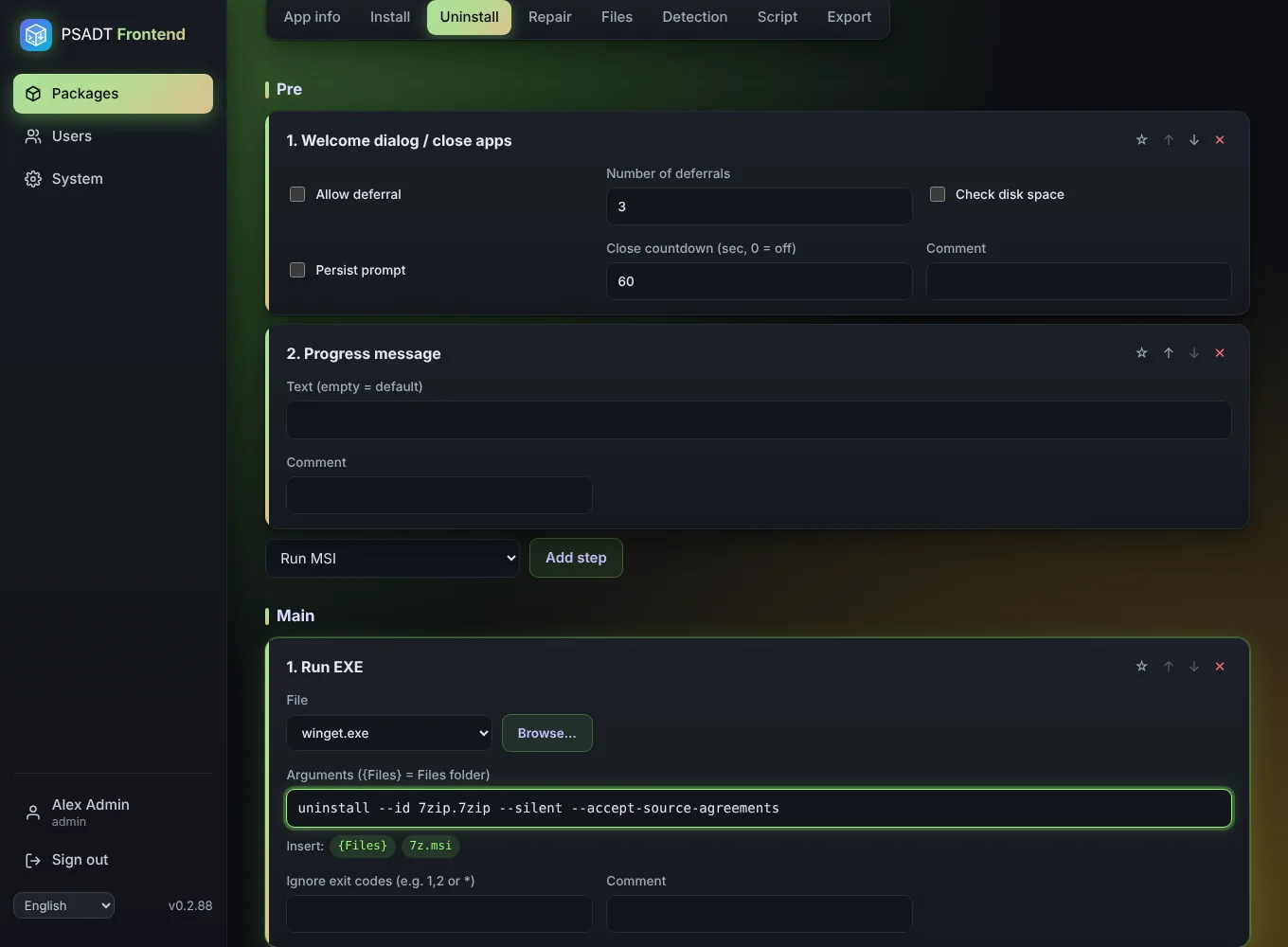
In Run EXE, Browse also offers programs that already exist on every Windows PC: winget.exe, msiexec.exe, powershell.exe, cmd.exe, dism.exe, reg.exe, regsvr32.exe and wusa.exe. These don't need to be uploaded. Example to uninstall an app with winget:
- File:
winget.exe - Arguments:
uninstall --id Acme.App --silent --accept-source-agreements
In arguments, {Files} stands for the package's Files folder on the PC. Example: --config "{Files}\settings.xml". Under every arguments field are buttons that insert {Files} or the full quoted path of an uploaded file at the cursor. Without {Files}, arguments are passed exactly as typed.
Registry fields have buttons for the hives HKLM, HKCU, HKEY_CLASSES_ROOT and HKU. Click one to start the key with that hive.