Repository navigation
Step by step first package
This page walks you through making one complete package, from an empty screen to an app in Intune. We use 7-Zip as the example because it is free and comes as an MSI. Follow it once with 7-Zip; after that every other app works the same way.
What you need before you start
- An account with the role Editor or Administrator (a Read only account can't create packages).
- The installer on your own PC. For this example: download the 64-bit Windows x64 MSI from 7-zip.org, for example
7z2409-x64.msi. - For the Intune part: access to the Intune admin center.
Step 1. Open PSADT Frontend in your browser and sign in.
Step 2. Click Packages in the menu on the left. You see the list of packages and the export counters.
Step 3. Type the name of the app in the field Application name, in this example 7-Zip.
Step 4. Click New package. The editor opens with the tabs App info, Install, Uninstall, Repair, Files, Detection, Script and Export.
From now on everything is saved automatically a moment after you stop typing. At the top right you see Saving… and then All changes saved. You can also click Save now.
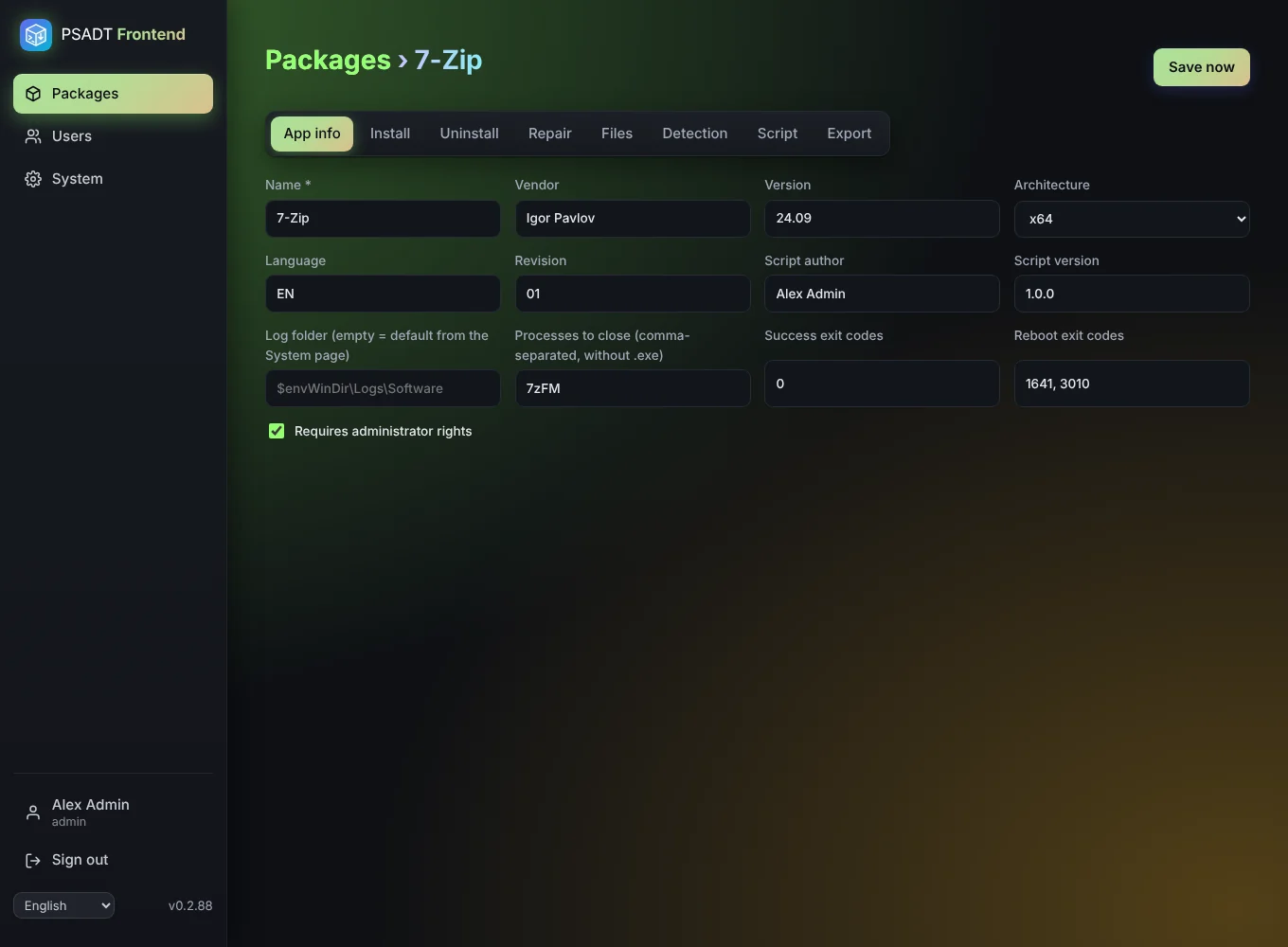
Step 5. Stay on the App info tab (it opens first).
Step 6. Fill in the fields:
| Field | Type | Why |
|---|---|---|
| Name * | 7-Zip |
Already filled in. Shown in the PSADT dialogs. |
| Vendor | Igor Pavlov |
Shown in the dialogs and part of the package name. |
| Version | 24.09 |
The version of the app. Also used for the export counter. |
| Architecture | x64 |
The MSI is 64-bit. |
| Language | EN |
Leave as it is. |
| Revision | 01 |
Raise it to 02 when you rebuild the same version with changes. |
| Script author | your name | Filled in for you from your account. |
| Script version | 1.0.0 |
Leave as it is. |
| Log folder | (empty) | Empty uses the default from the System page. |
| Processes to close | 7zFM, 7zG |
The 7-Zip file manager and its dialog. Without .exe, separated by commas. The install asks the user to close these. |
| Success exit codes | 0 |
Leave as it is. |
| Reboot exit codes | 1641, 3010 |
Leave as it is. |
| Requires administrator rights | ✔ | 7-Zip installs for the whole PC. |
Step 7. Wait until you see All changes saved.
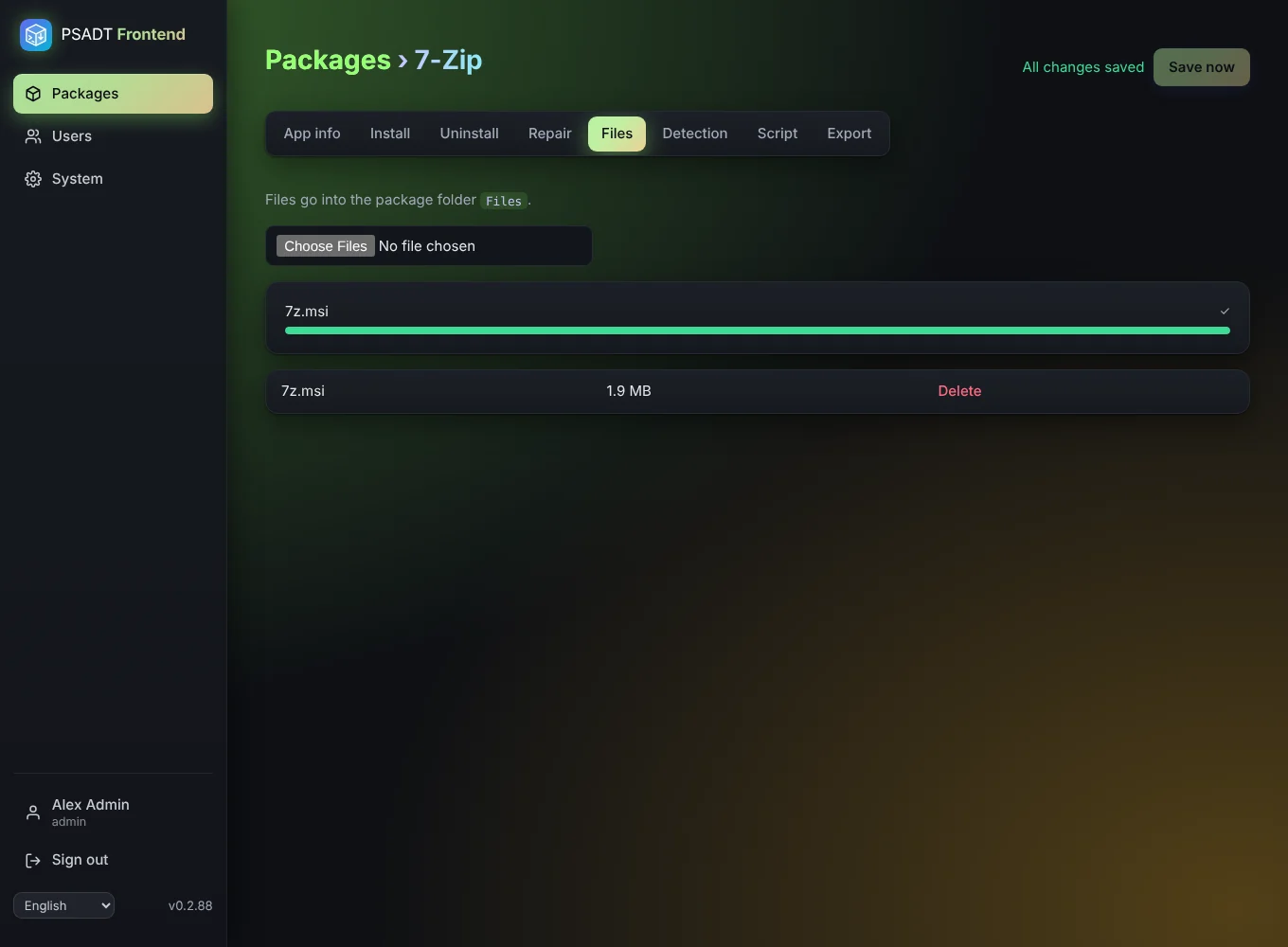
Step 8. Click the Files tab.
Step 9. Click the file field and choose 7z2409-x64.msi on your PC. A progress bar shows the upload.
Step 10. When the upload is done, the file appears under Uploaded files with its size.
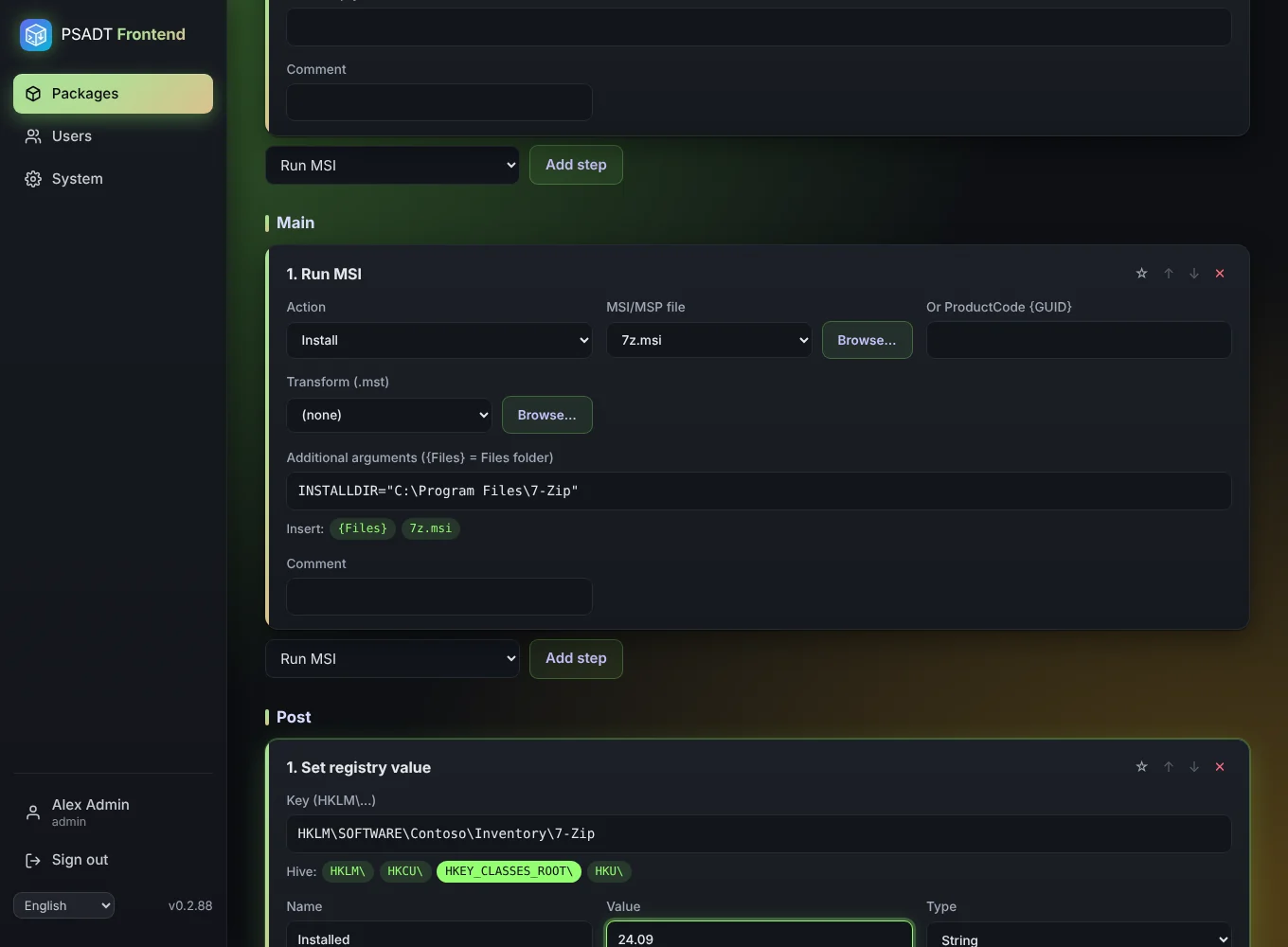
Step 11. Click the Install tab. You see three phases: Pre, Main and Post.
Step 12. Look at Pre. A new package already has two steps there:
- Welcome dialog / close apps: asks the user to close 7-Zip (the processes from step 6) and lets them postpone the install 3 times. You can leave the settings as they are.
- Progress message: shows "installation in progress". Leave it.
Step 13. Go to the Main phase. In the list at the bottom of the Main block choose Run MSI and click Add step to Main.
Step 14. Fill in the new Run MSI step:
-
Action:
Install. -
MSI/MSP file: click Browse… and choose
7z2409-x64.msi. - Or ProductCode: leave empty, the file is enough.
- Transform (.mst): leave empty.
- Additional arguments: leave empty. PSADT already installs silently and writes an MSI log.
-
Comment (optional):
Install 7-Zip. It appears in the script.
Step 15. (optional) Want to set something after the install? In Post, add for example Set registry value. Click the hive button **HKLM**, then complete the key, name, value and type.
Step 16. Click the Uninstall tab. Pre already has a welcome dialog (with a 60-second countdown, no postponing) and a progress message.
Step 17. At the bottom of the Main block choose Run MSI and click Add step to Main.
Step 18. Fill it in:
-
Action:
Uninstall. -
MSI/MSP file:
7z2409-x64.msi(via Browse…). PSADT reads the ProductCode from it.
Alternative: to remove every version of 7-Zip, use Uninstall application by name with Name
7-Zipand MatchContains. Or uninstall with winget: Run EXE, Browse… → Programs on the Windows PC →winget.exe, Argumentsuninstall --id 7zip.7zip --silent --accept-source-agreements.
Step 19. The Repair tab works the same. For 7-Zip you can add Run MSI with Action Repair and the same file, or leave Repair empty.
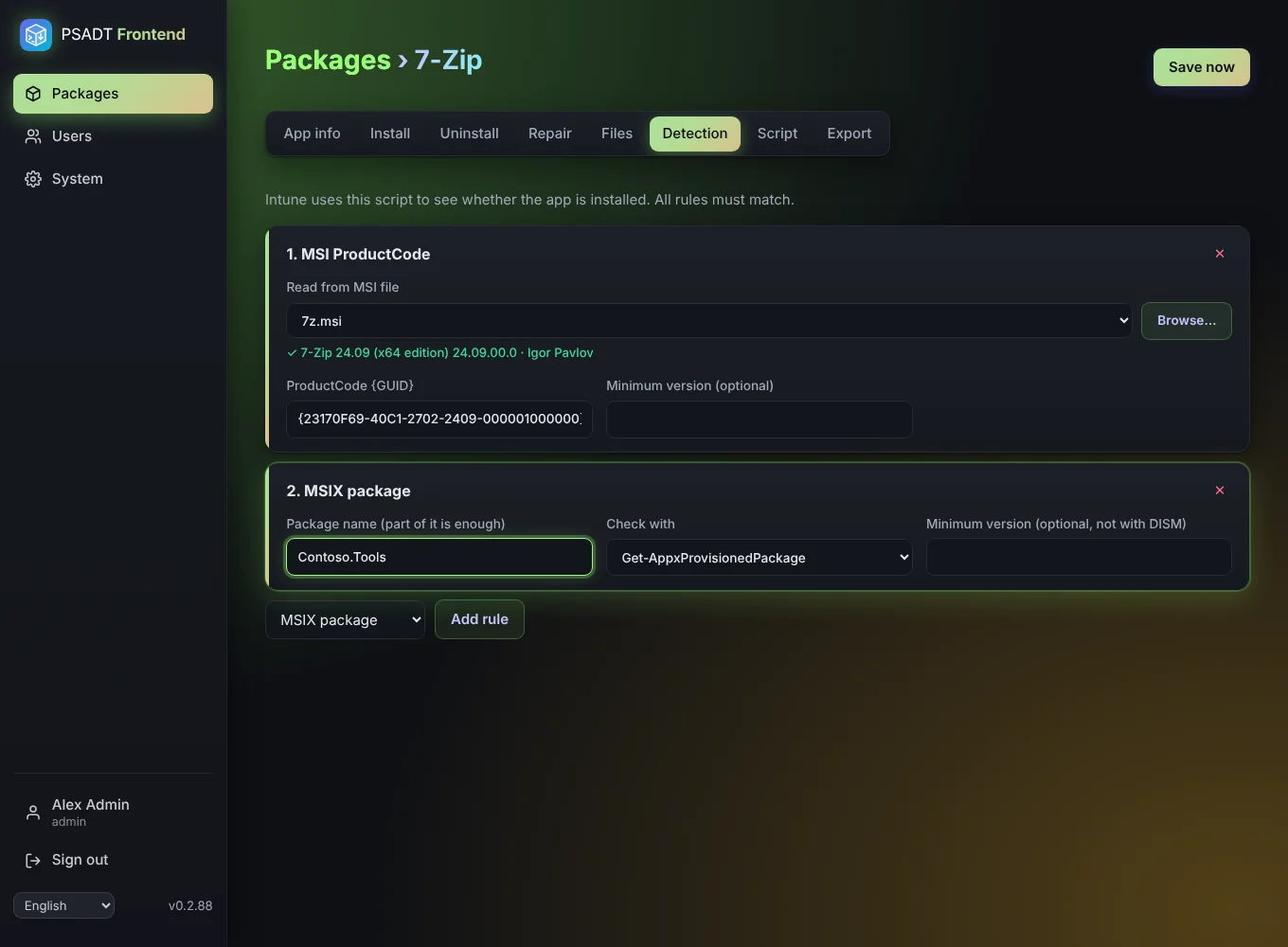
Step 20. Click the Detection tab.
Step 21. In the list at the bottom choose MSI ProductCode and click Add rule. The rule appears as 1. MSI ProductCode.
Step 22. In that rule, under Read from MSI file, click Browse… and choose 7z2409-x64.msi. The app reads the MSI and fills in ProductCode {GUID} for you, for example {23170F69-40C1-2702-2409-000001000000}. Under the field a green line shows what it read, such as ✓ 7-Zip 24.09 (x64 edition) 24.09.00.0 · Igor Pavlov, so you can see it is the right file.
Step 23. (optional) Fill in Minimum version (optional) with 24.09, so Intune reinstalls on PCs with an older version.
Without an MSI? Choose File (for example
%ProgramFiles%\7-Zip\7z.exe), Registry or MSIX package in the list and click Add rule. See Detection.
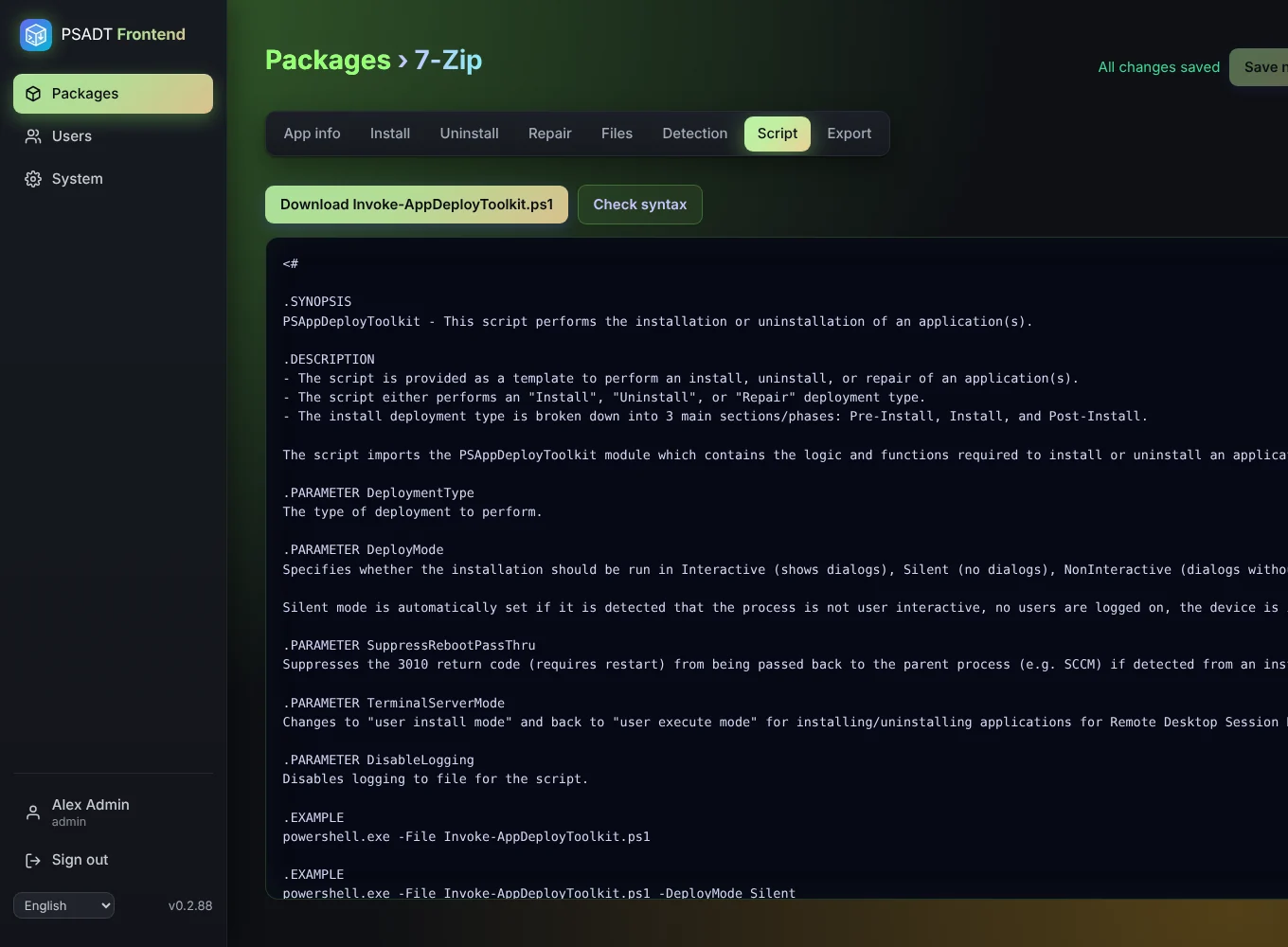
Step 24. Click the Script tab. You see the full Invoke-AppDeployToolkit.ps1. Scroll through it: your app info is at the top, your steps are in the functions Install-ADTDeployment, Uninstall-ADTDeployment and Repair-ADTDeployment.
Step 25. Click Check syntax. After a moment you see No syntax errors. Nothing is run; PowerShell only reads the script.
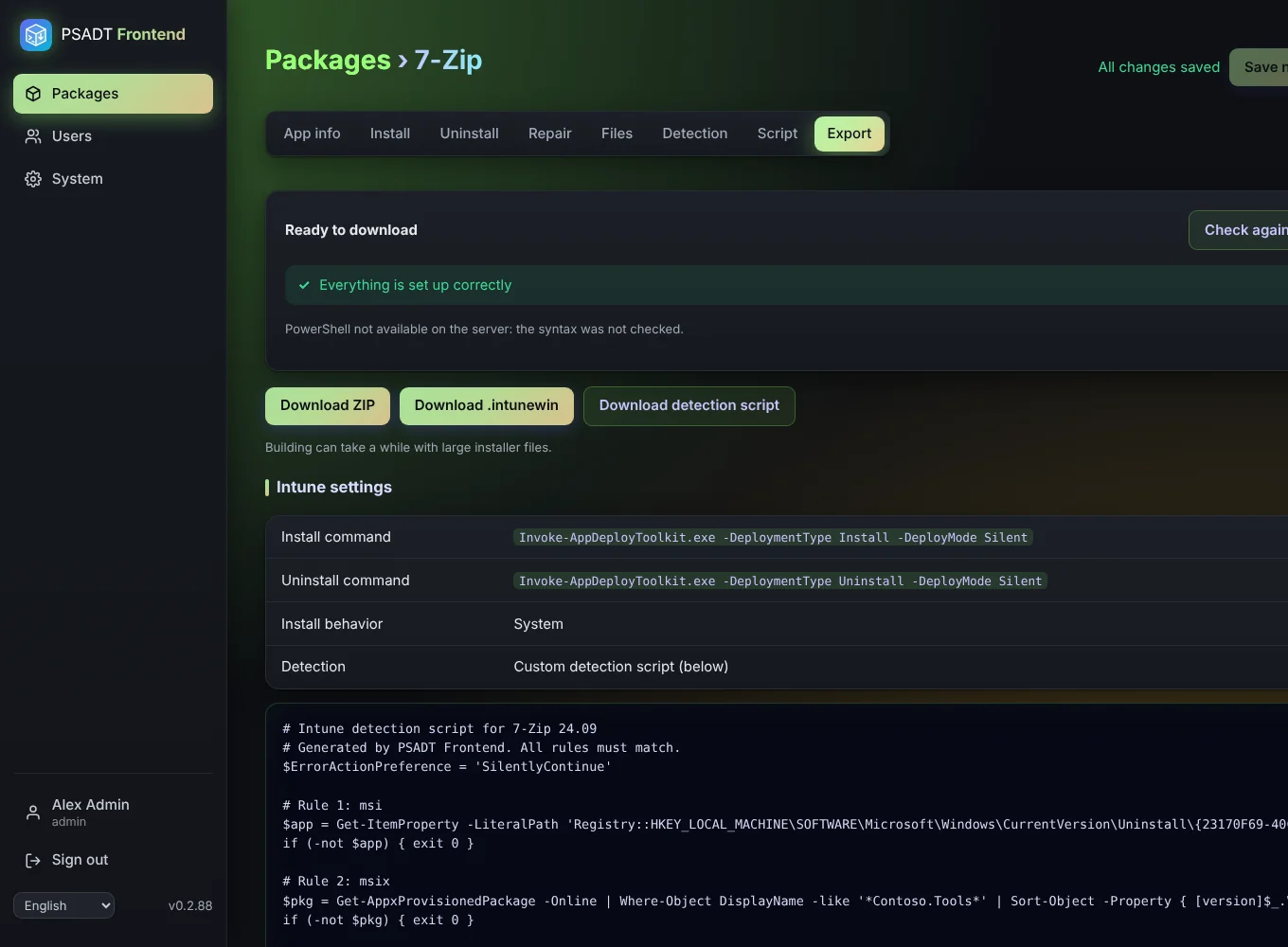
Step 26. Click the Export tab. The app checks the package (Checking the package…).
Step 27. Read the result:
- Red: must be fixed. The text names the step or field; fix it and click Check again.
- Yellow: only a warning, you can still download.
- Ready to download: all good.
Step 28. Click Download .intunewin (or Download ZIP to test by hand first). You see Building the package…, then Downloading… with a percentage, and finally ✓ Downloaded: …. The file is in your browser's download folder.
Step 29. Click Download detection script too. You need it in Intune.
Step 30. Write down the commands in the Intune settings table:
- Install command:
Invoke-AppDeployToolkit.exe -DeploymentType Install -DeployMode Silent - Uninstall command:
Invoke-AppDeployToolkit.exe -DeploymentType Uninstall -DeployMode Silent
Step 31. Unzip the ZIP on a Windows test PC or VM.
Step 32. Open PowerShell as administrator in that folder.
Step 33. Run .\Invoke-AppDeployToolkit.exe -DeploymentType Install. You see the welcome dialog and the progress window, and 7-Zip is installed.
Step 34. Check the log in C:\Windows\Logs\Software (or your own log folder).
Step 35. Run .\Invoke-AppDeployToolkit.exe -DeploymentType Uninstall and check that 7-Zip is gone.
Step 36. Open the Intune admin center and go to Apps › Windows › + Add.
Step 37. Choose app type Windows app (Win32) and click Select.
Step 38. Click Select app package file and upload the .intunewin. Click OK.
Step 39. On App information fill in at least Name (7-Zip), Description and Publisher (Igor Pavlov). Click Next.
Step 40. On Program:
- Install command: the install command from step 30.
- Uninstall command: the uninstall command from step 30.
- Install behavior: System.
- Device restart behavior: Determine behavior based on return codes.
Click Next.
Step 41. On Requirements choose Operating system architecture 64-bit and a minimum Windows version. Click Next.
Step 42. On Detection rules choose Rules format Use a custom detection script, and upload the detection script from step 29. Leave the two options on No. Click Next.
Step 43. Skip Dependencies and Supersedence (click Next).
Step 44. On Assignments add a test group under Required or Available for enrolled devices. Click Next, then Create.
Step 45. Wait until a test PC in the group syncs (or click Sync in Company Portal). 7-Zip is installed, and Intune reports Installed.
Step 46. Open the package in Packages.
Step 47. Upload the new MSI on Files and remove the old one.
Step 48. In the Run MSI steps (Install and Uninstall) pick the new file with Browse….
Step 49. On Detection, in the MSI ProductCode rule, choose the new MSI under Read from MSI file. The ProductCode is replaced by the new one.
Step 50. Change Version on App info, export again, and upload the new .intunewin in the existing Intune app (Properties › App information › Edit), or make a new app that supersedes the old one.
Done. Next: read Install and uninstall steps for every step type, or Troubleshooting if something didn't work.