Repository navigation
Adding Games
Put your games on the card in a folder named after their system, and they appear in the menu at the next power on. No commercial games come with GammaOS Pico: use your own.
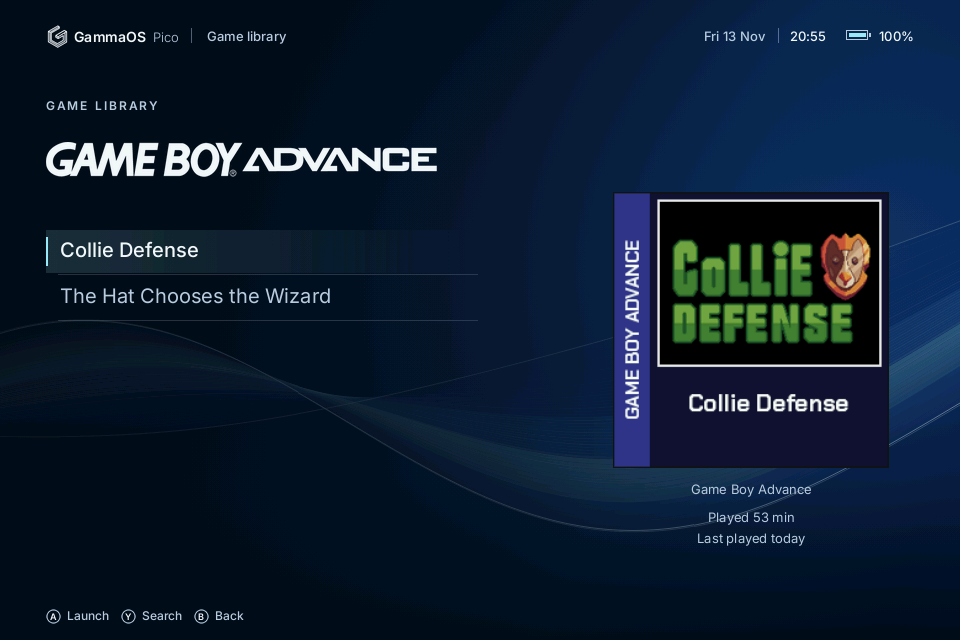
The card comes with one folder per system under roms/:
| System | Folder | Game files |
|---|---|---|
| Game Boy | roms/gb/ |
.gb |
| Game Boy Color | roms/gbc/ |
.gbc |
| Game Boy Advance | roms/gba/ |
.gba |
| NES / Famicom, Famicom Disk System | roms/nes/ |
.nes .unf (cartridges), .fds (Disk System) |
| Super Nintendo | roms/snes/ |
.sfc .smc
|
| Mega Drive / Genesis | roms/genesis/ |
.md .gen .bin .smd
|
| Master System | roms/sms/ |
.sms |
| Game Gear | roms/gg/ |
.gg |
| SG-1000 | roms/sg/ |
.sg |
For example: roms/gba/Advance Wars (USA).gba, roms/snes/Super Metroid (USA).sfc.
Each folder also takes .zip and .7z archives (see below). Extensions are matched in any case
(.GBA works).
Famicom Disk System games need the Disk System BIOS on the card as bios/disksys.rom (see
BIOS); cartridges do not. NES, Famicom and Disk System games can share one folder: nes/,
famicom/ and fds/ all hold any of them (ROMs/nes/ for ES-DE, Emulation/roms/nes/ for
EmuDeck).
The console also knows the folder names other front ends use, matched in any case:
| System | Folder names |
|---|---|
| Game Boy |
gb, gameboy
|
| Game Boy Color |
gbc, gameboycolor
|
| Game Boy Advance |
gba, gameboyadvance
|
| NES / Famicom, Famicom Disk System |
nes, famicom, fds
|
| Super Nintendo |
snes, sfc, superfamicom, snesna
|
| Mega Drive / Genesis |
genesis, megadrive, md, megadrivejp
|
| Master System |
sms, mastersystem
|
| Game Gear |
gg, gamegear
|
| SG-1000 |
sg, sg1000, sg-1000
|
It looks for those folders, in this order:
-
roms/<system>/(GammaOS Pico's own layout) -
<system>/at the root of the card (for example/gba/) -
<any folder>/<system>/and<any folder>/roms/<system>/for every other folder at the root, which covers ES-DE (ROMs/gba/), EmuDeck (Emulation/roms/gba/), RetroDeck and similar layouts. The card's own folders (gammaos,saves,states,cores,bios,boxart) and hidden ones are skipped. - The folders listed in
gammaos/folders.txt(below).
A game found in two places (same name, same system) is listed once, from the first place found. When the same game is both unpacked and in an archive, the unpacked file is used.
Games anywhere else on the card can be added in gammaos/folders.txt, a text file the console
creates on its first start with instructions in it. Open it on a computer and add one line per
folder: the system, a space, then the folder's path from the root of the card.
# GammaOS Pico: more folders to look for games in.
gba /My Games/Game Boy Advance
snes /Collections/Super Nintendo
megadrive /Old Stuff/Sega
- The system is any of the folder names in the table above (
gbaandgameboyadvanceboth work). - The path starts with
/and may have spaces. Only that folder is read, not the folders inside it. - Lines starting with
#are ignored. A folder that is not on the card is skipped. - Changes count from the next power on.
Games can stay compressed. An archive in a system's folder is listed as the game inside it:
| Supported | |
|---|---|
| ZIP | stored or deflated, ZIP64, any tool's ZIP |
| 7z | LZMA, LZMA2 or no compression, solid or not, packed or plain headers |
| Not supported | RAR, password-protected archives, archives split into parts, ZIP with bzip2 / LZMA / other methods, 7z with PPMd / BZip2 / Deflate / BCJ filters |
-
One game inside: listed under the archive's name (
Kirby.zipshows as Kirby). - Several games inside: each one is listed, under its own file name inside the archive. Folders inside the archive do not matter.
- The game is unpacked when it starts, straight into memory (nothing is written to the card): about half a second for a 16 MB Game Boy Advance game from a ZIP, a second from a 7z. Its checksum is verified every time.
- What each archive holds is remembered in
gammaos/archives.idx, so only new or changed archives are opened at power on.
An archive that cannot be used is still listed, and starting it says why:
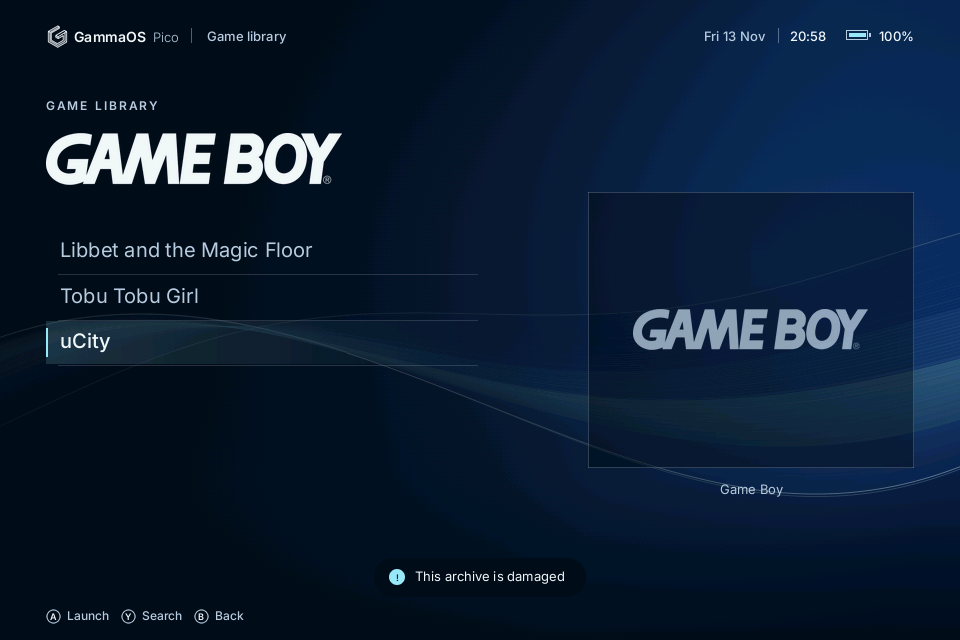
| The note | What to do |
|---|---|
| This archive is damaged | download it again, or test it on a computer |
| This archive is password protected | unpack it on a computer |
| This archive uses a compression the console cannot open | repack it as a ZIP (deflate) or 7z (LZMA2) |
| No game was found in this archive | it holds no file with the system's extensions |
| Archives split into parts are not supported | join and unpack it on a computer |
| This game is too large for this system | see the limits below |
| This game could not be read from the card | check the card on a computer |
| Disk System games need disksys.rom in the bios folder | put the Disk System BIOS on the card as bios/disksys.rom (see BIOS) |
| This archive is too large to open | fixed in 1.0.2: update the card and the bootloader (see Updating and Going Back) |
-
The menu shows the file's name without its extension, and without the region and dump tags at its end (
(USA),[!]). -
Names can be in any language. The Current theme shows accented letters, Greek, Cyrillic, Japanese (kana and kanji), Chinese, Korean, Hebrew and Arabic as they are; the Classic and GBA Indigo themes show accented letters without their accents and other scripts as
_. A character the menu has no drawing for (a rare Chinese character, an emoji, Thai or Indian scripts) shows as?. Search finds names by their letters without accents (typingpokemonfinds Pokémon).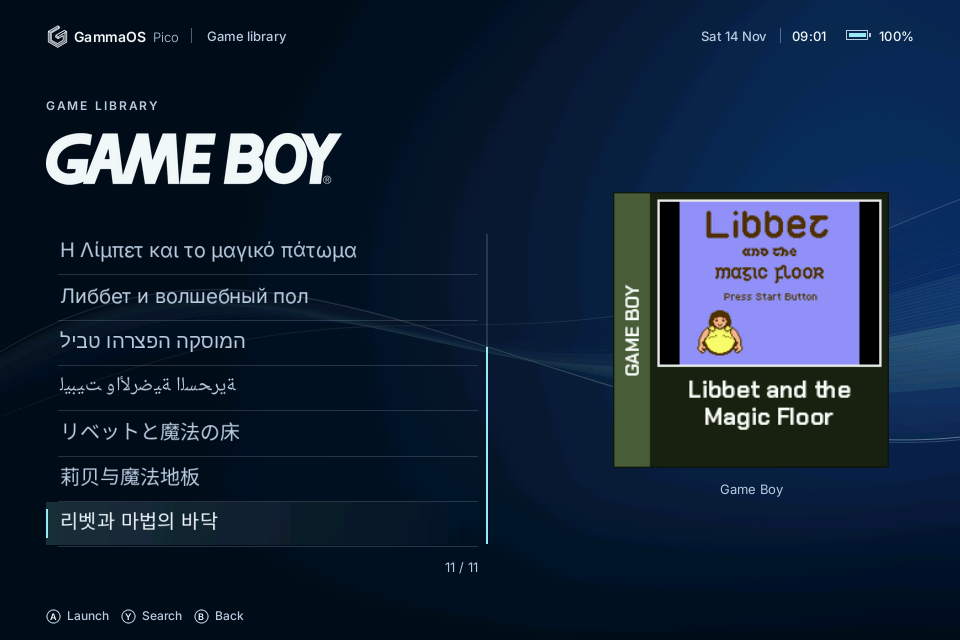
-
Battery saves, save states, box art, play time and the recently played list are all keyed by that name, so renaming a game file loses the link to its saves (rename its saves too, see Saves and States). A game moved from a folder to an archive of the same name keeps them. Those files carry the game's name as it is (
saves/gba/Pokémon.sav). Versions before 1.0.1 named them with_in place of each character outside plain ASCII (Pok_mon.sav): such a file is still read, and the next save goes under the full name. Two games whose old names came out the same (宝可梦.gband포켓몬.gbwere both___) leave the old file alone and start fresh.
| Games on a card | up to 32 768 |
| Game Boy Advance game | up to 32 MB |
| Every other system's game | up to 8 MB |
| Folders read | up to 64 game folders |
Empty files and hidden files (starting with ., such as macOS's ._ files) are ignored.