Repository navigation
In Game Menu
Press the Menu button during a game (hold it 1.5 s to go straight back to the menu). On the Konkr Pocket Block the Menu button is the side key.
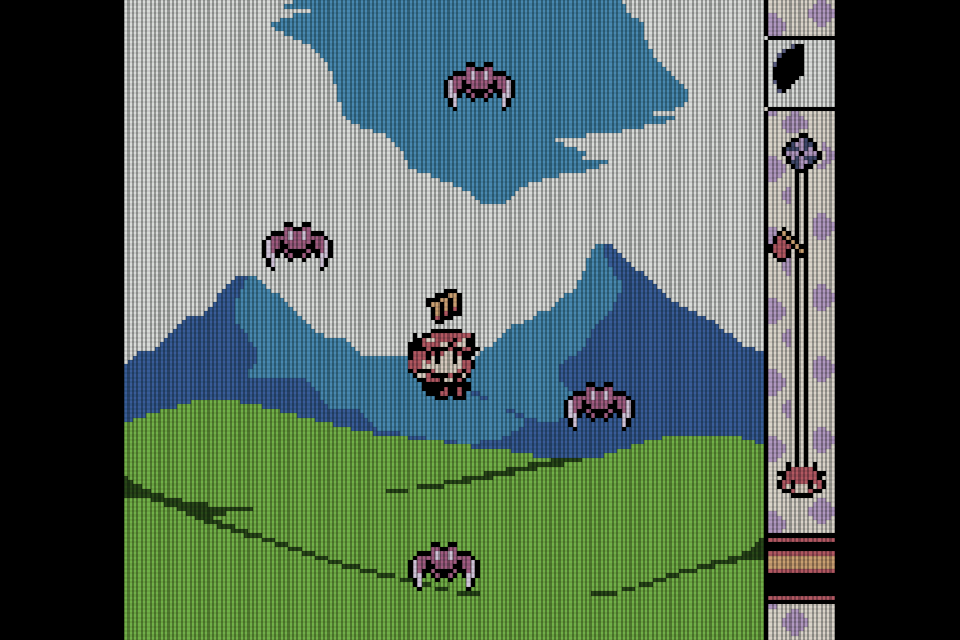
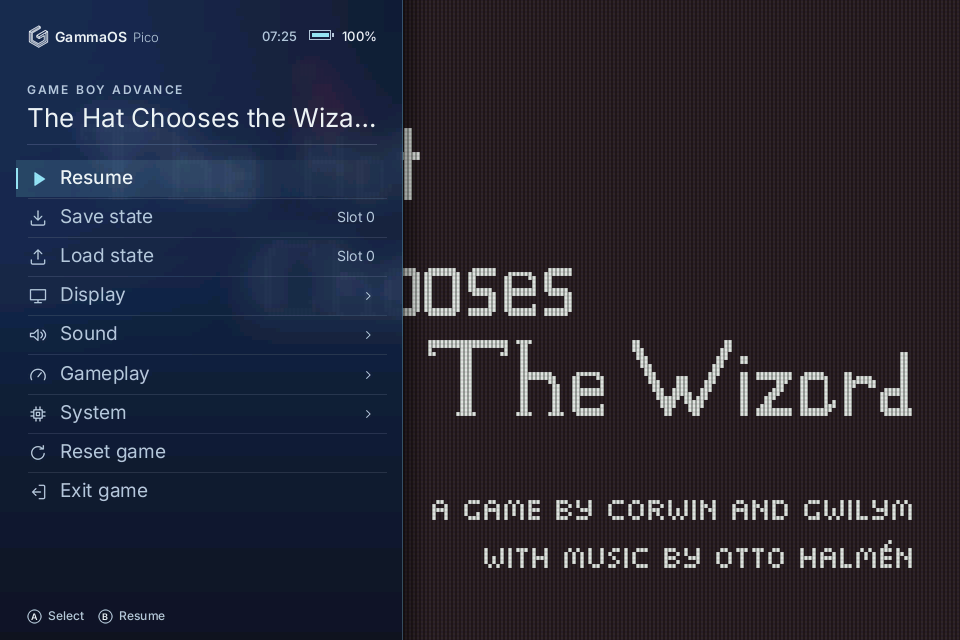
Its first page:
| Row | |
|---|---|
| Resume | back to the game |
| Achievements | the game's RetroAchievements and their settings (see RetroAchievements); No set for a game without one |
| Cheats | the game's cheats, each on or off, and the list they come from (see Cheats) |
| Controls | which button plays which of the game's buttons, and the hotkeys (see Buttons) |
| Netplay | Game Boy, Game Boy Color and Game Boy Advance: play together from where the game is (see Playing Together) |
| Save state, Load state | Left / Right pick the slot (1 to 10), A saves or loads. Saving writes to the card while the game plays on |
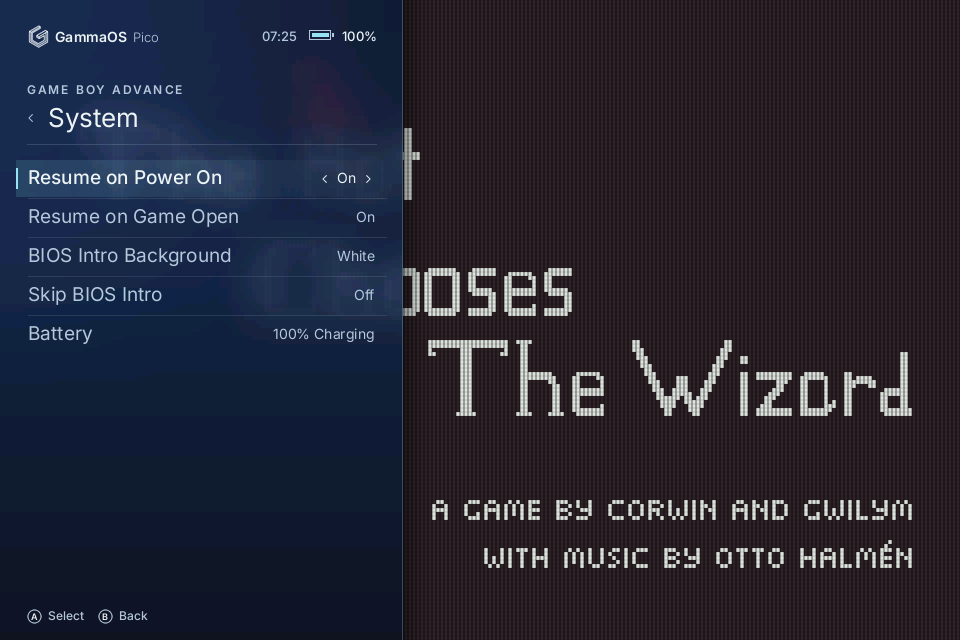
| Display, Sound, Gameplay, System | pages of settings (below) |
| Reset game | restart the game |
| Exit game | back to the menu, the battery save written |
| Swap Disk Side | Famicom Disk System games only: takes the disk out and puts the next side in (turns the disk over) |
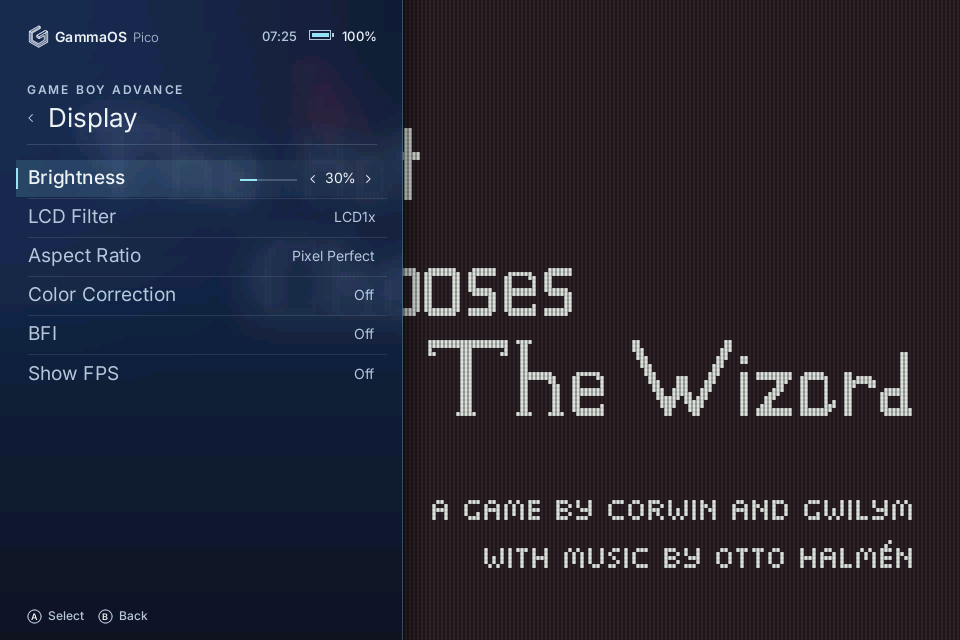
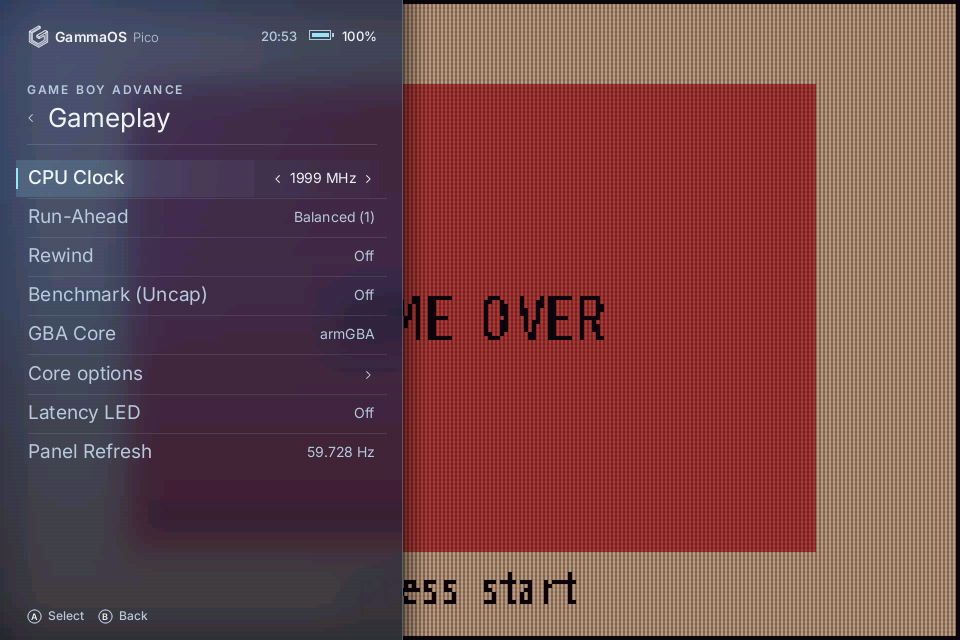
The pages hold what each emulator offers:
| Page | Game Boy Advance | Game Boy / Game Boy Color | NES / Famicom Disk System | SNES | Mega Drive, Master System, Game Gear, SG-1000 |
|---|---|---|---|---|---|
| Display | Brightness, LCD Filter, Filter Alignment, Aspect Ratio, Integer Scale, Custom Width, Custom Height, Color Correction, BFI, Show FPS | Brightness, LCD Filter, Filter Alignment, Aspect Ratio, Integer Scale, Custom Width, Custom Height, Palette (Game Boy), Color Correction, Correction Mode, Dark Filter, BFI, Show FPS | Brightness, Aspect Ratio, Integer Scale, Custom Width, Custom Height, LCD Filter, Filter Alignment, BFI, Show FPS | Brightness, LCD Filter, Filter Alignment, Aspect Ratio, Integer Scale, Custom Width, Custom Height, Overscan, Hi-Res Blend, BFI, Show FPS | Brightness, Aspect Ratio, Integer Scale, Custom Width, Custom Height, LCD Filter, Filter Alignment, BFI, Show FPS |
| Sound | Volume | Volume | Volume | Volume, Audio Filter | Volume |
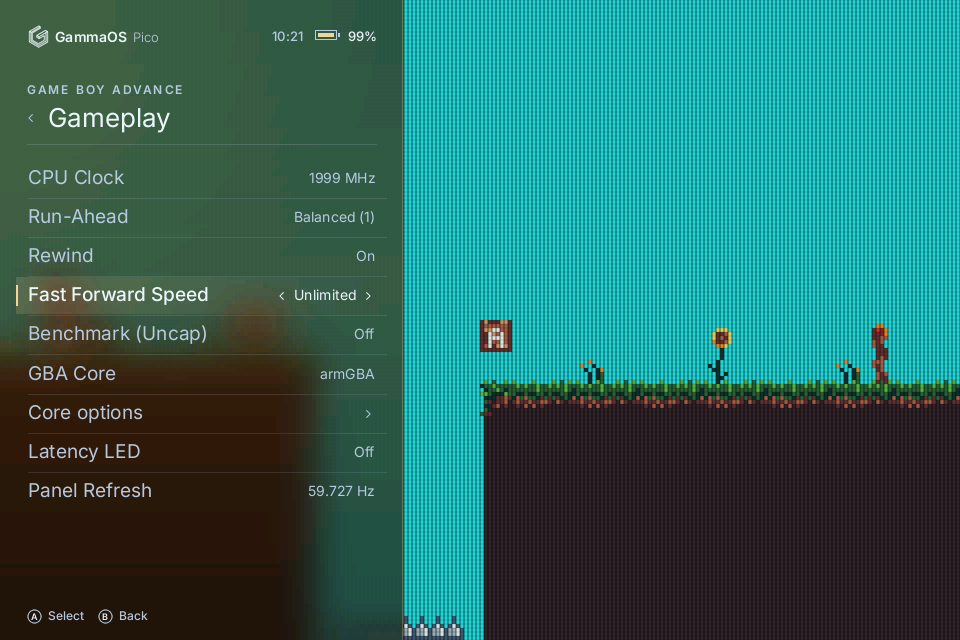
| Gameplay | CPU Clock, Run-Ahead, Rewind, Fast Forward Speed, Big Core, Big Core Clock, Benchmark, GBA Core (armGBA or gpSP), Core options, Latency LED, Panel Refresh | CPU Clock, Run-Ahead, Rewind, Fast Forward Speed, Big Core, Big Core Clock, Core options | CPU Clock, Run-Ahead, Rewind, Fast Forward Speed, Big Core, Big Core Clock, Region, Refresh Rate, Core options | CPU Clock, Run-Ahead, Rewind, Turbo (auto-fire), Fast Forward Speed, Big Core, Big Core Clock, Benchmark, Panel Refresh, SNES Core (snes9x or armSNES), Core options | CPU Clock, Run-Ahead, Rewind, Fast Forward Speed, Big Core, Big Core Clock, Region, Refresh Rate, Core options |
| System | Resume on Power On, Resume on Game Open, BIOS Intro Background, Skip BIOS Intro, Battery | Resume on Power On, Battery | Resume on Power On, Battery | Resume on Power On, Battery | Resume on Power On, Battery |
On the Konkr Pocket Block, which has no volume wheel, this is where the volume (Sound) and the brightness (Display) are set during a game.
| Display | Gameplay |
|---|---|
 |
 |
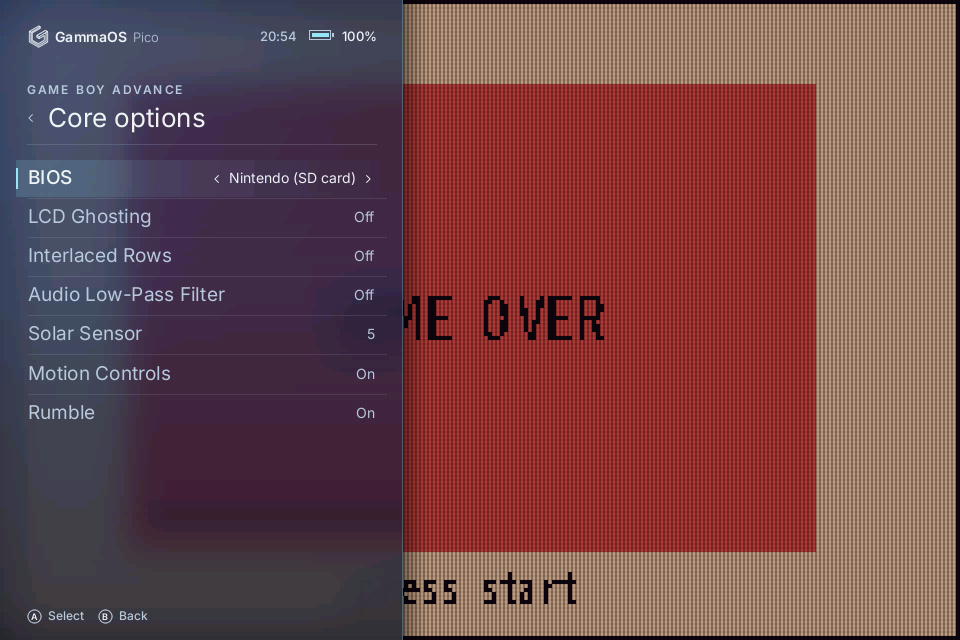
| System | Core options (armGBA) |
 |
 |
The values:
- LCD Filter: Off, Scanlines, LCD Grid, Dot Matrix, LCD1x, LCD3x (Sega: Grid, Grid+)
- Aspect Ratio: Stretch, Fit, Pixel Perfect (SNES: 4:3, Pixel, NTSC, PAL, Stretch; Sega and NES: Pixel, 4:3, Core, Square, 16:9, Stretch). Since 1.2.0 the row goes on, for every system, to 4:3, 3:2, 16:9, 16:10, 5:4, 8:7, 10:9, 1:1 and Custom, the ratio of the Custom Width and Custom Height rows (1 to 99 each)
- Integer Scale: Off, On, Overscale (see Scaling the picture)
- Filter Alignment: Game Pixels, Screen Pixels (see Scaling the picture)
- Big Core, Big Core Clock: see Big Core
- CPU Clock: Automatic, or a fixed clock from 599 to 1999 MHz, for each system on its own (1399 MHz on a new card on the Konkr Pocket Advance, 1800 MHz on the Konkr Pocket Block)
- Run-Ahead: Off, Balanced, Responsive, Max: runs frames ahead to hide the game's own input lag (Balanced on a new card)
- Rewind: lets L2 rewind the game (it rewinds while L2 is held; the Controls page can make a press turn it on and off instead); on, on a new card
- Fast Forward Speed: Unlimited (as fast as the console goes), or at most 2x to 10x; Unlimited on a new card. Fast forward itself is R2
- Overscan (SNES): Off, Crop 8, 12 or 16 px. Audio Filter: Linear, Gaussian, Cubic, Sinc, None. Hi-Res Blend: Off, Merge, Blur. Turbo: Off, A, B, A+B
- Region (Sega): Auto, USA, Europe, Japan. Region (NES): Auto, NTSC, PAL, Dendy
- armGBA Core options: BIOS (Nintendo's from the card, or armGBA's built-in), LCD Ghosting, Interlaced Rows, Audio Low-Pass Filter, Solar Sensor (for Boktai), Motion Controls and Rumble (both on, on a new card; see below)
New in 1.2.0, for every system, each with its own settings:
- Aspect Ratio has more ratios after each system's own, and Custom: set Custom Width and Custom Height to the two numbers you want (21 and 9, 7 and 5...).
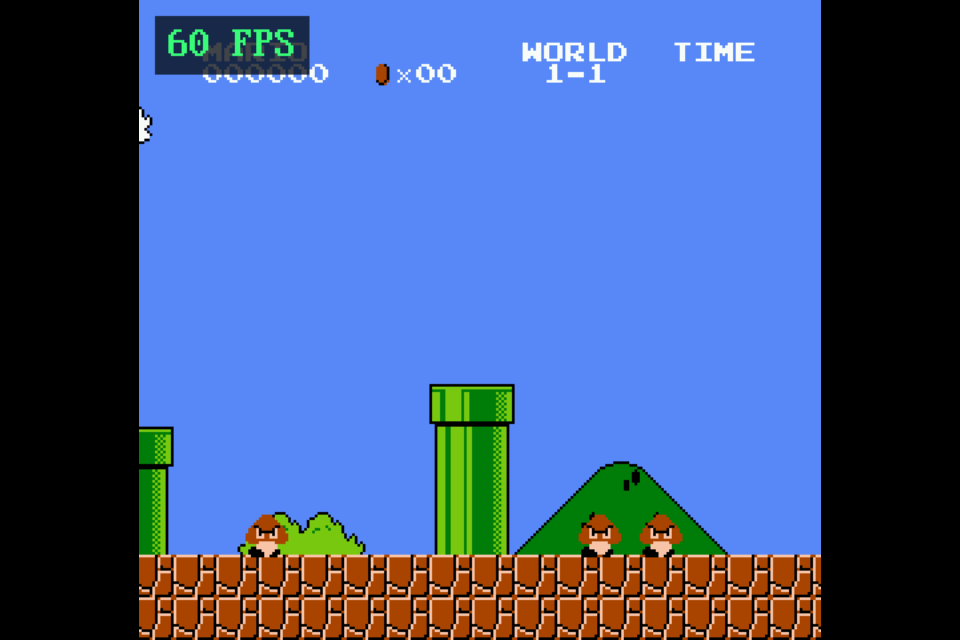
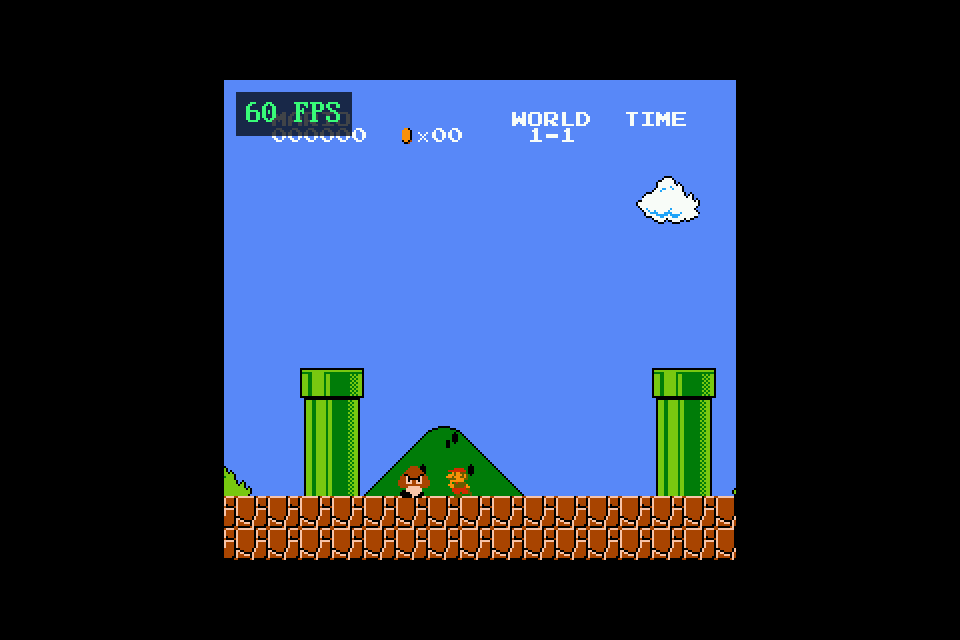
- Integer Scale, On: the picture is kept at a whole multiple of the game's lines (2x, 3x...) at the ratio you chose, so every line of the game is exactly as tall as the next. The picture gets smaller where the screen is not a whole multiple of the game.
- Integer Scale, Overscale: the next whole multiple up instead. The picture fills the screen's height and the edges that no longer fit are cut, the same on both sides.
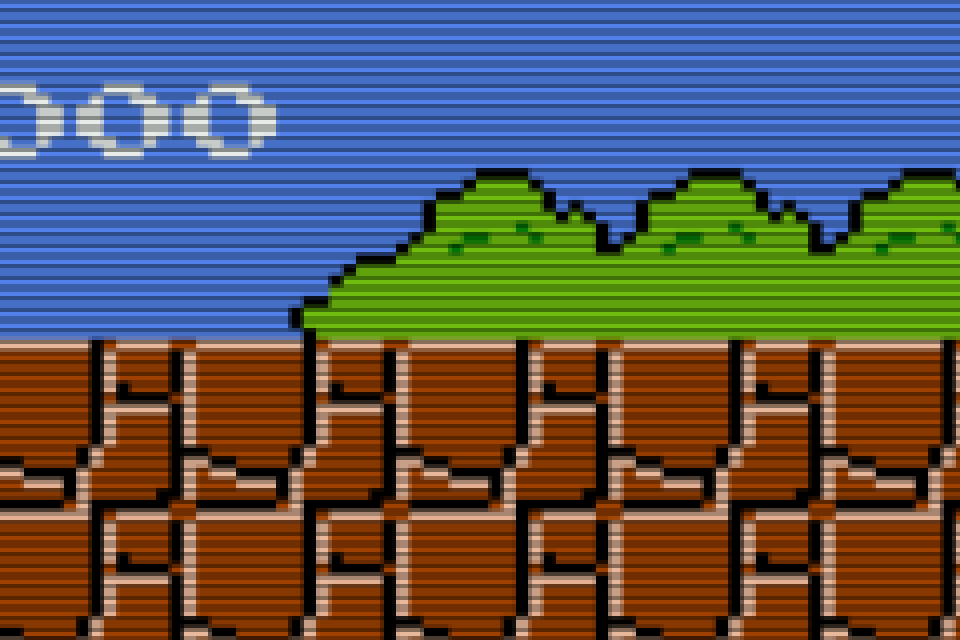
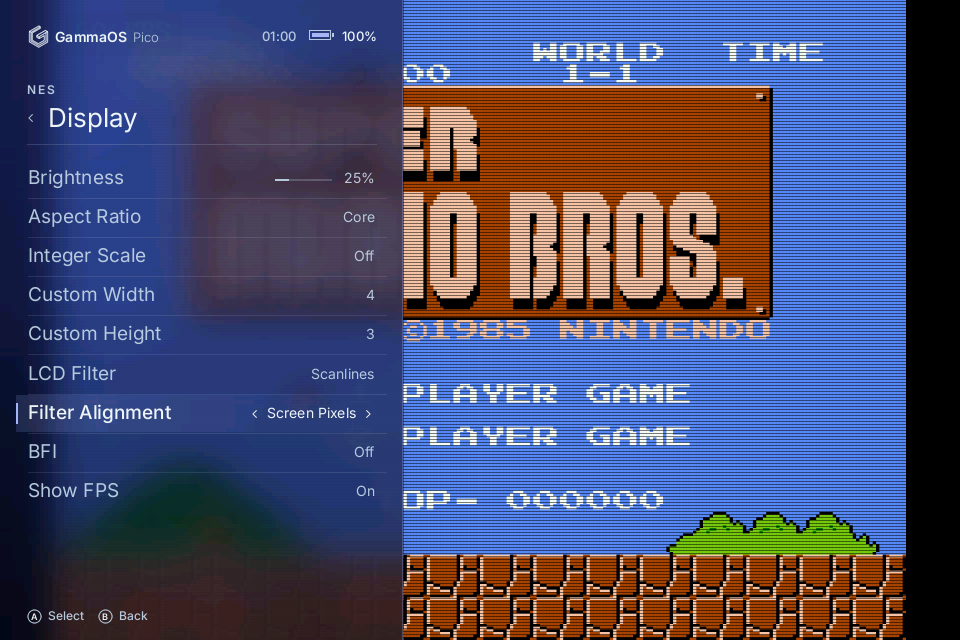
- Filter Alignment: where the LCD Filter's lines go. Game Pixels draws them on the game's pixels, which is exact at a whole scale and uneven at any other (some lines thicker than others). Screen Pixels lays them on the screen's own pixels: evenly spaced at any size and ratio, the picture under them scaled smoothly. It costs a few milliseconds a frame, and the console raises the game's CPU clock for it the way it does for LCD1x and LCD3x (Automatic clock only).
| Off | Integer Scale: On | Integer Scale: Overscale |
|---|---|---|
 |
 |
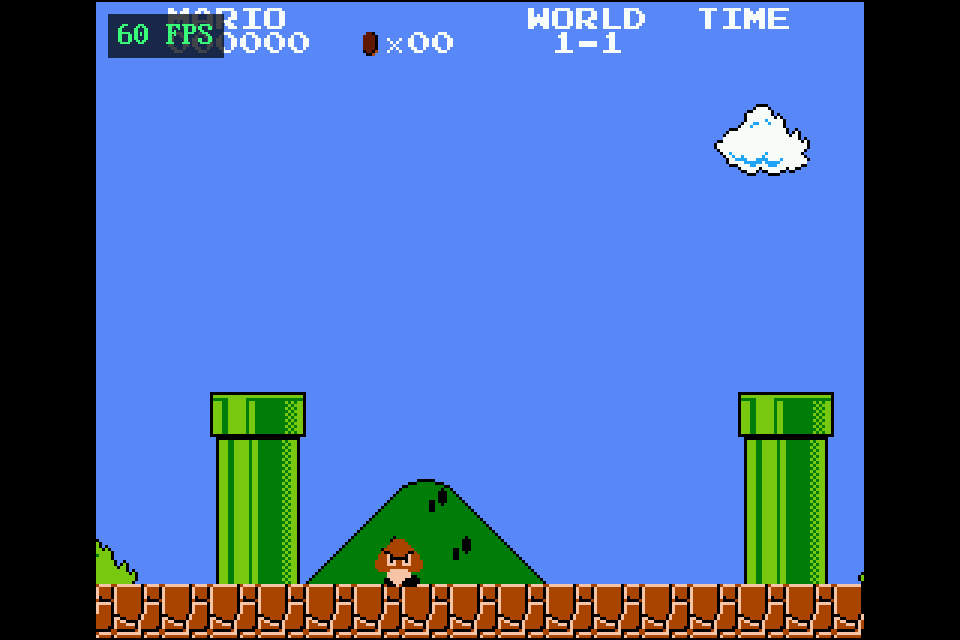 |
A NES game on the Konkr Pocket Advance: 2.67x, 2x, and 3x with 14 lines cut top and bottom.
| Filter Alignment: Game Pixels | Filter Alignment: Screen Pixels |
|---|---|
 |
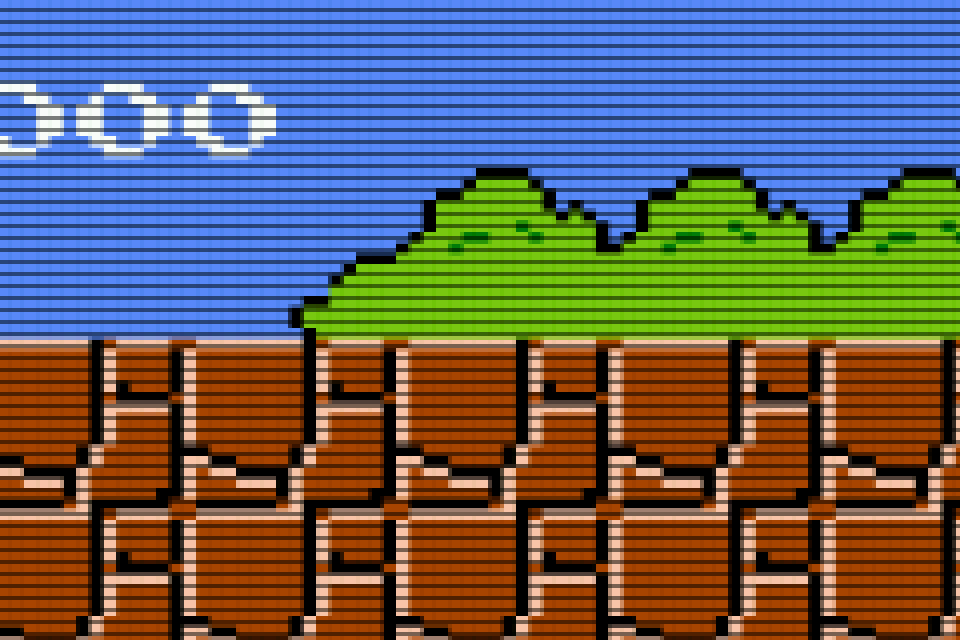 |
Scanlines at 2.67x, enlarged.
New in 1.2.0. It needs the secure firmware that 1.2.0's flash packages and GammaOS Pico Tool 1.2.0 install beside the bootloader (see Before you start). A console updated with an older Tool, which writes the bootloader only, shows both rows as "Not available" and works as it always did until the secure firmware is written too.
- Big Core (off on a new card, kept per system): from the next game start, the game's emulation runs on one of the console's big CPU cores, while the picture, the sound and the menus stay where they were. The emulation itself takes a half to a third of the time, which leaves room for run-ahead, fast forward and the heavier filters.
- Big Core Clock: that core's clock, one of the console's own stock levels (up to 2050 MHz on the Konkr Pocket Advance, 2000 MHz on the Konkr Pocket Block). One setting for all systems.
A game that stalls on the big core is closed back to the menu. Netplay and link sessions run on the usual core.
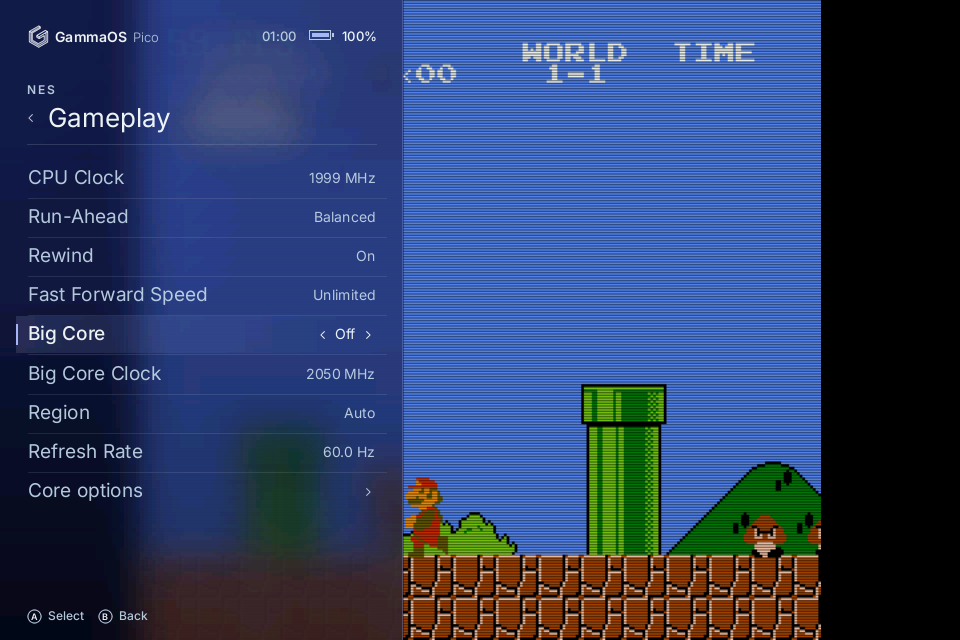
New in 1.1: Gameplay > Core options is there for every system, with the options each emulator has itself (cropping among them), kept for each system (and for each SNES core: snes9x's and armSNES's apart). snes9x's, for example:
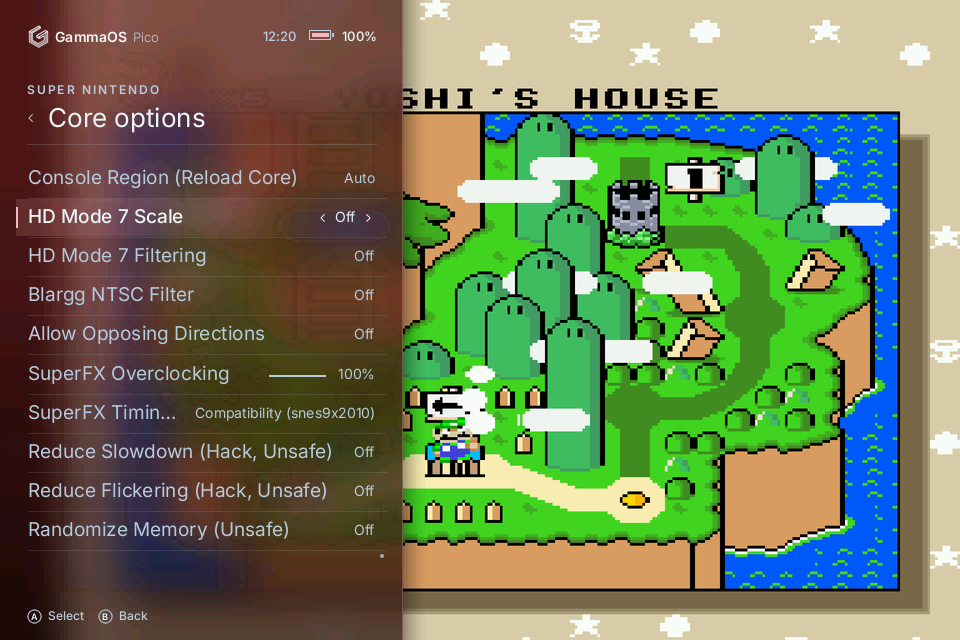
New in 1.1.1: Gameplay > SNES Core picks the SNES emulator for the games that follow: snes9x (the default) or armSNES, Magnominus's accurate SNES emulator (a port of ares), as GBA Core picks armGBA or gpSP. The change applies from the next game started. Each core keeps its own save states and core options, since one core's states do not load in the other. armSNES needs the console's full clock; snes9x plays the games whose chips need firmware files (DSP-1 to DSP-4, ST010, ST011, Cx4, ST018), which armSNES does not start without them. A Playing Together session always runs snes9x on both consoles.
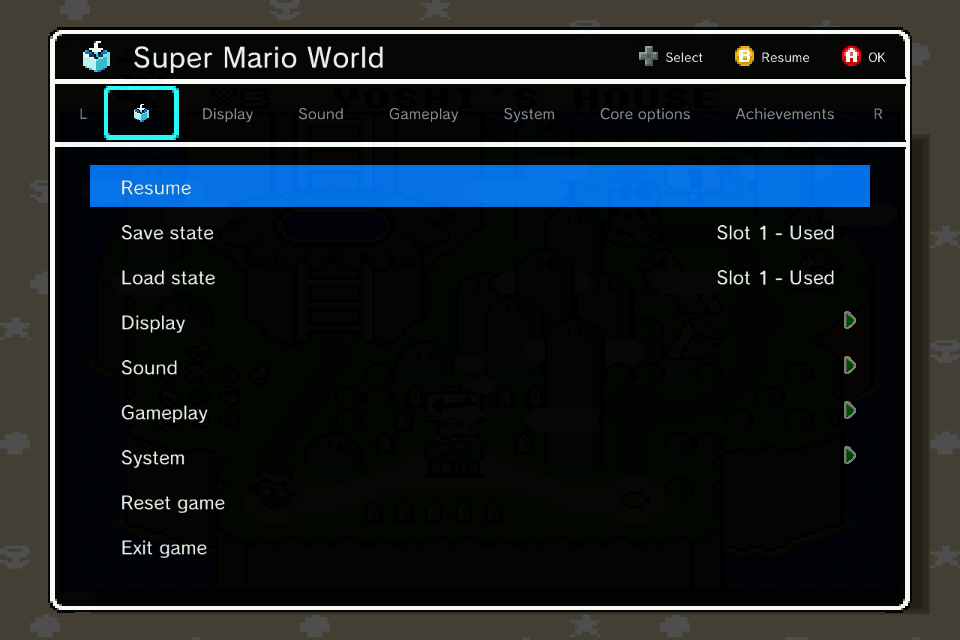
New in 1.1: in the Classic themes the in-game menu is a sheet in the menu's own look, with its pages as tabs along the top (L and R move between them): the first page, Display, Sound, Gameplay, System, Core options, Achievements and Cheats.
Save states, rewind, fast forward and run-ahead all work on NES games, and Disk System games keep run-ahead at full speed like cartridges do. A Disk System game needs the Disk System BIOS (see BIOS); its first page has Swap Disk Side to turn the disk over when the game asks.
Some cartridges had a motion sensor or a rumble motor inside. The console's own motion sensor and vibration motor stand in for them, with nothing to set up, on the Konkr Pocket Advance and, from 1.1, the Konkr Pocket Block:
| Game | What it uses |
|---|---|
| Yoshi Topsy-Turvy | tilt: turn the console left and right |
| WarioWare: Twisted! | gyro: turn the console like a steering wheel; and rumble |
| Kirby Tilt 'n' Tumble (Game Boy Color) | tilt in every direction; flick the console up to jump |
| Drill Dozer, Game Boy Color rumble cartridges | rumble |
The Game Boy Advance ones run on armGBA, which has a Motion Controls and a Rumble switch in its Core options. The motor stops whenever the in-game menu is open.
Tip
Yoshi Topsy-Turvy learns which way is left and right on its own calibration pages. They do not move: hold the console tilted one way and press A, then tilted the other way and press A. Calibrating with the console held flat leaves the game hard to control.
Settings changed here are saved to the card. Save states are kept per emulator (see Saves and States).