Debugging
Home>Moneydance>Development>Debugging
Moneydance is a Java application. To debug your extension at the source code level you must start Moneydance from within your IDE.
Running Moneydance requires that your IDE has access to all of the Moneydance .jar's and is started in moneydance.jar.
For Eclipse you add all of the Moneydance .jar's to your build path as external jars:
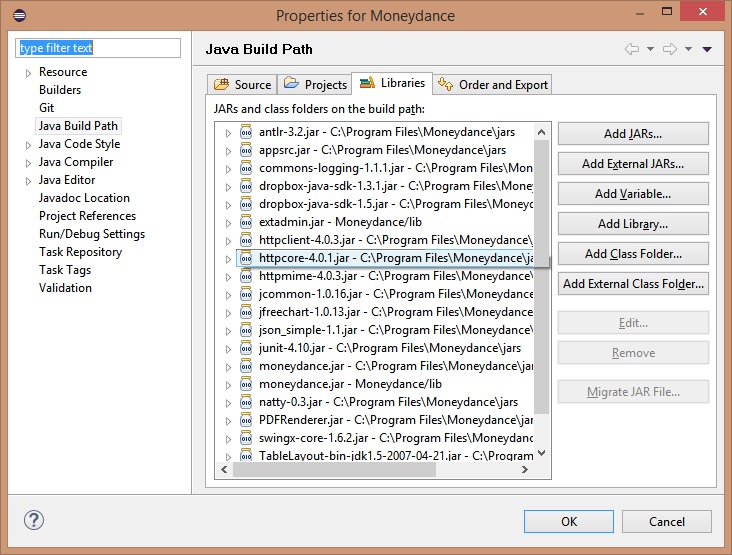
Then create a debug configuration:
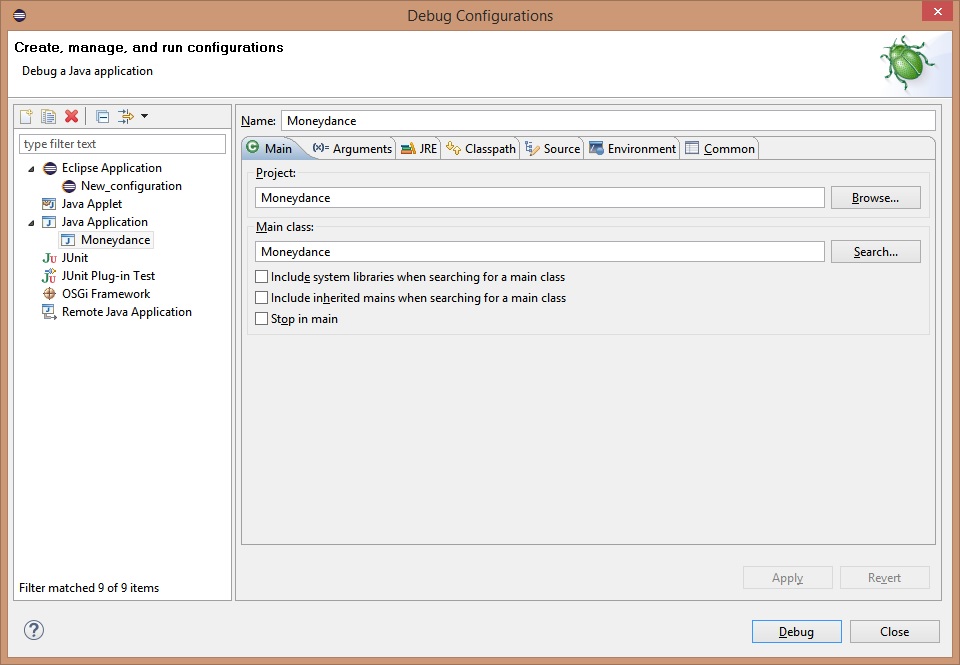
Running your extension in debug mode will start Moneydance and will stop at the first breakpoint in your extension.
Note: When Moneydance runs outside the IDE it will continue if an unhandled exception occurs. If you run it from within the IDE it will stop on the first unhandled exception. See below:
To debug your extension create a Run Configuration.
-
Add a new configuration with a type of 'Application'
-
Select the appropriate SDK
-
Click on 'Modify Options' and make sure that the following options are selected:
a.Modify CLasspath
b.Add VM Options
c. Open run/debug tool window when started
-
Set the VM Options to:
-Dfile.encoding=UTF-8 -Dstdout.encoding=UTF-8 -Dstderr.encoding=UTF-8 -Xmx2048m
- Set the Working directory to you project directory
- Add an 'Include' entry in the Modify Classpath that points at your Moneydance installation moneydance.jar (e.g. C:\Program Files\Moneydance\lib\moneydance.jar), Note If you have moneydance-dev.jar in your classpath you need to add an 'Exclude' for this file so when Idea is searching for the Class Moneydance it loads the full version in moneydance.jar.
- Set breakpoints as normal and use the Debug icon at top of screen or menu Run/Debug.
Moneydance provides an error log. It is in the main user directory and called errlog.txt. If an exception occurs this will be displayed here.
You can not use System.out from within Moneydance but you can use System.err, this is directed to errlog.txt. Later builds can access the AppDebug logger instead of System.err