Report Writer
Home>Extensions>Report Writer
Welcome to the wiki for the Moneydance Report Writer Extension. This is the second release of this extension. The main changes in this release are the removal of the Jasper Reports interface and the removal of JavaFX as the UI model. This is to help Infinite Kind (TIK) move Moneydance to newer versions of the Java JRE and to support ARM based processors.
This extension is a general purpose data extractor and reporter for Moneydance. It allows the user to extract data from a Moneydance file and output it to a Comma Separated Values file (.csv), an Excel Spreadsheet (.xlsx) or an h2 database.
The philosophy of this extension is to extract raw data. It does not do any summarisation of data or grouping. It is expected that all such work is done on the raw data outside of Moneydance. For example JasperReports can summarise data and present it in a report.
The data that can be extracted is:
- Accounts
- Addresses
- Budgets
- Transactions
- Investment Transactions
- Investment Lot Allocation Data
- Budget Items
- Securities
- Currencies
- Categories
- Security Prices
- Currency Rates
- Reminders
By default all records are extracted, however, you can apply a number of filters which will restrict the records that will be extracted (see Filters).
If the user specifies a Comma Separated Values file (.csv) as the output format a separate file is written for each record type selected in the Data Selection Group. The first row in each file will contain the field names.
If the user specifies an Excel Spreadsheet as the output format a single file is written containing a Worksheet for each record type selected. The first row of each Worksheet will contain the field names.
If the user specifies an h2 Database as the output format an SQL table is created for each record type selected with the relevant fields.
When selecting which record types to output you can select the fields that will be output. Note: The fields available are the fields generally available on the Moneydance screens.
Moneydance stores data using internal identifiers and Report Writer does output these identifiers as part of the main record. For example on the Account record the id of that record is output as well as the Account Name. When another record has a field that references another record the Name of that record is used. For example transactions contain a field for the Account, the Account Name is output in transaction records.
See Fields for a list of fields available.
First you need to download the extension and install it.
- Download the
reportwriter.mxtfile - see: Downloads
Do the following:
- Click on the file and download it to your computer.
- Run Moneydance
- Select Extensions/Manage Extensions
- Click on Button 'Add From File'
- Select the downloaded file
- If Moneydance tells you that the extension is unsigned, don't worry it means that Infinite Kind has not reviewed the extension. This extension does not update your Moneydance file. Just allow the install to continue.
- Once installed click on the 'Installed' tab, Report Writer should be displayed.
- Exit the Manage Extensions window
- Restart Moneydance
** Note ** if you are running Moneydance 2021 you will get a red banner highlighting that Report Writer is unsigned. You can click on Ignore. ** Report Writer does not update any of your data **
The Report Writer should be in the list of extensions, click on Extensions and select it.
When you run the Report Writer for the first time you will be presented with:
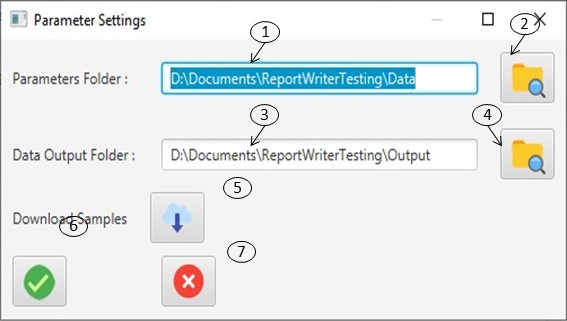
You need to configure the folders.
The Report Writer depends on 2 user folders to store data.
This folder is used to store the all of the parameters, ie: the Data Filters, the Record Selection groups and the Report Definitions.
All output files are put in this directory.
Either enter the relevant folders (1) and (3) or use the buttons (2) or (4) to open a File Selection window.
To help you with understanding the extension there are a number of sample Filters, Selection Groups and Reports available along with a few Jasper Report Templates. These can be downloaded by clicking on button (5). The files will be copied to the relevant directories.
** Note: ** You can edit these settings at any time by clicking on the Edit Settings button.
The Main screen for Report Writer looks like this:
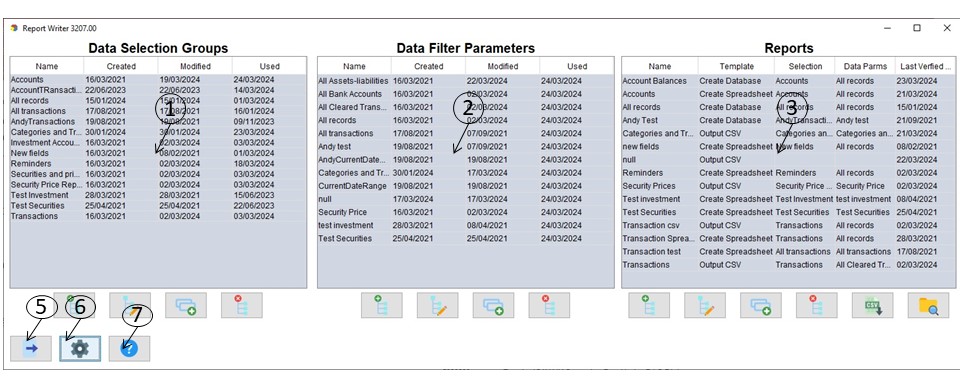
Screen (1) is a list of Data Selection Groups that you have created in the Data Directory.
Screen (2) is a list of Data Filter Parameters that you have created in the Data Directory.
Screen (3) is a list of Records that you have created in the Report Directory.
Use button (5) to exit the extension, button (6) to modify the directories and download the samples. Button (7) shows the help dialog which gives you access to this Wiki and allows you to change the debug messaging when directed by support.
In most cases Report Writer uses Icons on it buttons rather than words. The main Icons used are:
 - Edit selected record
 - duplicate row
 - delete selected record
 - close the extension
 - run a Jasper Report
 - export chosen entry to a Spreadsheet
 - export chosen entry to a csv file
 - export chosen entry to a Database
 - add a new record
 - save and close a entry screen
 - cancel the currrent update and close the data entry screen
 - edit settings
 - display help
To use Report Writer you need to create a Data Selection Parameter entry, a Data Selection Group and a Reports entry. The following diagram shows how this works:
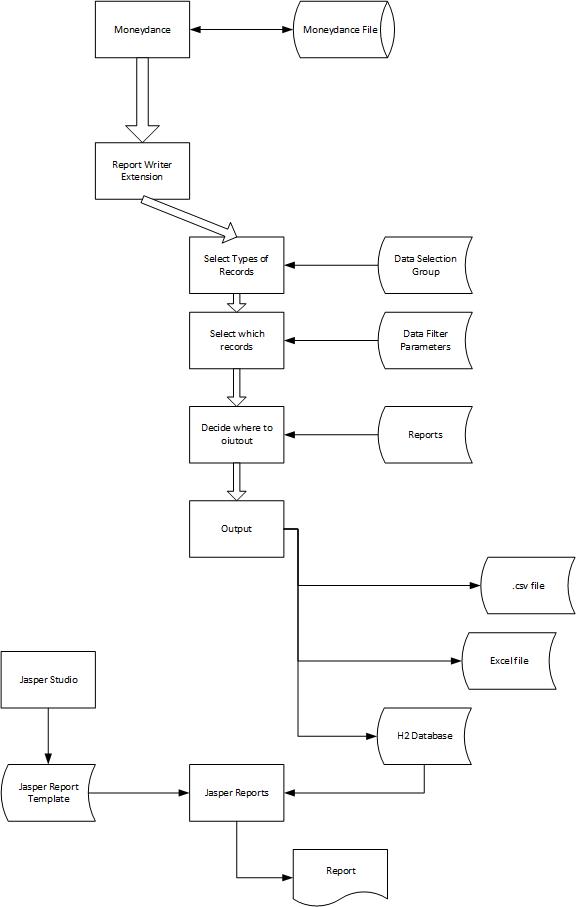
The Data Selection Groups determine which Moneydance records will be output. The Data Filter Parameters determine which of the selected records are output by applying a set of filters. Finally the Reports bring this all together by selecting the Data Selection Group and the Data Filter Parameter entry to use for a report/output file. Finally you specify what type of output you want, i.e. whether it is a comma separated values file, an Excel spreadsheet or an h2 database.
You can reuse Data Selection Parameter entries and Data Selection Group entries with several Reports entries.
For example, you can create a Data Filter Parameters entry that just has from and to dates, a Data Selection Group entry that selects all records and three separate Reports entries, one that outputs to .csv file, one that outputs to a Spreadsheet and one to a database.
Though the generating of Jasper Reports has been removed from this version of Report Writer you can still use Jasper Reports on the database;
How to use the Report Writer User Interface is described on the following pages: