Caddy Fleet
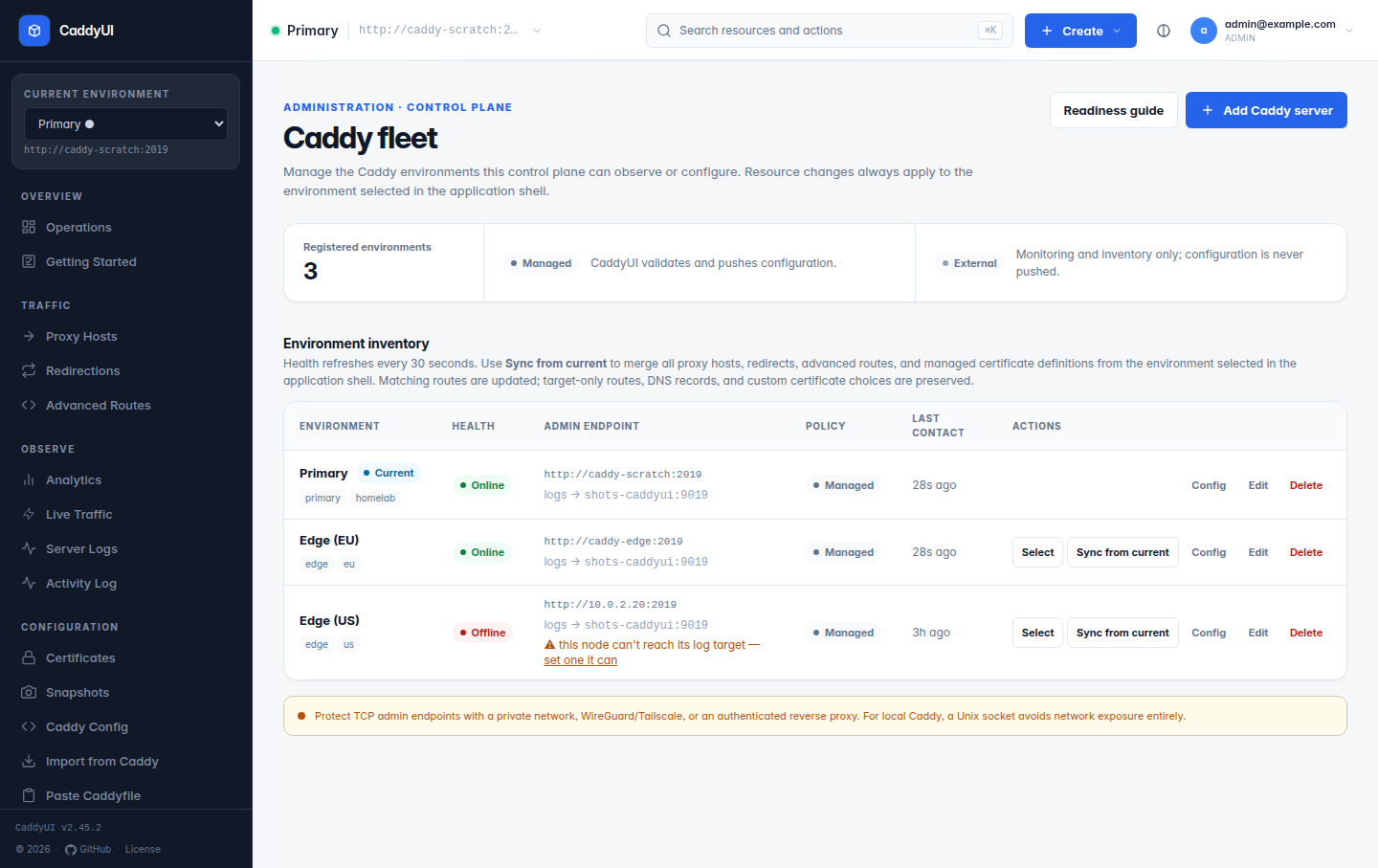
One CaddyUI manages many Caddy instances. Every proxy host, redirection, advanced route and certificate belongs to exactly one server, so cross-server conflicts cannot happen; the active server is always visible in the application shell and switching is one click.
- Adding a server
- Ways to reach a remote admin API
- Sync configuration and Also deploy to
- Node-local resources
- How syncing works
- Sync holds and failed syncs
Administration → Caddy Fleet → Add server follows Identify → Connect → Authorize.
| Field | Meaning |
|---|---|
| Name, tags | How the node appears in pickers and the API. |
| Type | Managed (CaddyUI owns its routes) or External (inventory only). |
| Admin URL |
http://host:2019, https://… behind a reverse proxy, or unix:///run/caddy/caddy-admin.sock. |
| HTTP Basic Auth | Username and password sent on every admin-API call when the endpoint is proxied. |
| Caddy version | Detected automatically; a manual value is a fallback. |
| Log ingest target | Host and port of the CaddyUI ingest listener as this node can reach it, for example 10.8.0.1:9019. Blank uses the fleet-wide target from Settings → Analytics, which defaults to caddyui:9019 and only resolves on the Docker network. The list warns when a remote node was handed a bare service name. |
| Data directory | Where the node's Caddy data volume is mounted inside the CaddyUI container (for example /caddy-data), needed for certificate export. |
Each server also has its own Server IP under Settings → DNS, used for the A records of resources on that server.
The Caddy Fleet list shows health, endpoint, management policy, version, last contact and last sync, plus Sync configuration, View config, Select and edit/delete per row. The dashboard has a health widget with one card per server.
Pick whichever matches your setup. Never expose port 2019 directly on the internet: the admin API has no authentication and whoever reaches it owns the server.
-
Same host / Docker —
http://caddy:2019over the internal Docker network. What the shipped compose file does. -
Unix socket —
admin unix//run/caddy/caddy-admin.sockin Caddy's global options, share the socket directory between the containers, set the Admin URL tounix:///run/caddy/caddy-admin.sock. Nothing listens on any TCP port. -
WireGuard / Tailscale — bind the admin port to the tunnel IP (
10.8.0.2:2019:2019) and use that address. The Installation shows it. -
Reverse proxy with Basic Auth — put a Caddy (or nginx) block in front of 2019 with
basic_authand HTTPS, fill in the Basic Auth fields. Simpler than a VPN for one remote server. -
SSH tunnel —
ssh -L 2019:localhost:2019 user@hostfor one-off cases.
Examples for the socket and Basic Auth setups, plus UFW/iptables rules, are in Troubleshooting.
- Sync configuration (Caddy Fleet → target row) copies the selected environment's whole managed configuration onto the target: proxy hosts, redirections, advanced routes and every certificate. It is a non-destructive merge: missing resources are created, resources paired by an earlier deployment are updated, target-only resources stay. Target DNS records and custom certificate choices on existing hosts are unchanged; ACME keys and uploaded private keys are never transferred (each server orders its own). The summary reads certificates: N added, N updated and notes any copied by file path only.
- Also deploy to on any form creates or updates the same resource on the ticked servers. Repeating it is idempotent: CaddyUI tracks the source-to-target pairing and updates the existing row instead of creating a duplicate. A host's custom certificate is copied first so the reference resolves, and a covering managed wildcard is discovered and copied automatically.
A proxy host or advanced route whose upstream only resolves on one node (a Docker service name, a VPN-only address) can be marked Node-local. It is excluded from Sync configuration and Also deploy to, and the sync summary counts it instead of silently dropping it.
The database is the source of truth. On every save CaddyUI renders the complete config for that server (all enabled resources, branded error pages, trusted proxies, metrics, access logs, CrowdSec, the analytics log stream) and loads it through the admin API. Generated config is deterministic: the same database state produces byte-identical JSON, so nothing is reloaded needlessly. Sync Caddy in the top bar re-pushes at any time, and CADDYUI_SYNC_ON_START=1 re-pushes on start-up. Things the operator added under other names in Caddy (extra servers, metrics on unselected nodes, Caddyfile global options) are left alone.
Since v2.42.1 the config is validated by Caddy before a resource is saved. A rejected change comes back with a plain explanation and nothing is written.
Two banners can appear on every page for a server:
- Sync hold (v2.38.0) — an expectation failed after a sync and the previous config was rolled back. Automatic syncs are paused until you choose Re-apply now or Keep the rolled-back config. See Proxy Hosts.
- Failed sync (v2.42.1) — Caddy rejected a sync for any reason after a save. The banner names the server and the error, with Retry sync now and Dismiss, until the next sync succeeds.
Both states are recorded in the Activity log.