Automation Rules and Templates
Use automation after a small manual layout works. Preview every large change and create a Recovery snapshot first.
| Name | Where | What it stores | Persistence |
|---|---|---|---|
| Starter folder templates | Setup Assistant | Suggested starter folders and optional starter rules. | Applied into normal FolderView Plus configuration. |
| Rule templates | Folder Editor / Rules | A new ordered Include/Exclude matcher targeting a saved folder. | Stored in Docker or VM preferences. |
| Saved folder templates | Advanced Operations | Reusable folder appearance, preview, status, and action settings. | Separate docker.templates.json / vm.templates.json files. |
| Setup Assistant presets | Setup Assistant | Wizard choices such as route, detail, safety, and selected options. | Browser/profile storage only. |
These systems are not interchangeable. Saved folder templates and browser presets are not included in an environment export; preserve saved templates with a full plugin-directory copy.
Advanced -> Automation builds a one-time Docker or VM assignment plan.
- Select type, members, and destination folders.
- Review the staged plan and conflicts.
- Apply only after the complete preview is correct.
The full batch is validated before commit. An invalid target blocks the operation instead of intentionally leaving a partial layout. Supported live changes create a safety backup, and failed items remain visible for review or retry.
Screenshot placeholder — bulk assignment review
Capture selection, plan, and review stages with fictional members and no server identifiers.
Advanced -> Rules contains independent Docker and VM rule lists. The first enabled matching Include or Exclude decision wins.
Normal workflow:
- Create an Include or Exclude rule.
- Choose matcher and target folder where applicable.
- Preview against current inventory.
- Review matches, conflicts, already-controlled items, and manual members.
- Move the rule to the intended priority.
- Apply the reviewed assignment plan.
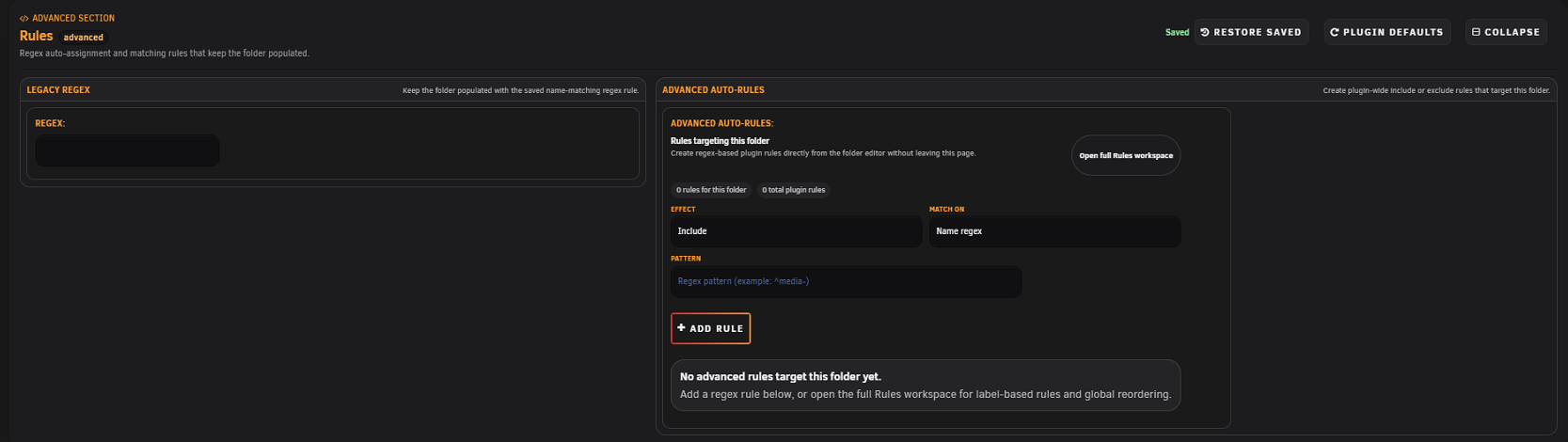
The Folder Editor offers safe builders for common rules:
| Template | Docker | VM | Generated match |
|---|---|---|---|
| Name starts with | Yes | Yes | Escaped name-prefix regular expression. |
| Name contains | Yes | Yes | Escaped name-contains regular expression. |
| Image repository contains | Yes | No | Docker image repository match. |
| Compose project equals | Yes | No | Exact Compose project match. |
| Docker label equals | Yes | No | Exact key=value label match. |
| Catch-all | Yes | Yes | Explicit final broad name rule. |
Generated rules are enabled and can be Include or Exclude. New specific rules are inserted before an explicit catch-all so the broad rule remains last.
Preview separates:
- Matched items.
- Newly assigned items.
- Items already controlled by an earlier rule.
- Manually assigned members.
A preview never silently removes a manual member. Review and apply are separate operations.
If Exclude name regex ^test- is above Include label media=true -> Media, a container named test-player with that label is excluded because the first enabled decision wins.
The simulator evaluates the current rules without changing folders. Use the conflict inspector when overlapping rules, labels, or existing membership can affect an item. Export rules before a major rewrite.
Existing folder-level regex continues to run, import, export, and back up. New automation should use ordered Auto-Rules. Valid legacy values can be converted through the editor; conversion appends a compatible Include/Name-regex rule while preserving existing higher priority. Invalid regex remains visible for repair.
Advanced -> Operations can save reusable settings for Docker or VM folders of the matching type. They are useful for consistent preview, status, icon, and action behavior.
- Preview before applying.
- Supported applications create a safety backup.
- Member-bound actions are disabled when required members are unavailable.
- Filter, export, and bulk-delete templates deliberately.
- A saved template is not a snapshot, environment export, or Setup Assistant preset.
Starter folder templates are proposed during guided setup and can include starter rules or smart-detected suggestions. They become ordinary folders/rules only after the Review plan is applied.
Balanced, Minimal, Power, and Media Stack are Setup Assistant quick presets. User-saved wizard presets remain in the current browser profile. They coordinate assistant choices but contain neither complete server configuration nor recovery history.
Advanced -> Operations combines deliberate folder runtime actions with saved folder templates. Runtime eligibility remains authoritative: a template can describe an action, but current host state decides whether it can run.
- Manual layout is correct.
- Current snapshot/export exists.
- Rule and template type match Docker versus VM.
- Excludes precede broader includes when intended.
- Simulator result and manual-member list are understood.
- Catch-all is last.
- Apply preview has no surprising deletes or moves.
- Runtime pages are verified afterward.
Next: Backup, Recovery, and Migration · Folder Editor · Setup Assistant