Backup Recovery and Migration
FolderView Plus provides Docker/VM snapshots, portable environment exports, import previews, comparisons, restore, undo, and migration tools. These tools have different scopes. Use the matrix below before assuming one file protects everything.
| Method | Includes | Does not include | Best use |
|---|---|---|---|
| Docker or VM snapshot | Selected type's folder map and preferences. | Other type, Theme Workspace, saved folder templates, custom-icon binaries, and recovery history. | Fast rollback for one type. |
| Environment export | Docker folders/preferences, VM folders/preferences, and Theme Workspace data. | Saved folder templates, custom-icon binaries, snapshot/history files, request token, diagnostics/security history, legacy override roots outside Theme Workspace, and the reinstallable icon-pack archive. | Portable configuration migration. |
| Full plugin-directory copy | Everything currently stored under /boot/config/plugins/folderview.plus. |
Docker/VM application data, which FolderView Plus never owns. | Uninstall, flash-device replacement, and complete disaster recovery. |
An environment export is a portable configuration export, not a byte-for-byte backup. For complete preservation, copy /boot/config/plugins/folderview.plus to another system or storage device.
Security: snapshots and exports contain real names, settings, paths, URLs, and other private configuration. They are not sanitized support bundles. Store and share them as secrets.
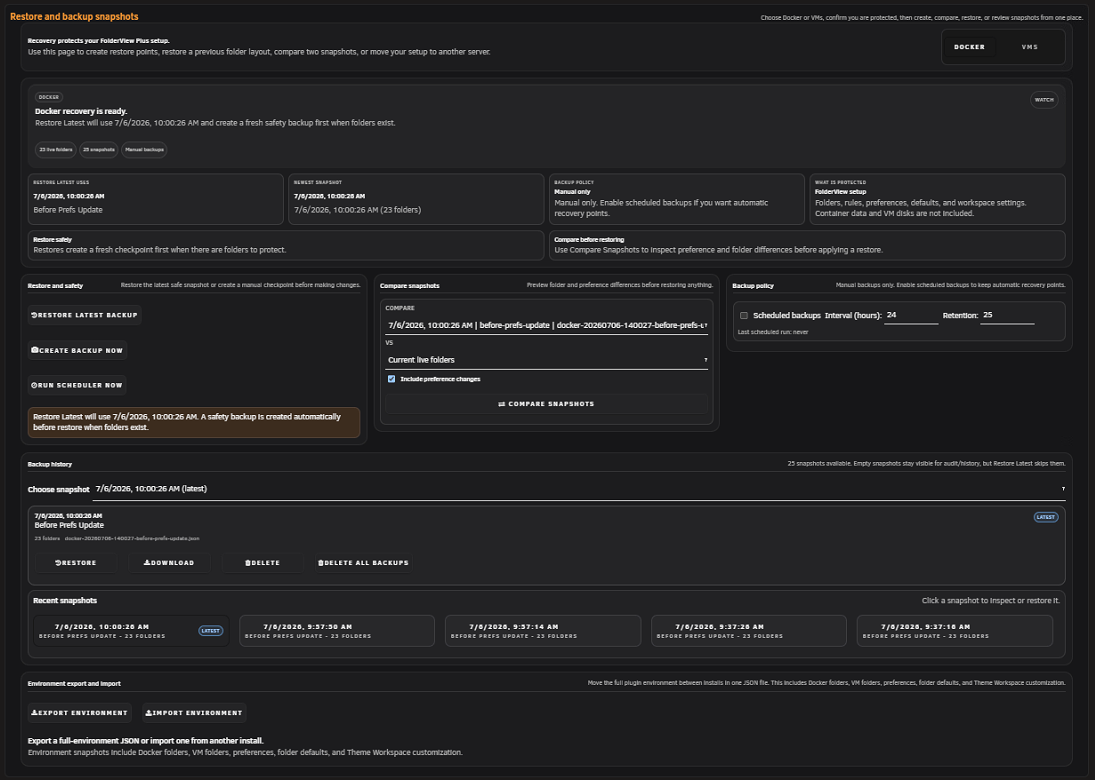
Open Advanced -> Recovery, choose Docker or VM, and use Create backup. Snapshot history supports:
- Restore a selected snapshot.
- Restore Latest.
- Download.
- Compare with current state or another snapshot.
- Delete one snapshot or delete all snapshots for the selected type.
- Include and restore that type's preferences.
Manual and scheduled snapshot requests normally skip an empty folder map. Safety reasons used by transactional operations may retain an empty snapshot when that state is important to rollback.
Restore Latest ignores snapshots containing zero folders so an empty history entry does not unexpectedly erase a working layout. A zero-folder snapshot remains visible, and direct restore is available when you deliberately select it and confirm that an empty configuration is the intended result.
Schedules are stored separately for Docker and VMs.
| Setting | Default | Allowed range |
|---|---|---|
| Interval | 24 hours | 1–168 hours |
| Retention | 25 snapshots | 1–200 snapshots |
The installer registers a cron poll that runs every five minutes. That poll does not create a snapshot every five minutes; it checks whether the selected type's configured interval is due. Run scheduler now invokes the same due-check immediately. Retention is applied per type after a new snapshot is written.
Supported imports, restores, bulk assignments, template applications, repairs, deletes, and other destructive operations create the appropriate safety point before commit. The exact recovery mechanism depends on the operation:
- A type snapshot can undo a Docker-only or VM-only mutation.
- A global rollback checkpoint protects coordinated operations such as environment import or Setup Assistant apply.
- Recent-change undo selects an eligible
before-*,pre-*,undo-*, or transaction snapshot.
Undo is not unlimited history. If retention pruning or manual deletion removed the required snapshot—or the entire plugin directory was lost—use an external export or full directory copy.
Select current state and a snapshot, or two snapshots, to review folder and preference differences. The comparison identifies creates, updates, deletes, and changed fields without writing anything. A restore creates a fresh safety backup first when the current folder map is non-empty.
| Mode | Behavior | Best use |
|---|---|---|
| Merge safely | Adds missing folders and updates matches; does not delete destination-only folders. | Most migrations and routine imports. |
| Add new only | Creates missing folders and leaves existing folders unchanged. | Preserve the destination as authoritative. |
| Replace exactly | Makes destination match the export and may delete absent folders. | Controlled replacement with a verified complete source. |
Changing mode recalculates the preview. Preview only performs no write. A live import validates the complete plan, creates a transaction backup, commits atomically, verifies the saved result, and attempts rollback if commit or verification fails.
Screenshot placeholder — import preview
Capture mode choices, change totals, and fictional create/update/delete rows. Exclude local filenames and real workload names.
Environment export moves both folder types and Theme Workspace customization in one JSON file. Preview displays counts, source/current plugin versions, active managed-theme information, and warnings before import. It intentionally does not package arbitrary persistent files.
If you depend on uploaded icons or saved folder templates, copy these with the full plugin directory:
- Custom icons:
/boot/config/plugins/folderview.plus/images/custom - Docker templates:
/boot/config/plugins/folderview.plus/docker.templates.json - VM templates:
/boot/config/plugins/folderview.plus/vm.templates.json
FolderView Plus accepts eligible data from folder.view, folder.view2, and folder.view3, including legacy labels, nested identities, regex values, and supported custom override roots. Simple type imports use the normal import preview and mode choices.
For a complete installed FolderView3 conversion—including defaults, start order, and appearance—use the dedicated FolderView3 Migration workflow.
Recommended general migration:
- Export Docker and VM data from the old plugin.
- Copy the old plugin configuration and overrides off-server.
- Install FolderView Plus without deleting the old data.
- Detect or preview migration read-only.
- Use Merge safely unless exact replacement is intentional.
- Resolve hierarchy/path conflicts instead of guessing.
- Apply and verify Settings, Docker, VMs, and Dashboard.
- Keep the external old-data copy until the new layout is proven.
Legacy Docker labels include folder.view, folder.view2, folder.view3, and folderview.plus.
Current exports carry schema and folder identity metadata. Older exports may rely on names and hierarchy paths. Parents are processed before descendants; ambiguous collisions become conflicts. Do not manually edit IDs to bypass a conflict.
If /boot/config/plugins/folderview.plus was restored, reinstall the matching manifest and run Diagnostics. If it was not restored, install cleanly and import external configuration files. Local snapshots were stored inside the lost directory and cannot be recovered by the plugin.
Custom icons and saved folder templates can only be restored from a full plugin-directory copy unless they were separately preserved.
- Stop making further destructive changes.
- Record the plugin version and exact error.
- Export current readable configuration.
- Copy the full persistent directory before manual intervention.
- Compare snapshots before restore.
- Restore the narrowest correct Docker/VM snapshot.
- Verify Settings, Docker, VMs, Dashboard, and Diagnostics.
- Keep the pre-restore safety point until satisfied.
See also: Installation and Upgrades · FolderView3 Migration · Troubleshooting