Activity Diagnostics and Support
FolderView Plus provides three complementary evidence surfaces: Activity Center for recent user-visible events, focused runtime/editor banners for local failures, and Advanced Diagnostics for system-wide checks and support exports.

Activity records recent imports, exports, backups, restores, deletes, clears, undo operations, diagnostics exports, and related success/warning/failure events. It helps answer “what just changed?” without reading raw logs.
An export event confirms that a browser download was requested; it cannot prove the user completed the browser save dialog. Clearing the visible activity feed does not undo configuration changes.
Open Advanced -> Diagnostics to:
- Run a combined health check.
- Retest the runtime performance profile.
- Inspect Docker, VM, storage, custom icon, update, localization, theme, and runtime-integrity results.
- Copy a compact issue report.
- Preview and export a support bundle.
Diagnostics may attach a narrowly scoped repair to a finding:
| Repair | Purpose |
|---|---|
| Synchronize Docker order | Reconcile saved FolderView order with the supported Docker order path. |
| Normalize preferences | Rewrite supported preferences into their normalized schema. |
| Repair configuration metadata | Restore missing/inconsistent revision metadata. |
| Repair paths | Correct supported plugin storage/runtime path problems. |
| Repair missing custom-icon references | Remove or replace saved references to unavailable uploaded icons. |
| Repair orphaned member references | Remove saved member references that no longer resolve. |
Run a repair only when Diagnostics recommends it and its reason matches the problem. Every repair requires confirmation. Missing-icon and orphaned-member repairs create a configuration backup before changing references; do not assume every diagnostic action creates one. Re-run the health check after repair and review the Activity event.
Screenshot placeholder — recommended diagnostic repair
Capture one fictional warning card, its reason, confirmation, and post-repair healthy result.
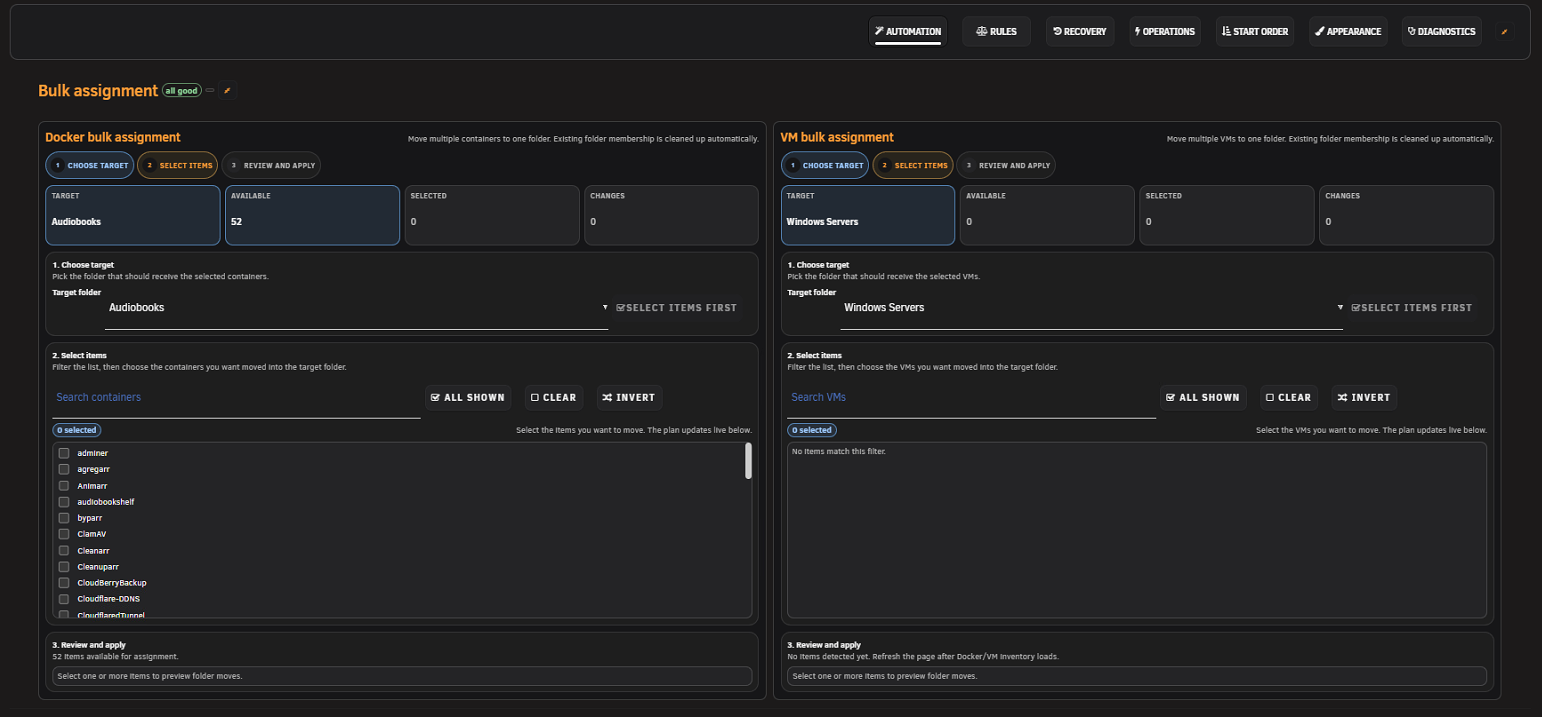
Screenshot placeholder — Diagnostics health summary
Capture a healthy test installation showing core and advisory sections plus the support-bundle preview. Redact server identity and do not show full/raw bundle content.
When Docker, VMs, Dashboard, Settings, or the folder editor displays an error banner, copy its diagnostic text before refreshing. The local banner often contains the exact failed step, module, or host surface that the later page reload would erase.
Docker/VM Tools and Dashboard View options can also capture page/layout diagnostics. These captures contain allowlisted aggregate counts, viewport buckets, loading/error indicators, and overflow state. Each surface retains only a small set of fresh captures and expires old data; it cannot reconstruct a previous viewport after you leave the page.
Docker captures can also report an aggregate API provider mode, supported capability booleans, retry/cooldown state, and whether reconciliation was targeted, full, or structural. This evidence helps distinguish healthy API-first reads from automatic PHP fallback without exposing container names, IDs, response payloads, credentials, or raw server errors.
For a collapsed Docker preview whose Default context menu does not open, the sanitized bundle can include uiTelemetry.dockerDiagnostics.previewContextBridge. This short-lived record distinguishes Preview Rows 1, 2, 3, 4, and Unlimited, numeric row-position buckets, bridge binding and post-layout handler integrity, mouse or keyboard input, icon/name/status/card activation, native-menu dispatch outcomes, and bounded failure reasons. It persists briefly so you can move from Docker to Settings to export the bundle. It excludes folder and container identities, selectors, URLs, and pointer coordinates. available: false means no current preview-context record was available; reproduce once on Docker after updating and hard-refreshing, then export again.
For protected-action failures, the sanitized bundle's system.requestSecurity section reports whether direct or validated forwarded authority was evaluated and whether Origin/Referer checks matched. It records only bounded status/reason categories; hostnames, addresses, ports, URLs, and raw forwarded-header values are excluded.
Recommended visual-issue workflow:
- Reproduce on the same browser, device, zoom, layout, and theme.
- Capture page/layout diagnostics while the defect is visible.
- Copy any local banner before refreshing.
- Open
Settings -> FolderView Plus -> Advanced -> Diagnostics. - Confirm the capture surface and timestamp are current.
- Preview the sanitized bundle and export it.
Include:
- Unraid version.
- FolderView Plus version from
/boot/config/plugins/folderview.plus/versionor Plugins. - Stable (
main) or development (dev) channel. - Browser and version.
- A numbered reproduction beginning from page navigation.
- Expected versus actual result.
- Whether the issue affects Docker, VMs, Dashboard, Settings, or editor.
- Screenshot/video for visual issues after enabling Privacy.
- Sanitized support bundle and copied local diagnostics when available.
Use the GitHub issue chooser or the Unraid forum thread.
- Authentication cookies, tokens, CSRF values, or GitHub credentials.
- Full/raw diagnostic bundles without review.
- Environment/configuration exports.
- Container/VM names when they reveal personal or business information.
- Private paths, IP addresses, URLs, MAC addresses, or screenshots of unrelated Unraid panels.
Do not open a public issue for an unpatched vulnerability. Use the repository Security tab. See Security and Package Trust.
- Update to the latest stable release unless testing a requested dev build.
- Hard-refresh the affected page.
- Disable custom overrides.
- Compare the native/Host list surface.
- Run Diagnostics and review the Activity Center.
- Search existing issues.
Next: Troubleshooting · Privacy