Folder Editor
The modern folder editor is used for both Docker and VM folders. Its live preview helps design the row, but runtime pages remain the authoritative behavior check.
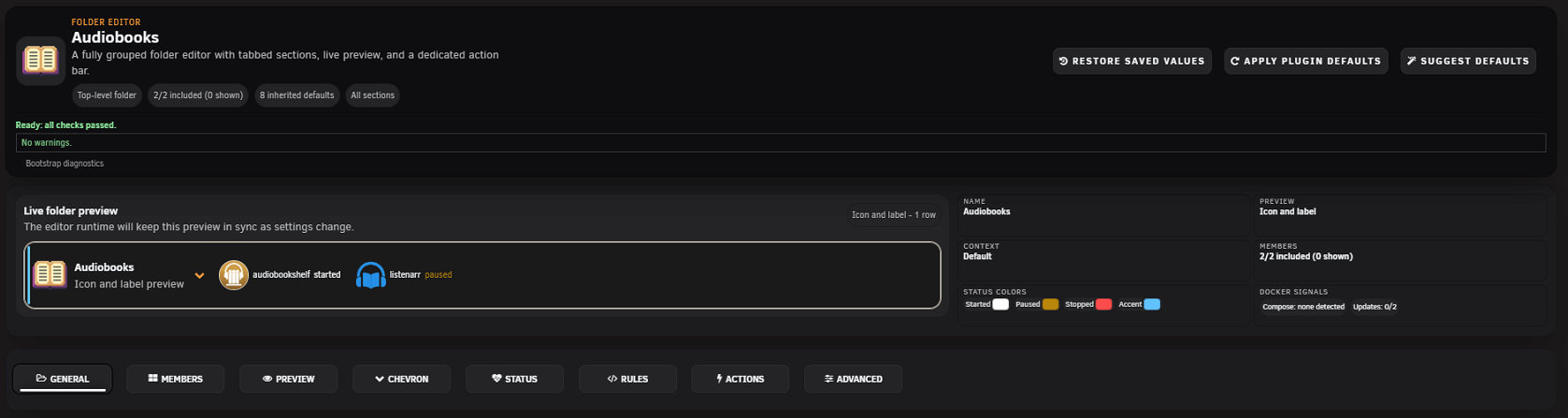
| Tab | Purpose |
|---|---|
| General | Folder name, parent/hierarchy, icon, pinning, and primary identity. |
| Members | Select and manually order direct containers or VMs. |
| Preview | Choose collapsed-preview members and child-folder depth/visibility. |
| Chevron | Configure expand/collapse indicator presentation. |
| Status | Choose folder status display, colors, labels, and attention behavior. |
| Rules | Review legacy regex compatibility and related assignment behavior. New automation belongs in Advanced Auto-Rules. |
| Actions | Configure folder-menu actions and eligible member targets. |
| Advanced | Less common behavior, appearance, integrity, and compatibility options. |
Choose a unique name within the parent. Changing the parent moves the entire branch. Pinning a nested folder affects the root branch's visible ordering rather than flattening the hierarchy.
Members are direct workloads. Nested folders are ordered separately from workload members. Use the reorder controls after switching to manual mode. If a member seems missing, confirm it is not already effectively assigned by another folder or rule.
Preview inclusion is independent from membership. Use it to keep important workloads visible while a folder is collapsed, or to show child-folder summaries. Avoid displaying every member in a very large folder; lazy preview and Adaptive performance can reduce unnecessary work.
Screenshot placeholder — Preview tab
Capture a test folder with direct members, one excluded preview member, and one child folder. Use fictional workload names.
Folder status summarizes member state using the selected calculation and detail mode. Theme-aware tokens keep status readable in light, dark, safe-palette, and high-contrast modes. Prefer the built-in controls over broad custom CSS.
Standard actions can control eligible members for start, stop, pause, resume, restart, and related runtime operations. A custom action may also invoke an installed User Scripts task. Configure the action name, execution type, targets, and optional Font Awesome icon.
Actions are subject to member state, type, folder lock, and runtime capability. A saved action that references unavailable members is disabled rather than guessed.
Screenshot placeholder — custom folder action
Capture the Action details and Standard action sections using test workloads. Do not expose script contents, paths, tokens, or production names.
Existing folder-level regex remains readable and executable for compatibility. A valid legacy regex can be converted into an Advanced Include/Name-regex rule. Conversion creates a backup and preserves existing higher-priority rules. Invalid patterns retain a repair path and cannot be converted until valid.
- Blank editor: copy bootstrap diagnostics before refreshing.
- Missing members: verify type, effective assignment, and runtime inventory.
- Preview differs from runtime: save, close, and verify the actual Docker/VM page.
- Controls appear clipped: test a supported browser at 100% zoom and disable conflicting custom CSS.
- Save conflict: reload current state rather than repeatedly resubmitting stale changes.
See Troubleshooting for detailed recovery steps.