Folder Management
Docker and VM configurations are separate, but their folder concepts are intentionally consistent.
- Open Basic Settings and choose Docker or VMs.
- Select Add folder.
- Enter a name unique within the selected parent.
- Choose an icon or keep the default.
- Select direct members.
- Review the preview and save.
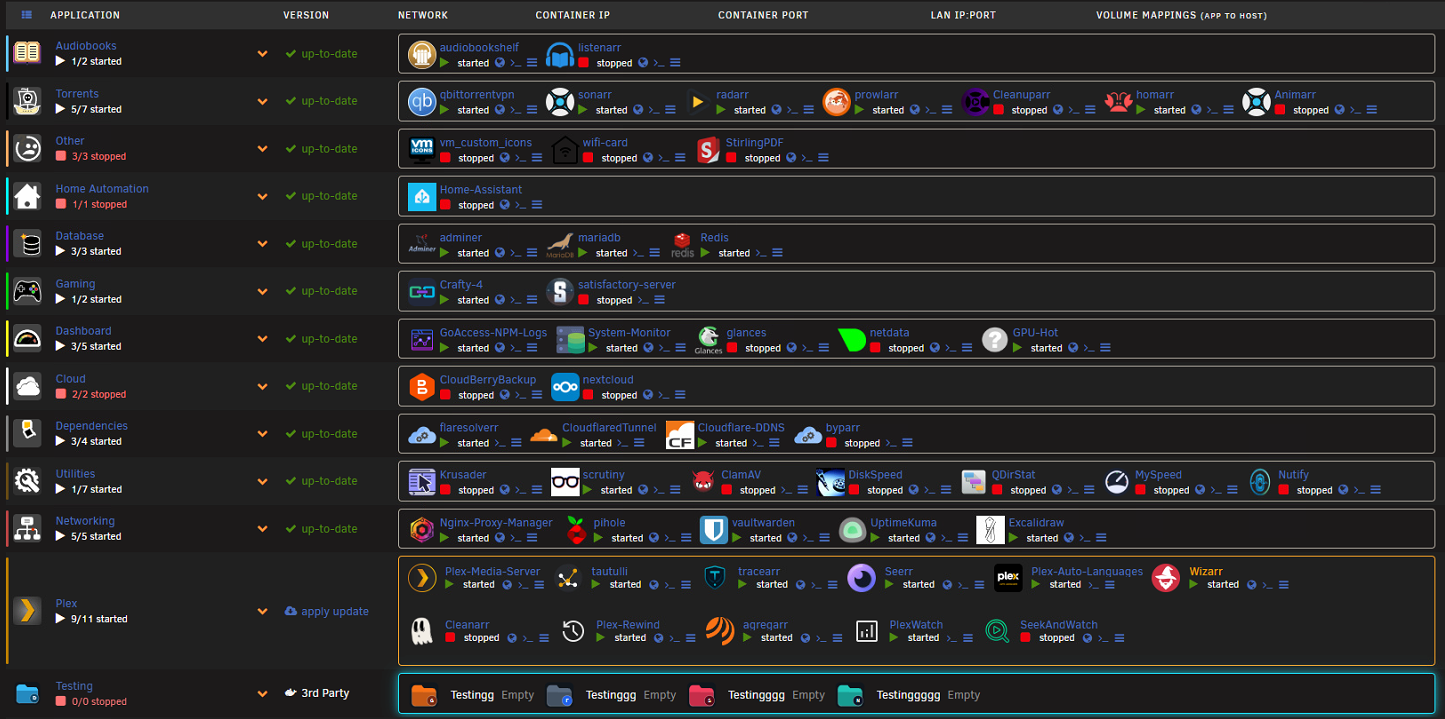
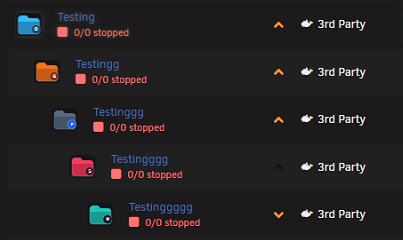
- A folder may be placed beneath another folder using the parent picker.
- The Members tab contains direct container or VM assignments; child folders are separate hierarchy nodes.
- A member should normally have one effective folder.
- Moving a parent keeps its branch together.
- Names must be unique among siblings; the same name may be meaningful in separate branches when no collision exists.
- Deep nesting is supported, but shallow, purpose-driven hierarchies are easier to operate.
Manual order uses the six-dot handles and one-step arrow controls. Name/timestamp modes calculate order automatically. Pinned folders are resolved before the selected sort mode. Switch to manual before expecting a drag or arrow operation to define the full order.
Nested pinning promotes the root branch when visible order is calculated; it does not detach the nested folder from its parent.
Collapsed previews can include selected direct members and child-folder summaries without changing actual membership. You can control preview depth, member inclusion, icon/label/status/action visibility, and child folder inclusion.
If every member is excluded from preview, the UI shows an explanatory empty state. Expanding the folder still reveals native rows.
The action sheet is context-sensitive. Depending on type, state, lock, hierarchy, and member eligibility, it can offer:
- Edit, focus, pin/unpin, lock/unlock, expand, or collapse.
- Start, stop, pause, resume, restart, or update eligible members.
- Move within the current level, move under a parent, or return to root.
- Clone, export branch, import into branch, scan, repair, or delete.
- Copy folder ID for diagnostics or advanced integrations.
Review destructive confirmations. Deleting a branch can affect nested folders, and runtime actions can affect several workloads at once.
Docker and VM view settings can save defaults for newly created folders. Defaults reduce repeated editor work but do not retroactively rewrite existing folders. Clear defaults when you want new folders to return to normal baseline behavior.
- Create a Recovery snapshot.
- Switch sorting to manual if order matters.
- Move one branch at a time.
- Verify direct members and children on the runtime page.
- Check Dashboard if that type is displayed there.
- Use recent-change undo when offered; otherwise restore the safety snapshot.
- Confusing a hidden preview member with removed membership.
- Expecting manual dragging to persist while an automatic sort mode is active.
- Assigning the same member through overlapping rules without checking priority.
- Deleting a parent without reviewing the nested branch.
- Using folder names as permanent automation identifiers when folder IDs are available.