Settings Reference
Open Settings -> FolderView Plus. Settings search matches visible labels and common aliases; change search scope to include all Advanced workspaces when needed.
| Mode | Purpose |
|---|---|
| Basic | Everyday Docker/VM folder lists, search, filters, sorting, add, import, export, clear, folder defaults, view/display preferences, and Setup Assistant. |
| Advanced | Automation, Rules, Recovery, Operations, Start Order, Appearance, and Diagnostics. |
Preferences save automatically. Operations that can replace or delete configuration use a separate preview, confirmation, safety backup, or progress flow.
Each type has its own folder map and preferences.
- Search folders: filters the visible Settings table without deleting anything.
- Filters/View settings: opens layout, badges, runtime, defaults, Dashboard, health, privacy, and column controls.
- Add folder: opens the modern editor.
- Setup Assistant: starts guided setup or migration.
- Export all: downloads the selected type's configuration.
- Import: validates and previews an import.
- Clear: creates a safety point and removes the selected folder configuration after confirmation.
- Order controls: manual reorder handles/arrows; automatic name or timestamp sorting when selected.
| Group | Setting | Default / choices | What it changes |
|---|---|---|---|
| Layout | Application/name width | Compact, Standard, Wide | Space reserved for names on runtime pages. |
| Layout | Hide empty folders | Off | Hides folders with no effective runtime members. |
| Status | Calculation | Summary or Dominant | How member state becomes a folder state. |
| Status | Display detail | Simple, Balanced, Detailed | Amount of status information shown. |
| Status | Trend and attention accent | On | Adds state-change context and visual attention. |
| Status | Stopped warning threshold | 60%, range 0–100 | Warning point for stopped-member summaries. |
| Badges | Running | On | Shows running counts. |
| Badges | Stopped | Off | Shows stopped counts. |
| Badges | Updates | Docker only, on | Shows update availability. |
| Runtime | Live refresh | Off | Periodically reconciles runtime state. |
| Runtime | Refresh interval | 20 seconds, range 10–300 | Frequency when live refresh is enabled. |
| Runtime | Performance profile | Standard, Adaptive, Maximum | Motion, preview, refresh, and restoration safeguards. |
| Runtime | Lazy preview | Off | Defers heavier preview work beyond a threshold. |
| Runtime | Lazy threshold | 30, range 10–200 | Folder/member scale at which lazy preview begins. |
| Runtime | Theme compatibility | Auto, Host, Safe, High contrast | How runtime colors/tokens are resolved. |
Docker also provides FolderView, Host list, and Command page-view modes.
Docker and VM widgets support Classic, Legacy, Full Width, Accordion, Inset, Compact Matrix, and Embossed layouts. Controls also cover expand toggle, dimmed collapsed cards, folder labels, and privacy masks. Docker additionally supports native or advanced preview context, click or hover trigger, graph selection, and graph time window.
- Health cards are enabled by default.
- Runtime summary badges are optional.
- Docker offers strict, balanced, and lenient scoring presets, stopped thresholds, update handling, and all-stopped handling.
- VM health uses warning/critical vCPU and memory thresholds. Defaults are 16/32 vCPU and 32/64 GiB.
Docker can mask names/icons, LAN IPs, ports, volume paths, image registries, public IPs, network interfaces, and external URLs. VM privacy can mask names/icons, disk paths, MAC addresses, public IPs, network interfaces, and external URLs. See Privacy.
Required columns include Order, Name, and Actions. Optional Docker columns include Members, Status, Rules, Last changed, Pinned, and Alerts. Optional VM columns include Members, Status, Rules, Last changed, Pinned, Autostart, and Resources. Column visibility and widths are presentation preferences; they do not alter folder data.
| Workspace | Contains |
|---|---|
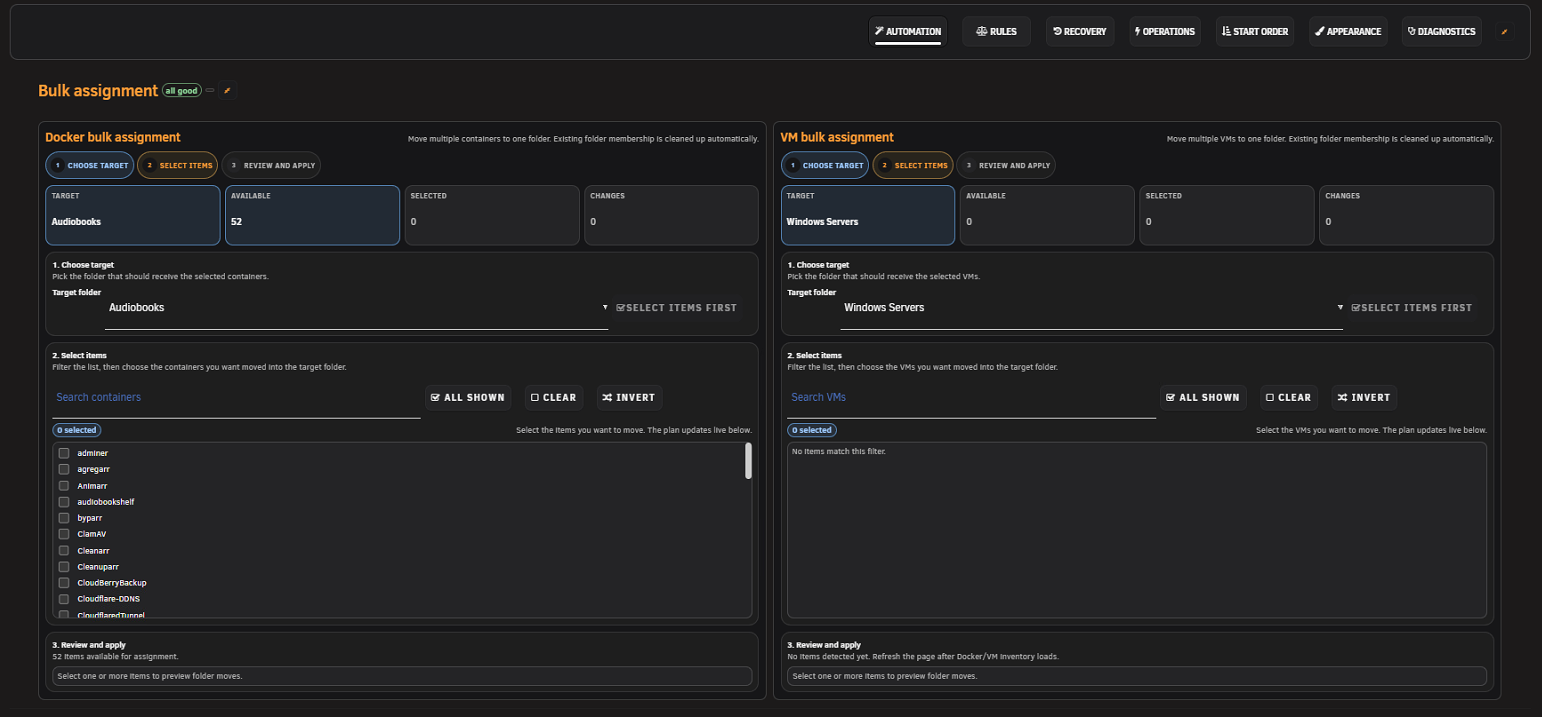
| Automation | Docker and VM bulk assignment plans and previews. |
| Rules | Ordered auto-assignment rules, simulator, conflicts, and troubleshooting. |
| Recovery | Manual/scheduled snapshots, compare, restore, download, environment import/export, migration preview, undo, and recent changes. |
| Operations | Folder runtime actions and reusable templates. |
| Start Order | Docker autostart order from folders or custom batches. |
| Appearance | Managed themes, token editing, imports, preview, and custom CSS. |
| Diagnostics | Health, performance retest, integrity, issue report, and support bundle preview/export. |
- Wait for the operation or progress surface to finish.
- Reload Settings and confirm the normalized value.
- Check Activity Center for a failure.
- Look for a stale-page or conflict banner.
- Run Diagnostics before retrying destructive operations.