Areas and layouts
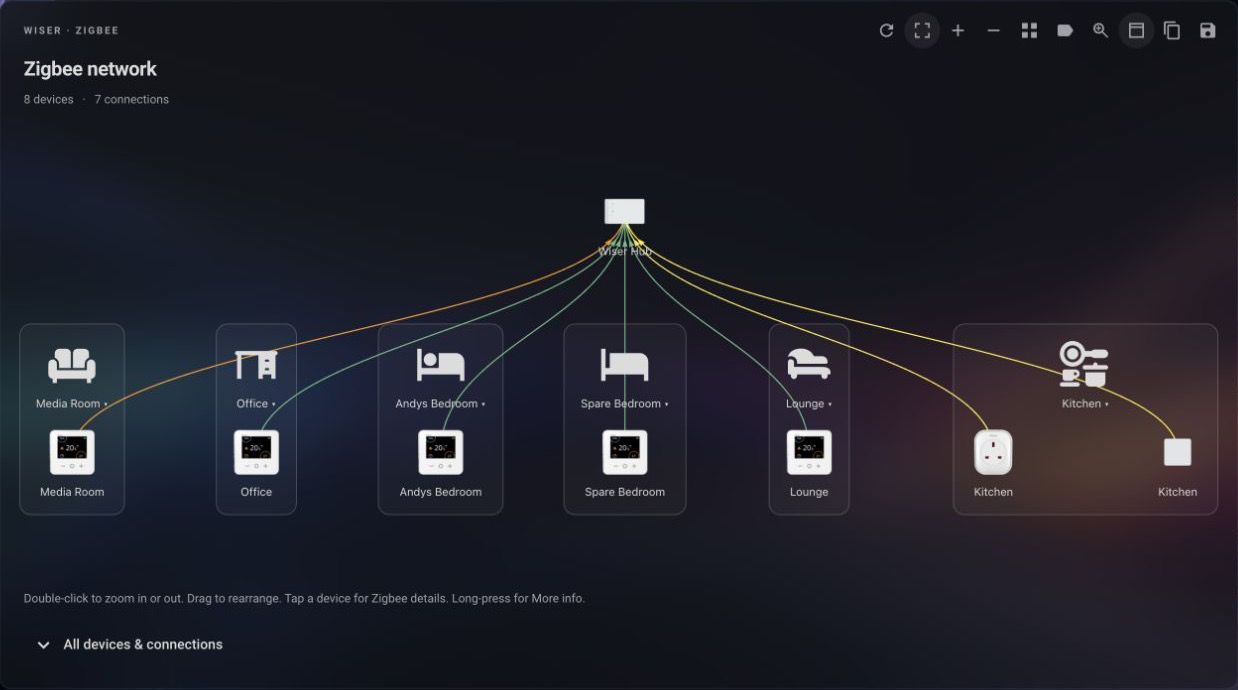
Choose Network view in the editor:
- Vertical (default) places the hub above successive levels of devices, following parent/repeater connections.
- Horizontal flows from left to right.
- Pie arranges a repeater's children around that repeater and centres the complete map.
These are presentations of the same network. Moving devices or changing the view does not change Zigbee routing.
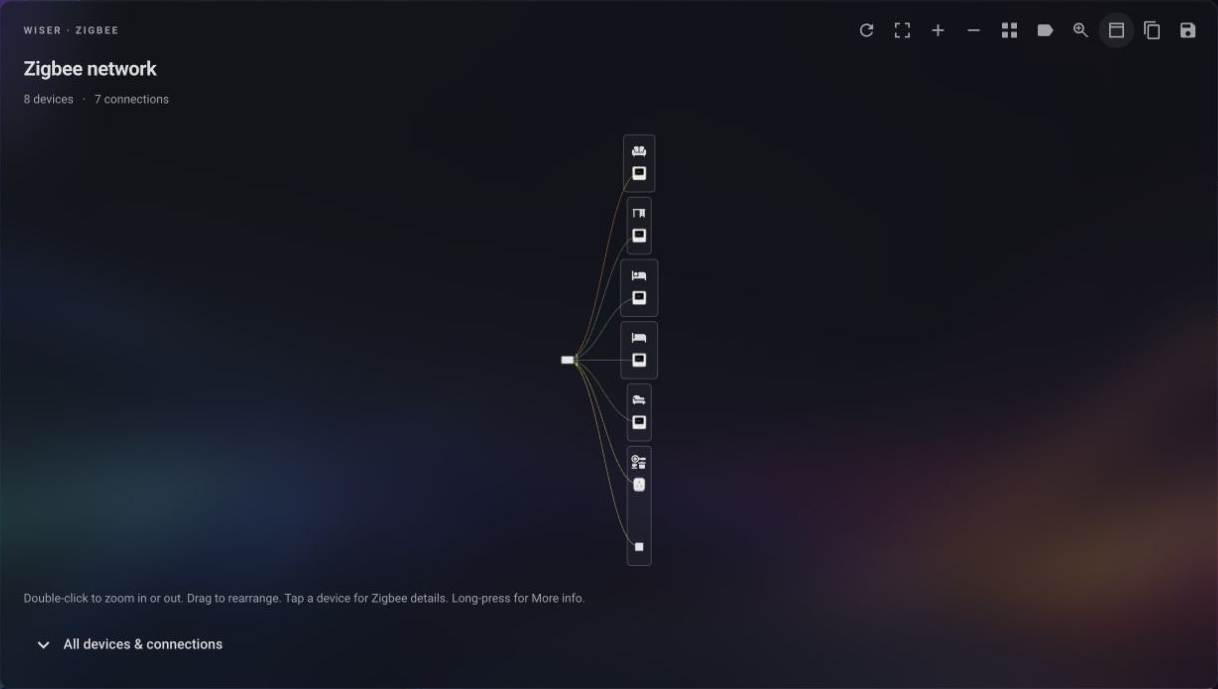
Horizontal orientation with area grouping. The map fits the complete network into the available card height.
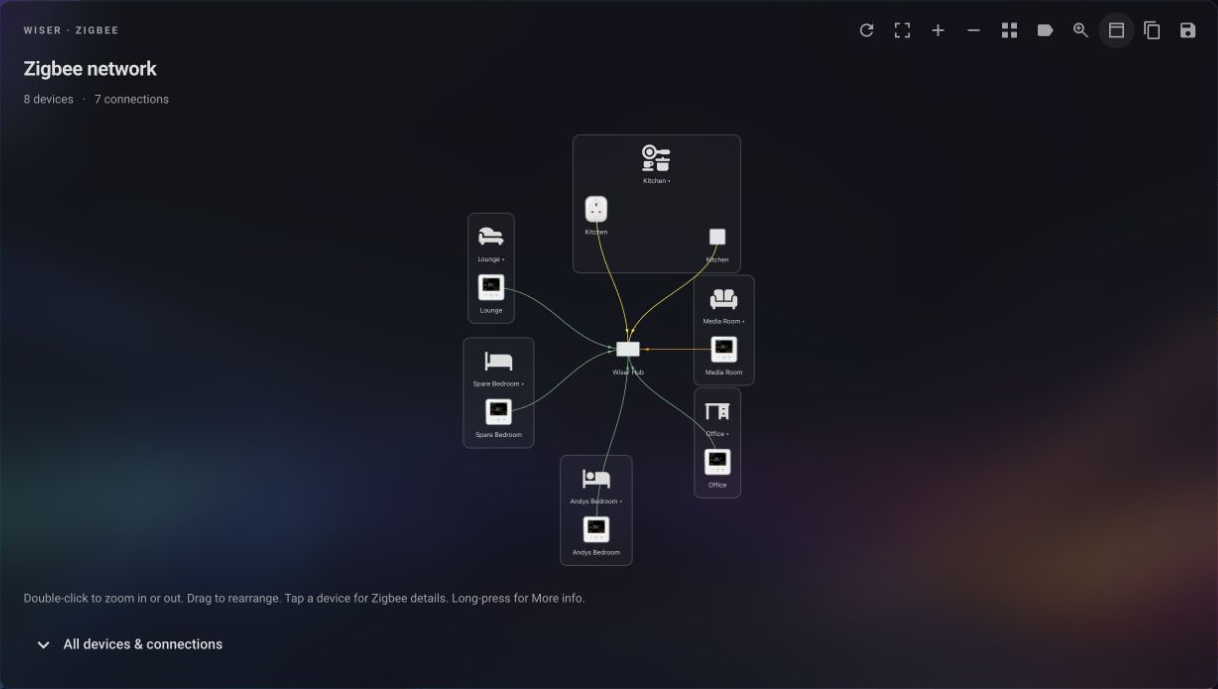
Pie orientation with area grouping, showing devices arranged around the hub while retaining their real Zigbee connections.
Choose Group → Area, or add:
group_by: areaGrouping uses the matched device's Home Assistant area, or the matched signal entity's area if the device has none. Unassigned or unmatched devices appear in Unassigned.
Device labels use the Home Assistant device name. A leading Wiser prefix and any repeated area name are removed because the area is already shown by the group. For example, Wiser Thermostat appears as Thermostat inside its area.
Area groups retain the real parent/router links, including connections between areas. Area icons label groups; they are not additional Zigbee network hops. Icons use the area's configured Home Assistant icon, including custom icon sets, with a floor-plan fallback.
- Drag an area icon to move the group and all its devices together, including hidden devices.
- Drag an individual device to position it independently; its area box expands to contain it.
- Tap an area icon to collapse or expand its devices and their links.
Areas start expanded. Collapsed state survives automatic refresh, and collapsing retains positions and zoom. Tidy preserves manual ordering within each area. Set group_by: none to return to an ungrouped map.
In an ungrouped map, a device that is the only device in its area keeps the compact area label. When an area contains multiple devices, each label shows the cleaned Home Assistant device name with the area name underneath. Devices without a matched area use their cleaned device name.
Auto height is enabled when map_height is absent, null or empty. In a constrained Sections layout, the map fills the available card height; use Home Assistant's Layout settings to adjust rows. Without a constrained height, its natural map height is 340 pixels.
For a fixed map area:
map_height: 500The accepted range is 100–2000 pixels. This is the map area's height, not necessarily the entire card height. Sizing applies to every orientation and both view modes. Width or height changes refit and centre the map while retaining device positions.
Changing hub, orientation or grouping in the visual editor clears the previous embedded coordinates. Browser layouts remain separate for each orientation and grouping. After changing these settings, arrange the view and save again. See Saving layouts for precedence and cross-browser behaviour.