Home
See how your Wiser devices connect to their hub in Home Assistant. The card displays the network with product images, room labels and real parent/router connections. Tap a device for its Zigbee details, group devices by area, and save an arrangement that suits your dashboard.
This wiki describes the code at 3.0.1. Older builds may have different controls, labels or layout-saving behaviour.
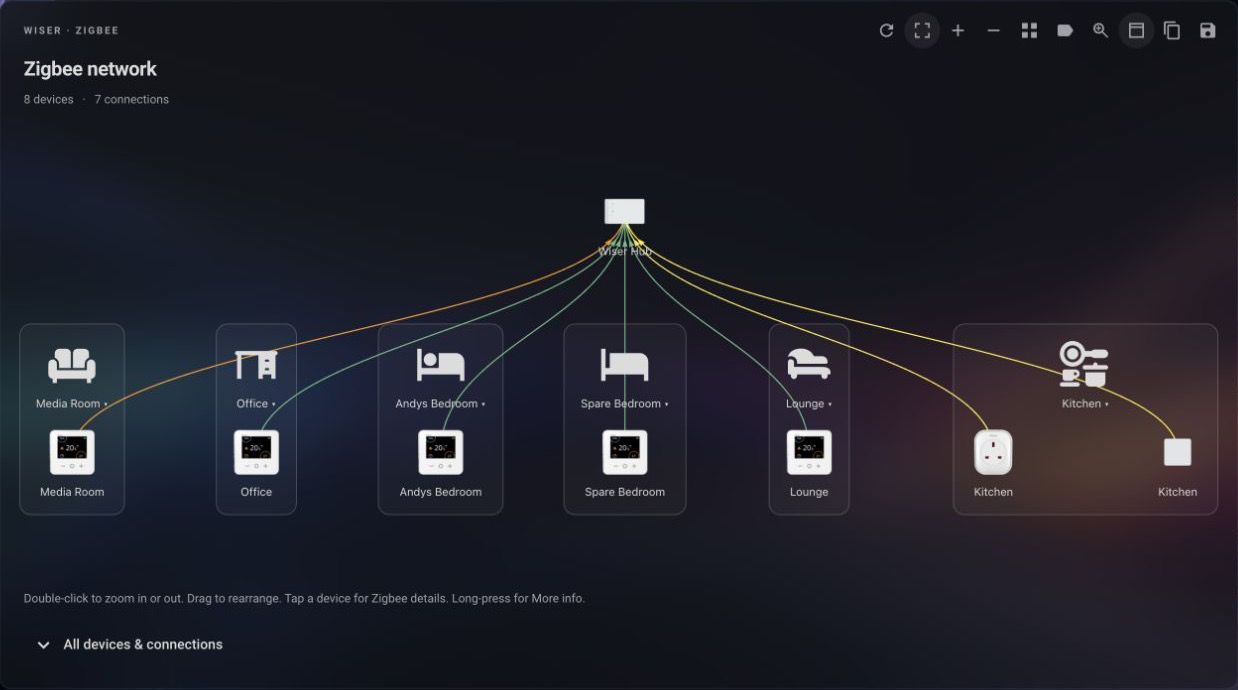
A real area-grouped network in Home Assistant, with device images and signal-coloured links.
- Install the card.
- Choose your Wiser hub in the visual editor.
- Configure the view and explore the map controls.
- Arrange devices and save your layout.
| Page | What you will find |
|---|---|
| Installation | Requirements, resource setup and upgrades |
| Sidebar panel | Hub tabs, automatic sizing and panel settings |
| Configuration | YAML reference and ready-to-use examples |
| Using the map | Toolbar, gestures, device information and signal colours |
| Areas and layouts | Orientation, area grouping and map sizing |
| Saving layouts | Dashboard and panel saves, browser storage and Copy/Paste |
| Troubleshooting | Loading, missing details and persistence problems |
| Development | Build, tests, demo and documentation maintenance |
The card includes English (US and British), German and French text and follows your Home Assistant profile language. Other languages use US English for card-specific text; native Home Assistant labels follow Home Assistant translations. Map labels use Home Assistant device and area names, removing a leading Wiser prefix and redundant area names where appropriate.