Sidebar panel
In the current integration, open Wiser in the Home Assistant sidebar and choose Zigbee beside Rooms and Schedules. The integration provides this shared navigation and its settings button. Panel availability is managed by the Wiser integration; replacing the card bundle alone does not add or update the surrounding integration UI.
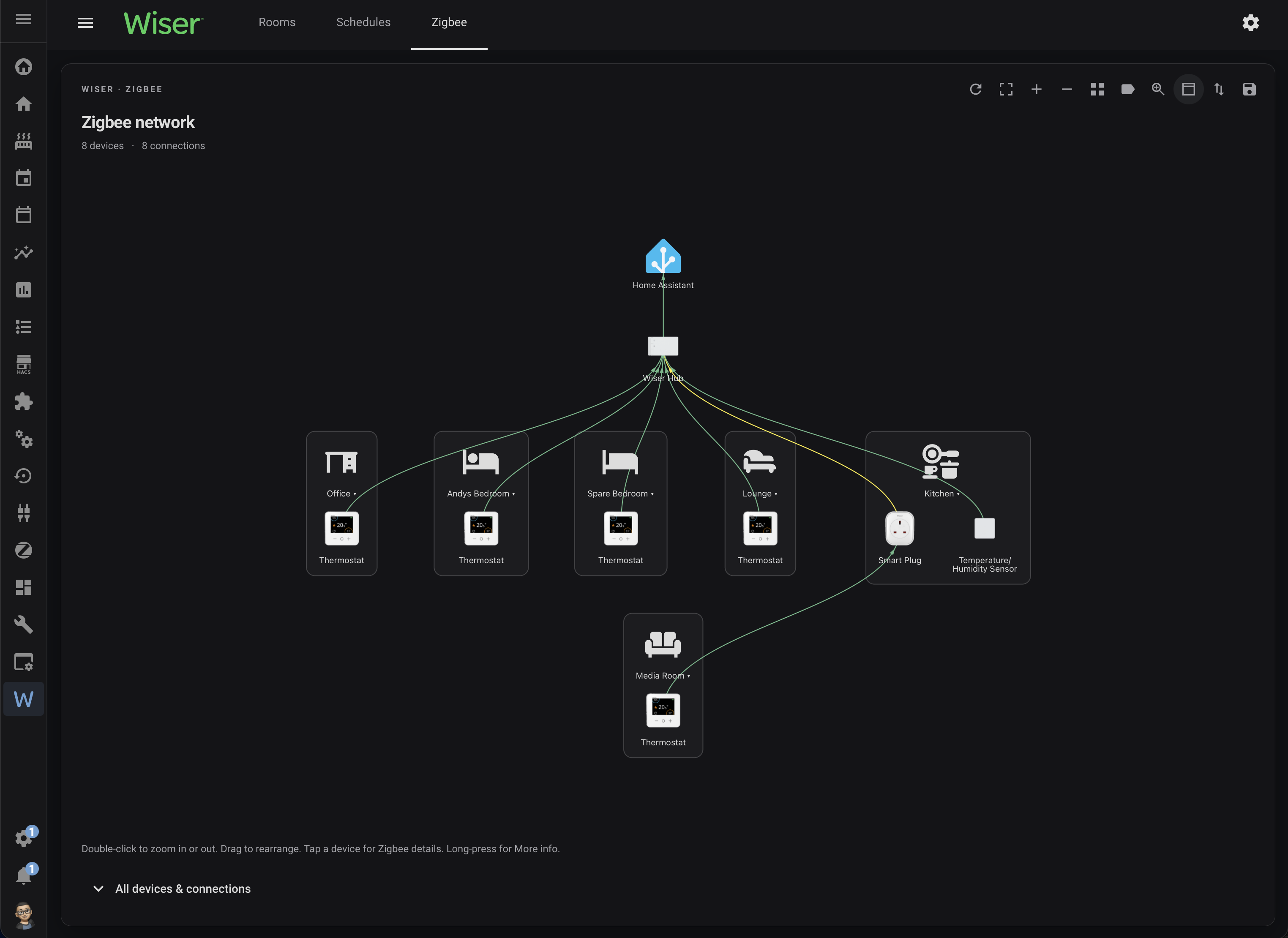
Current panel example supplied on 30 September 2026. The map uses detailed view, area grouping and the optional Home Assistant connection. The title, device and connection counts, and expandable devices list are visible.
When multiple hubs are available to the Zigbee panel, hub-name tabs select their maps. With one hub, those tabs are hidden. When hosted inside the unified Wiser panel, the card’s own menu, title and settings button are hidden to avoid duplicating the outer controls; the whole inner header is hidden for a single hub.
The map uses the available width and height automatically. Fixed map height is a dashboard-card option only. The map fits the available space when loaded or resized; saved node positions are retained.
Use the unified panel’s settings control to access the integration’s settings. Panel writes require an administrator. Zigbee settings and node positions are stored per hub in Home Assistant, separately from dashboard cards, and are shared across browsers.
Theme mode changes the map card only. The surrounding header and settings dialog retain Home Assistant’s theme. See Configuration for display options.
Use the map toolbar’s Save layout after arranging devices. Its Copy / Paste menu transfers settings and the saved arrangement between panels and dashboard cards; the destination hub remains unchanged. See Saving layouts.
Older integrations may show a separate Wiser Zigbee sidebar entry rather than the unified Wiser → Zigbee tab. The card bundle retains a standalone panel host, but sidebar registration and the unified navigation come from the integration.
The current host saves via the integration’s wiser/panel/configure WebSocket command with a panel ID and per-hub settings. Development testing requires matching integration support. A card bundle update alone cannot supply missing backend commands.