Repository navigation
App Guide
Use the sidebar to move between your workspace, service delivery, operations and administration. The following examples show the main workflows; configuration and permissions determine which screens each person can access.
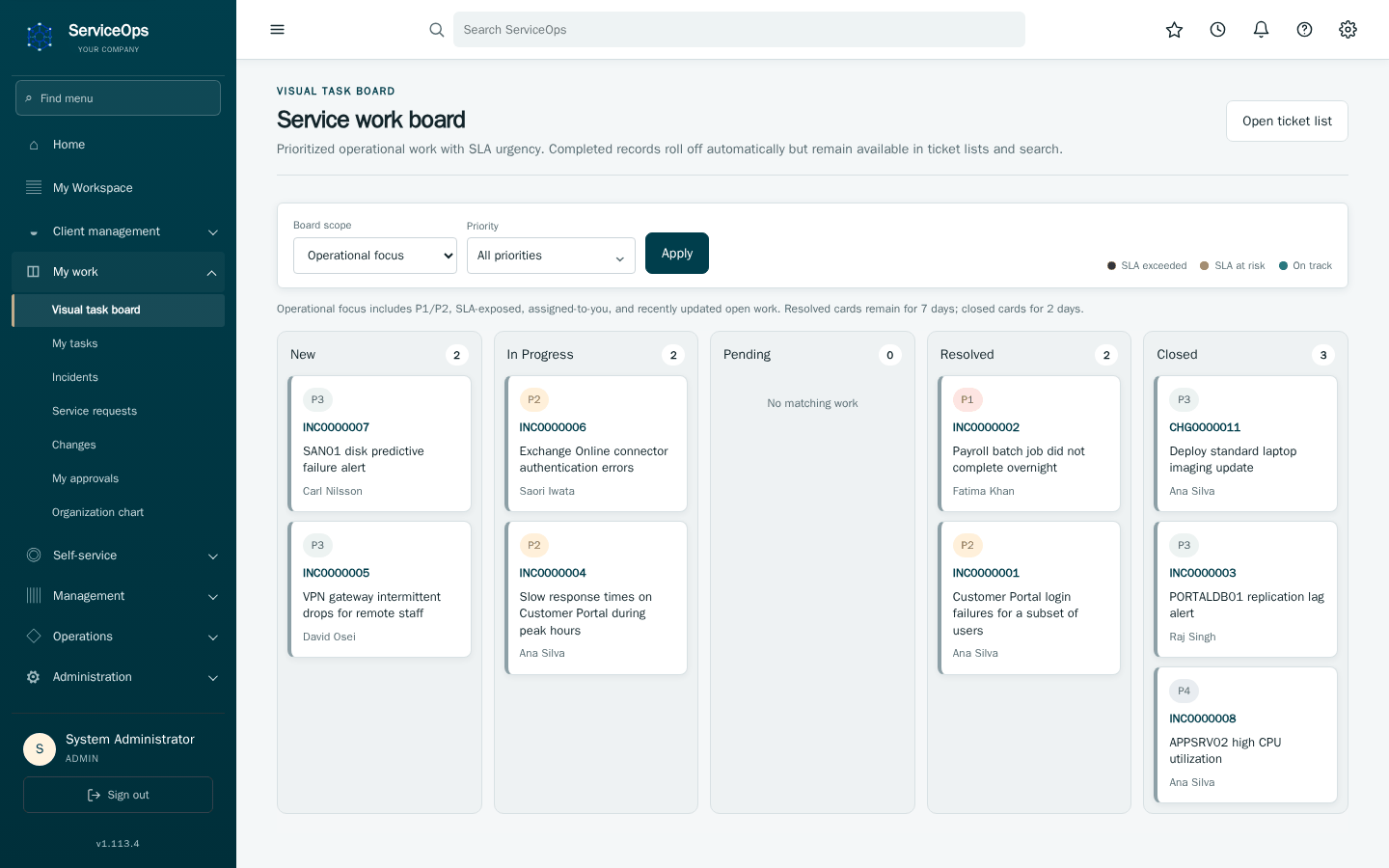
Review assigned tasks and approvals, then open a record to update its owner, status, notes or attachments.
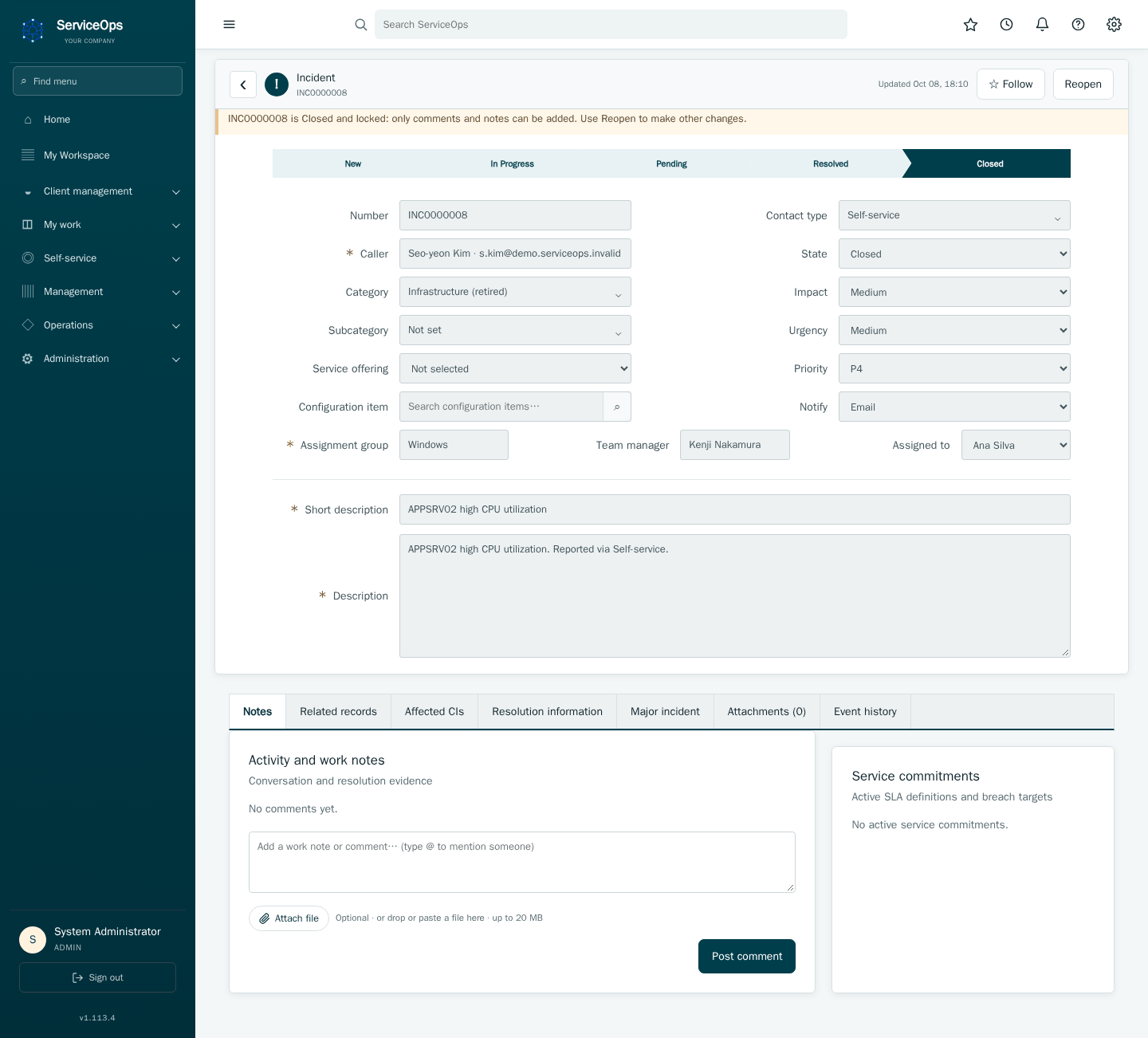
Record impact and urgency, assign a support team, investigate with related configuration items, and document resolution. Major incidents coordinate service impact; problems capture root cause and prevention.
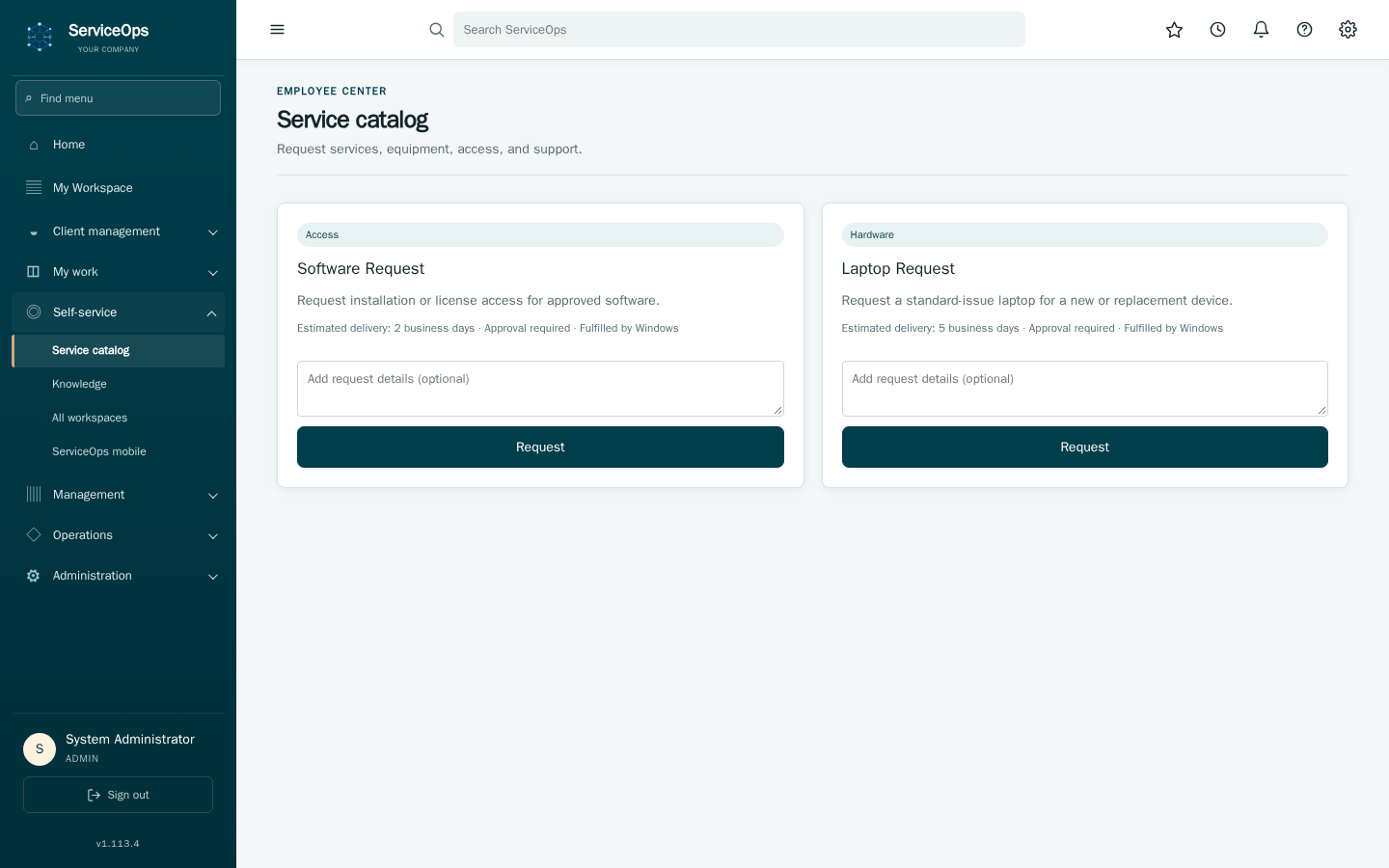
Employees select a service. Approval and fulfillment stages organize the request, requested items and service tasks.
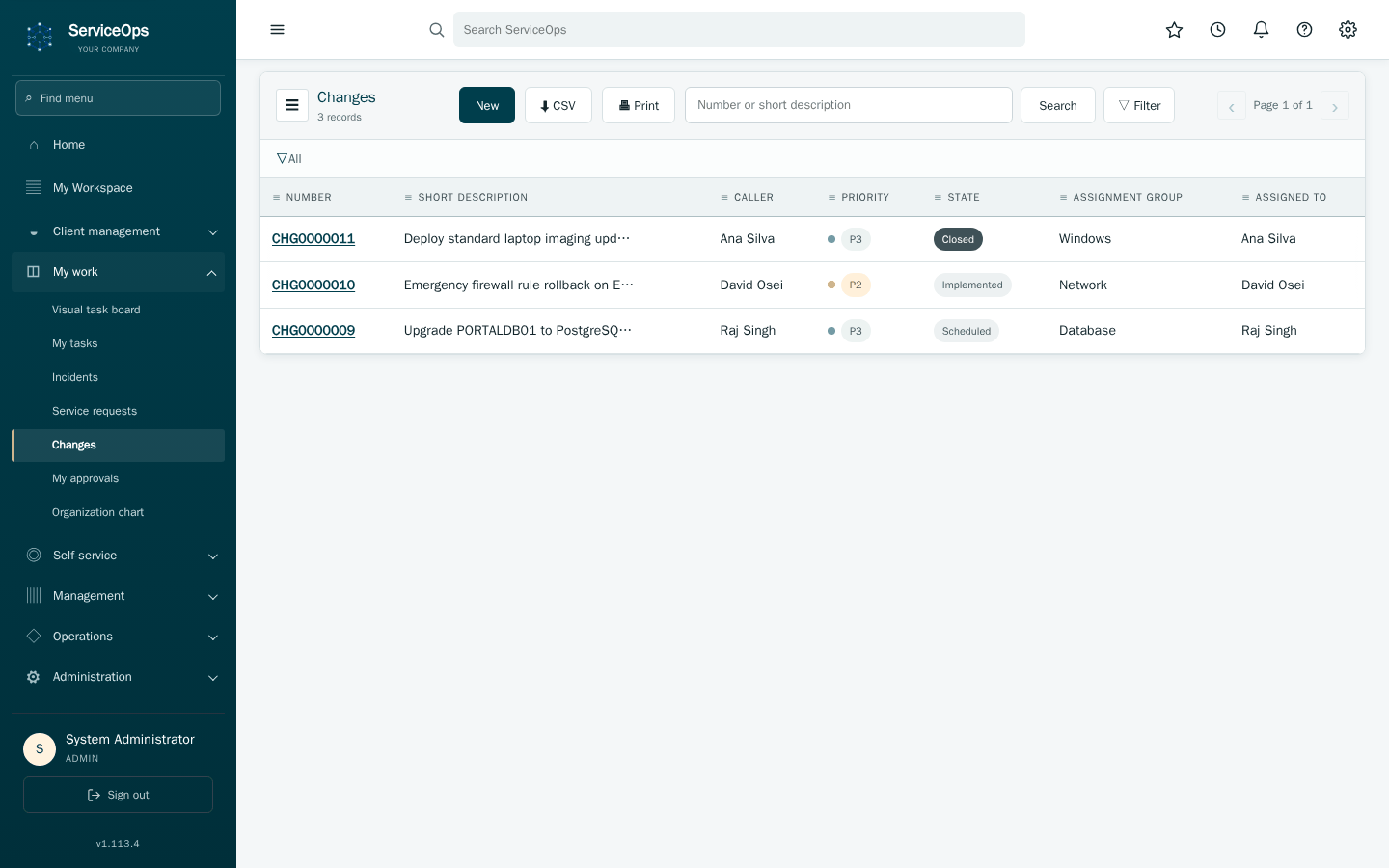
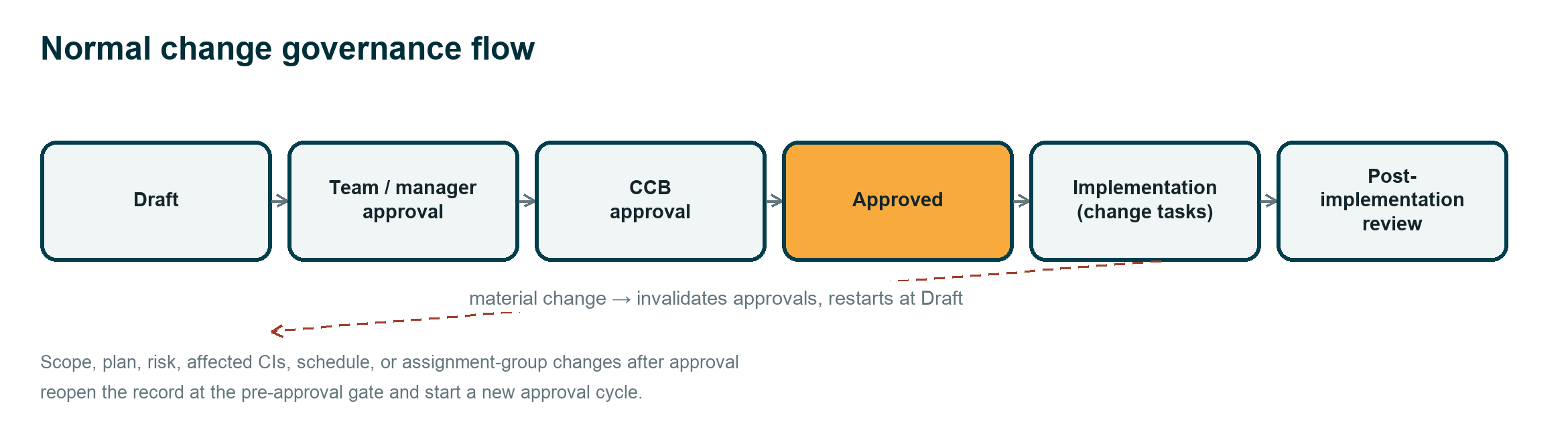
Capture risk, affected CIs, implementation and recovery plans. Required managers, owners and CCB approvers review the change before execution.
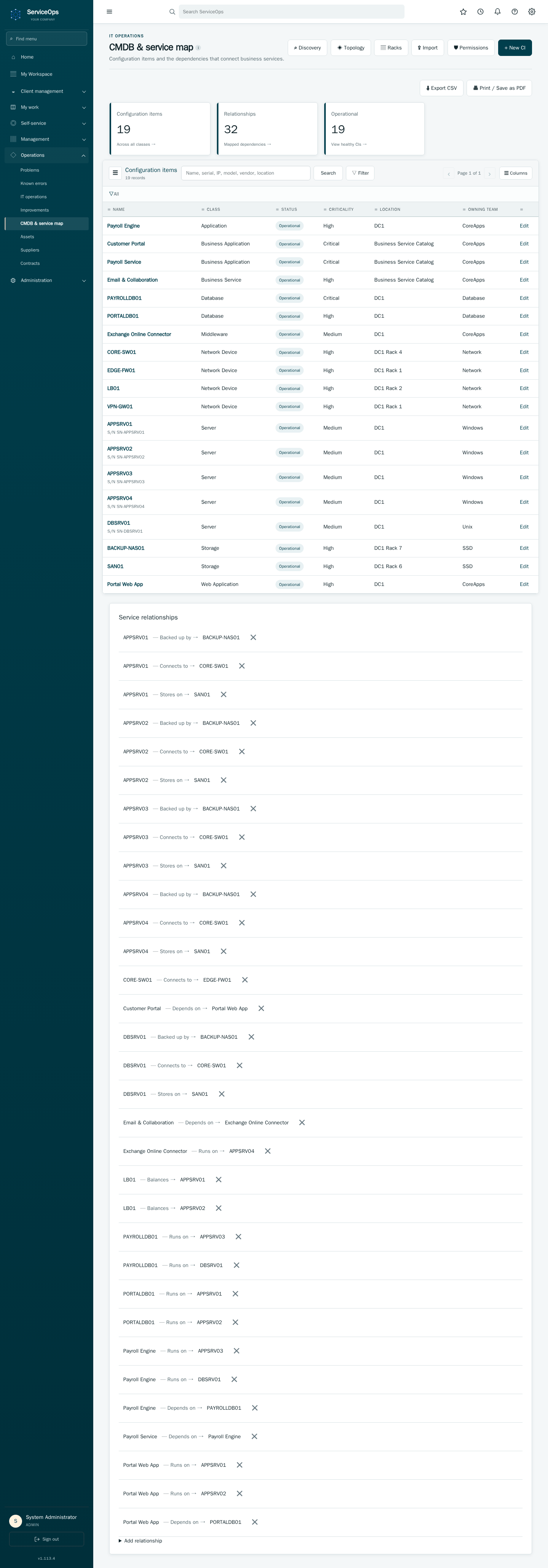
Track configuration items and asset ownership, understand service relationships, and synchronize supported device information with NetBox.
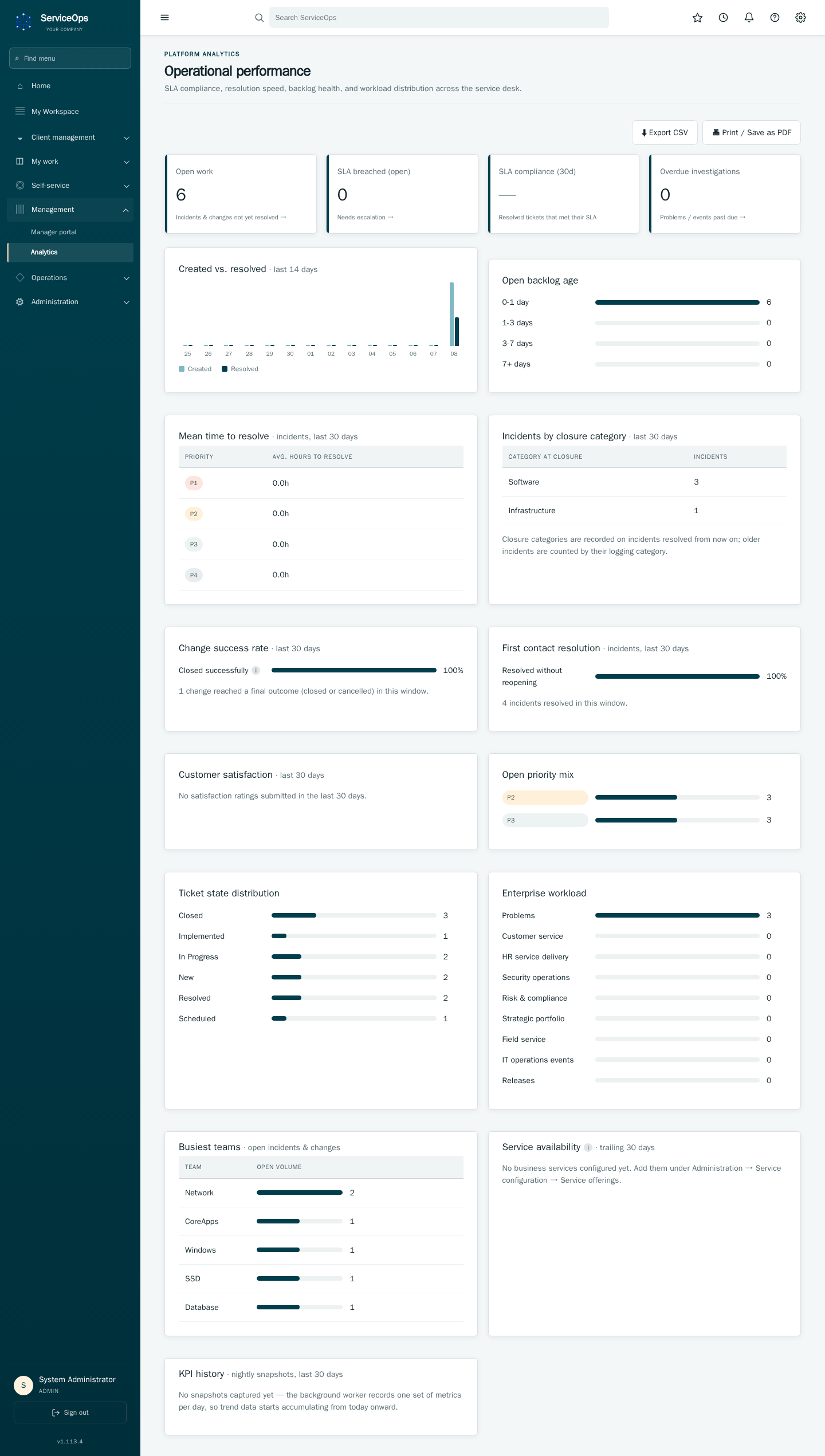
Review SLA compliance, resolution time, satisfaction and backlog trends. Service status communicates major incidents; audit records retain operational evidence.
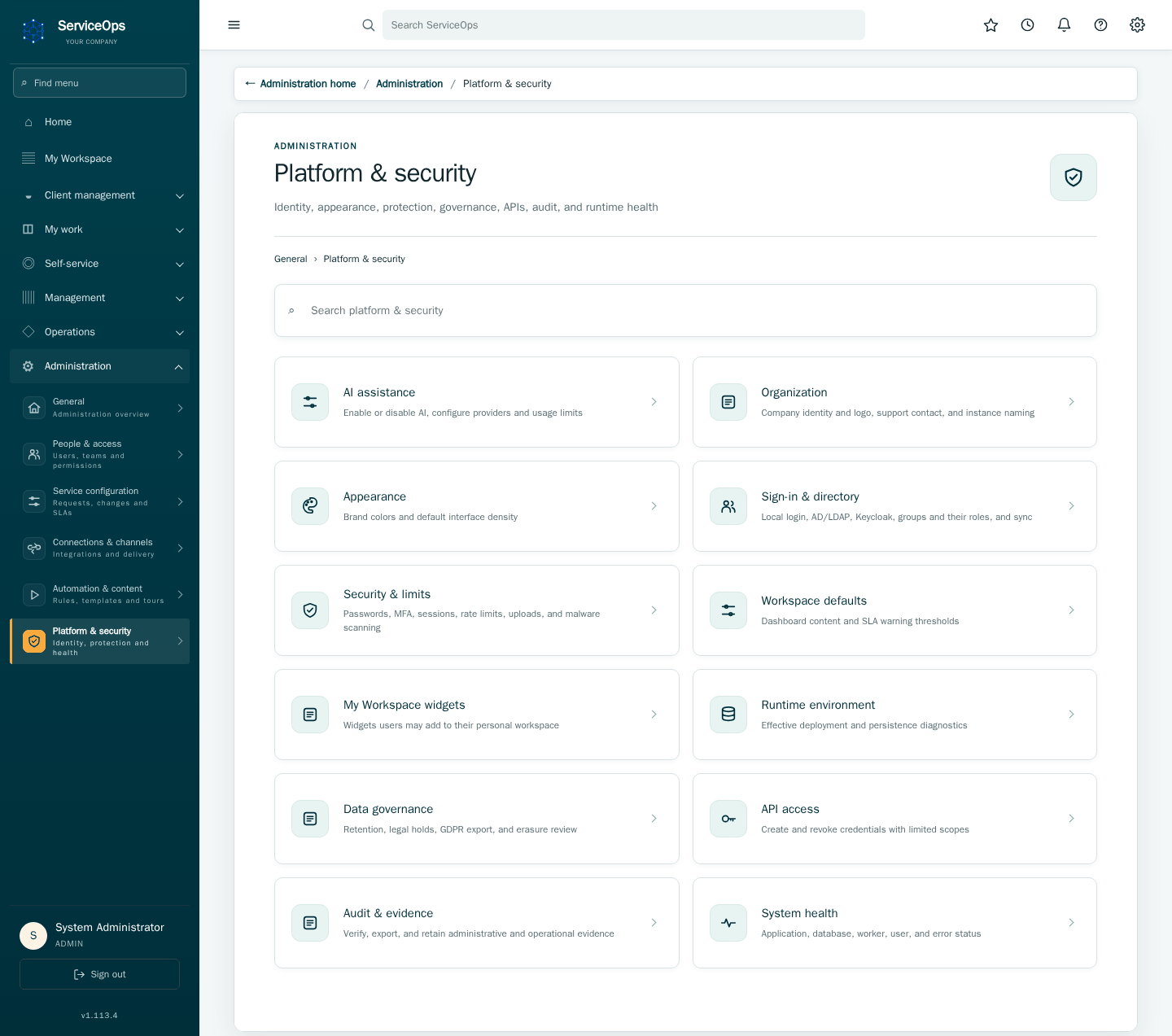
Configure users, teams, roles, service settings and integrations. Permission-assignment screens use searchable user additions and explicit removal; saves retain context and show confirmation. Optional AI providers and capabilities are controlled by administrators.
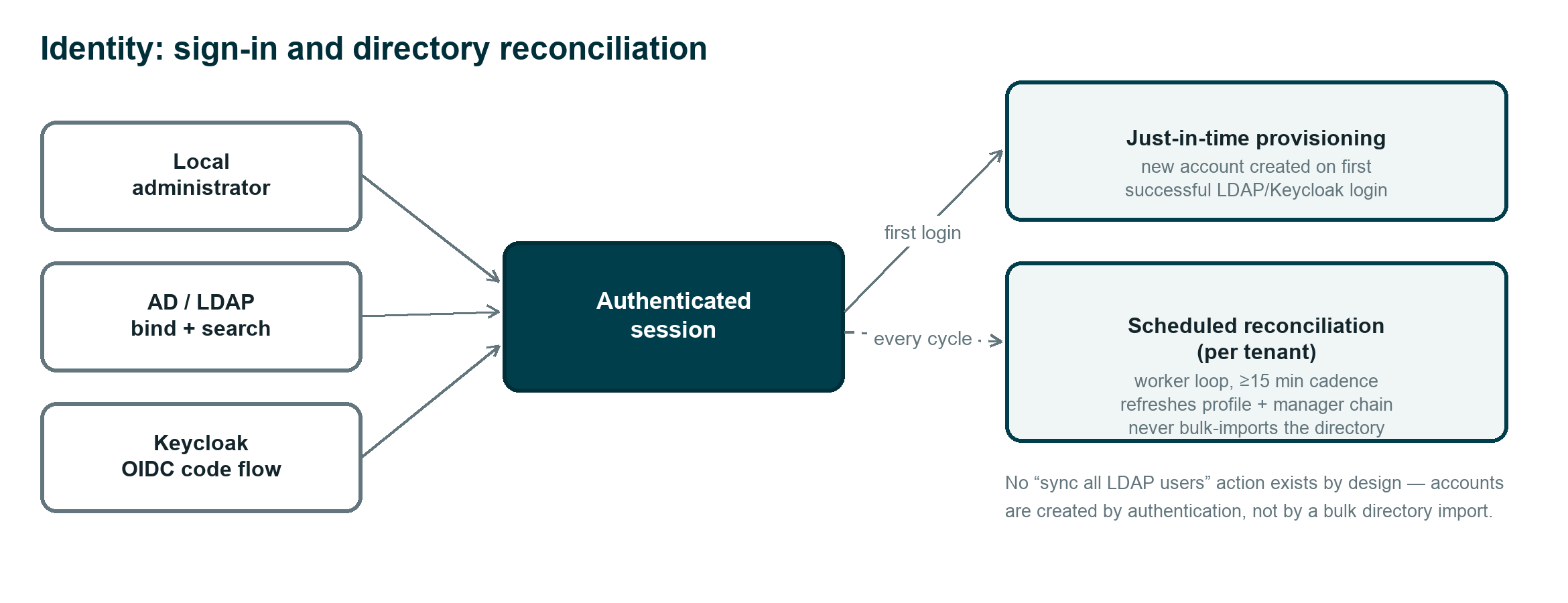
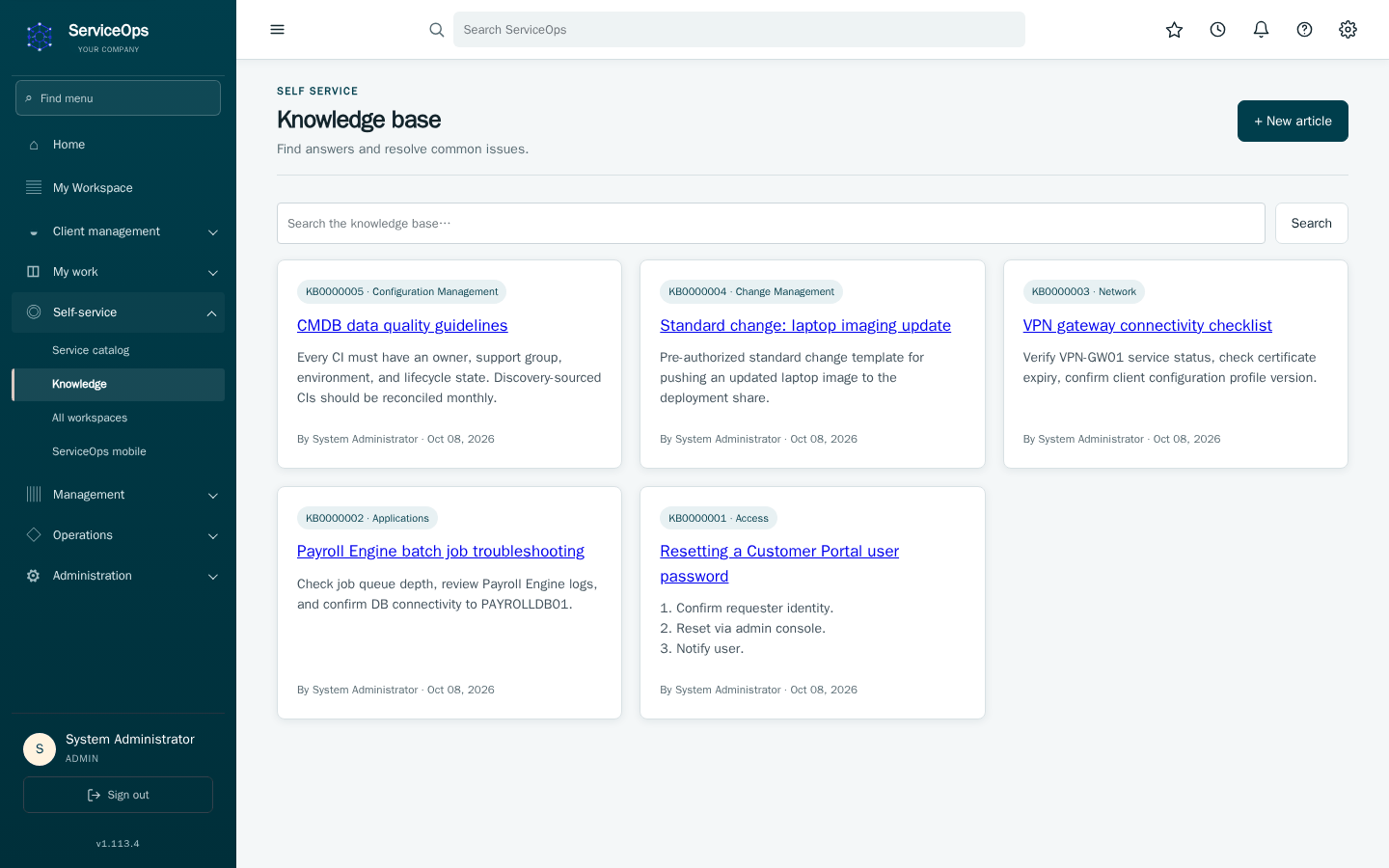
Reuse documented solutions and maintain client organizations, contacts and supported mailbox workflows. Managers review team workload and service performance. Browser/PWA and the iOS client provide access to supported workflows. Native ticket views expose linked infrastructure and expandable operational evidence; see Native ticket details.
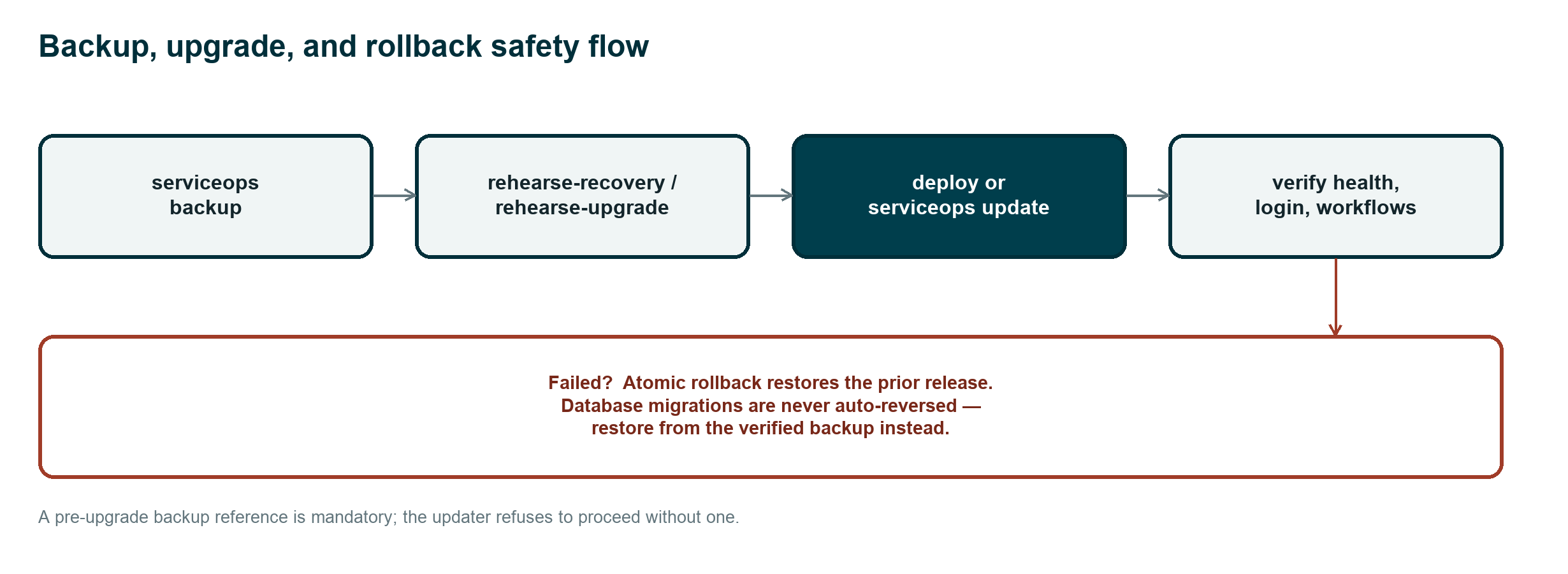
Use verified backups, migration gates and health checks for upgrades. Deployment and recovery covers prerequisites and acceptance checks. Monitoring and GitOps deployment describe supporting integrations.
Full operations manual · API reference · Documentation home
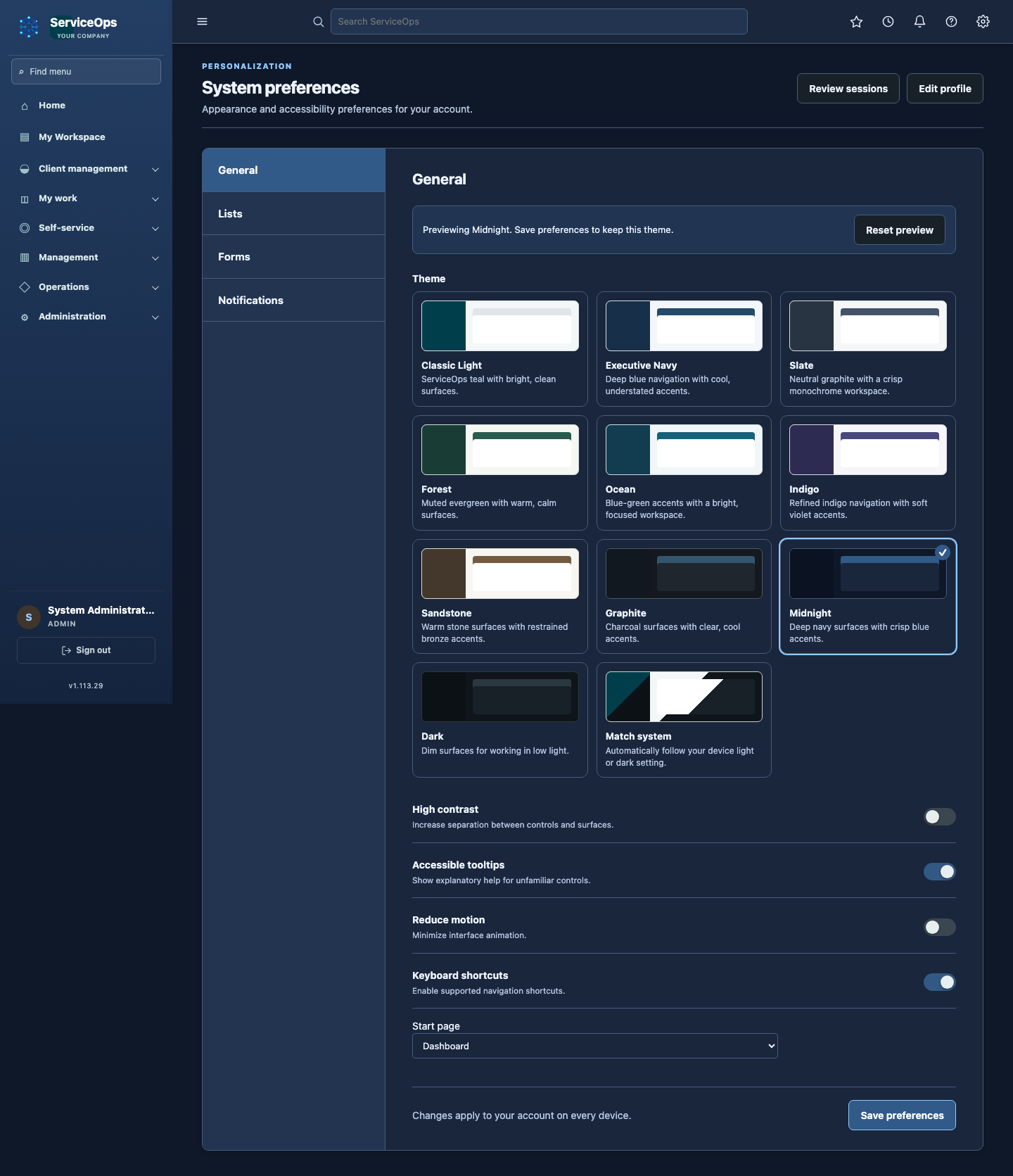
Open Preferences (gear icon) → General → Theme and select a card to preview the whole interface immediately. Reset preview restores your saved choice. Choose Save preferences to keep it across devices; leaving or reloading without saving discards the preview.
Choose Classic Light, Executive Navy, Slate, Forest, Ocean, Indigo, Sandstone, Dark, Graphite or Midnight. Match system switches automatically with your device. High contrast, reduced motion and font sizing remain separate preferences. See the theme and interface review.
Expand Delete beside a ticket attachment, enter a reason (up to 1,000 characters), and confirm deletion. The original comment keeps the filename and an Attachment deleted notice; ticket event history records the reason, actor and time. Deleted files cannot be downloaded. Existing deletion permissions and closed-ticket restrictions still apply. Older deletion events without a stored comment link cannot reconstruct a comment notice.
Ask for a change and specify the affected system and planned window. Review and create opens a draft with the supplied CI, an eligible owning team, planned dates and separate implementation, test and backout plans. Times are interpreted in your profile timezone and shown in UTC on the change form. Missing facts are listed for you to complete; risk stays server-calculated. Review all procedures before submitting: the assistant never creates the change by itself.
New comments and record events posted through the authenticated iOS app carry an iOS badge. It can appear alongside AI-assisted. Older activity keeps its existing attribution.