Codalab AMI
This page explains how to run an Ubuntu virtual machine on Amazon Web Services (AWS) already fully pre-configured with Codalab on it. We save for you a virtual machine image (AMI), which can be publicly accessed. Once launched, your virtual machine runs a web server through which you can access your own instance of Codalab. We explain how you can configure it to open the necessary ports for HTTP and HTTPS (i.e. to use SSL for more secure access).
Tutorial: starting and connecting to a machine on AWS


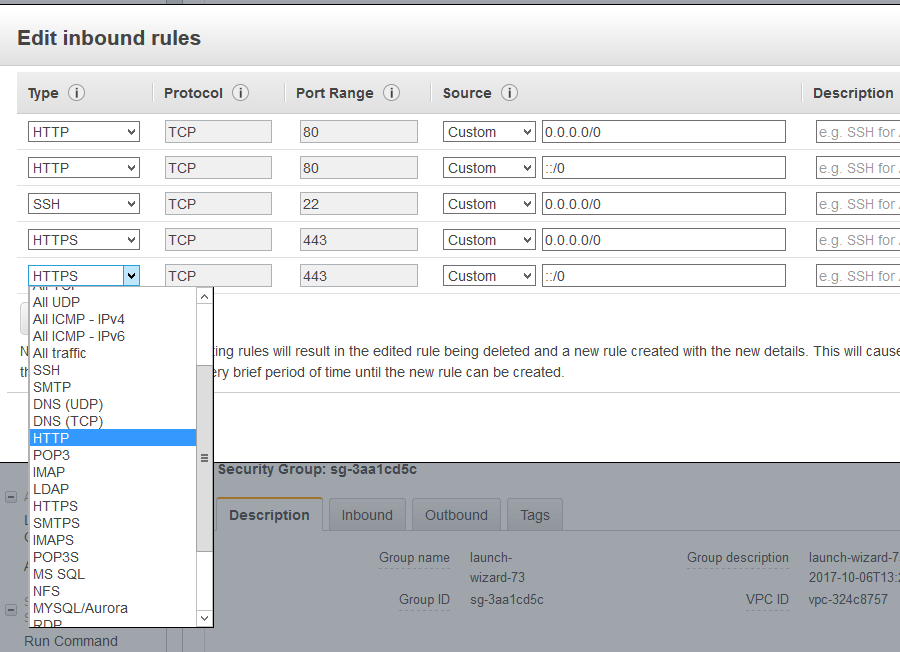
Connect to the server, then:
cd src
cd codalab-competitions
ls -la
The .env file contains Codalab configuration.
Click your instance and copy the address 'Public DNS (IPv4)' You need to edit the .env file, go to the CODALAB_SITE_DOMAIN field and put your DNS, e.g.:
CODALAB_SITE_DOMAIN=ec2-54-153-46-119.us-west-1.compute.amazonaws.comSave the file and exit. Then run
docker-compose up -deach time you edit .env file to restart the services.
You should be now able to access the codalab website at your DNS, e.g.: http://ec2-54-193-41-242.us-west-1.compute.amazonaws.com