User_Using your own compute workers
In these instructions, we guide you step-by-step to create your own "compute worker" (a server to which submissions of challenge participants are sent to be executed).
- Setting up a server as compute worker
- Hooking up a compute worker to a queue
- Assigning a queue to a competition
First you need to have access to a server connected to the Internet having an IP address and into which you can remote login via ssh. If you do not have one, you need to create one. We provide instructions for creating Ubuntu Virtual machines (VM):
Then ssh into your machine and run the following commands:
-
Get docker (quick and dirty way; for a full clean installation see Docker Ubuntu instructions):
$ curl https://get.docker.com | sudo sh -
Add yourself to the docker group (so you don't nee to run as root):
$ sudo usermod -aG docker ubuntu -
Log out of your server and log back in. Then check your installation:
$ docker run hello-world -
Run this command to be able to run many containers at once:
$ sudo apt-get install docker-compose -
Clone the Codalab Competitions docker image:
$ git clone https://github.com/codalab/codalab-competitions.git -
Create and edit the configuration file
.env:$ cd codalab-competitions$ cp .env_sample .env$ vim .env
Note: vim is an editor coming with Ubuntu. If you rather use emacs, type first sudo apt-get install emacs.
-
Uncomment in
.envthe lineBROKER_URL=and paste your worker queue key:BROKER_URL=pyamqp://6ad9ac58-88e3-4a22-9be7-6ed5126ef388:40546f9d-0f2e-4413-a6b2-a1d86cad2b30@localhost/37324ab2-ee78-4e8d-a6ee-6089a159d253
To get your key, see next section.
-
Get your worker to start computing (it will start listening to the queue via BROKER_URL and pick up jobs):
$ docker-compose up -d worker_compute -
Make a submission to your competition and check logs with to confirm it is working:
$ docker-compose logs -f -
Should you need to change the queue that your compute worker listens to, edit again
.env, then run:$ docker-compose down worker_compute$ docker-compose up -d worker_compute -
Should you need to stop your compute worker and re-start it, type:
$ docker-compose stop worker_compute$ docker-compose start worker_compute
Go to "Worker Queue Management":
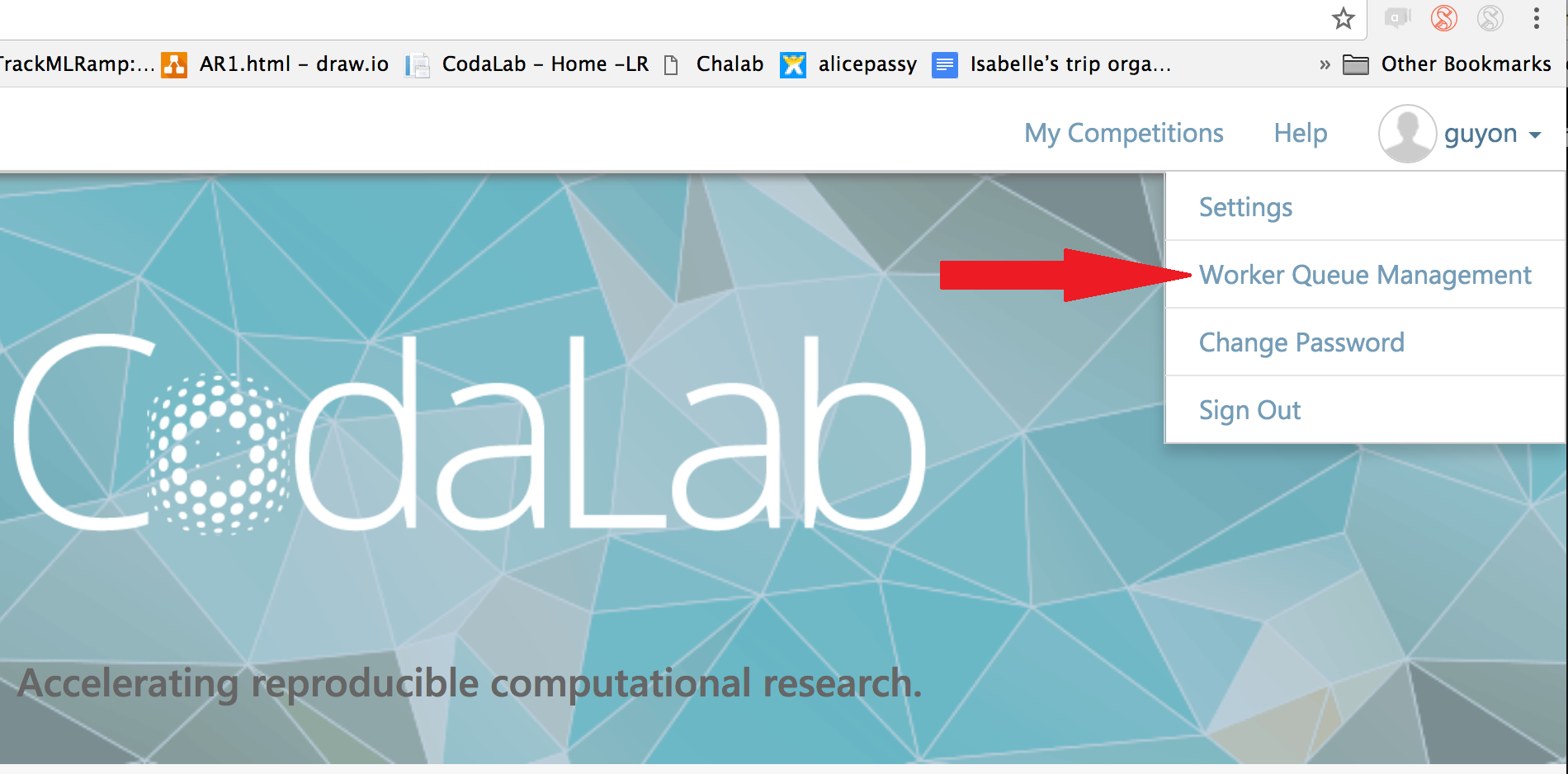
Select "Add Queue":

Give the queue a name. Select whether you want is public or private (public queues can be used by everybody). For private queues, select which users you want to share them with. You can edit these settings later.

Get the queue key you needed in the previous section. Put in the .env configuration file as per instructions.

Go to your competition page and click "Edit":

Select the queue that you have created:
