User Guide
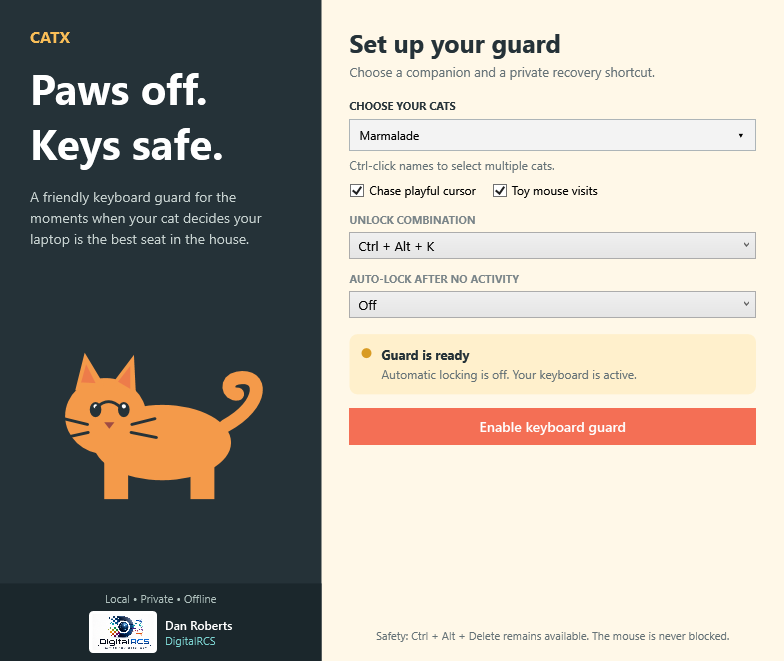
| Control | What it does |
|---|---|
| Choose your cats | Select one cat, or Ctrl-click up to eight names. Selected names are highlighted. |
| Chase playful cursor | Lets quick cursor direction changes excite the cats. |
| Toy mouse visits | Enables one shared mouse and its cheese trips. |
| Unlock combination | Selects the shortcut that restores ordinary keyboard input. |
| Auto-lock after no activity | Enables protection after the selected idle period; Off keeps activation manual. |
| Enable keyboard guard | Starts keyboard protection and shows your chosen cats. |
Choose cats and timing settings before enabling the guard. The two play options can be changed independently while cats are active.
Click a name for a single selection. Hold Ctrl while clicking to add or remove individual cats; Shift selects a range. The limit is eight cats.
The list stays open while you choose. Click its arrow again, click outside it, or press Escape to close it. There are no checkboxes inside the list. No cats / clear selection removes the cats while keeping keyboard protection available.
Cats appear when the keyboard guard is enabled. Their activities happen naturally.
Cats use random pauses between activities. The movement-interval selector has been removed. A cat carrying a mouse finishes its handoff before switching to roaming, naps, or cursor play. Long journeys have no fixed deadline; recovery applies only if the cat stops making progress.
Click a cat to have it lie down comfortably. Hold the left mouse button and stroke the middle of its body to hear a quiet purr. Release to stop the sound. After eight seconds without petting, it gets up. Cats finish a handoff or meal before accepting petting.
The main-page illustration winks, swishes its tail, sits, and lies down in place. The safety message remains visible below the scrolling settings.
Choose an inactivity period from 30 seconds through one hour. While the guard is inactive, keyboard or mouse activity resets the countdown. The guard activates after the full period without input.
Select Off if you prefer to enable the guard yourself.
Hold the selected recovery combination, or click Disable guard with mouse. Closing CatX also removes its keyboard hook.
See Safety and recovery for all shortcuts and fallback steps.
Minimizing hides the taskbar button and keeps CatX running in the Windows notification area. If necessary, open the hidden-icons arrow to find the cat icon.
- Double-click the icon to reopen the window.
- Right-click → Open CatX to reopen it.
- Right-click → Disable keyboard guard to restore typing when protection is active.
- Right-click → Exit CatX to stop the application.
Next: Cats and behaviors · Mouse and cheese