Repository navigation
Cryptographic Signing and Verification
An electronic signature records a person's signing action. A cryptographic seal helps check the integrity of the final file. A certificate associates a public key with an identity. These are different pieces of evidence; a signature image alone does not demonstrate cryptographic integrity.
- Open the verification link or QR destination supplied with the completed document, or open Verify.
- Select Enter ID / Token.
- Enter the supplied verification token or supported document identifier.
- Choose Verify Authenticity.
- Read the result and available seal details. Check they correspond to the file you received.
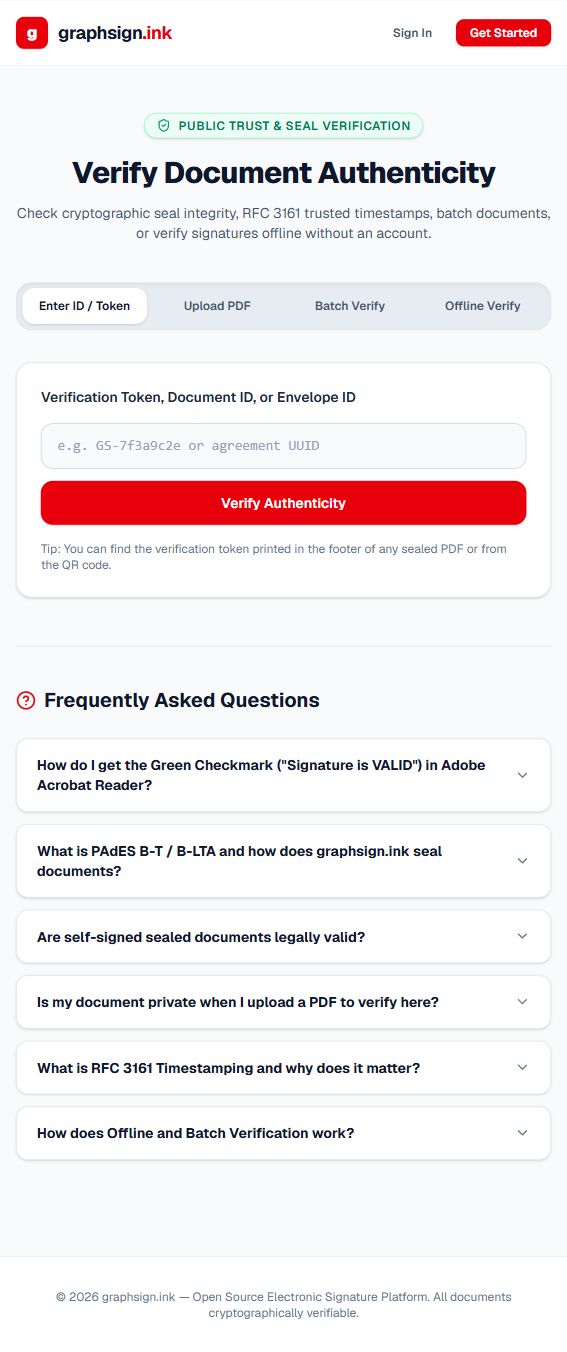
A token lookup checks the stored record. To compare the actual PDF you hold, also use the PDF check.
- Open Verify and select Upload PDF.
- Choose the exact completed PDF you received.
- Wait for the result and read any mismatch message.
In this browser flow, the PDF's SHA-256 hash is calculated locally and sent to the hash lookup API. The full PDF is not sent by that particular flow. Other file, batch, and “offline” verification APIs can send file content to the server; do not assume the same privacy behavior for every mode.
If there is no matching record, the file may have changed, may be unsigned, or may not have been sealed by this deployment. Obtain the original completed file from the sender before making a conclusion.
Current limitation: the inspected browser request and export contracts do not match the server’s items contract. The controls are present, but this UI flow needs operator validation or correction before use. The API contract is documented separately.
- Select Batch Verify.
- Choose up to 100 documents.
- Start the available verification action.
- Review each individual result rather than relying only on the summary.
- Export the report as CSV or PDF if offered.
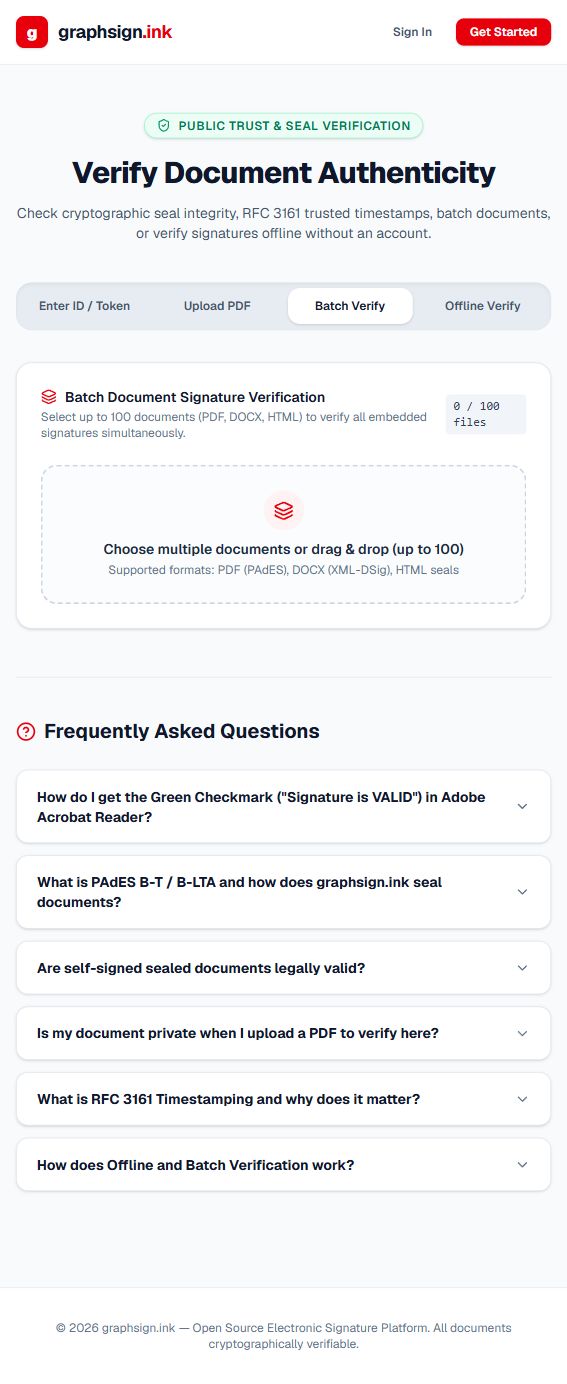
The UI advertises PDF, DOCX, and HTML checks. Actual verification depends on the file's signature format and available validation services; a selectable file type is not a promise that every file of that type will validate.
The page's Offline Verify mode attempts to send the document and optional certificate information to /api/v1/verify/offline, then may use a limited browser fallback. It is not a reliable browser-only cryptographic validation workflow. “Offline” refers to standalone verification without relying on a stored agreement record for that check. It should not be described as guaranteeing disconnected cryptographic validation or a live revocation check.
Current limitation: browser and server certificate/response contracts differ, and the browser fallback is not a complete cryptographic validation. Do not rely on a displayed valid result from that fallback as proof of authenticity; use an independently validated report or approved PDF validator.
Use only an independently trusted public certificate when asked for one. Never supply a private key. An unsupported result means the validator could not establish the necessary proof, not that the document passed verification.
| Result | Interpretation | Action |
|---|---|---|
| VALID | The available verification checks succeeded | Review identity, trust, and document details as well |
| TAMPERED / INVALID | Integrity or signature checks failed | Stop relying on this copy and contact the sender |
| NOT_FOUND | No matching record was found | Check the identifier and original file |
| UNSIGNED | No applicable signature proof was found | Obtain the intended completed document |
| REVOKED / EXPIRED | A relevant certificate or verification status needs attention | Ask the sender or administrator to review the evidence |
| UNSUPPORTED | The available validator cannot verify this proof | Use an appropriate validator or consult the administrator |
HTTP success alone does not mean signature validity. Read isValid, status, and explanatory details in the response.
Open Certificates & Trust to view certificates, generate an offered self-signed certificate, upload supported public certificate material, and choose a default, subject to permissions. Check validity dates, identity, algorithm, and intended use before selecting a certificate.
The UI offers RSA 2048/4096 and ECDSA P-256/P-384 choices. The resulting algorithm and PAdES level depend on actual signing service support; check the final report rather than assuming the selected option guarantees a particular result.
A PDF reader may report a cryptographically intact document with an untrusted issuer. Establish trust through your organization's approved certificate policy. Do not add an unfamiliar certificate as a trusted root merely to remove a warning.
PAdES sealing and trusted timestamps require a configured signing service, a usable signing key, and relevant timestamp services. Do not infer qualified-signature status, regulatory certification, indefinite verifiability, or legal enforceability from a badge or green indicator.
Developer endpoints: REST API Reference. Configuration limits: Feature Availability.