Repository navigation
Getting Started
You need a browser and an email address you can access. A recipient following a signing invitation can use the signer portal without creating a normal workspace account.
- Open graphsign.ink and choose Get Started or Create an account.
- Choose Individual for a personal workspace, or Teams for colleagues, invitations, and role management. Individual accepts personal email providers; Teams requires a business email address.
- Enter your email address and a password, then enter the same password again.
- Choose Create account.
- Open the verification email and follow its link. If it does not arrive, check spam and request another verification email.
- Return to Sign in. If MFA is enabled, complete the authenticator challenge.
Passwords must contain 8–128 characters, including an uppercase letter, a lowercase letter, a digit, and a special character. Use a unique password stored in your password manager.
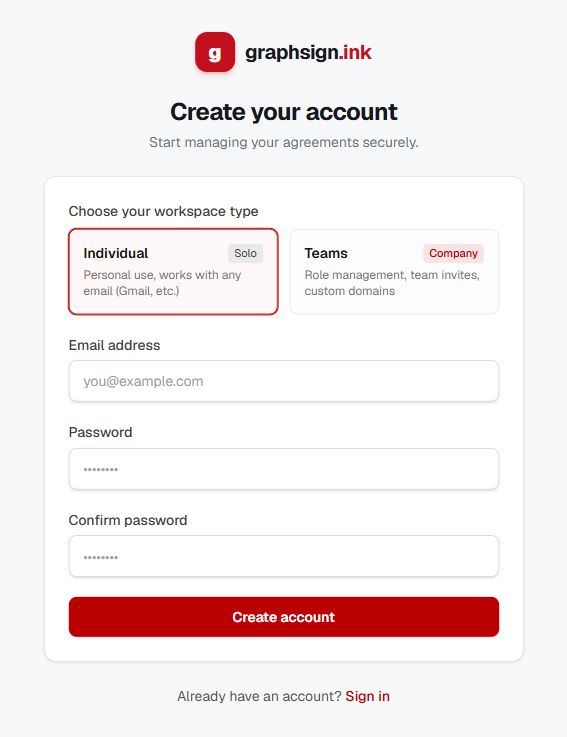
The registration screen, captured with empty fields. Teams registration adds the relevant company details.
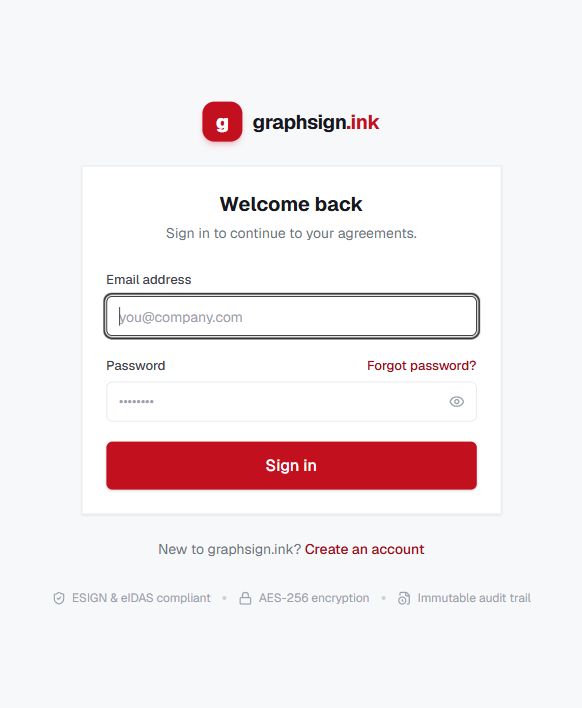
- Open Sign in.
- Enter your verified email address and password.
- Select Sign in and complete any MFA prompt.
- Confirm the workspace shown in your user menu before preparing a document.
| Area | Use it for |
|---|---|
| Dashboard | Overview and shortcuts to document work |
| Agreements | Create, upload, edit, review, send, and track agreements |
| Templates | Reusable document layouts and template sharing |
| User menu → Profile | Personal details, email, password, and timezone |
| User menu → Security | Authenticator MFA and eligible workspace enforcement settings |
| User menu → Organisation Settings | Workspace settings, colleagues, teams, branding, and usage |
| User menu → Certificates & Trust | Signing certificates and default certificate selection |
/settings/session |
Available session preferences |
/settings/integrations |
Webhook subscriptions, API client bindings, logs, and interactive docs |
Public /verify page |
Document authenticity checks without signing in |
Some entries appear only for eligible roles or workspace types. A missing action usually means it is unavailable for your current account or document state.
- Sending a document: follow Send Your First Agreement.
- Signing an invitation: follow Sign an Agreement.
- Working with colleagues: follow Organization and Tenancy.
- Connecting software: follow API Quick Start.
If you cannot sign in, use Troubleshooting. Do not send anyone your password, verification code, or MFA setup QR code.