Repository navigation
Dashboard Tour
All screenshots use fictional demo data.
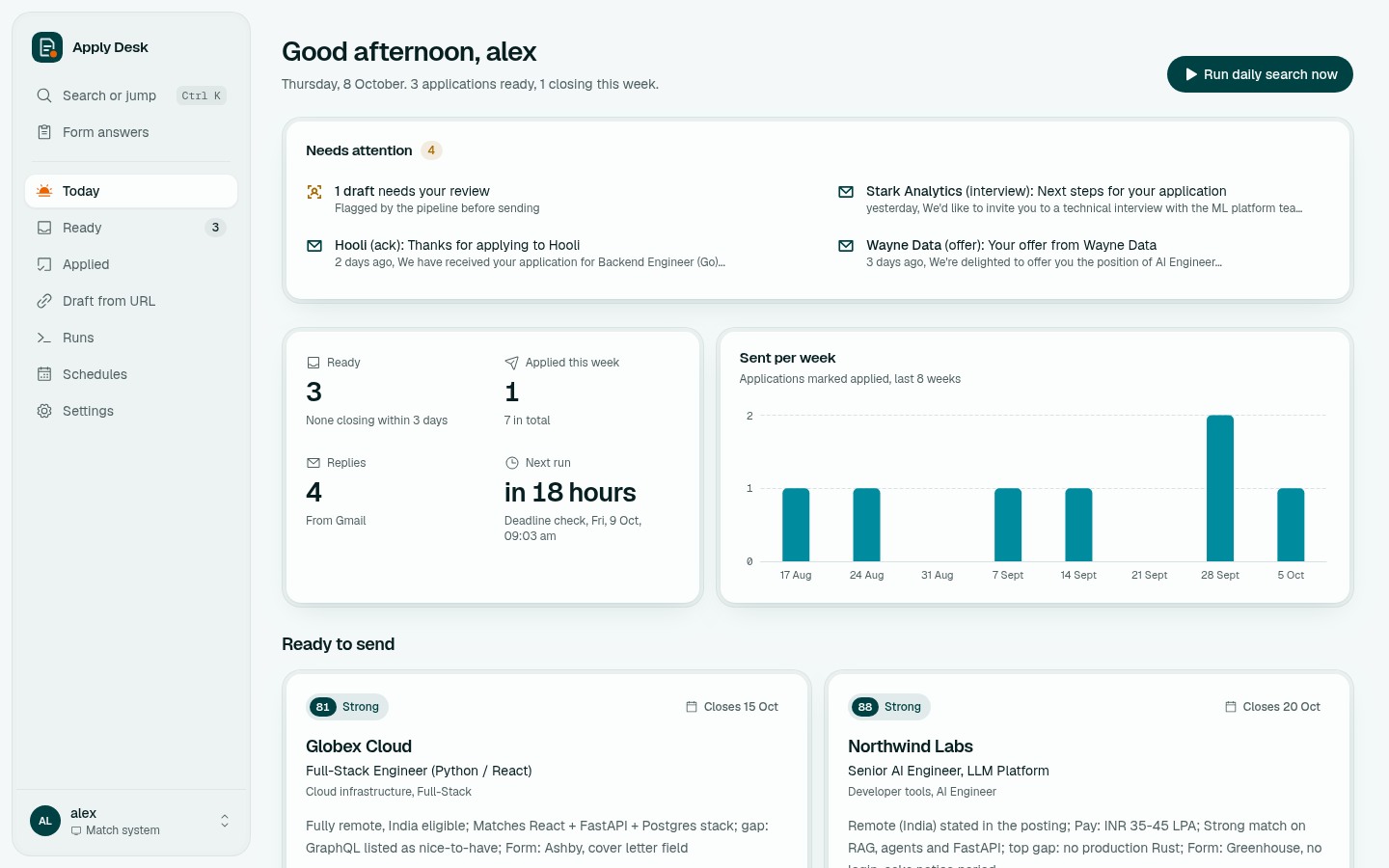
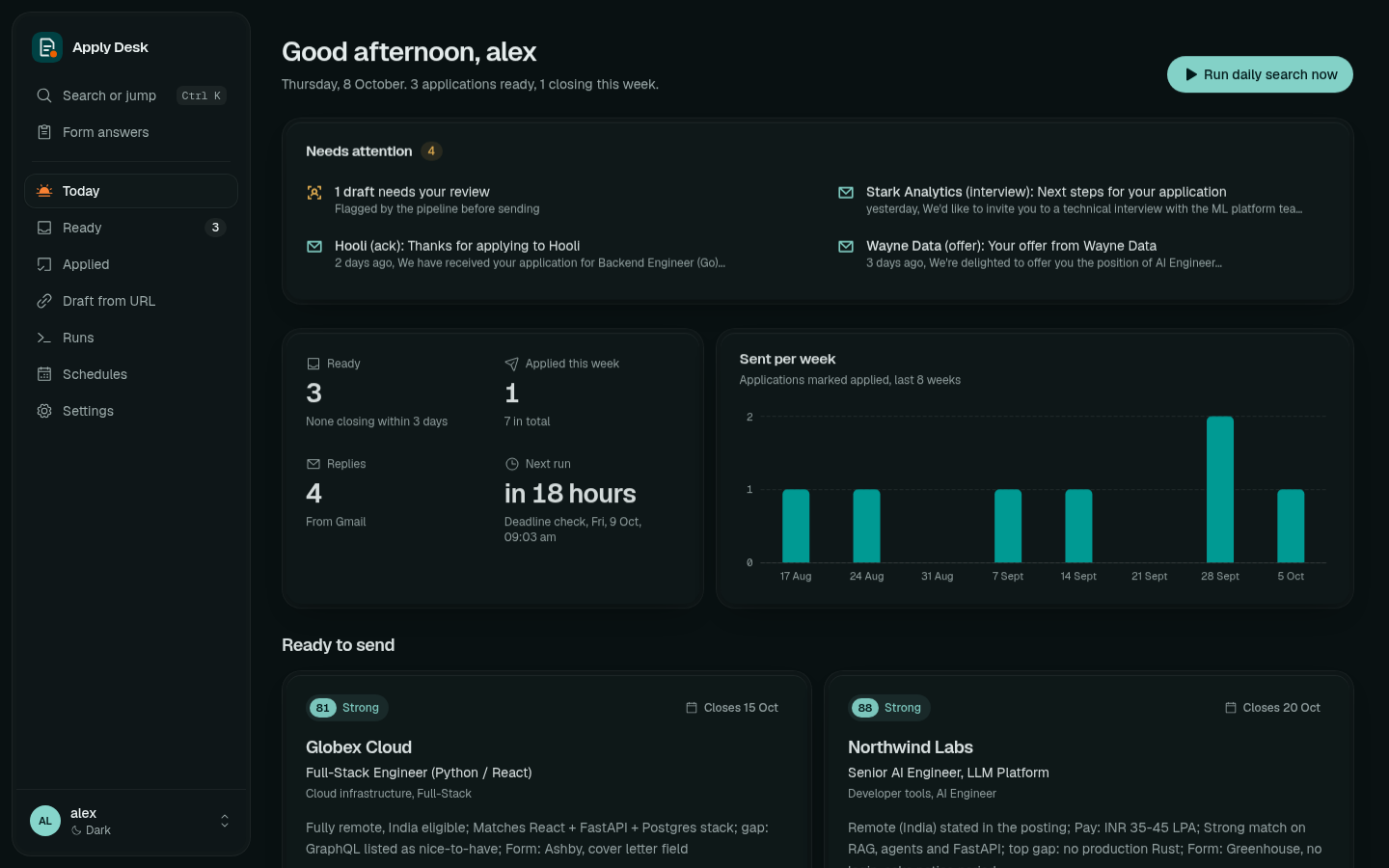
- Needs attention: drafts flagged for review and new replies from Gmail (interviews, offers, confirmations, rejections).
- Counters: applications ready, applied this week, replies, and when the next scheduled run is.
- Sent per week: applications marked applied over the last 8 weeks.
- Ready to send: the next applications, soonest deadline first.
- Run daily search now starts a search immediately.
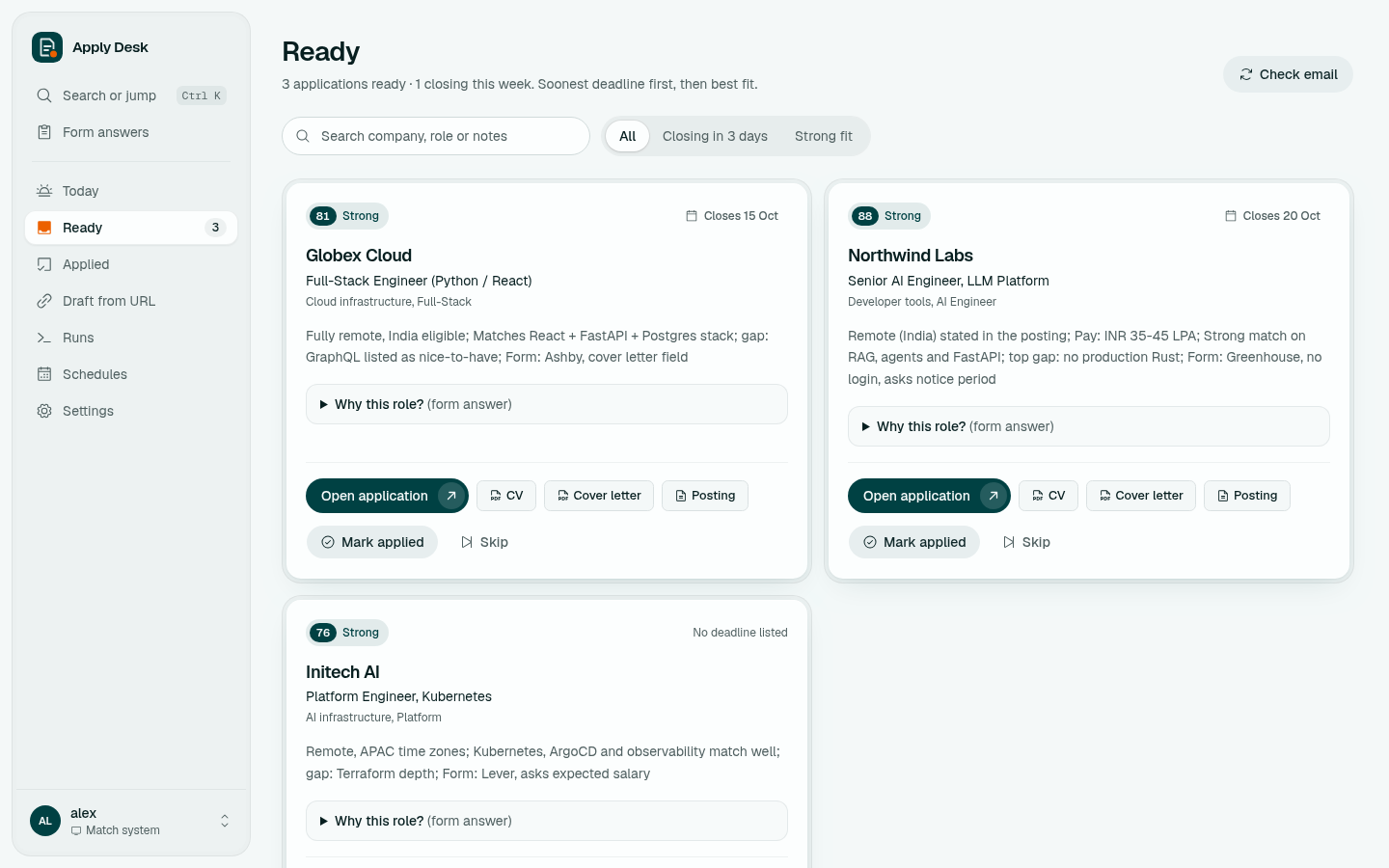
Each card shows:
- the fit score (0-100) and label (Strong, Good ...), and the deadline if the posting has one
- company, role, sector and role type
- notes: what the posting says about remote work, pay, the top gap, and what the application form asks (login, cover-letter field, salary questions ...)
- Why this role?: a pasteable answer with a Copy answer button
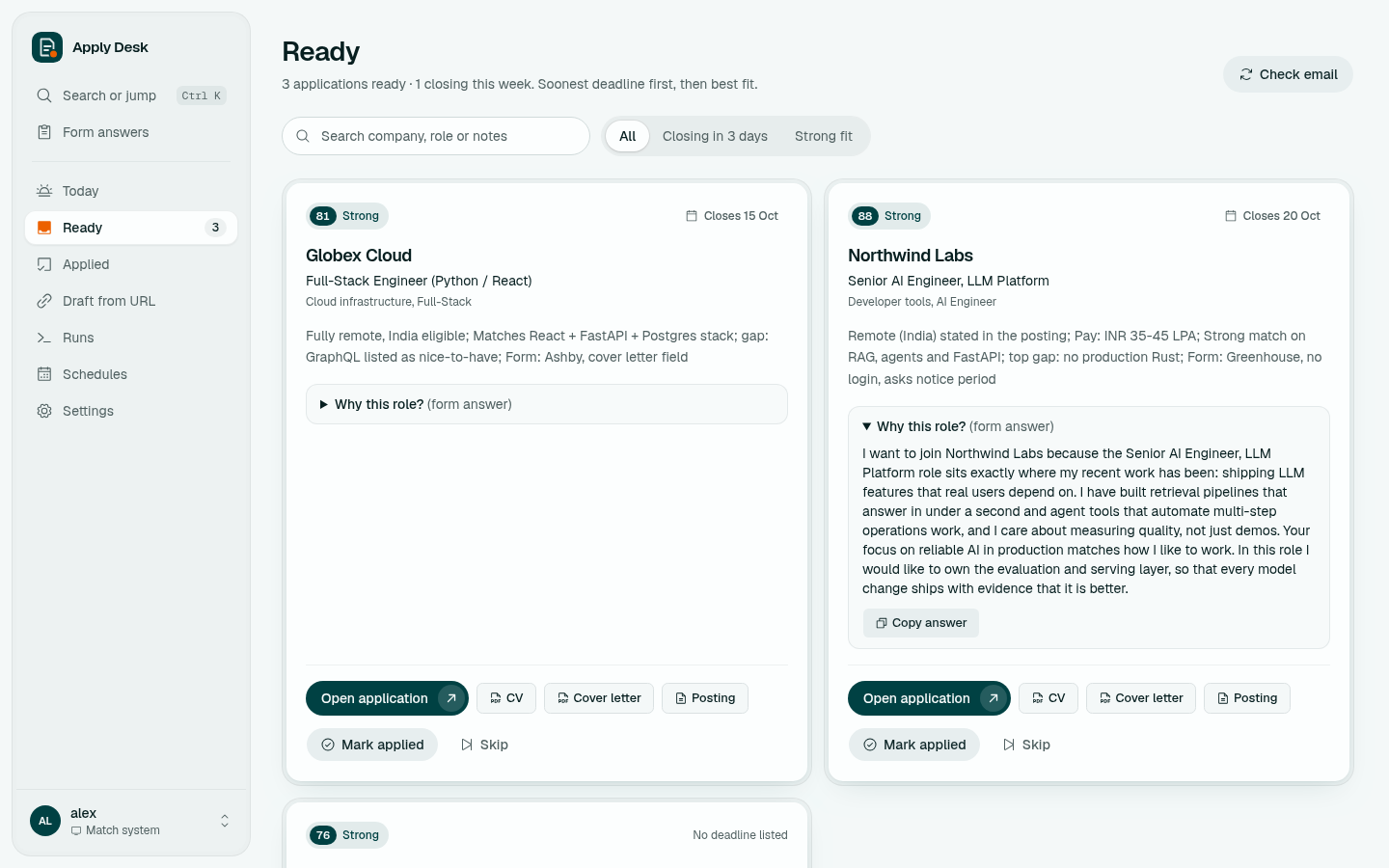
Buttons: Open application (the employer's apply page), CV, Cover letter, Posting, then Mark applied after you submit, or Skip. Both show a toast with Undo.
Filters: search, Closing in 3 days, Strong fit. Check email runs the Gmail check now.
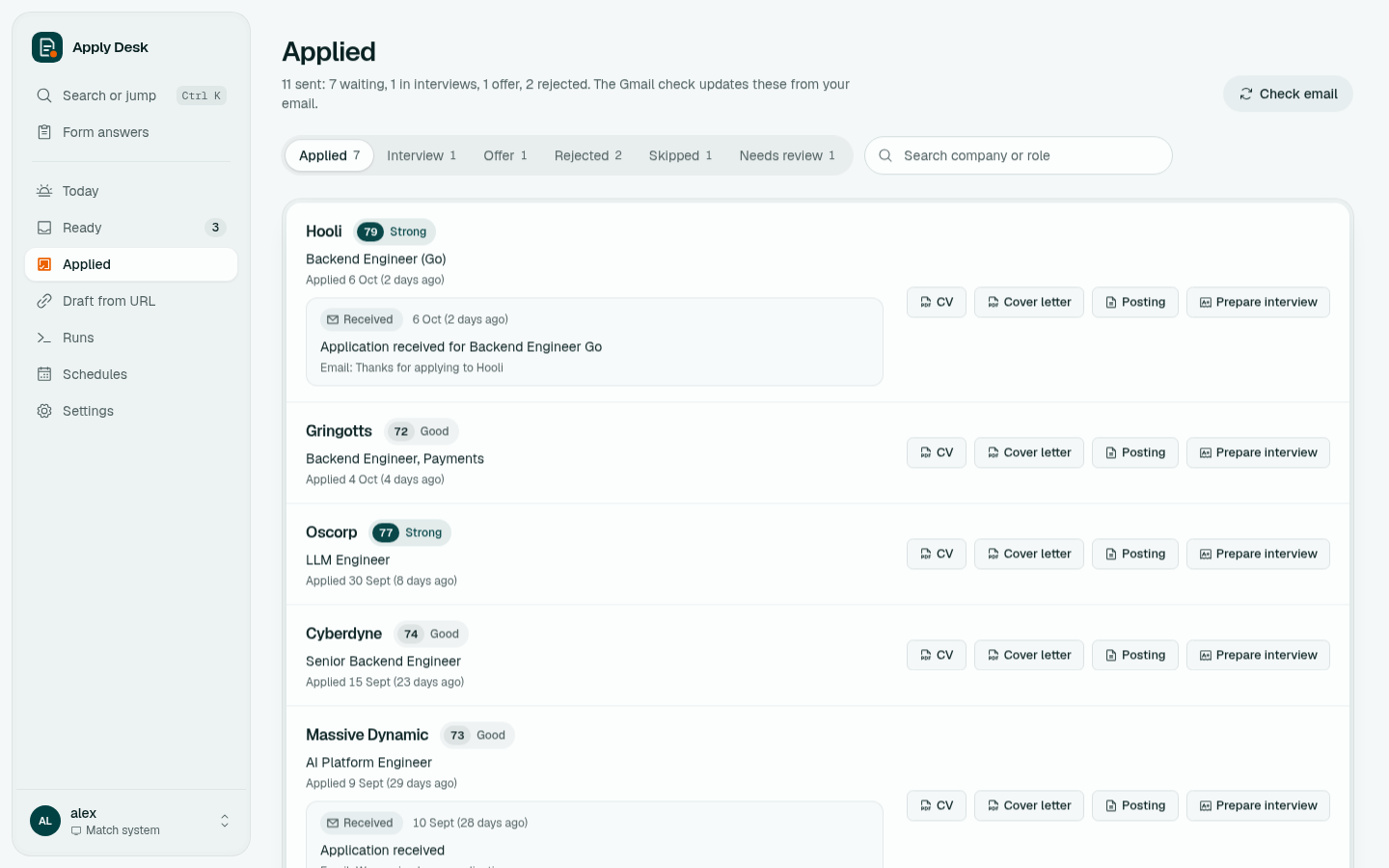
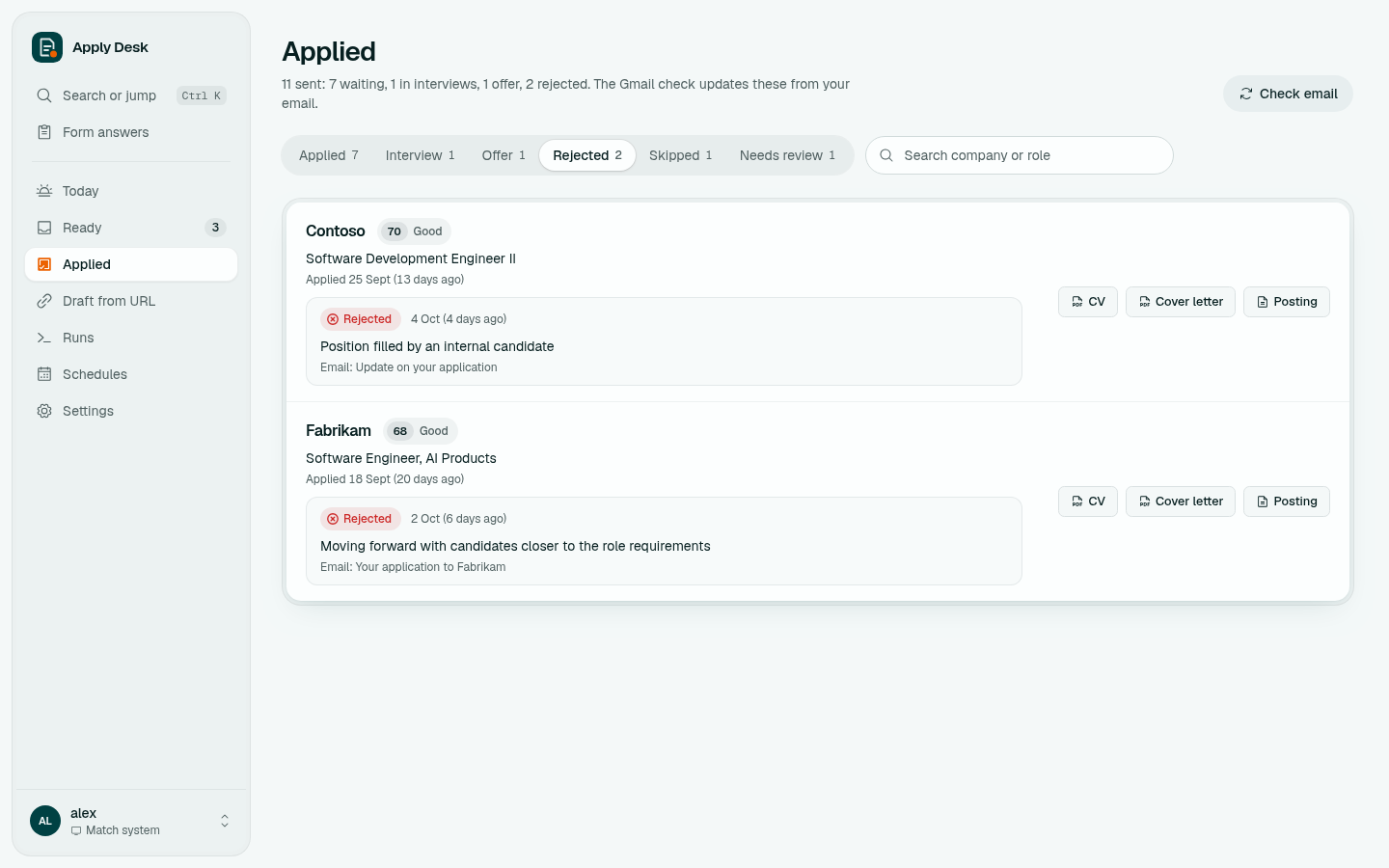
Tabs: Applied, Interview, Offer, Rejected, Skipped, Needs review. Each row shows when you applied and the latest outcome from Gmail, with the reason and the email subject.
Sent applications have Prepare interview (Drafts and Interview Prep).
Paste a posting you found yourself; it is scored and drafted like the daily search.
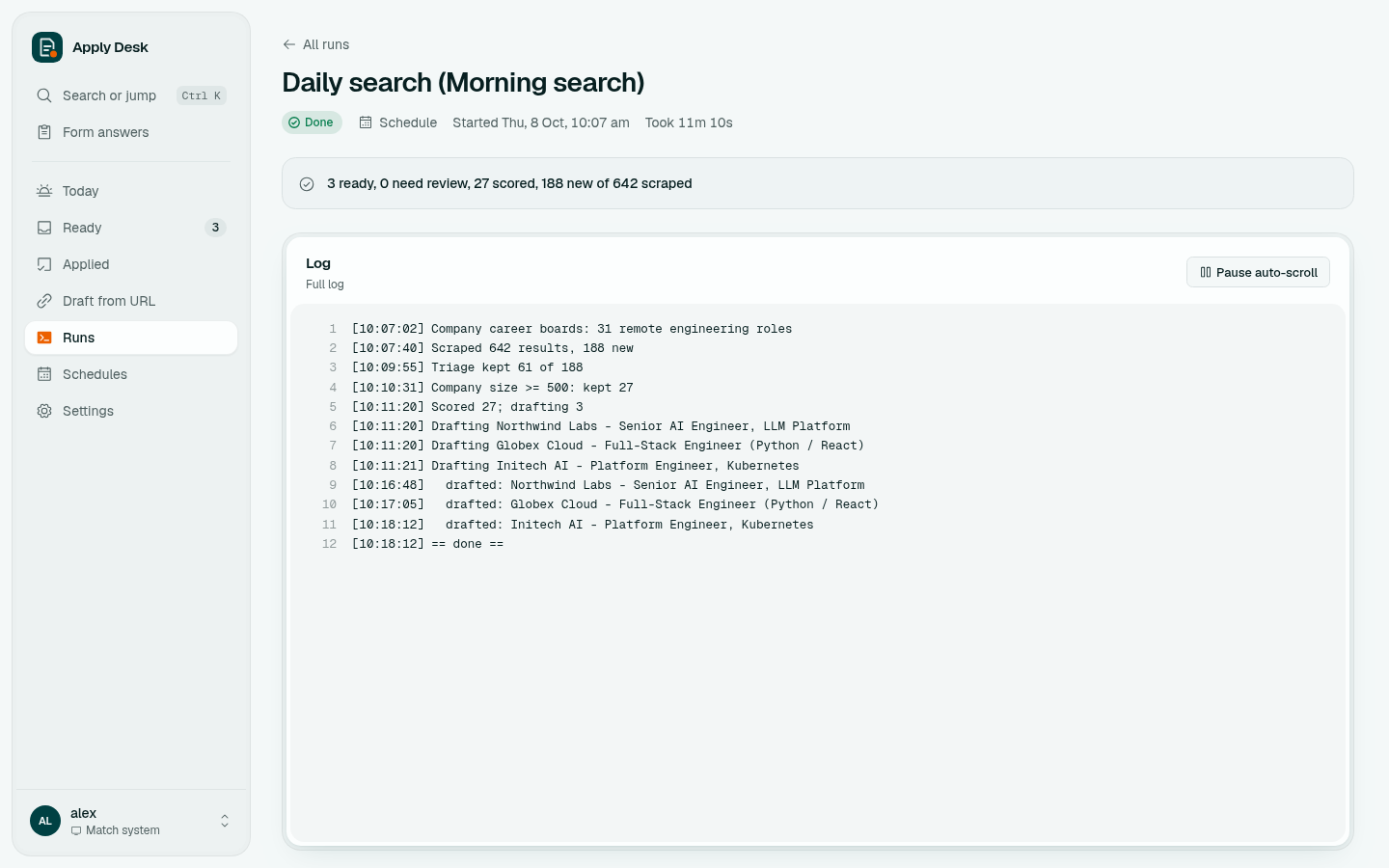
Every task with its status, trigger (schedule or manual), duration, summary and full live log. Run now starts any task by hand; a running task can be cancelled.
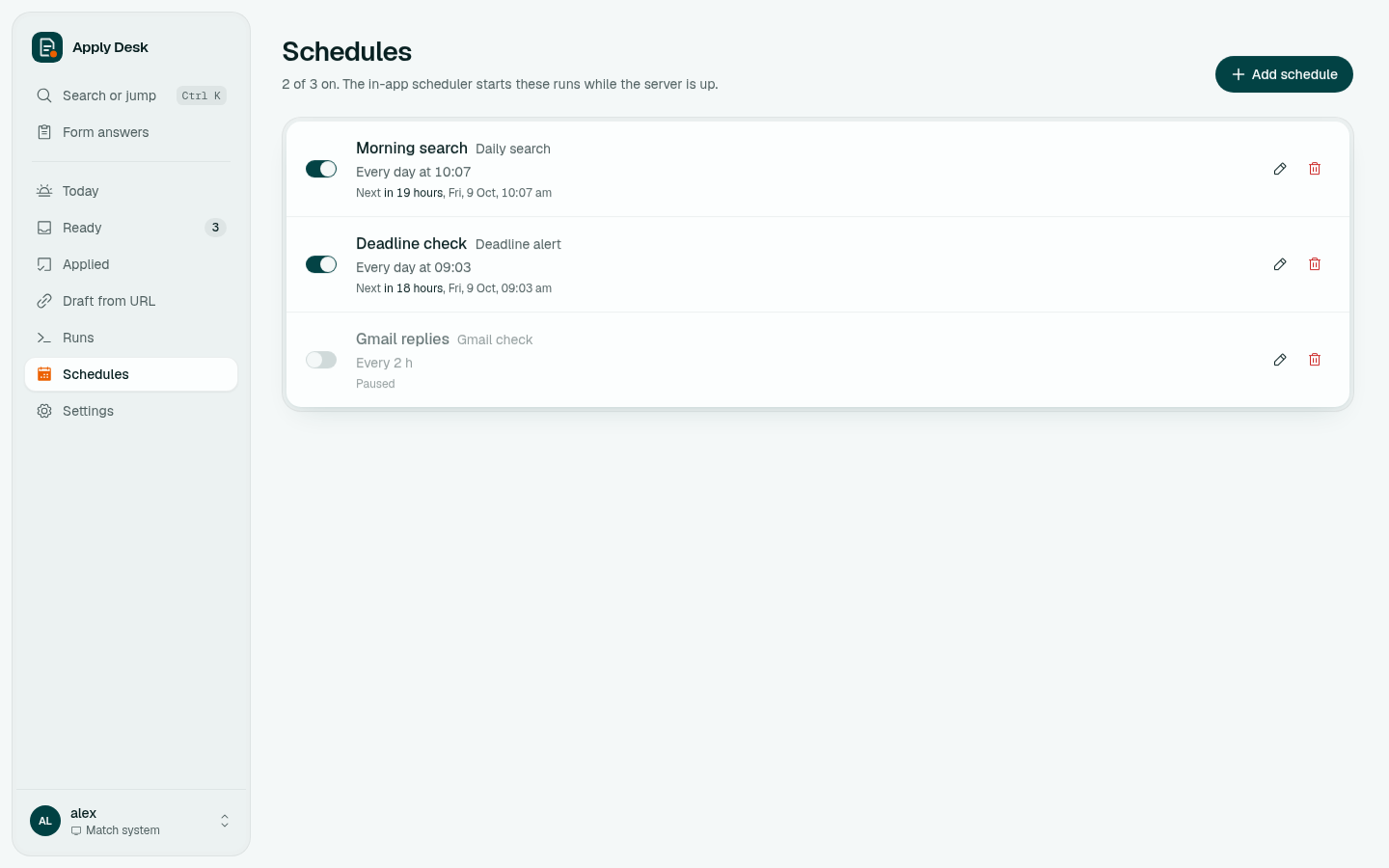
See Schedules and Notifications.
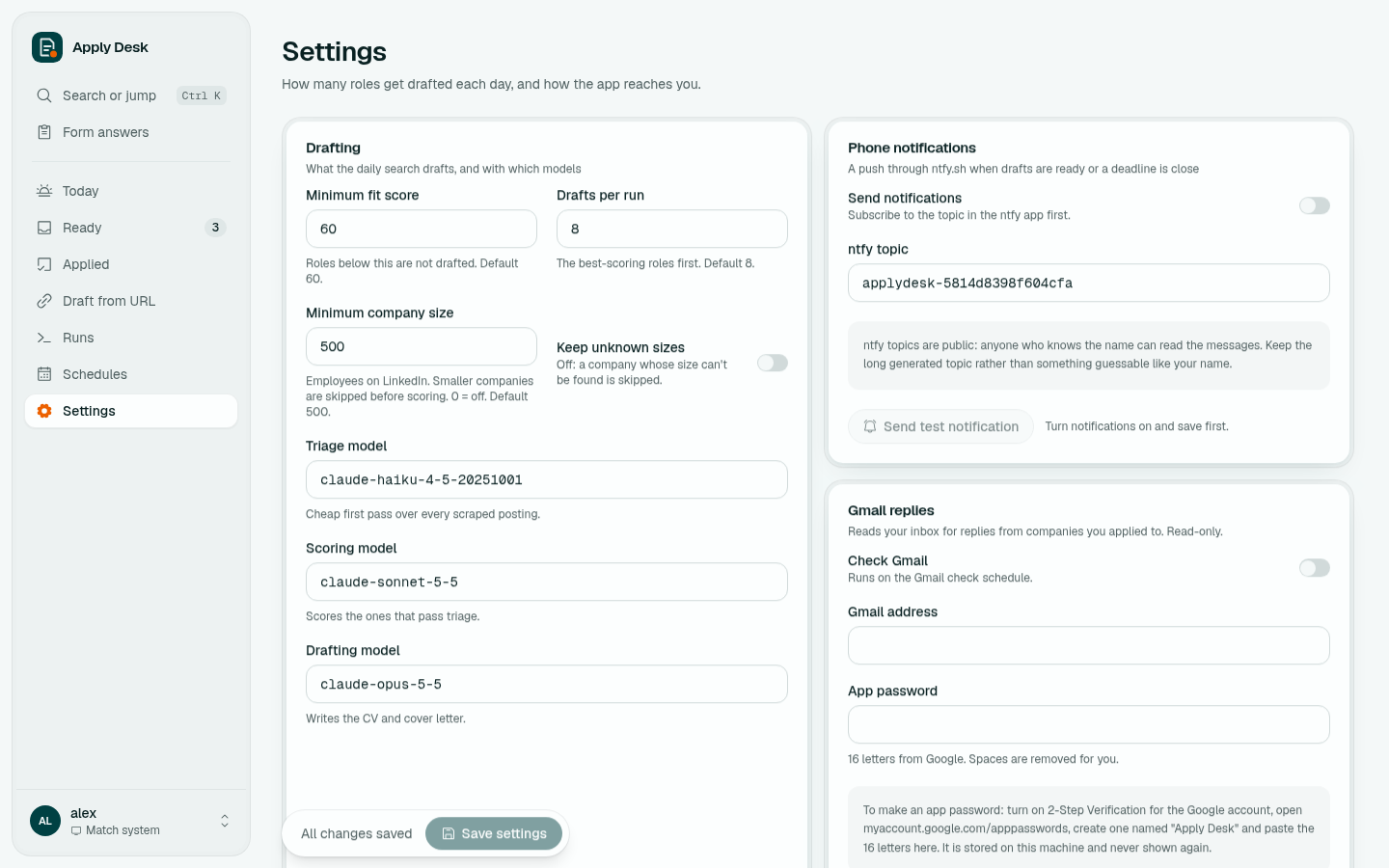
- Ctrl K: search or jump to any page or application.
- Form answers: your standard answers, one click to copy.
- Theme: light, dark or match the system (user menu, bottom left).
- Phone: the layout works at phone width.