Repository navigation
LCD Documentation
| Arduino Pin | RA8875 Driver Board Pin |
|---|---|
| 9 | RST |
| 10 | CS |
| 11 | MOSI |
| 12 | MISO |
| 13 | SCK |
| 5V | VIN |
| Gnd | Gnd |


Note that when using a USB-B cable (4 wires, ground, V, and two data cables), the LCD functions normally. But using a portable charger and the barrel plug, the arduino LCD just flickers, likely because there is insufficient power from the portable charger (one of the data cables regulates voltage, without the data cables, the portable charger doesn't know what current to supply, so it just provides the minimum?) Someone can research and expand on this.
Further questions:
- Can you charge the 6V battery (E) using any ground and voltage cable from any charger? or does it require the special one with the brick?
- Can the small wires inside a usbC cable handle the power that the brick charger supplies?
- General graphics library for LCD boards.
- Library specifc to the driver boards we are using. We are currently using a modified version found in
./libraries/that contains an added function for drawing Bezier curves. You can download the .zip file directly, and unpack it inside the Arduino editor.
- IO communication library used for communicating with the driver board.
/Code/25-26/LCD_DisplayWidgets/
- Directory containing the current Arduino C++ files for the LCD display. You can git clone the entire repo, or for testing download each of the files individually and put them into the arduino sketch folder.
- Documentation for the main RA8875 library can be found here.
In addition, the added method:
drawBezier(struct Point start, struct Point end, struct Point control, uint16_t resolution, uint16_t color)
draws a bezier curve between two points with the control point controlling the curvture.
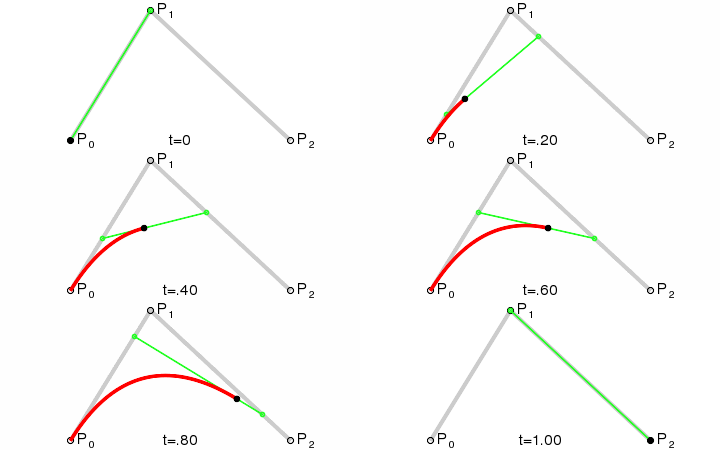
In this image:
- P0 and P2 are
startandend. - P1 is
control, meaning the curve will bend towardscontrol. -
resolutioncontrols the number of line segments the curve is broken up into
The RA8875 library contains a struct called Point that stores an x and a y coordinate (type uint16_t).
Create a new point using struct Point myPoint = {x,y};
You can access coordinates using myPoint.x and myPoint.y
Currently, the code supports curves with 1 control point, so any path can be described with 3 arrays:
-
struct Point[] points, the list of all endpoints and control points. -
unsigned int[] lines, a list of point indices where every two consecutive elements,a=lines[i]andb=lines[i+1]define a line between pointspoints[a]andpoints[b]. -
unsigned int[] curves, a list of point indices where every three consecutive elements defines a curve,
sopoints[curves[i]],points[curves[i+1]], andpoints[curves[i+2]]define a bezier curve.
(Optionally, a 4th resolution element can define the resolution of each curve.)
This way, the data for an image can be prepared compactly in advance, with the code calling a custom drawPath(points, lines, curves) function.
 The current design for the pilot's LCD layout for sensor data
Each of the above sensor displays is a Widget.
Widget.h lays out a framework for drawing and "undrawing" widgets.
Any new widget will be a new subclass of Widget.
Eg, class SensorDisplay : public Widget { /*Specific behavior in here*/ };
The Widget class already implements:
-
void UnDraw(), -
void UnDraw(backgroundColor), -
void Draw(sensorValue, color1), - and
void Draw(sensorValue, color1, color2)
by referencing the virtural method void Draw(sensorValue, color1, color2, color3).
This method is the only one that needs to be overridden when creating a new widget.
It should draw the widget on the screen showing the sensor reading for a given value, using up to 3 color options.
It's important that only colors passed into the method get drawn, otherwise erasing with UnDraw will not work.
The Widget class gets initialized with the following member variables that should get used in each specific implementation of Draw():
-
Adafruit_RA8875* screen(this is usually justtftin the main program, and should always be passed into the constructor) -
struct Point pos( {x,y} pair referenced viapos.xandpos.y) -
int w,h(width and height respectively. Default value is 100px) -
int previousValue(the previous drawn value. Always set this tovalat the end ofDraw(val), so thatUnDraw()can erase properly.)
eg, you might call screen->drawRect(pos.x, pos.y, pos.x + w, pos.y + h, color1) to draw a box around the widget.
There is also an optional method that you can override, DrawBackground(color1, color2, color3), which can be used to draw a constant background that does not change with sensor readings. This saves time by not redrawing features like bounding boxes or sensor labels. Single-color and two-color methods are also implemented already, in the same way as the single color Draw method.
The main .ino program contains an array of Widget* pointers.
Once a new widget is implemented, it can be initialized then added to the array. Each time a relevant sensor reading is taken, the widget will draw it and undraw the previous value.