en usage platforms line
This article explains how to connect LangBot with the LINE platform to implement LINE bot functionality.
- Visit the LINE Developers website and log in with your LINE account
- After logging in, enter the developer console
-
In the developer console, create a new Provider (if you don't have one)
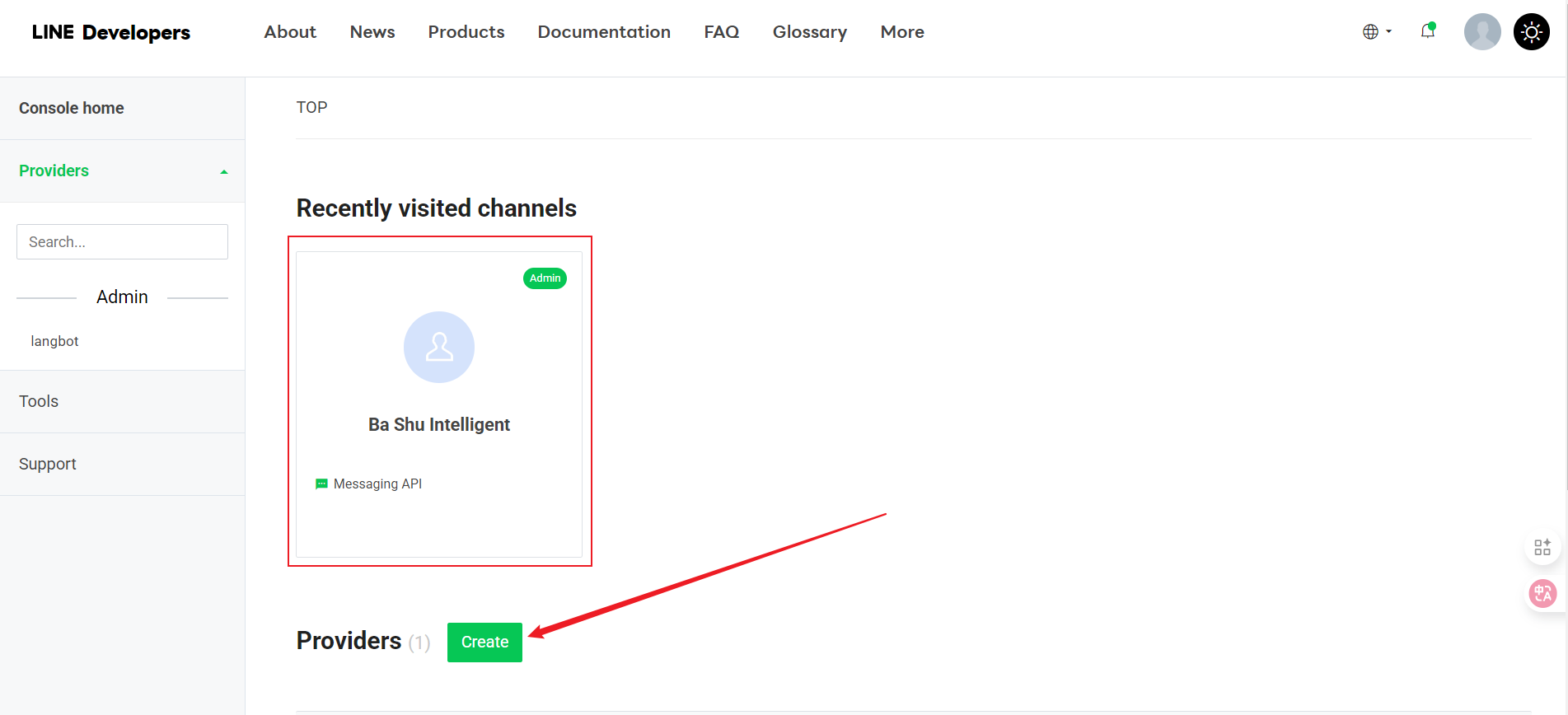
-
Under the Provider, click "Create"
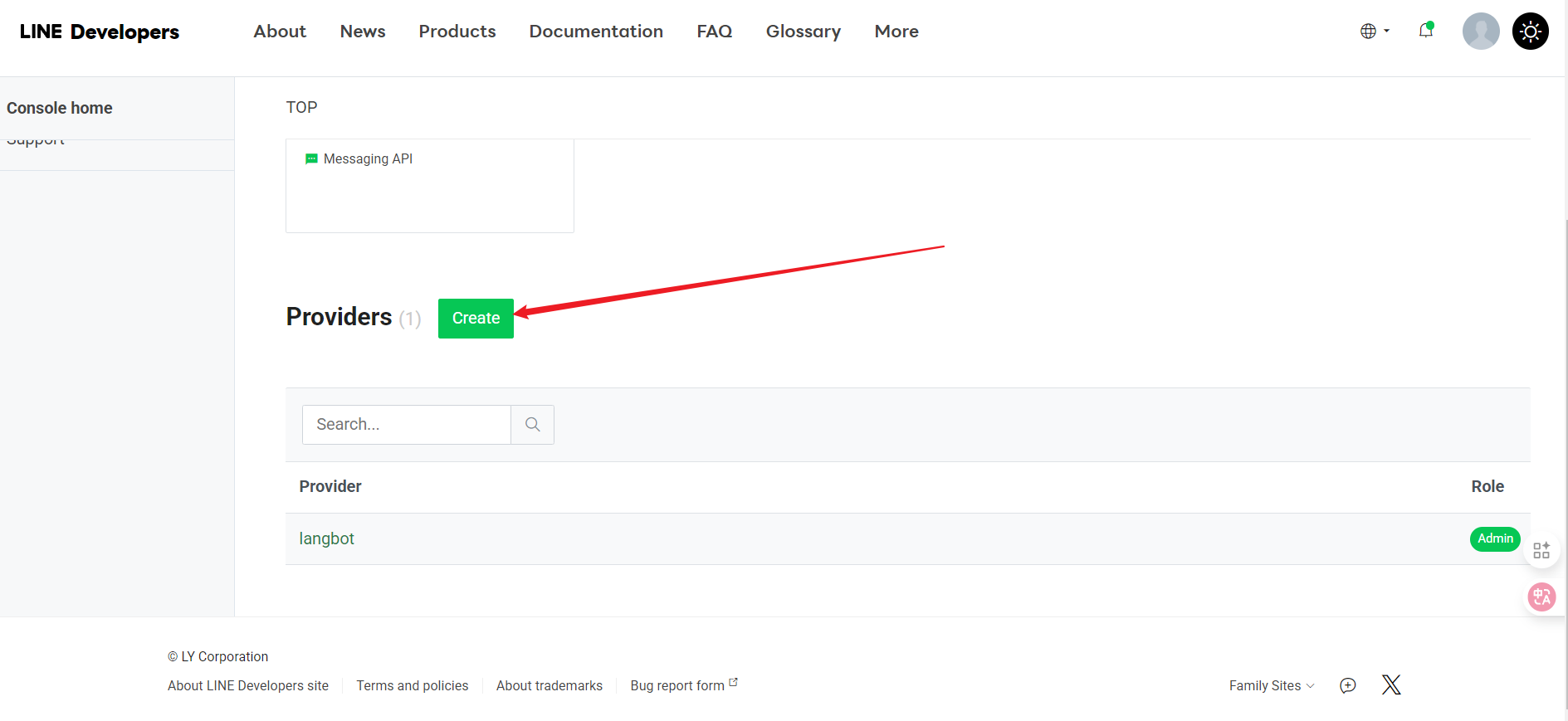
-
Enter a name and click Create
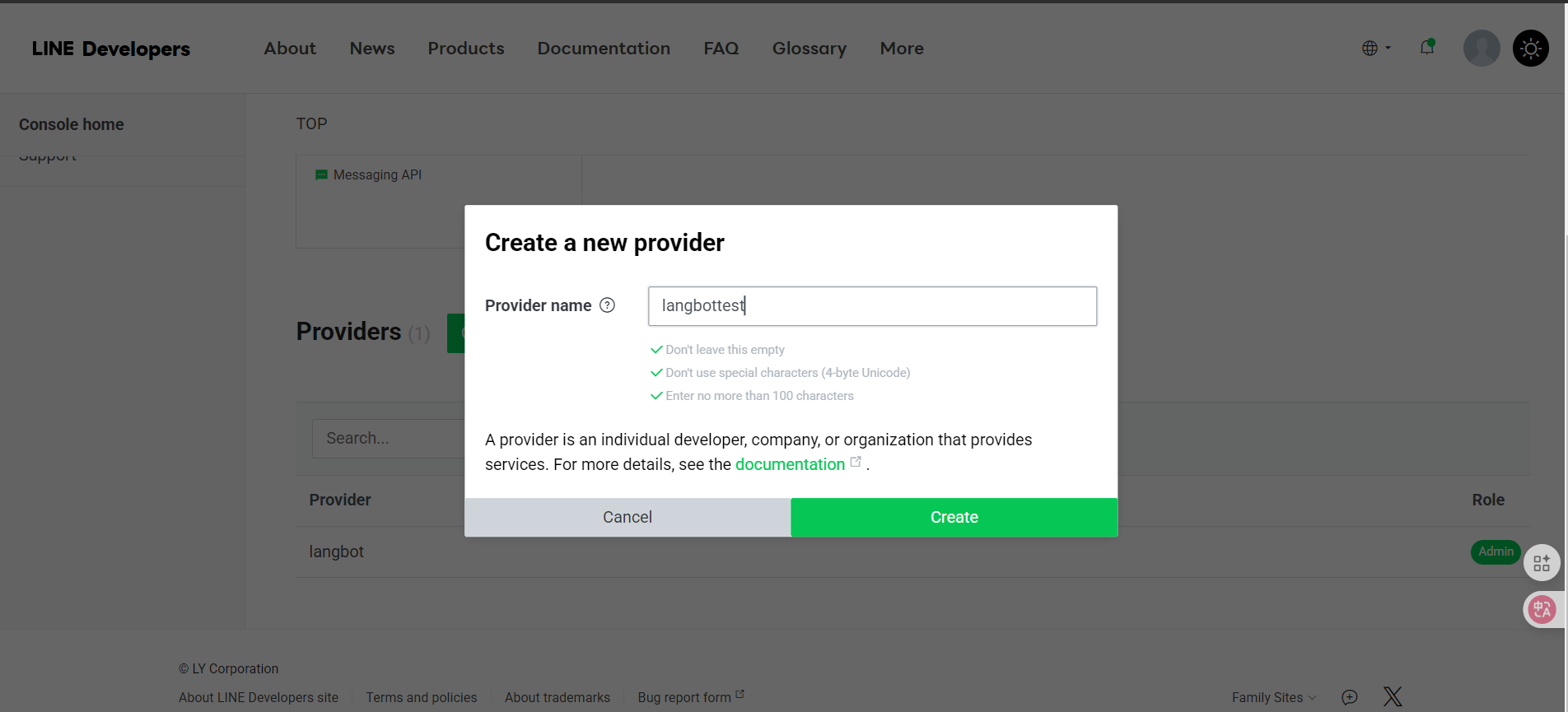
-
After being redirected, select Create a Message API
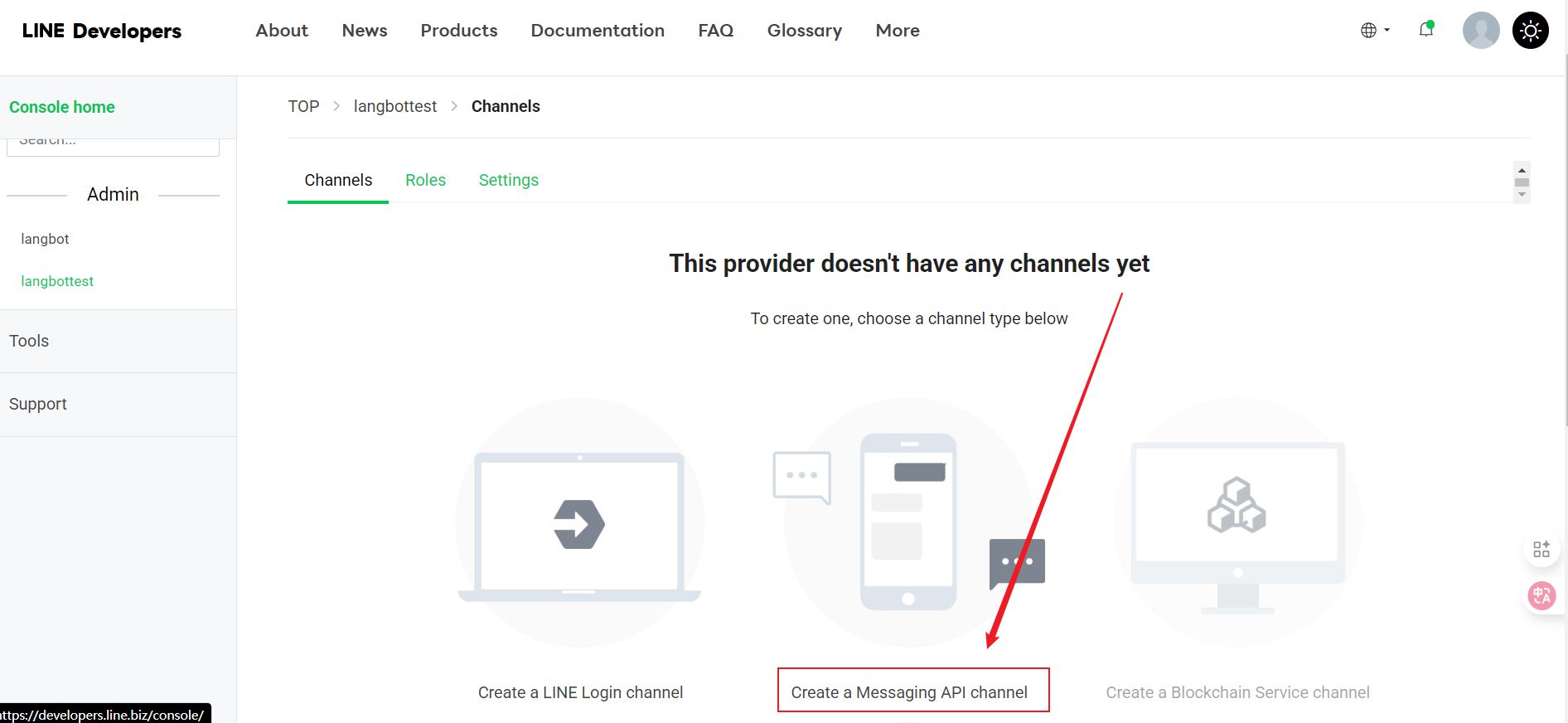
- Continue by clicking Create a Message API
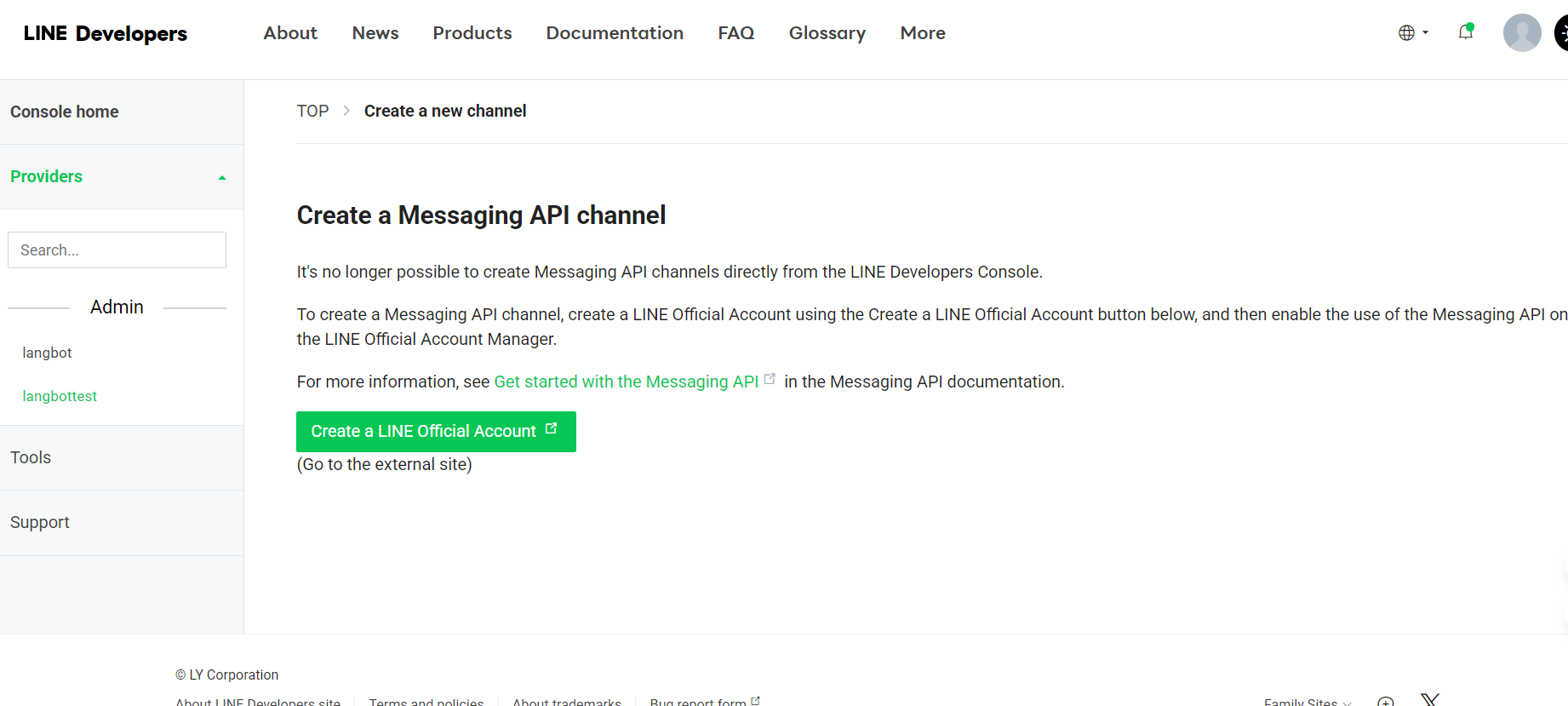
- After being redirected, fill in the basic information
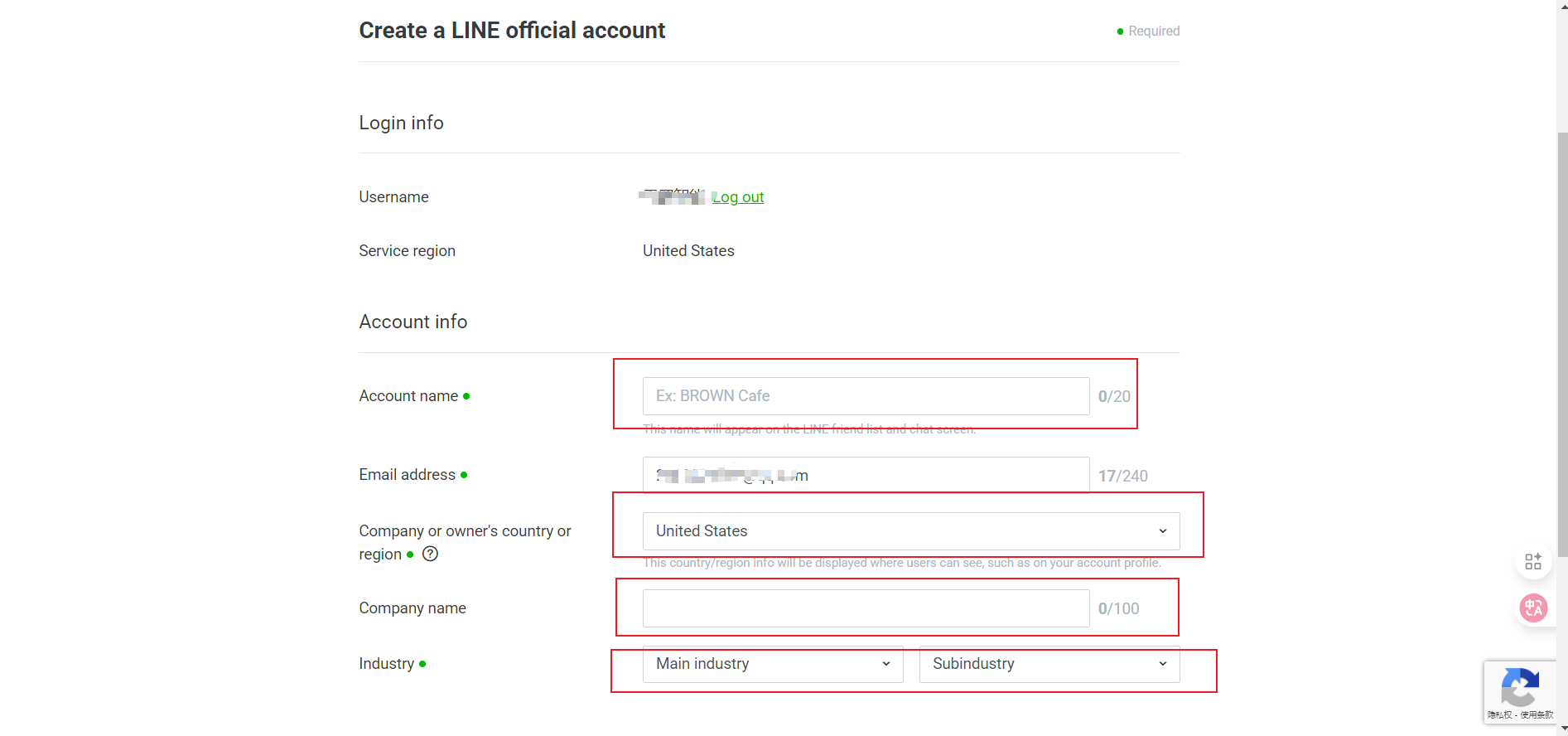
- Channel Name
- Channel Description
- Category
- Subcategory
- Email Address
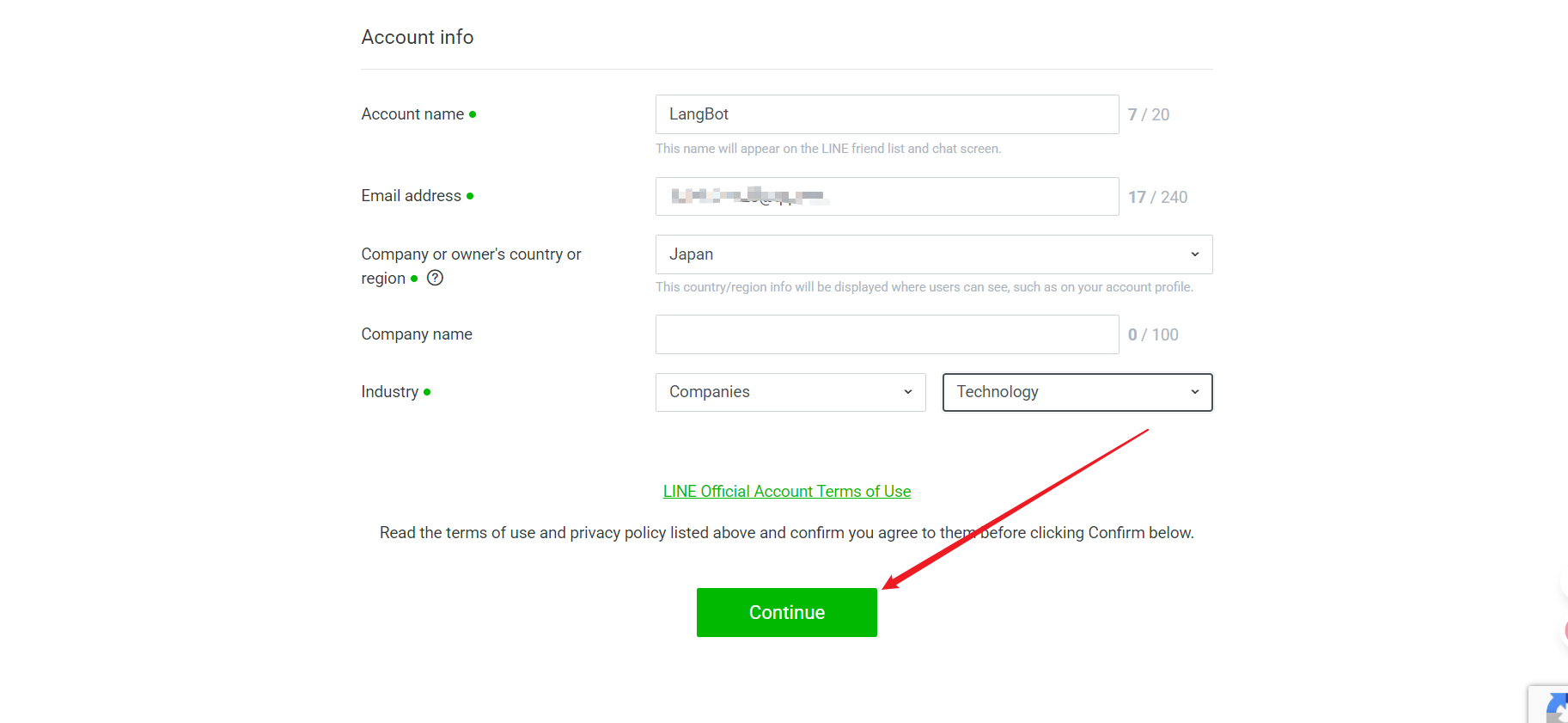
- After filling in all information, click "Continue" to create
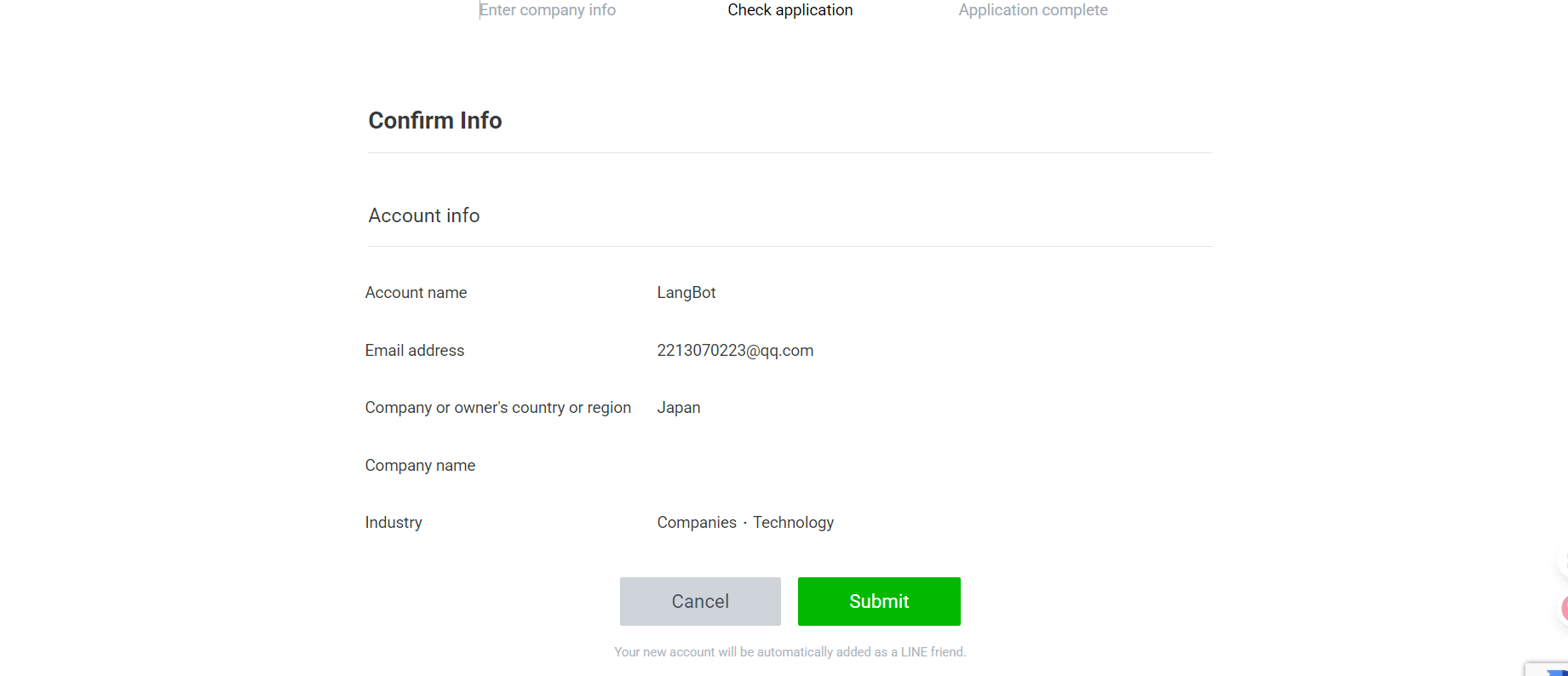
- Check the information you entered, and if there are no issues, click Submit
- Successfully created, proceed to use
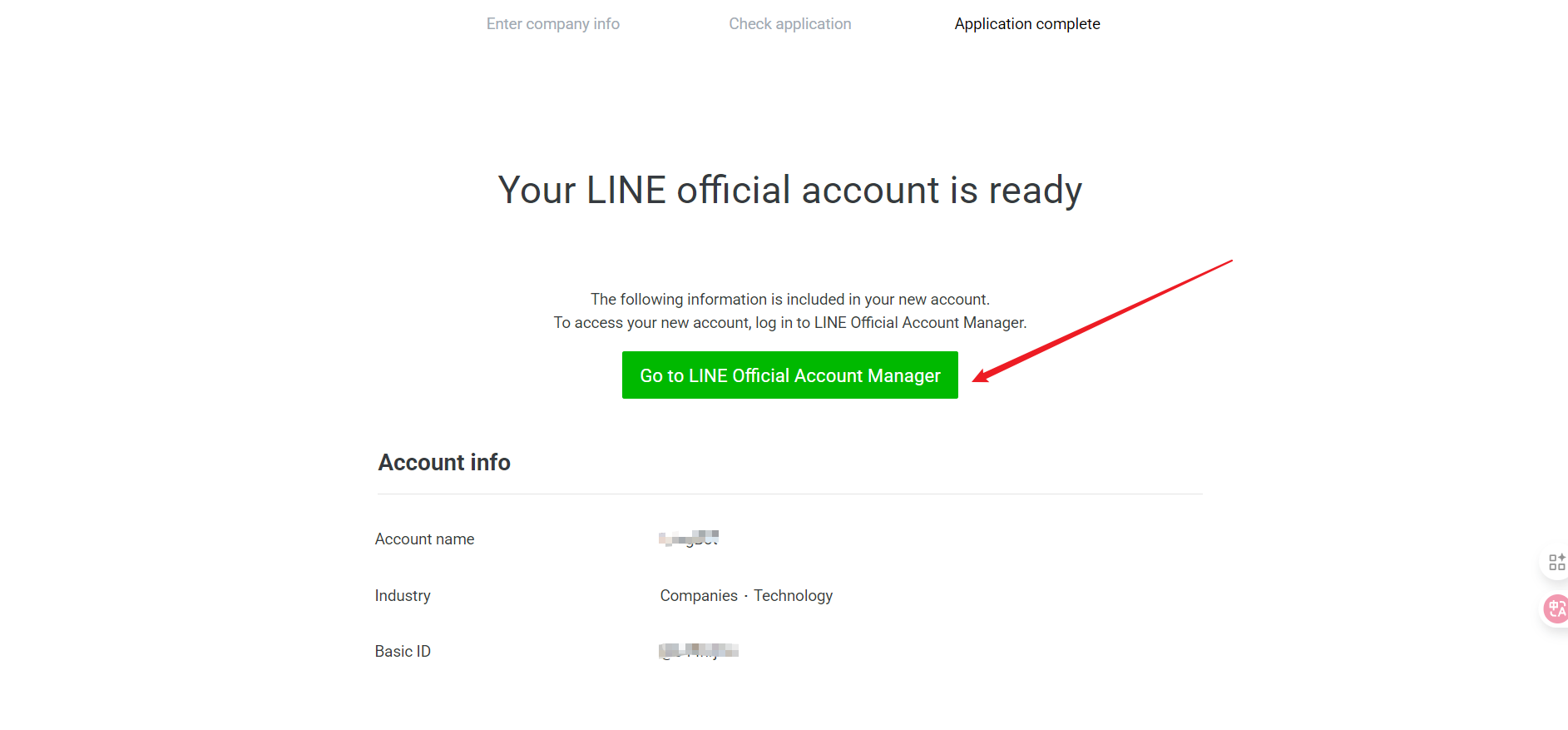
After creation, you will obtain the following important information, please record it:
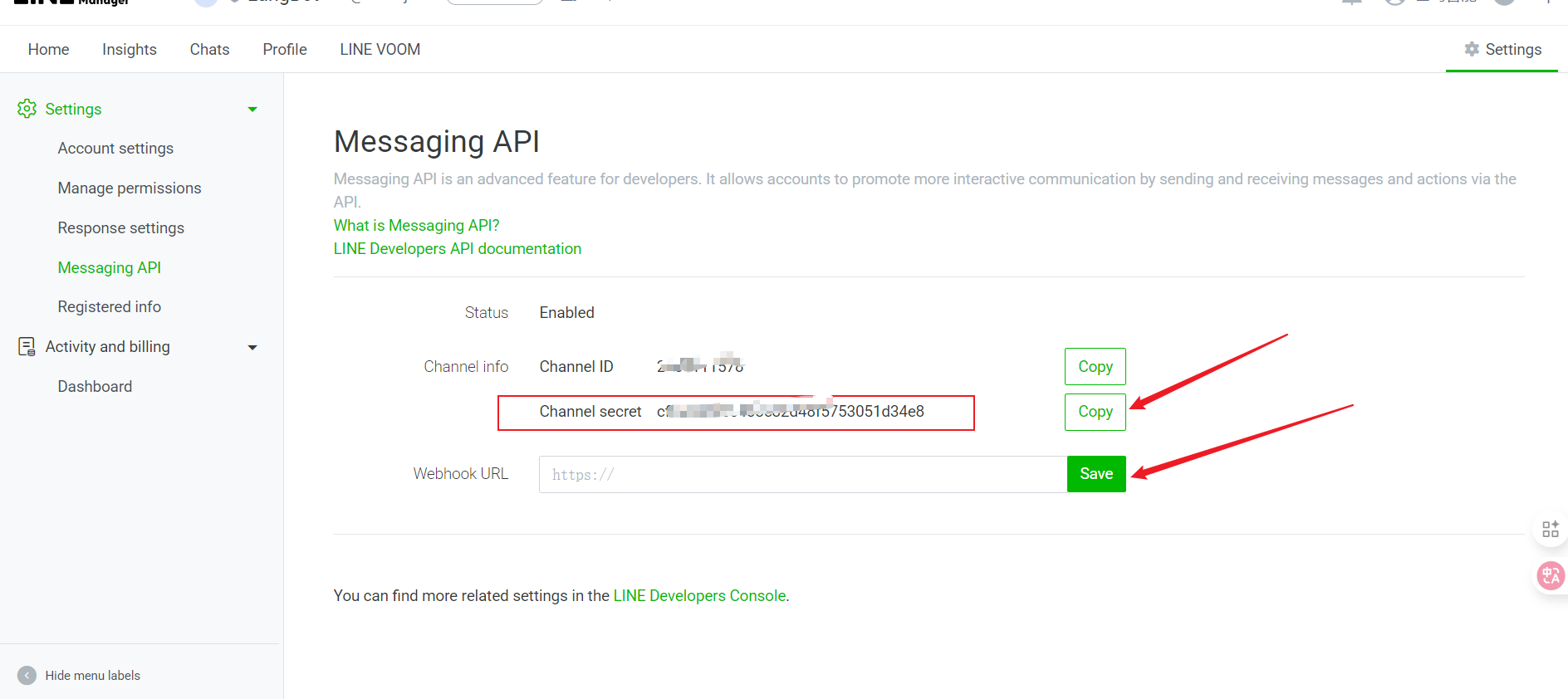
- Channel Secret
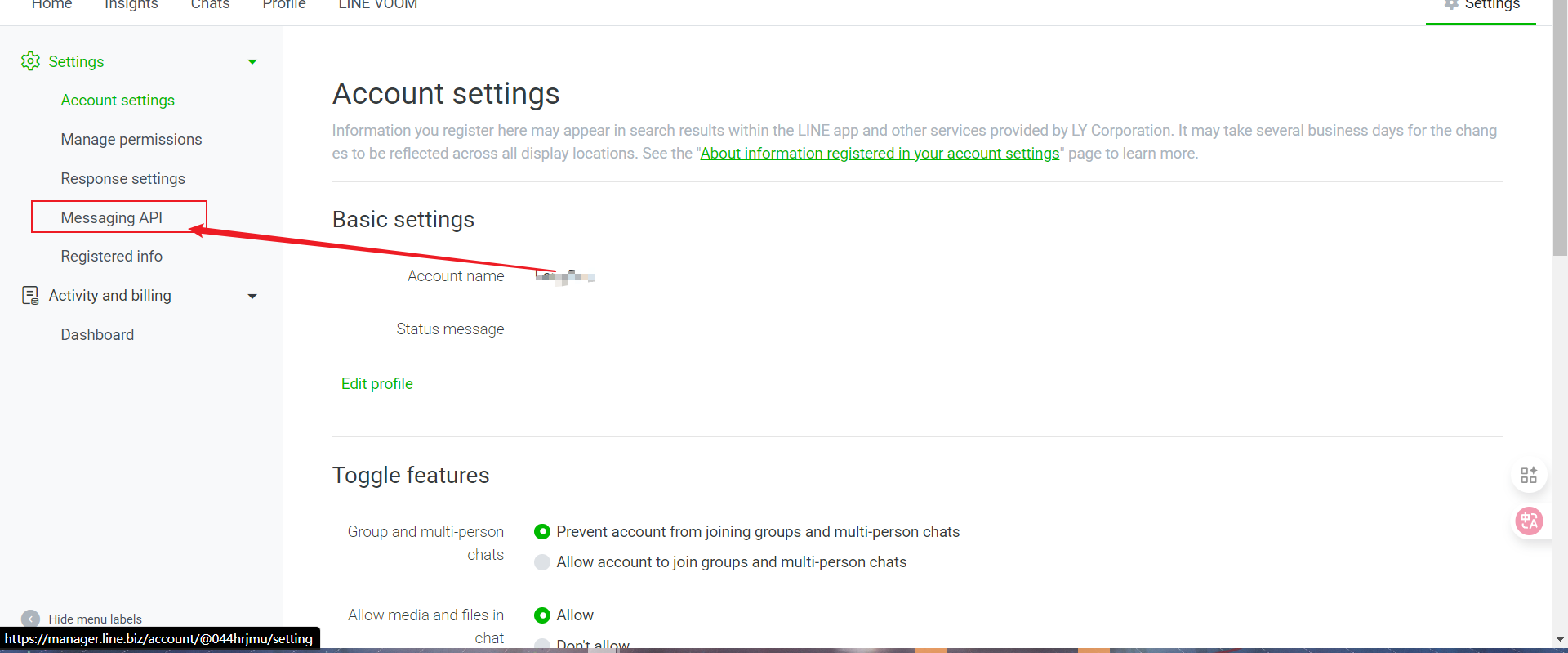
- Select Settings
- Click Message API
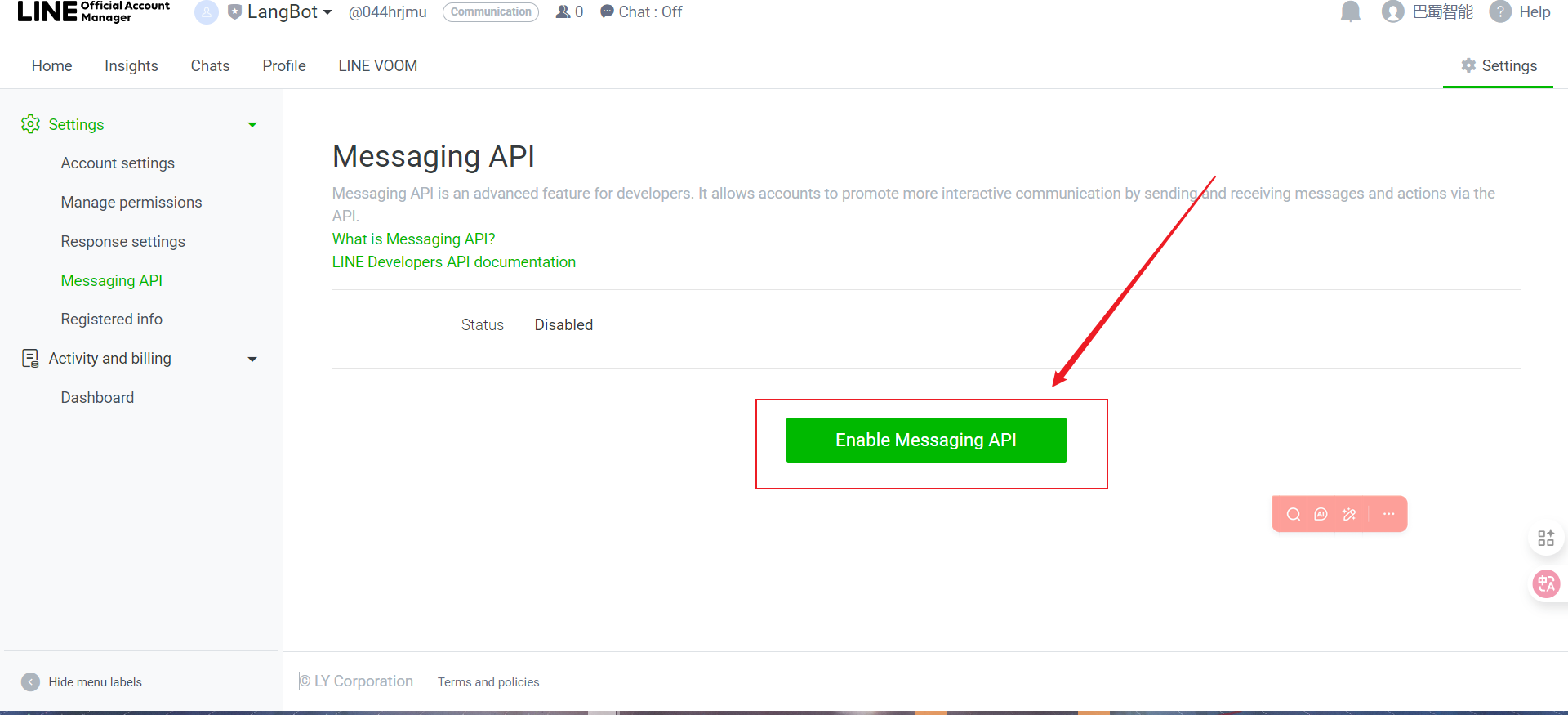
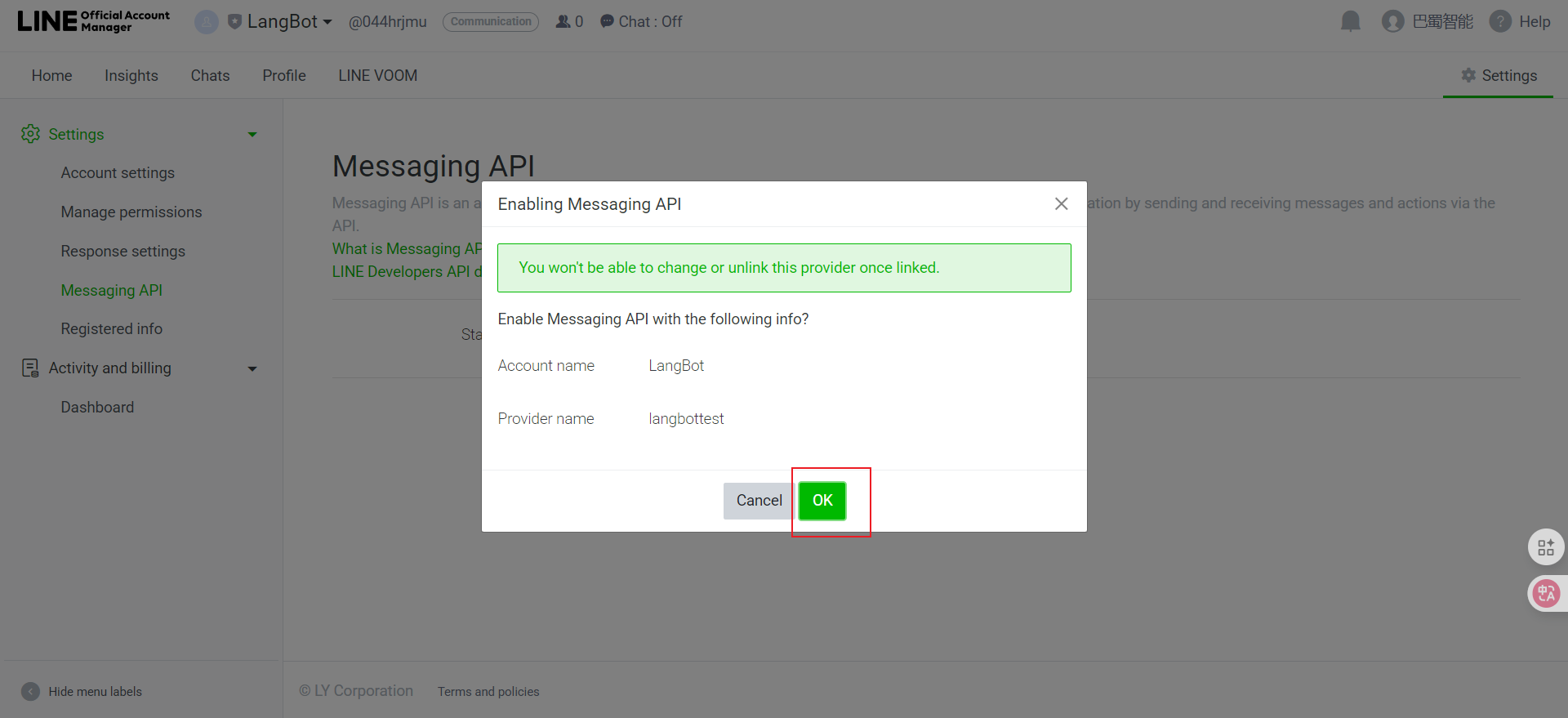
- Enable Message API
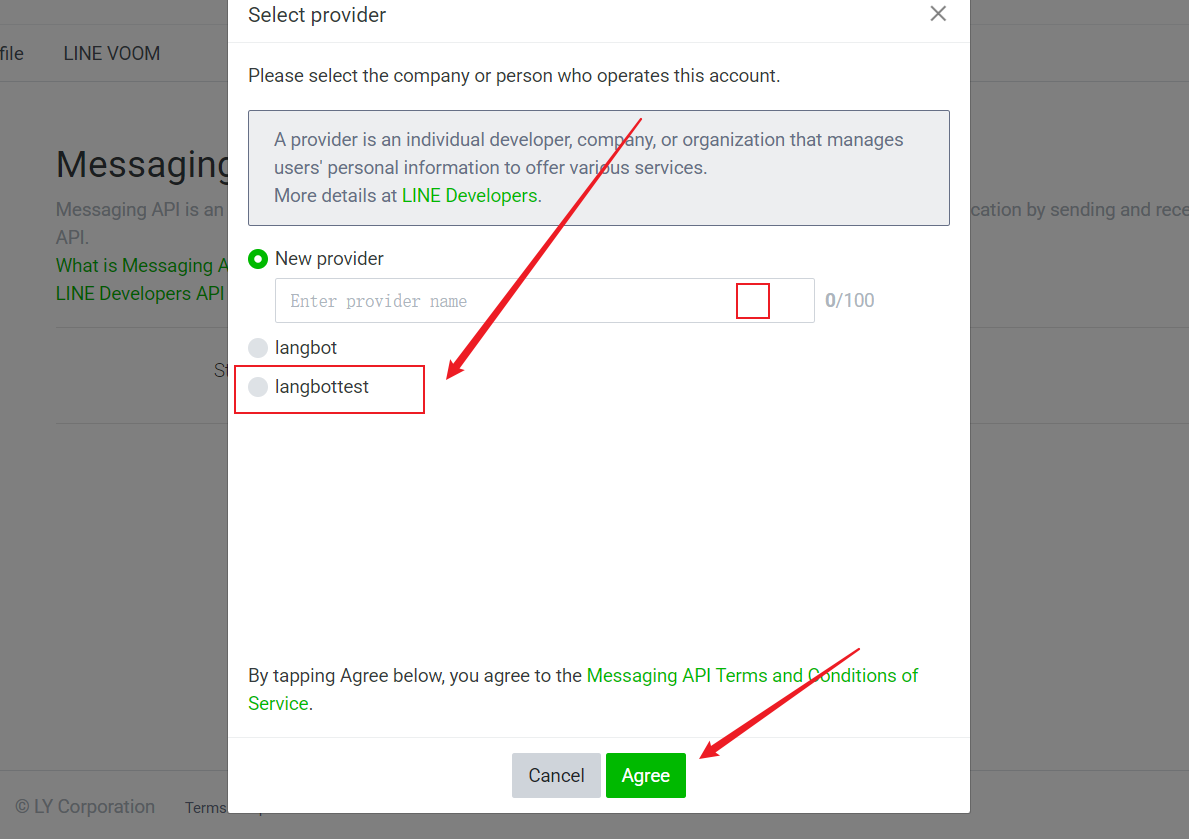
- Select the Provider you just created and click Agree
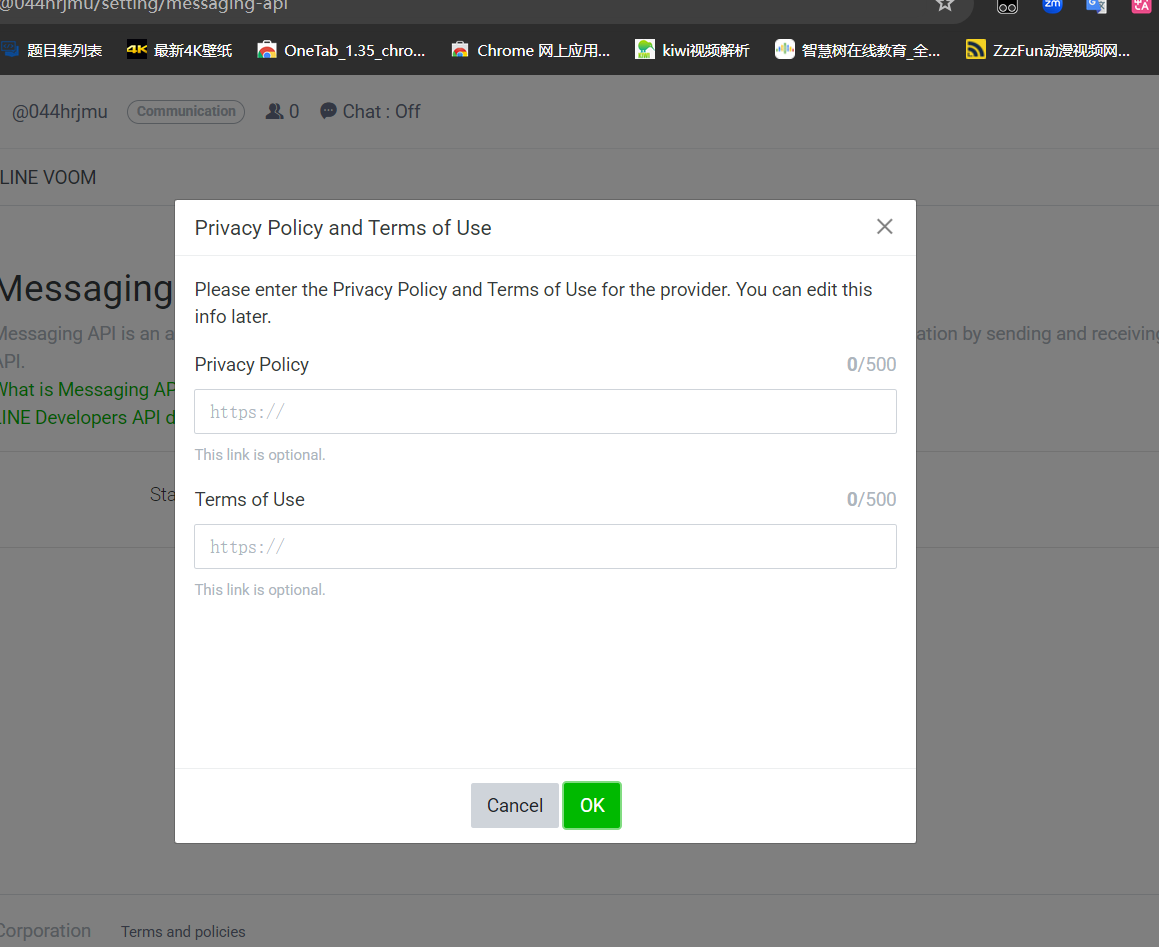
- For privacy terms, simply click OK
- Click OK to complete creation
- Copy it
- Channel Access Token (need to click the "Issue" button to generate)
- Click console or directly visit Console
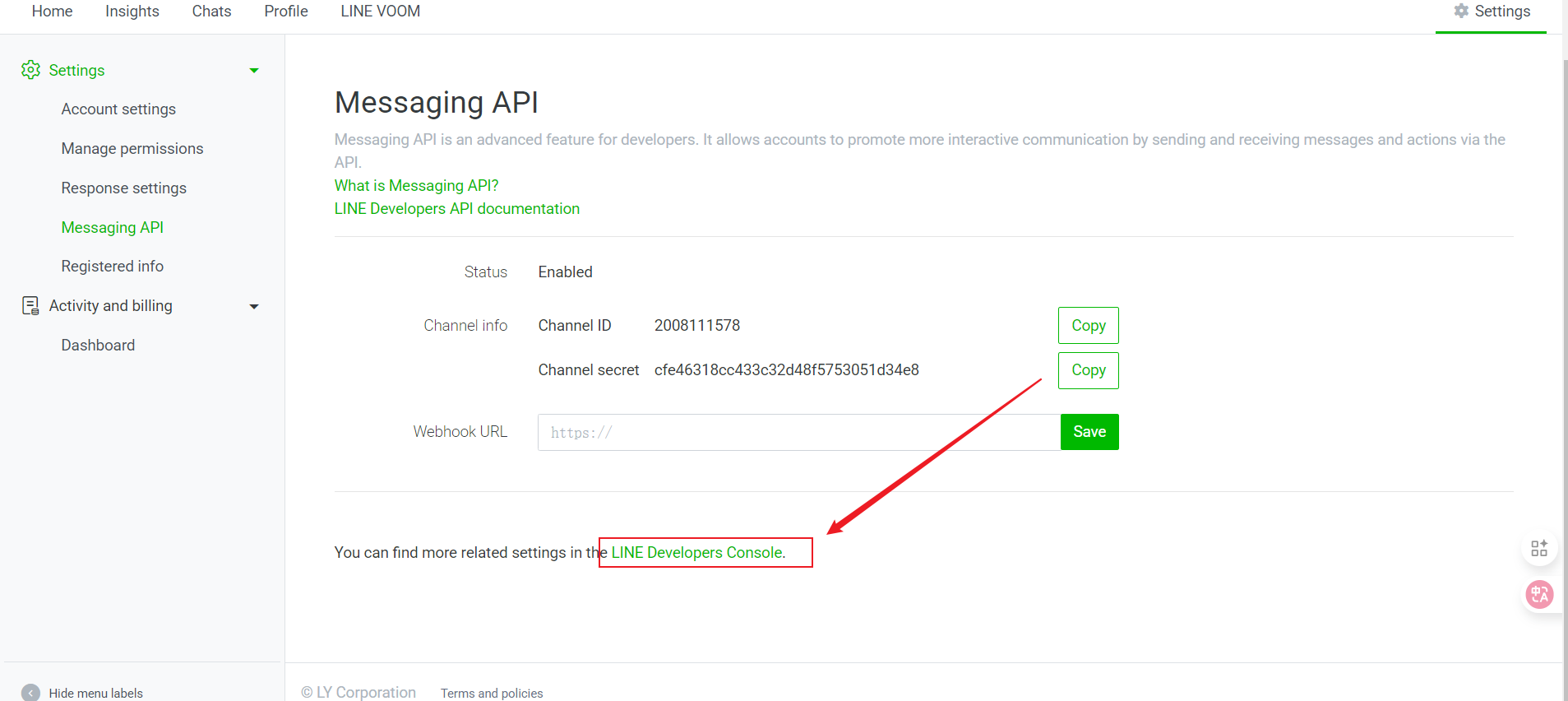
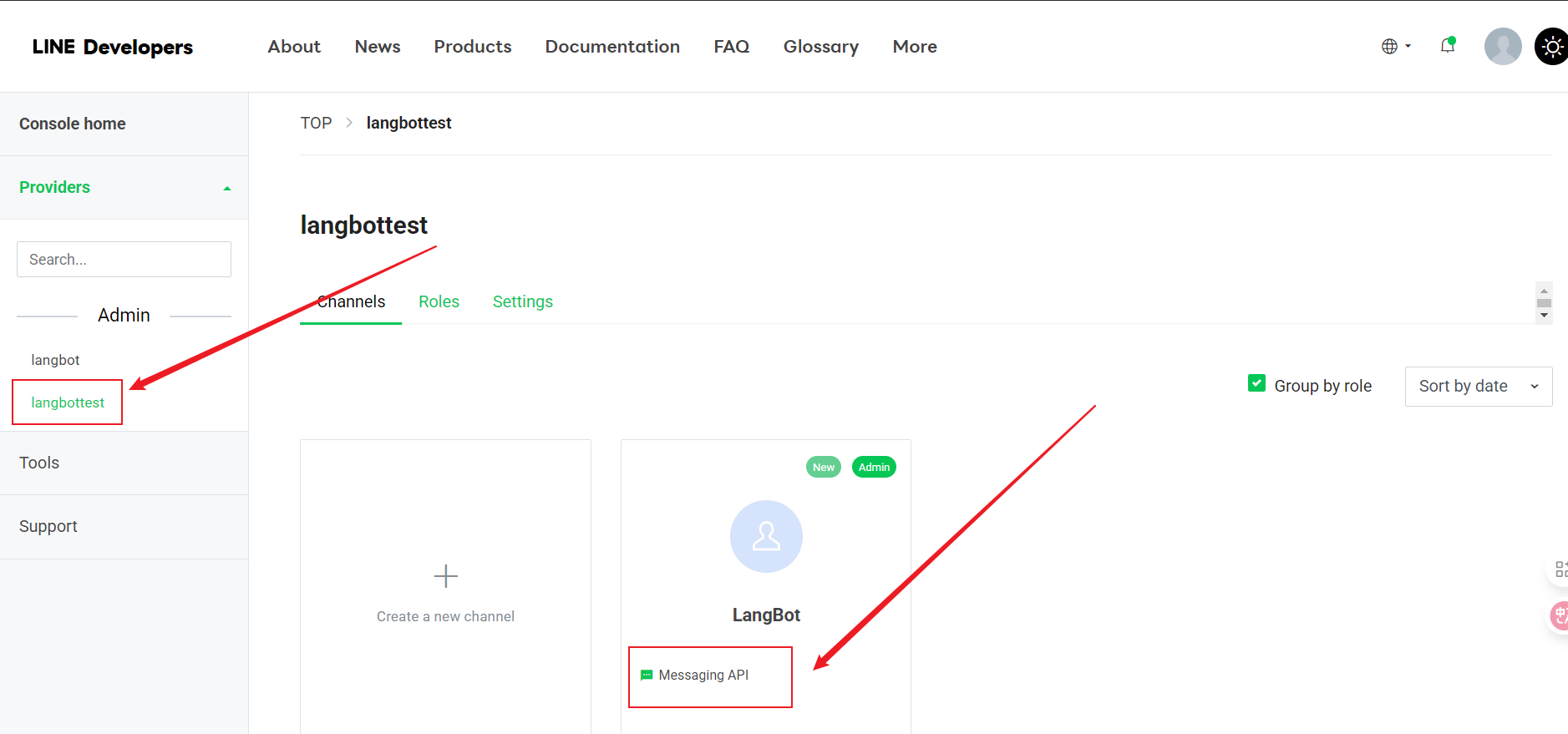
- Select the Provider you created and click Message API
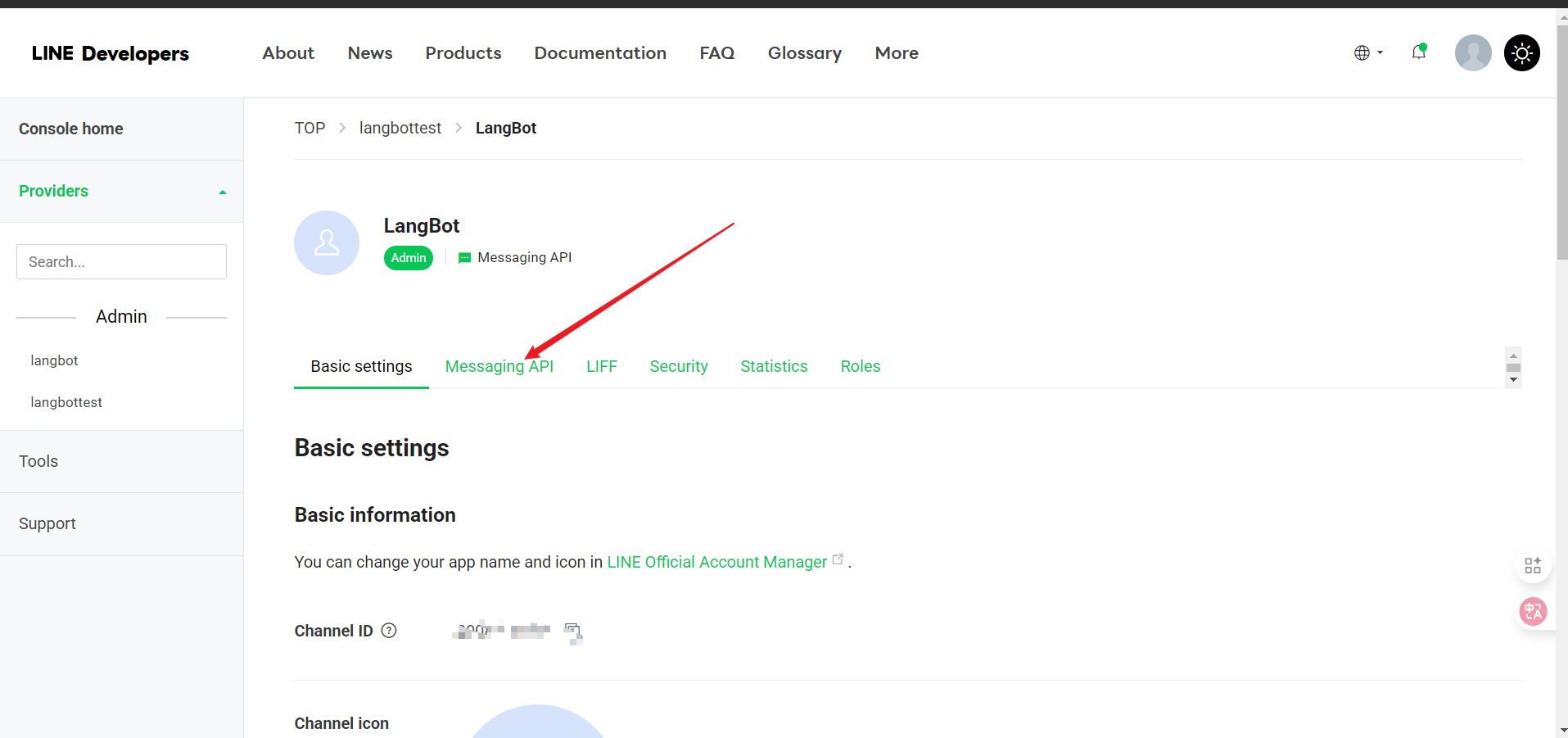
- Click Message API
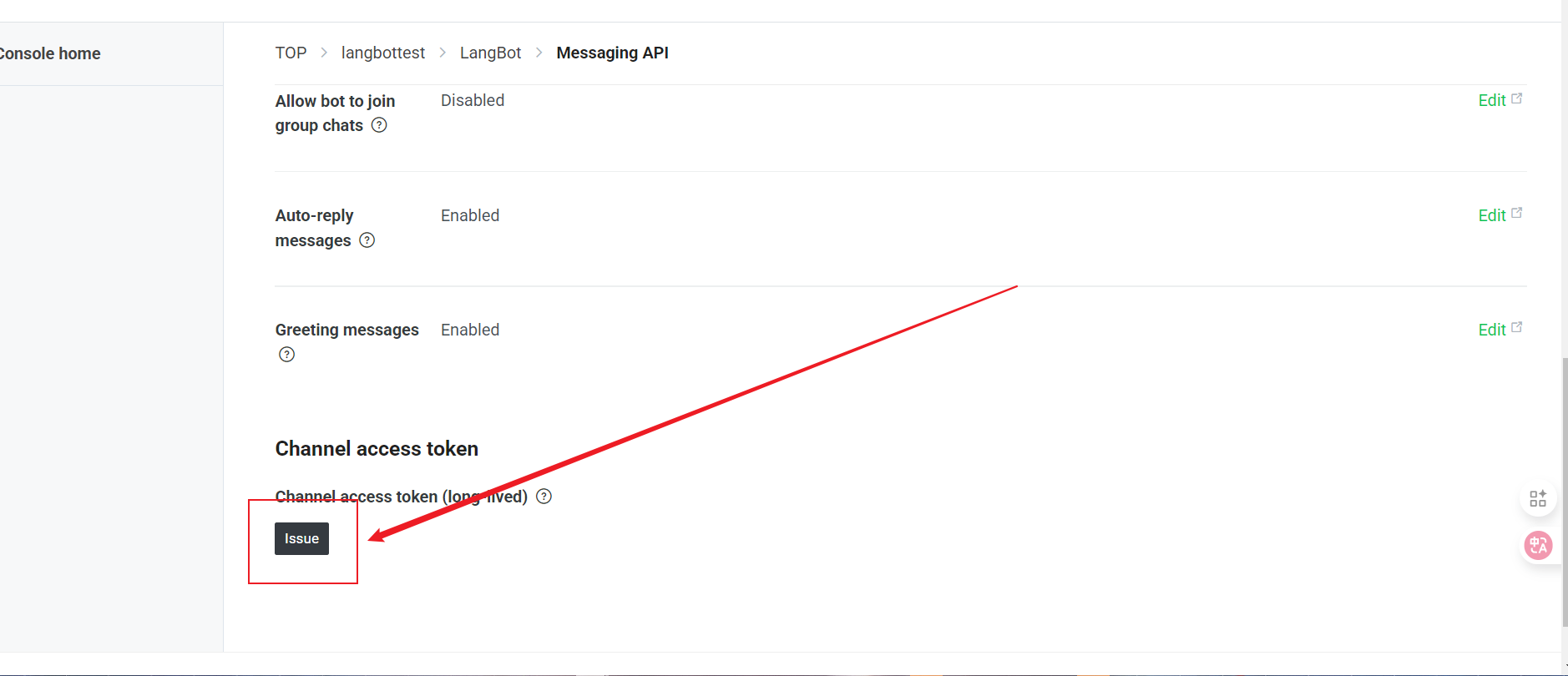
- Scroll to the bottom, click Issue
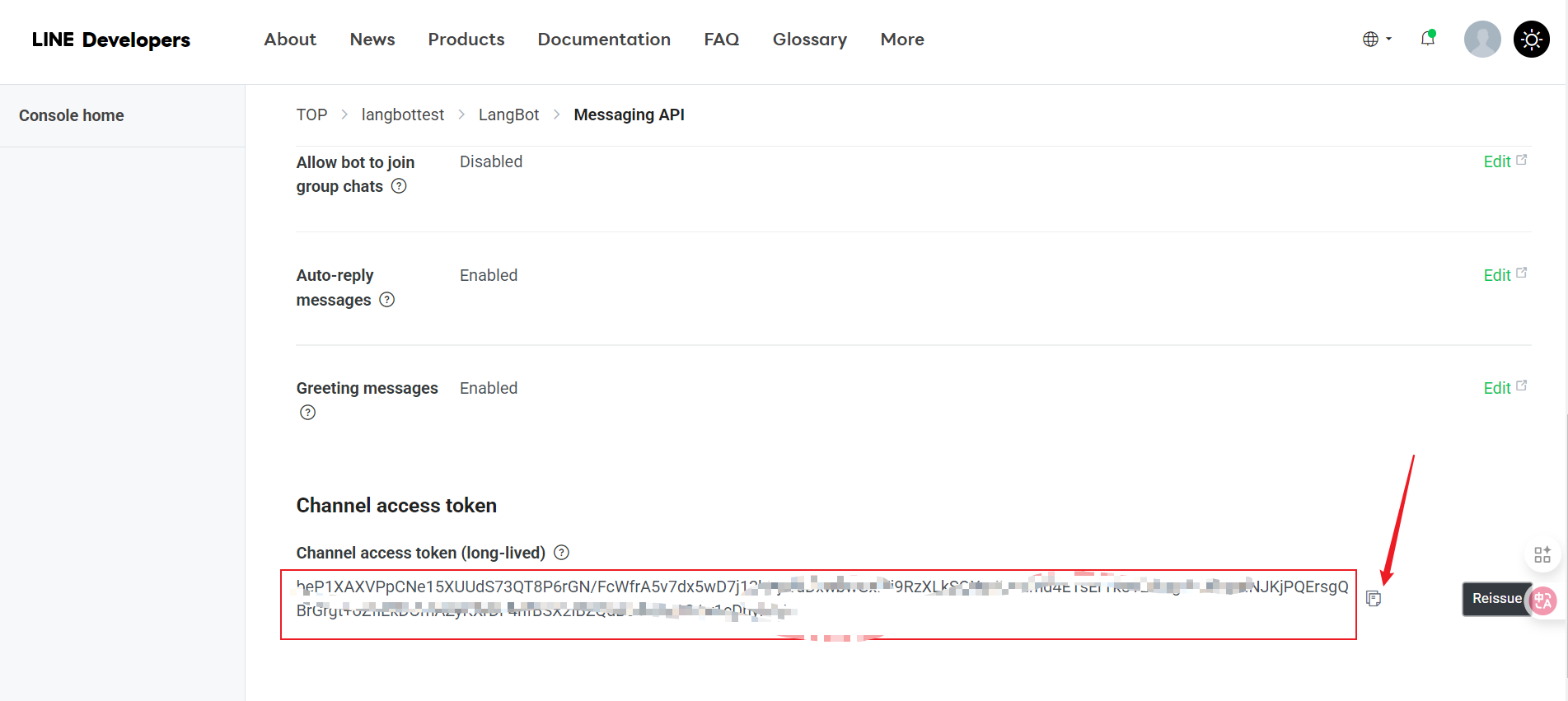
- Click the icon to copy
Next, open the LangBot configuration page:
-
Click "Bots", then click "Add"
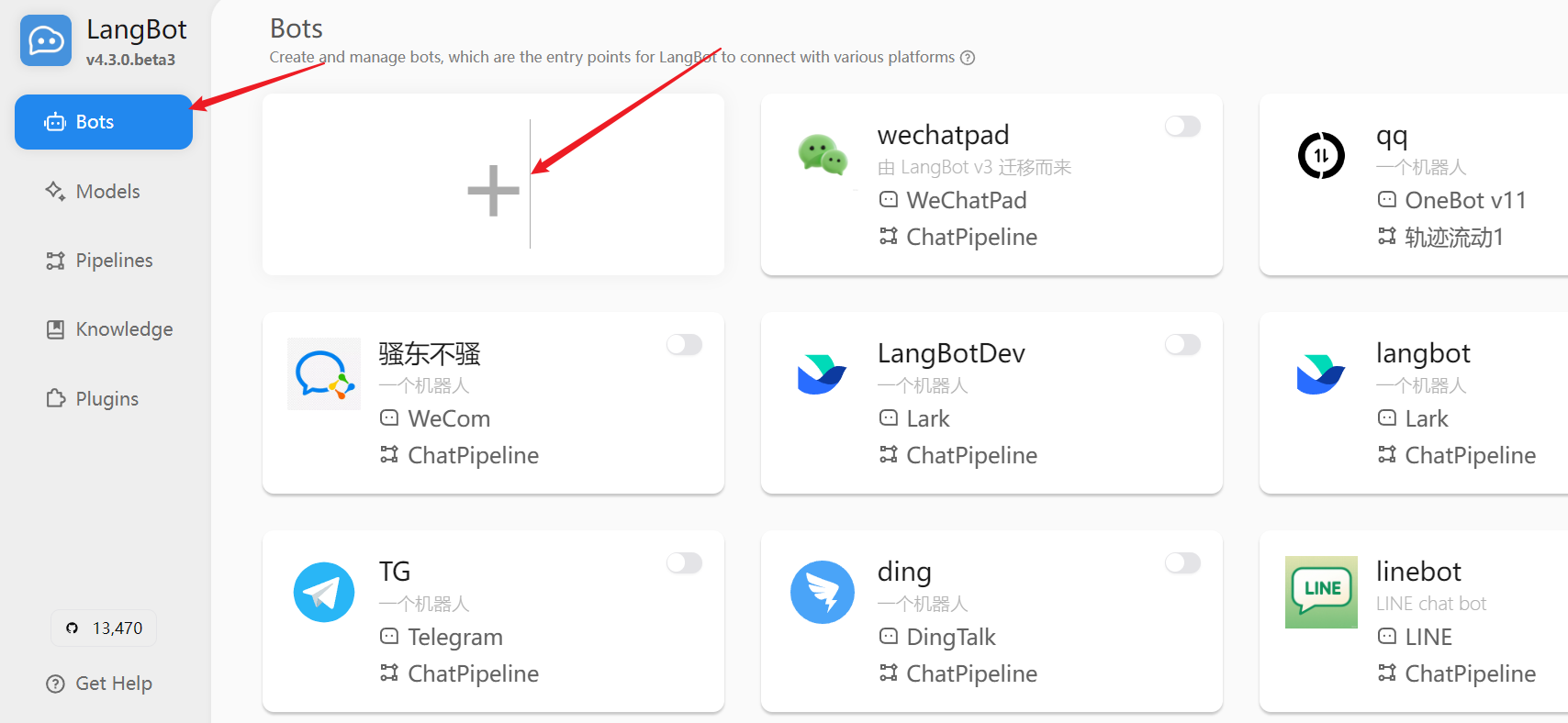
-
Select "LINE" in "Platform/Adapter Selection"
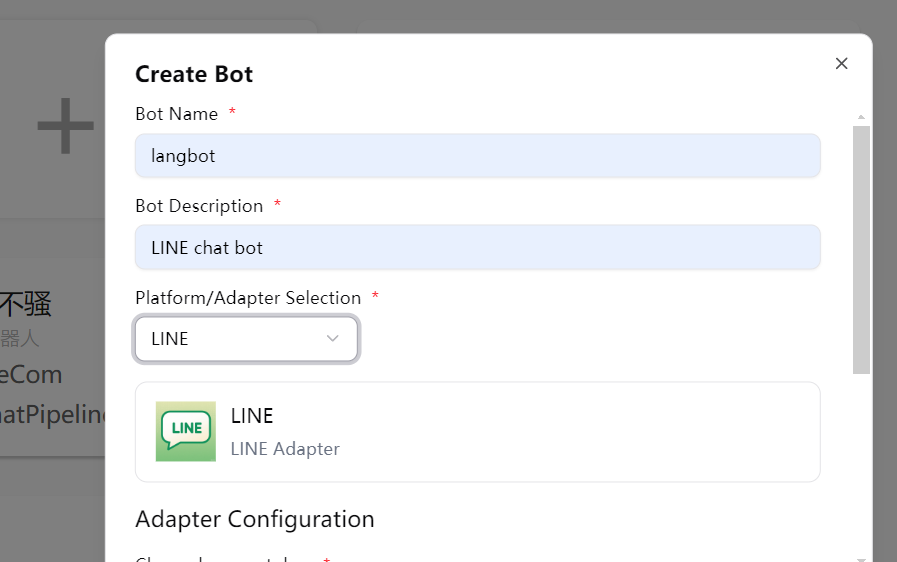
-
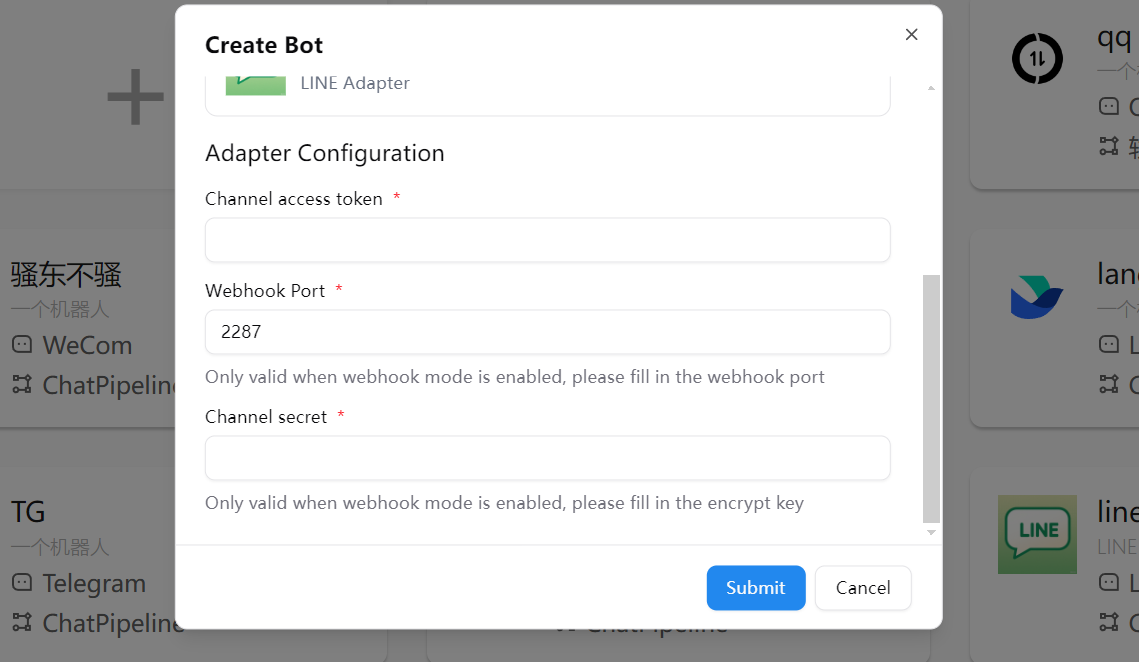
Fill in the configuration information:
- Channel Secret: The Channel secret you obtained earlier
- Channel Access Token: The Channel access token you obtained earlier
-
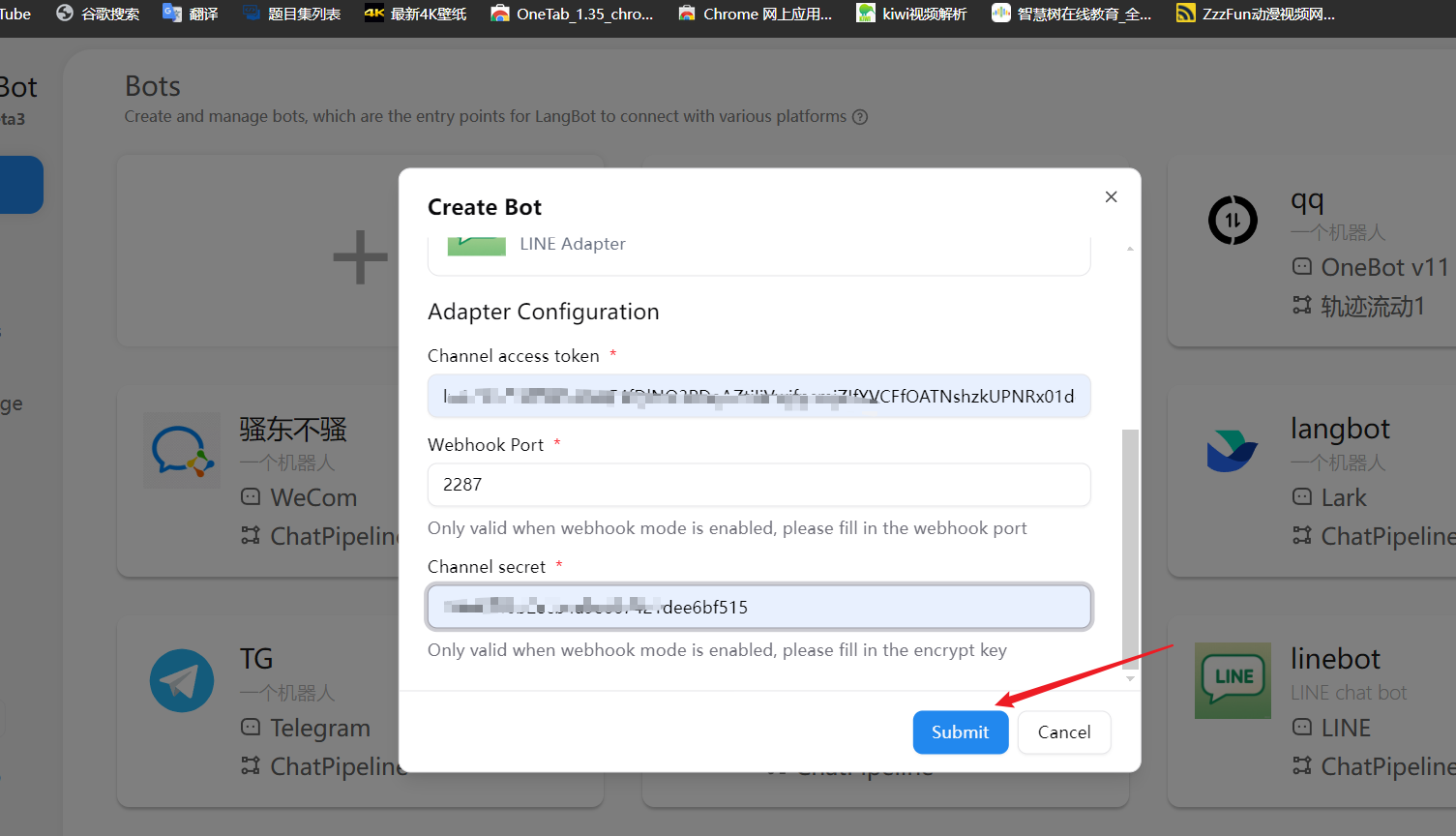
Click "Save" to complete the configuration
Note
We recommend that you first refer to Configure HTTP Reverse Proxy to configure the LangBot callback address.
Tip
Don't want to set up a public server and domain? LangBot Cloud includes built-in domain and HTTPS — get started right away.
-
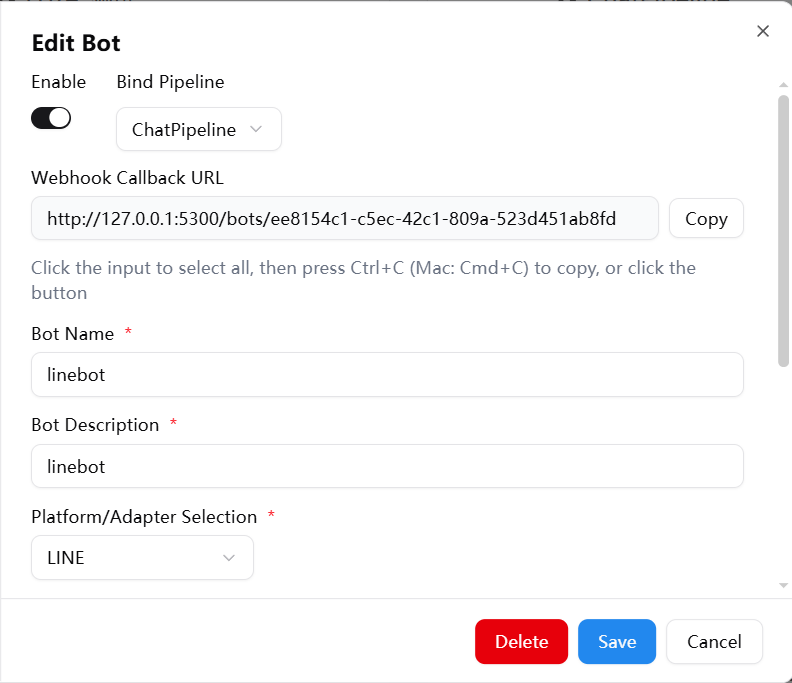
Get the Webhook callback URL from the LangBot configuration page
-
Click console or directly visit Console
-
Select the Provider you created and click Message API
-
Click Message API
-
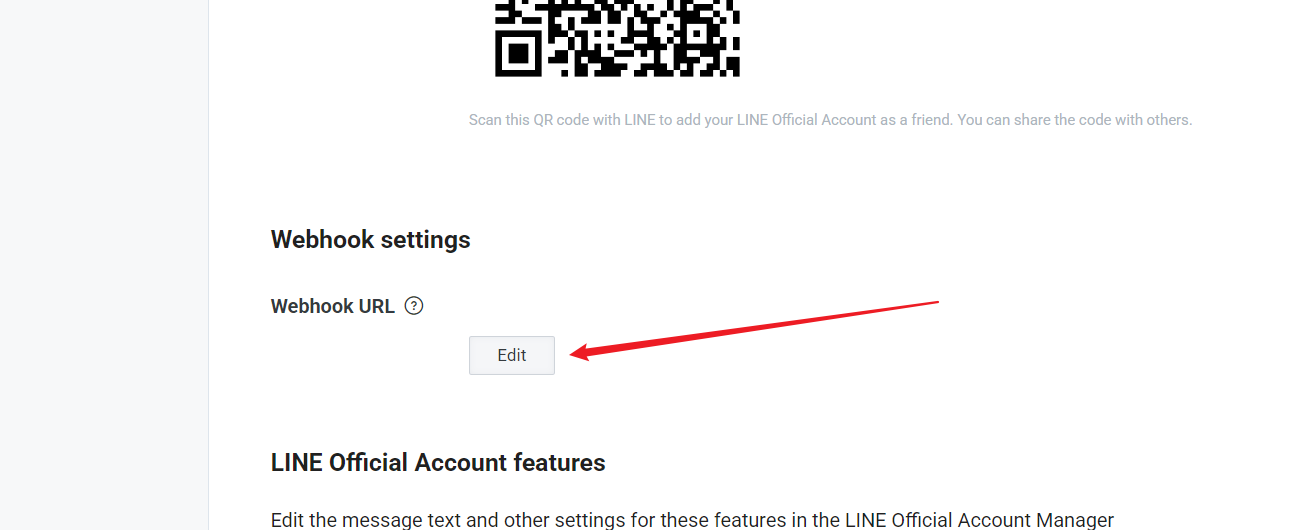
Click Edit to fill in the connection
-
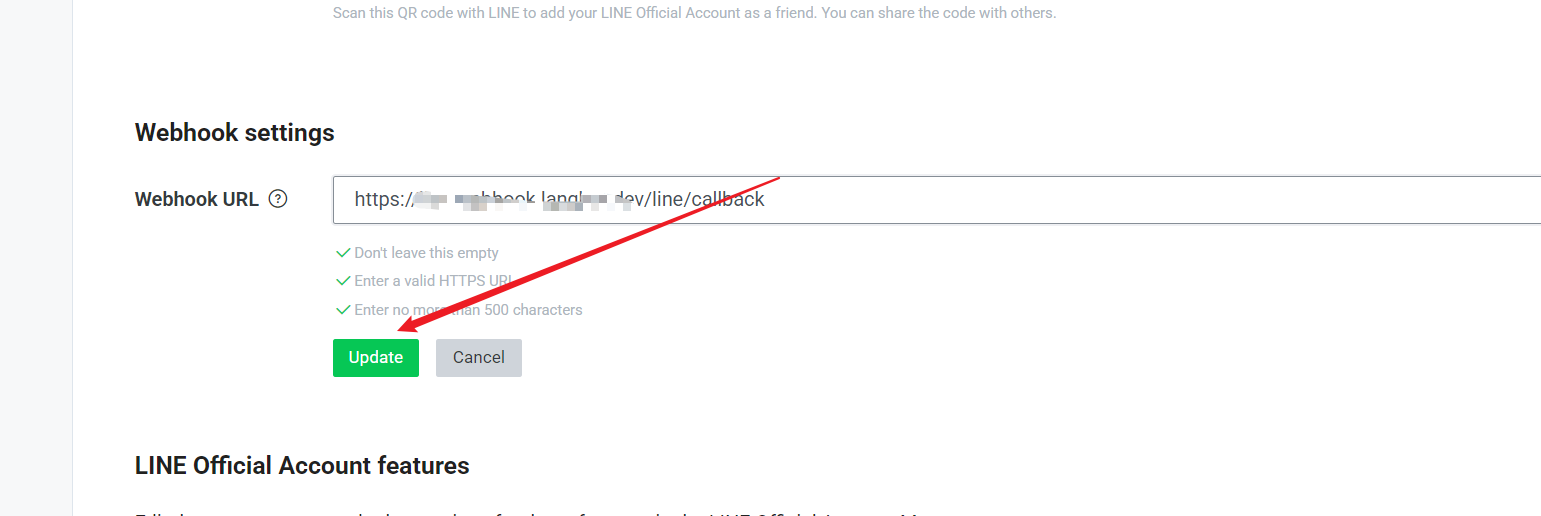
Enter the connection (must be an HTTPS connection, which means you need an SSL certificate), click Update
-
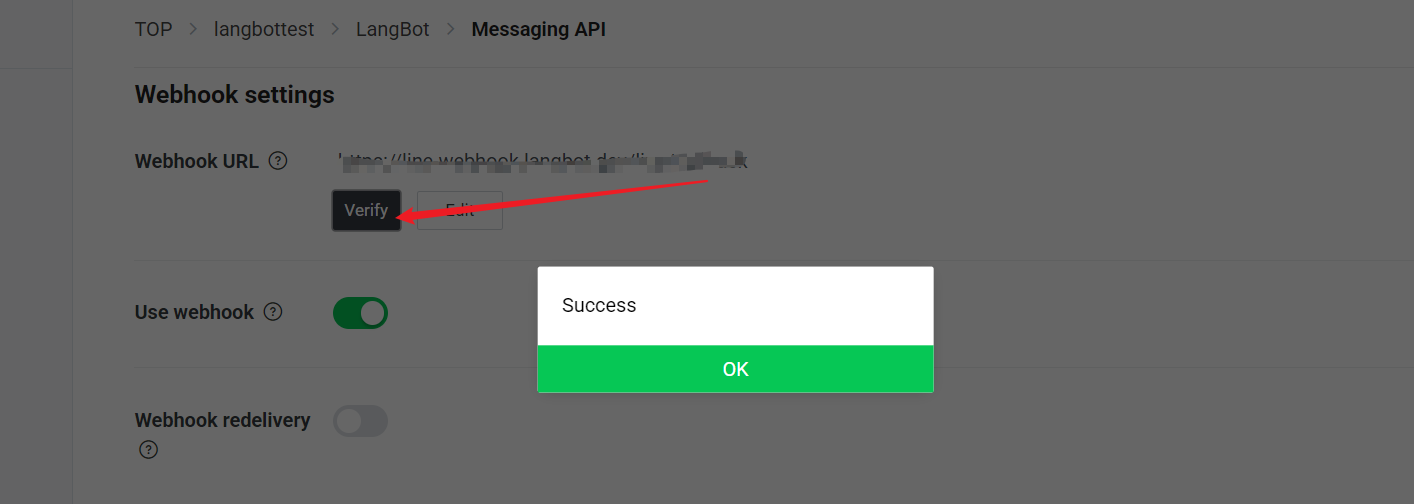
Select Use Webhook
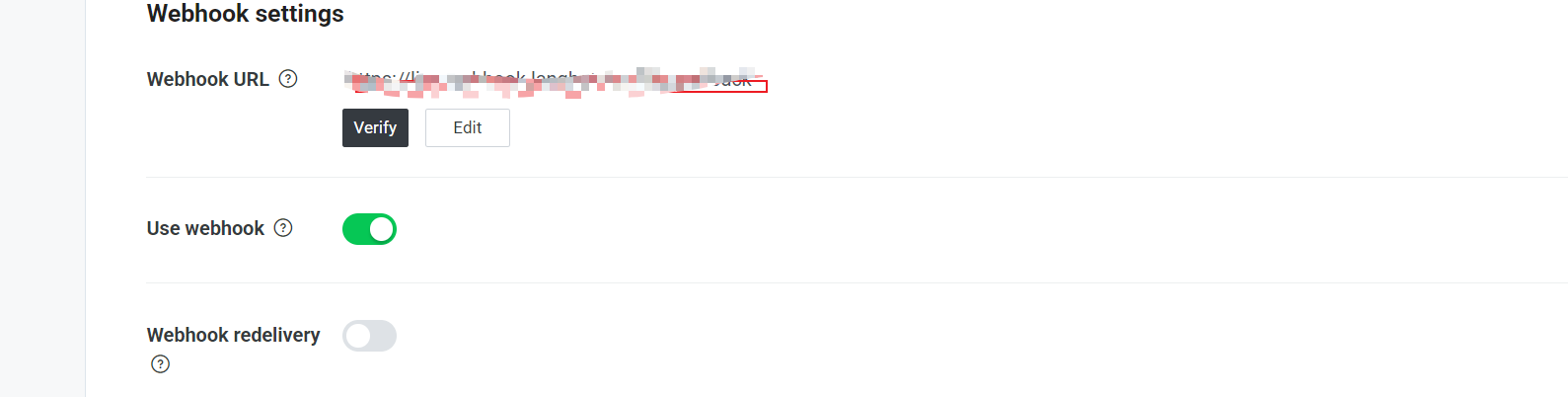
- Click the "Verify" button to test if the connection is successful
In the LINE developer console, you can further configure the bot's features:
- In the "Messaging API" tab, find the "LINE Official Account Features" section
- Enable or disable the following features as needed:
- Auto-reply messages
- Welcome messages when adding friends
- Group and multi-person chat
- Greeting when the bot joins a group
After configuration, users can interact with your LINE bot through the following methods:
- Scan the QR code provided in the LINE developer console to add the bot as a friend
- Send messages in the chat, and the bot will process and reply through LangBot
- Ensure your server can be accessed via HTTPS
- Check if the Webhook URL is correct
- Confirm that the LangBot service is running properly
- Check if the Channel Access Token is valid
- Confirm that the "Use Webhook" option is enabled
- Check the LangBot logs for error messages
- Ensure you have enabled the necessary permissions for the bot in the LINE developer console
- For some advanced features, a LINE Premium account may be required