en usage platforms wecom wecom
Deploy the WeCom (Enterprise WeChat) bot to integrate with LangBot.
Note
- This integration is for internal enterprise applications, used within your organization. If external customer support is needed, please refer to the WeCom Customer Service integration solution.
- The WeCom callback address requires a public IP and domain name. We recommend you first follow Configure HTTP Reverse Proxy to configure the LangBot callback address. [!TIP] No public server? LangBot Cloud includes built-in domain and HTTPS — get WeCom working out of the box.
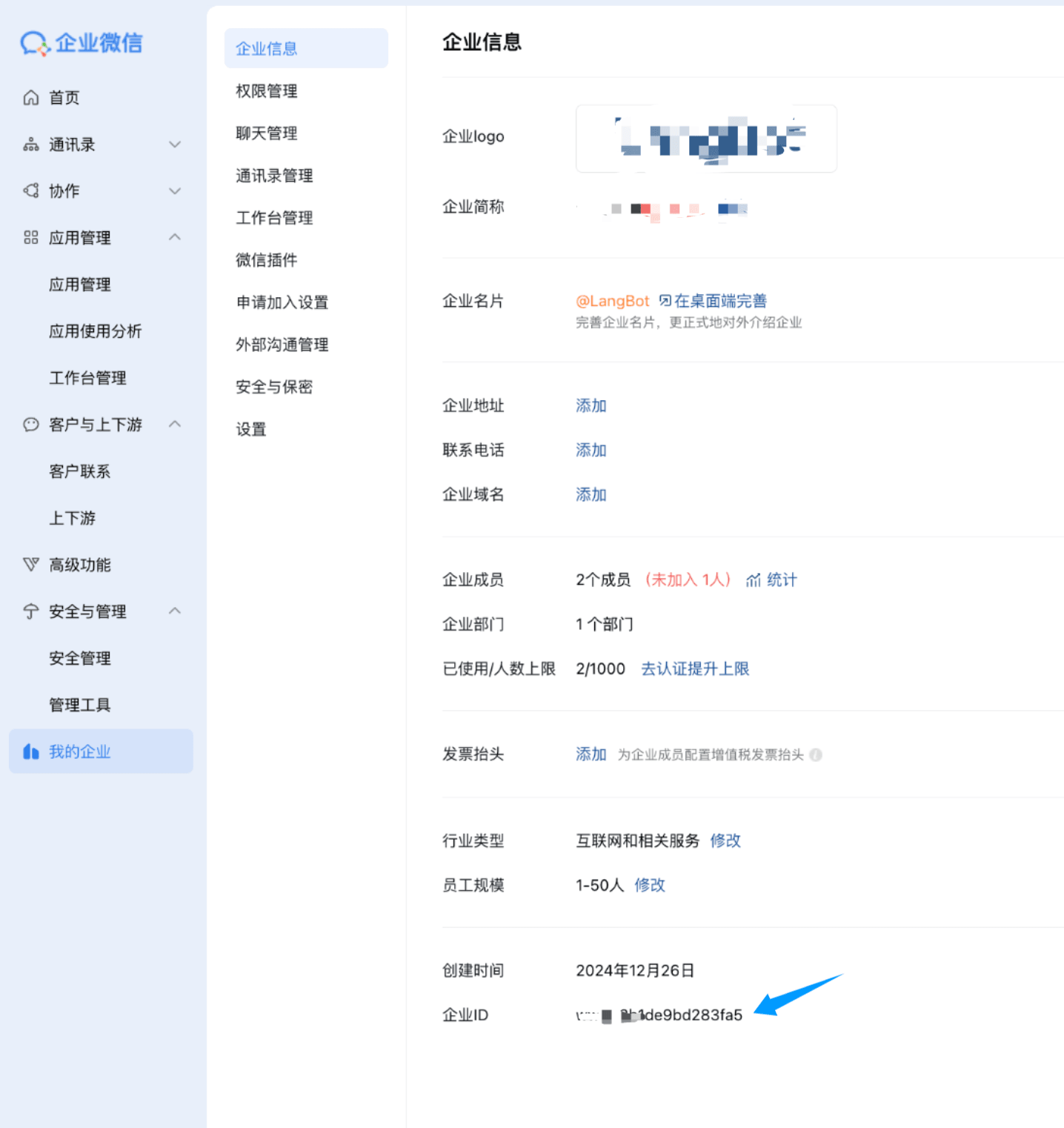
Open the WeCom Admin Portal, click My Enterprise, and record the Corporate ID at the bottom.
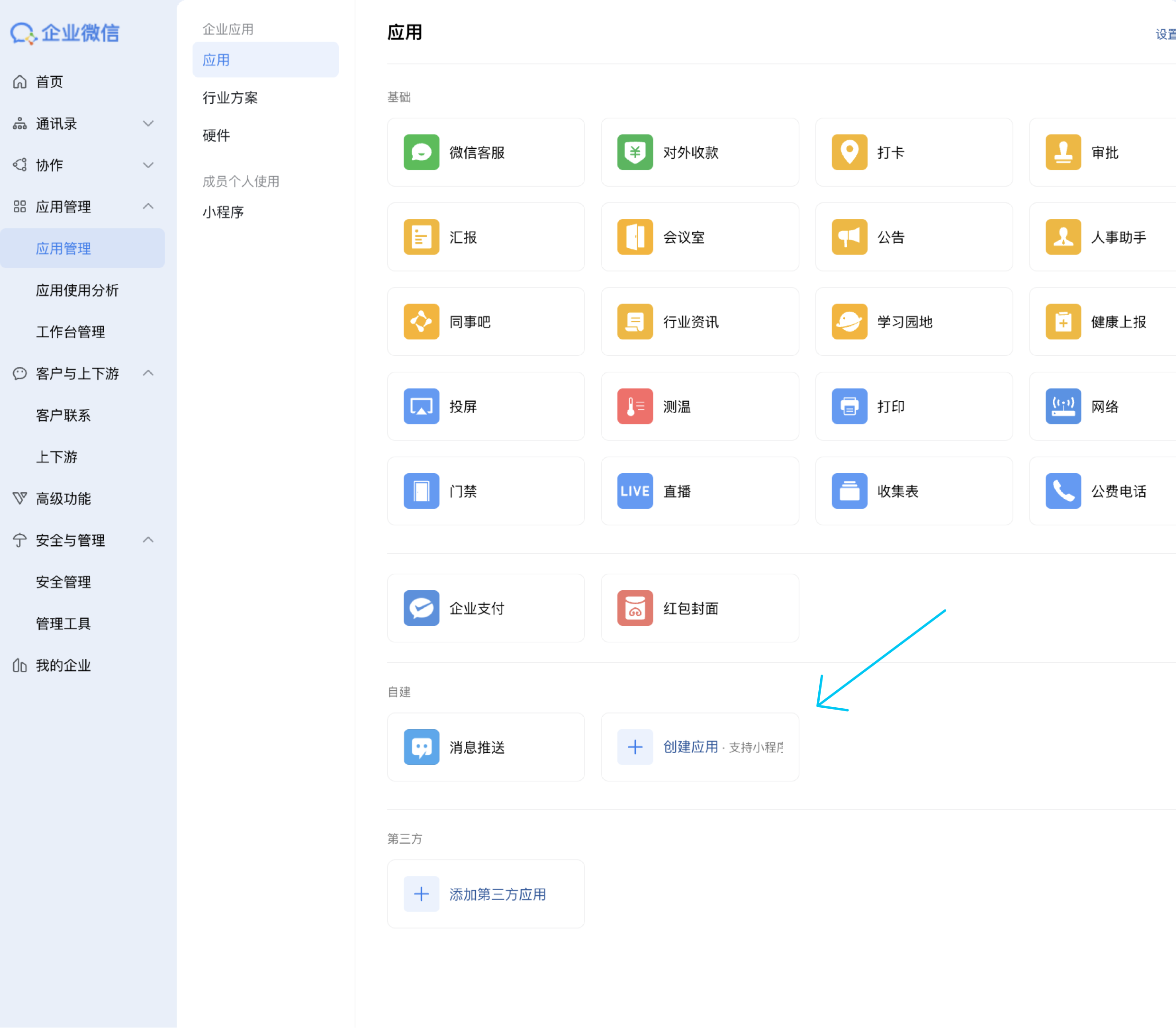
Click App Management, then Build Your Own, and click Create App.
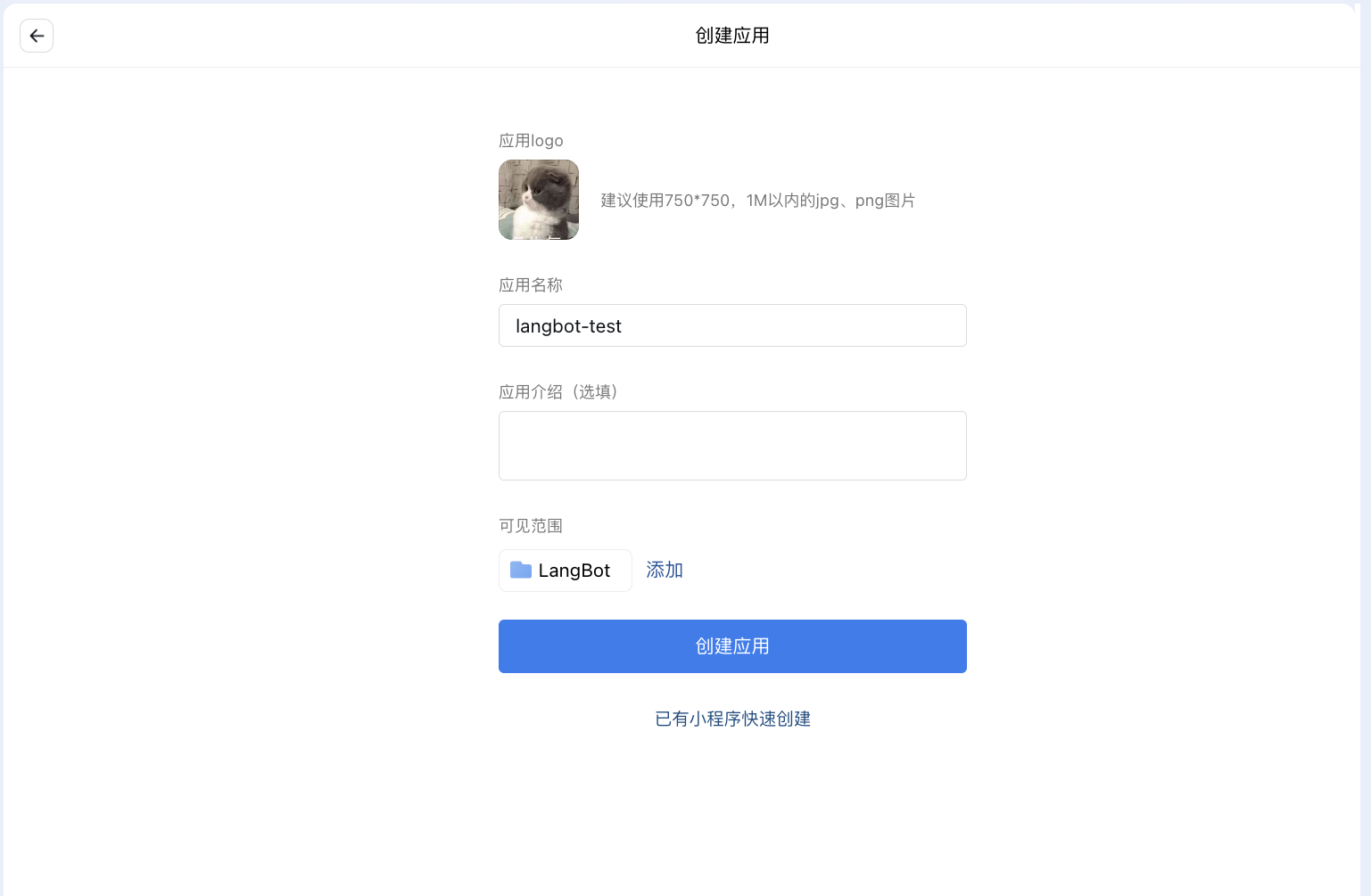
Fill in the basic information for the bot:
View and record the bot's secret:
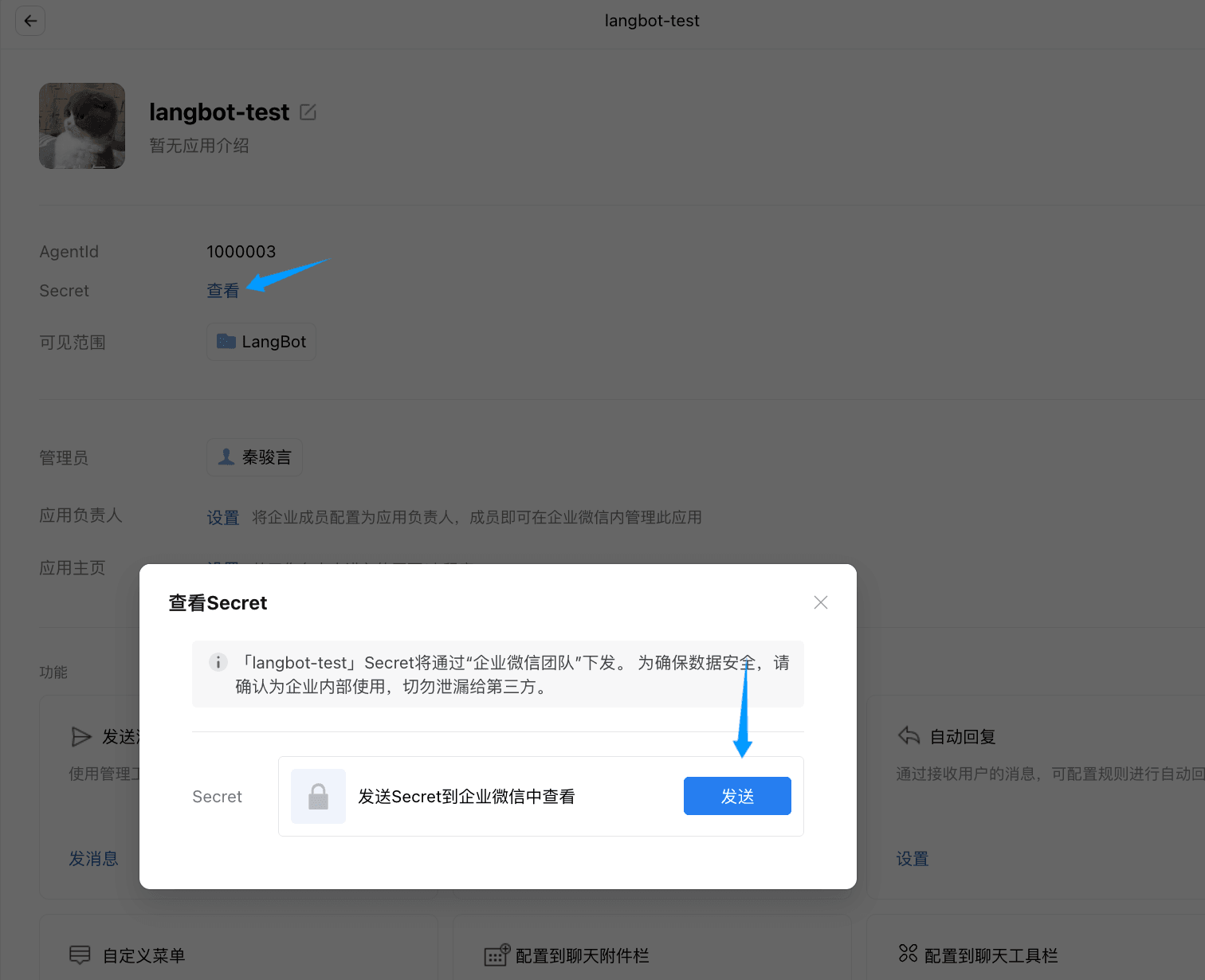
Get it from the WeCom client as prompted.
Note
- This configuration is required for LangBot to support mass messaging. The related code can be found at libs/wecom_api/api.py.
- This feature has not been implemented yet as LangBot is still under development.
- This field can be filled with any random characters, but cannot be empty.
Click Security and Management, then Management Tools, Contact Sync; configure the trusted IP by adding the IP address of the server where LangBot is deployed.
Click View Secret and record it - this is the contacts_secret (Contact Sync Secret).
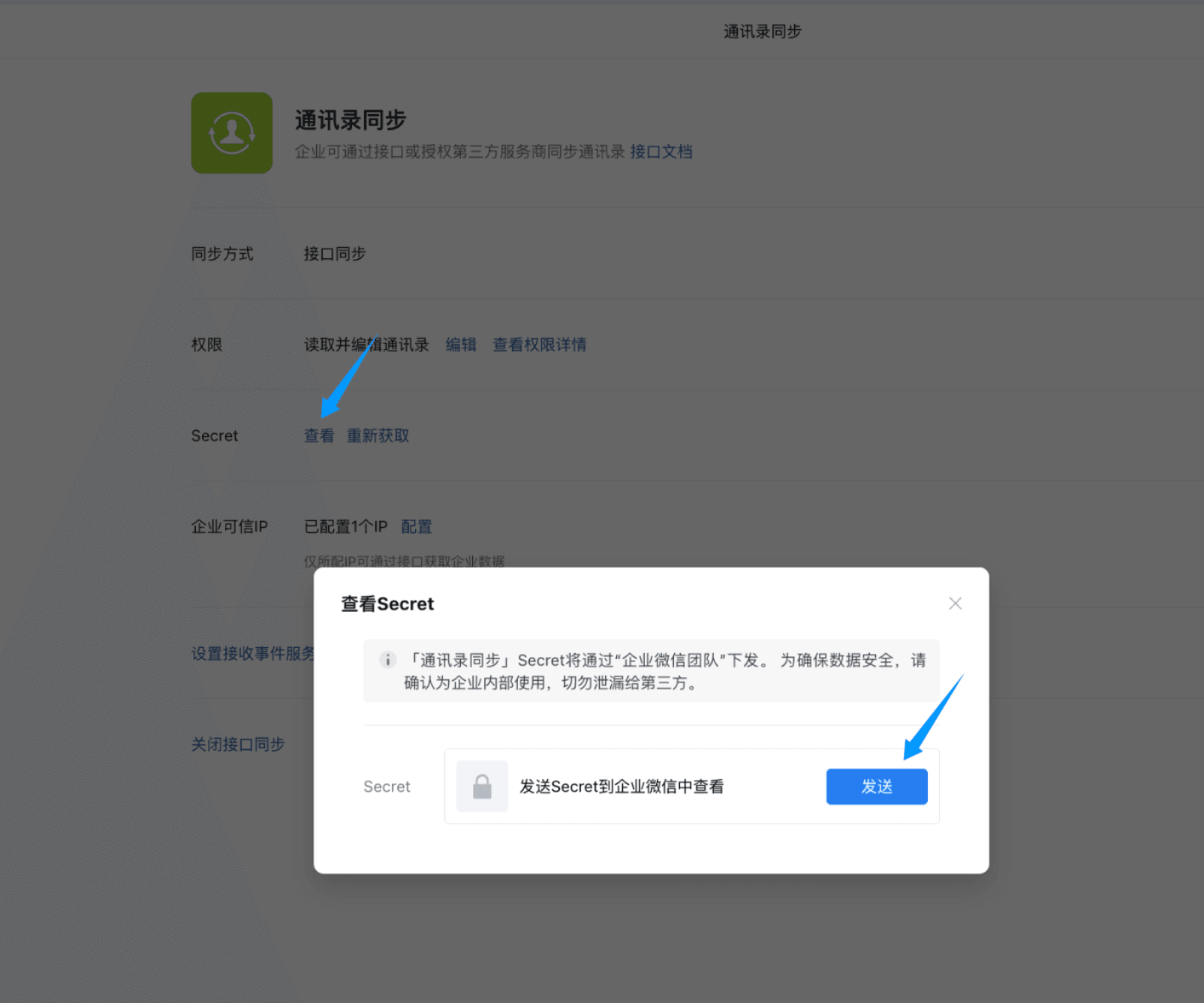
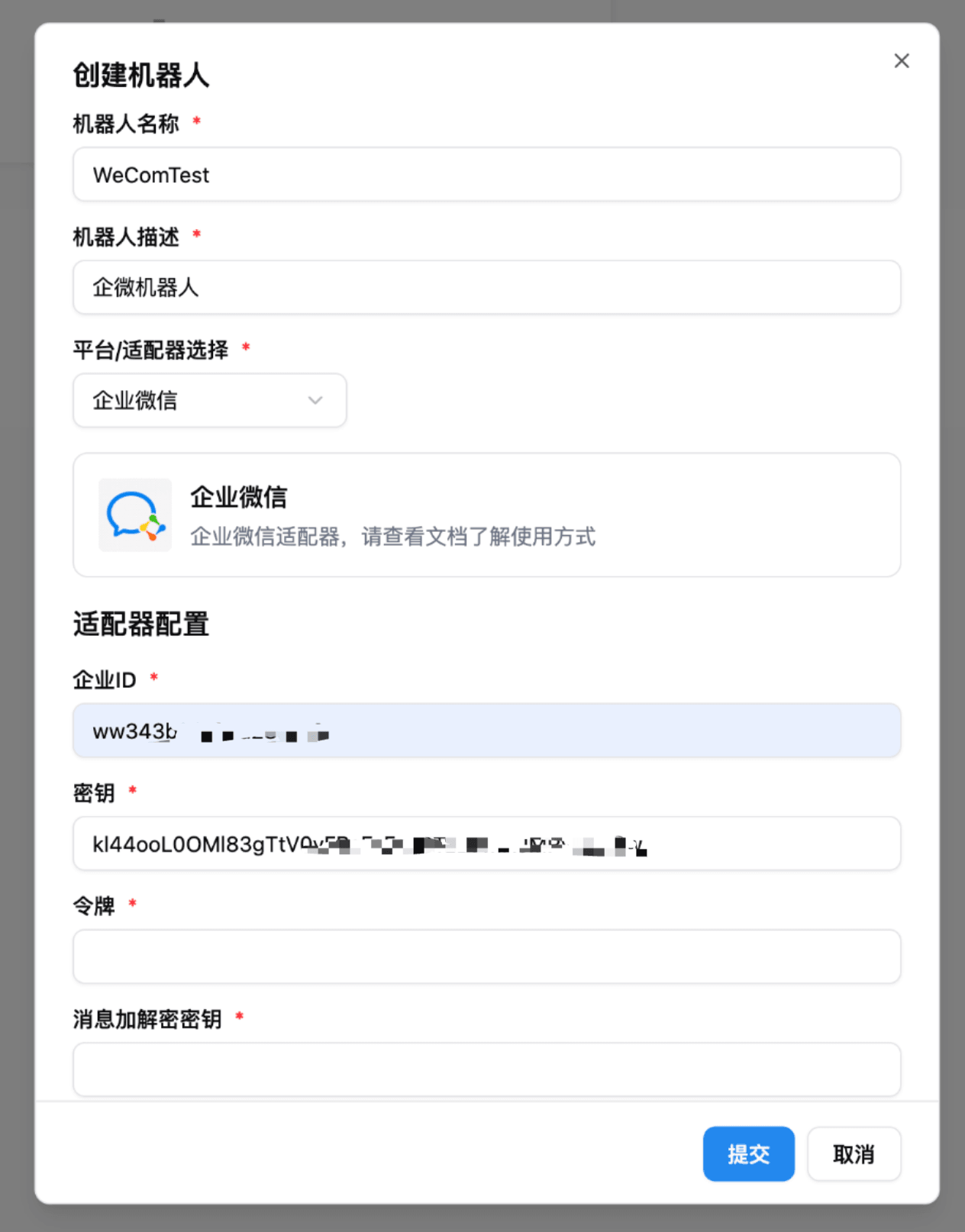
On the LangBot bot page, click Create Bot, enter a name, select WeCom, and fill in the Corporate ID, Bot Secret, and Contact Sync Secret.
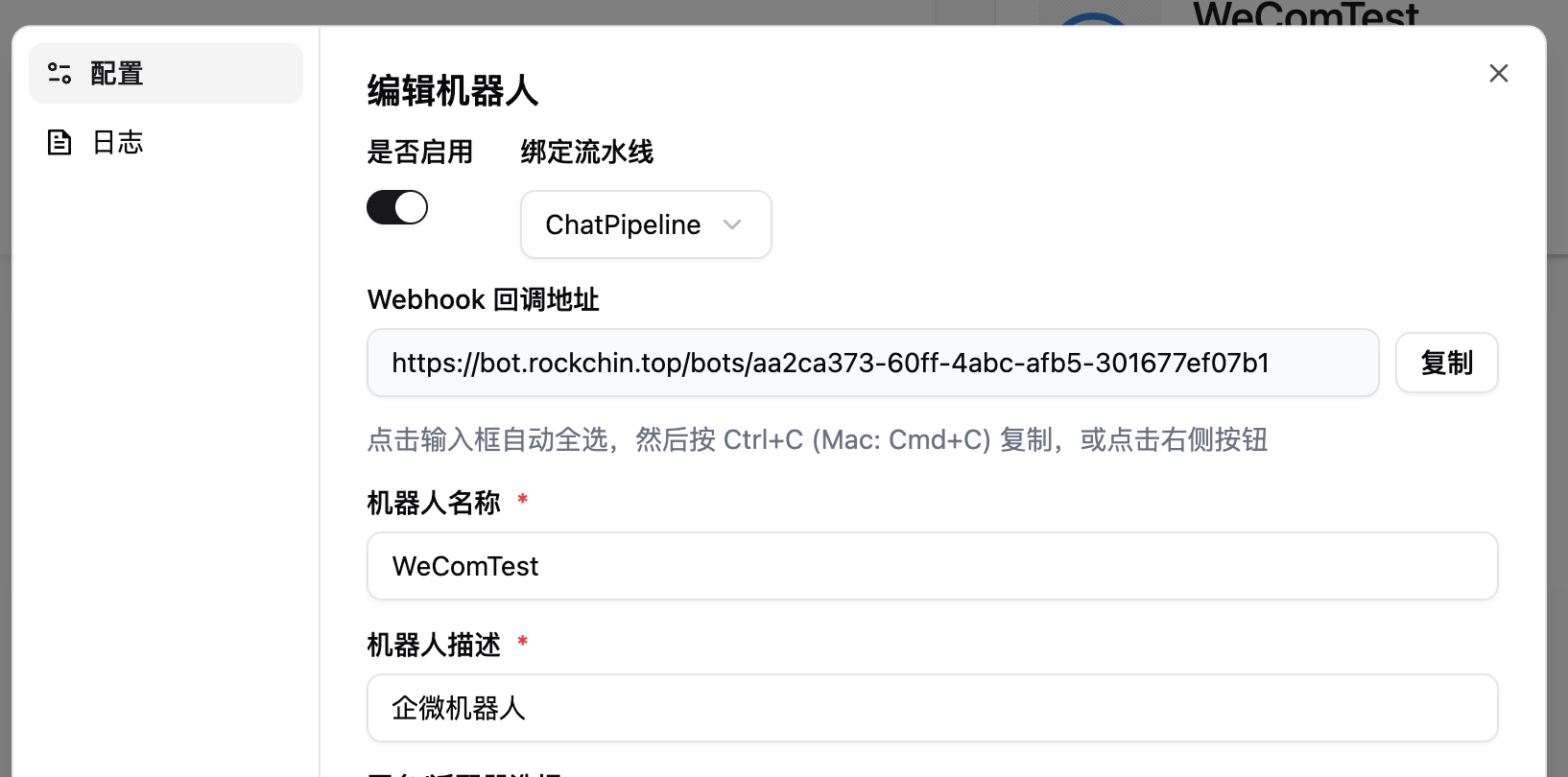
Click submit to enter the bot edit page, then click enable. At this point you'll see the Webhook callback address—copy it:
Return to the WeCom bot admin page, click Receive Messages, Set API Reception, and paste LangBot's Webhook callback address into the URL field:
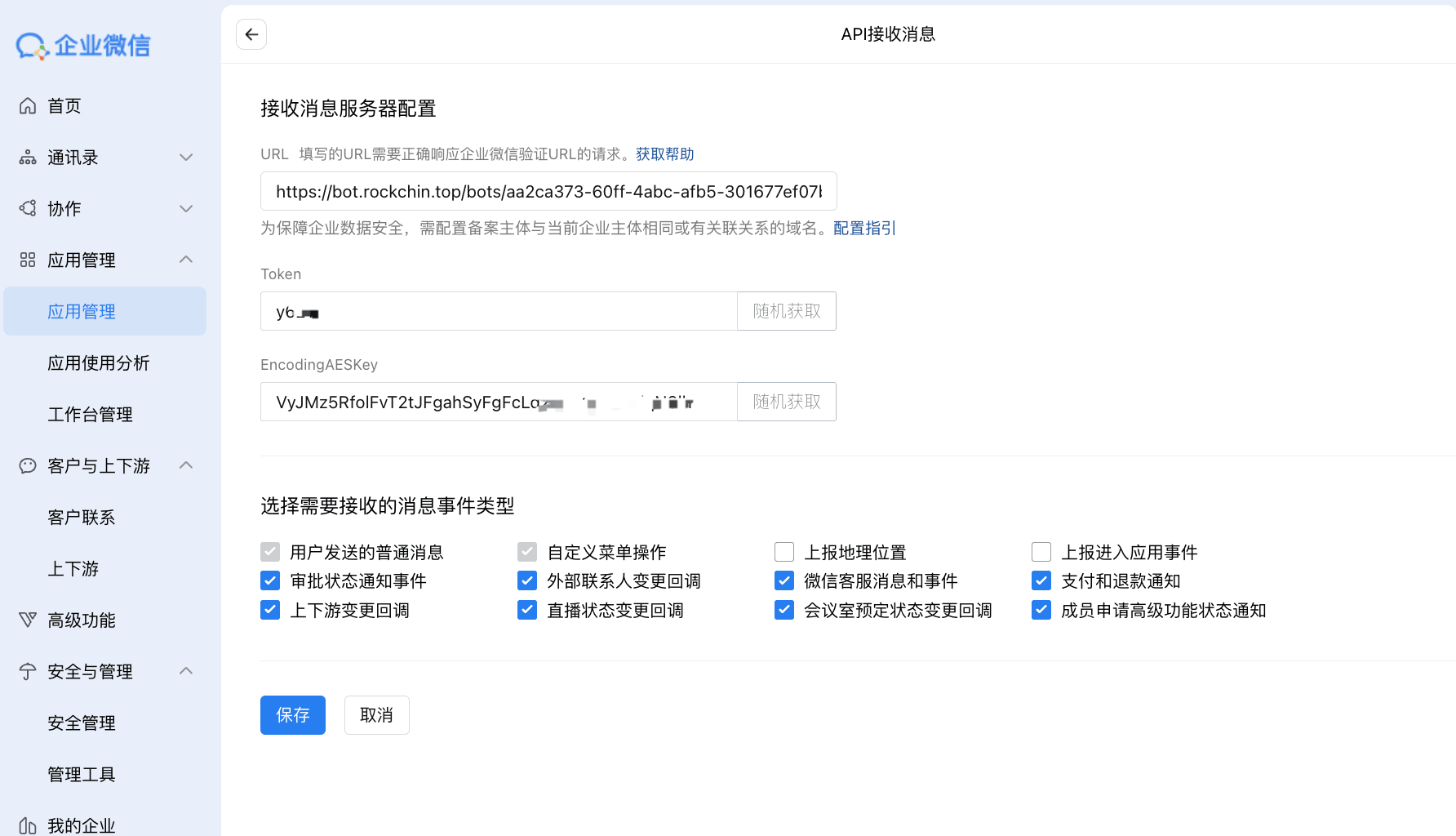
Click to randomly generate the Token and EncodingAESKey, and record them. Keep this page open. Go back to the LangBot WeCom bot configuration page, enter the Token and EncodingAESKey, and click Save.
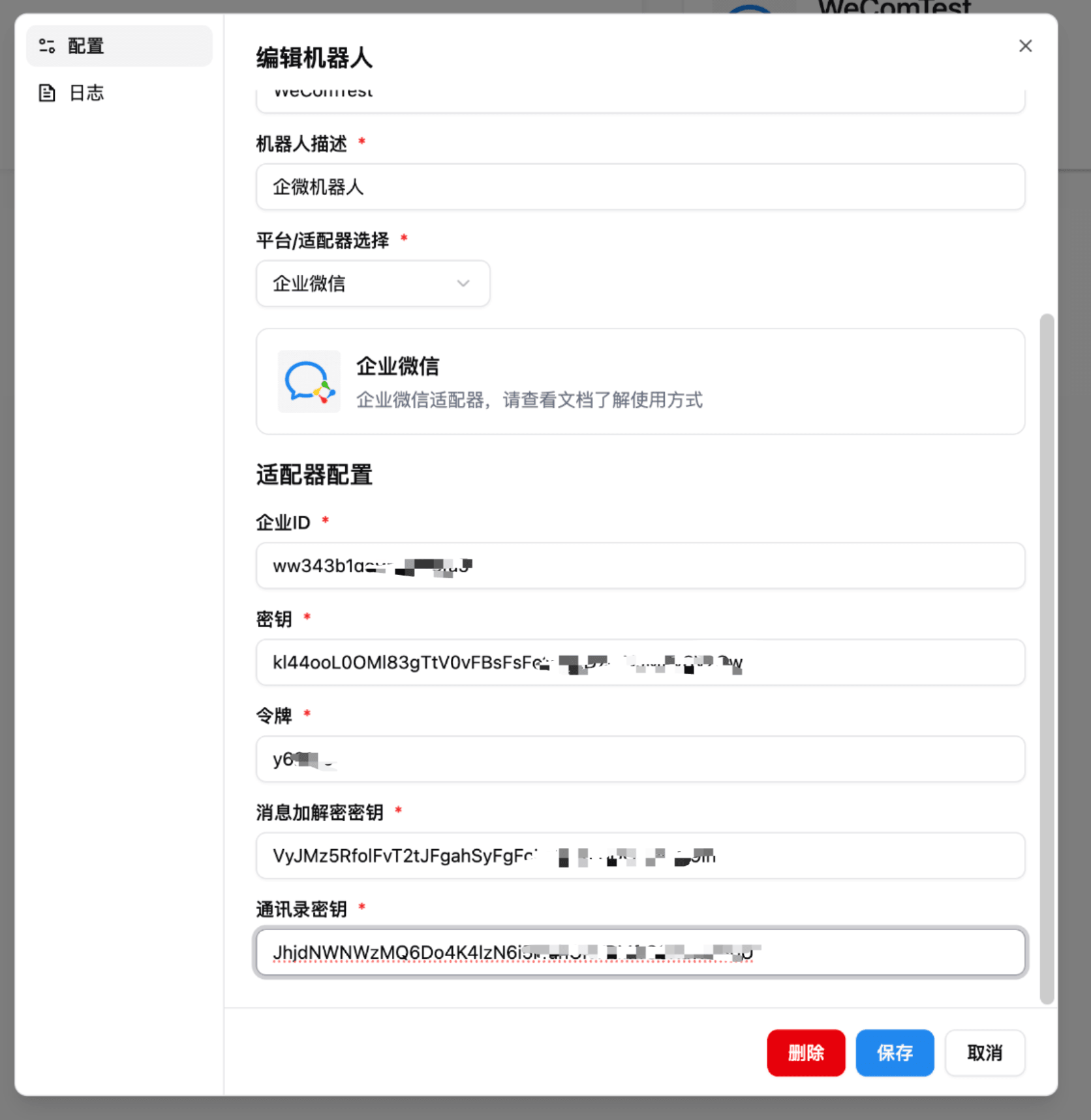
Return to the page where you just filled in the Webhook callback address, and click Save to complete the configuration. If you see request URL failed, please carefully double-check your configuration.
Go back to this application's admin page, find Enterprise Trusted IP at the bottom, and add the IP address of your LangBot deployment server.
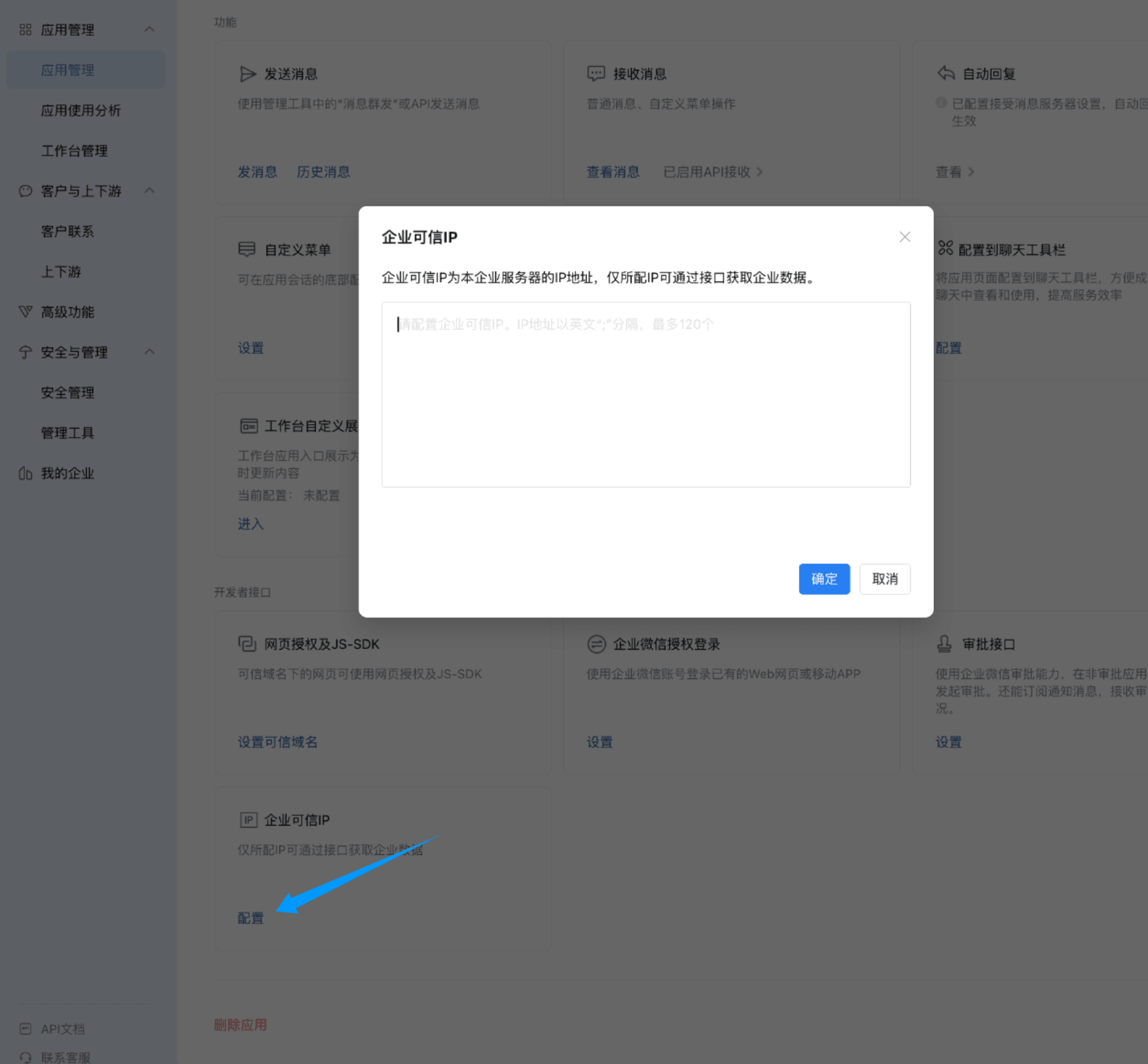
Click Save.
Q: Can't find the bot chat in WeCom?
A: Go to the app's detail page in WeCom admin, click Features > Send Message > Send Message, choose your own account, send a message, and you will see the bot in your chat window.