tiplines
ℹ️ Check tiplines require a license. View the pricing plans
Learn how to:
- Connect a tipline
- Configure the tipline menu, prompts, and responses
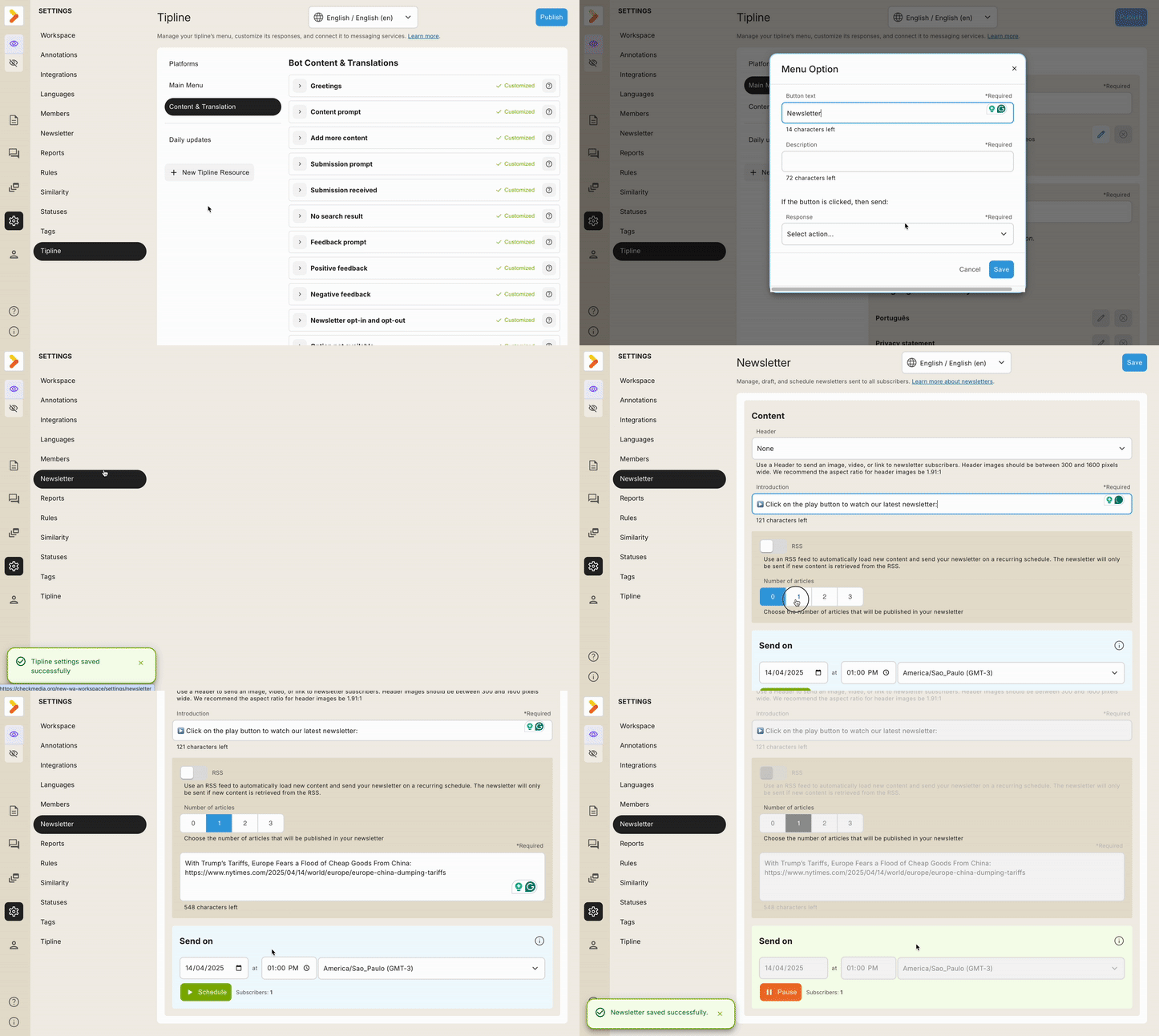
- Send newsletters
- Pause the tipline
- Disconnect the tipline
Check lets you communicate directly with your audience across various messaging platforms.
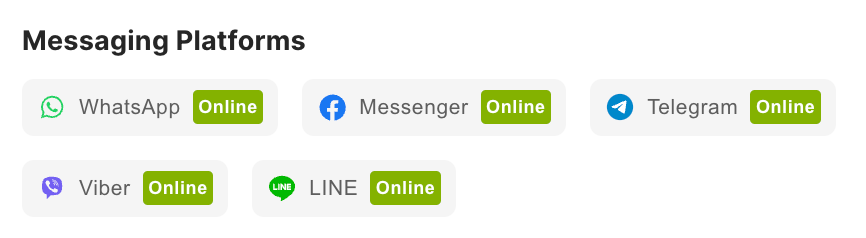
Click on any of the options below to dive into the connection steps!
ℹ️ Only admins who created the Facebook page can complete the connection steps. Admins must be logged into the specific page to connect, with all other pages closed if opened on different tabs.
- Once you are notified that the workspace is ready, navigate to the Tipline settings page, click the connection button, and follow the prompts.
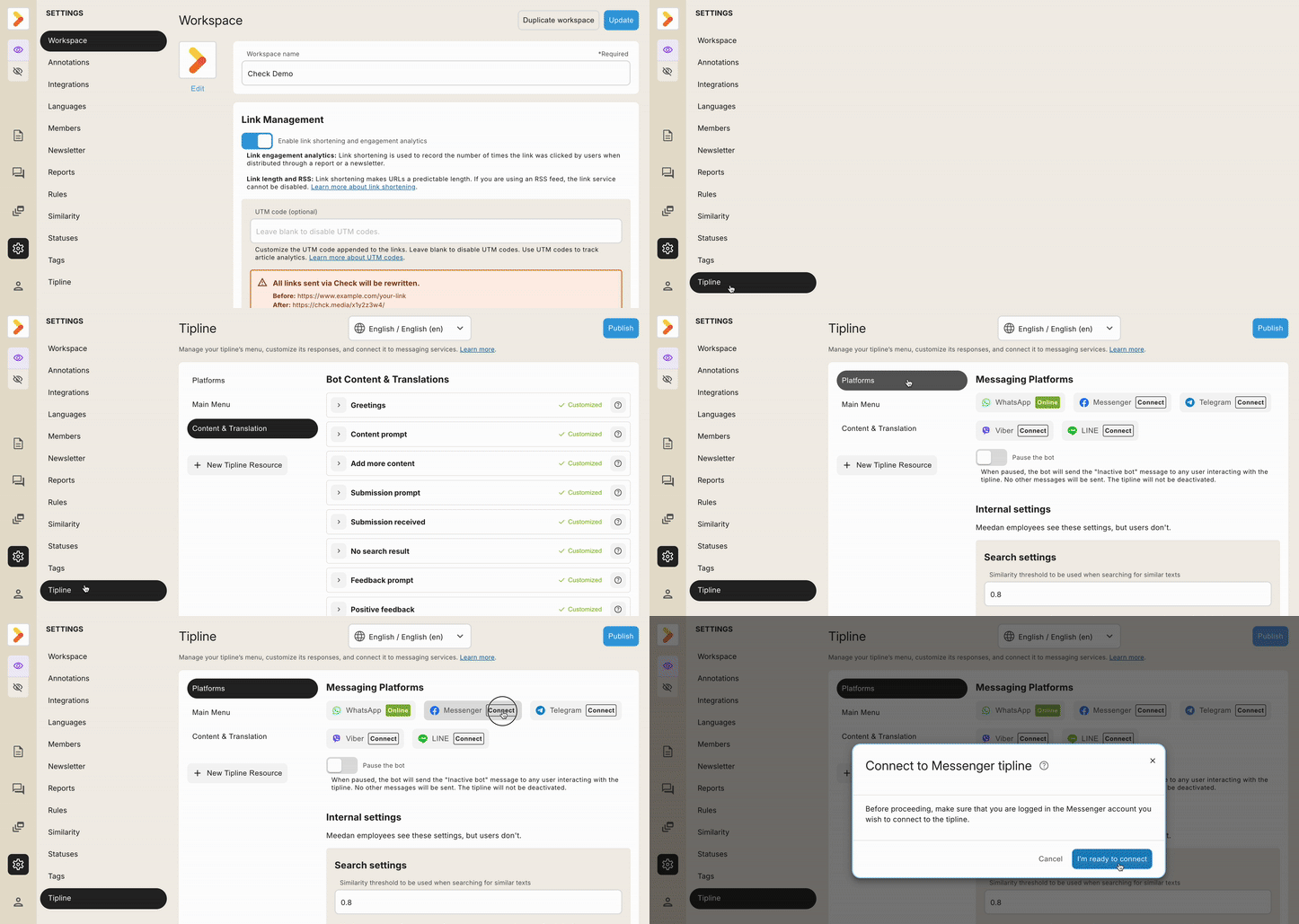
- After completing the steps, verify that the Messenger button will show that it is online.
- Once you are notified the workspace is ready, click https://telegram.me/BotFather to generate a token.
- Navigate to the Tipline settings page, click the Telegram button, and input the bot token.
- Confirm the Telegram button is online.
- Once you are notified the workspace is ready, from your Viber Admin Panel, click Create bot account and fill in the required information to generate an authorization token.
- Navigate to the Tipline settings page, click the Viber button, and input the public account token.
- Confirm the Viber button is online.
ℹ️ The steps above explain how to connect phone numbers to Viber. For group connection tokens or to make your bot public, please contact Viber support for assistance.
- Once you are notified the workspace is ready, from your Line Developers Console, select your preferred channel and paste this link https://app.smooch.io:443/api/line/webhooks/5d56f87d3ff2b800100a770f/60a29e2b9ea8a000d3bda6f6 to the webhook.
- Navigate to the Tipline settings page, click the Line button, and input the channel access token and secret.
- Confirm the Line button is online.
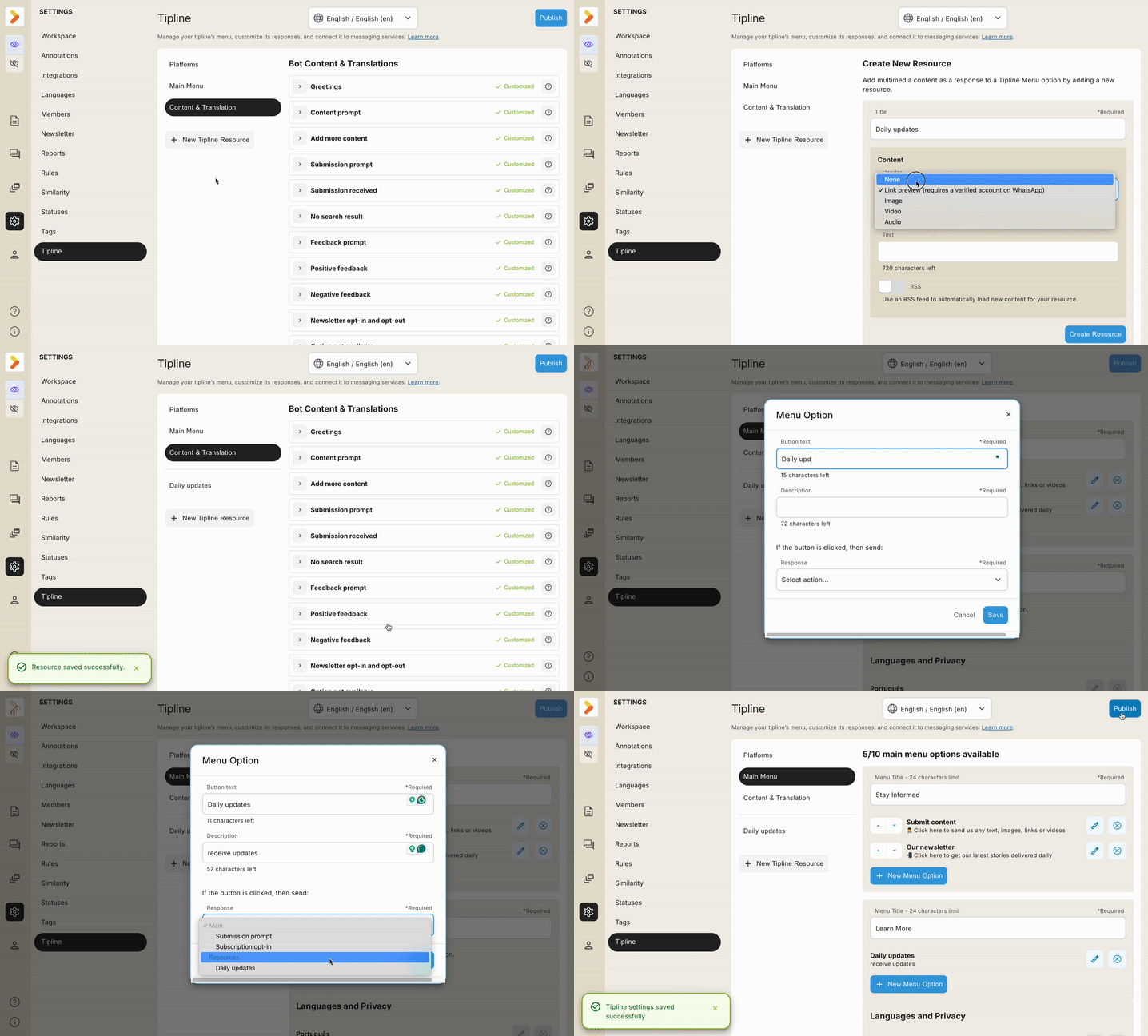
From your workspace settings, select Tipline which will display the Content and Translation to customize the bots prompts and responses.
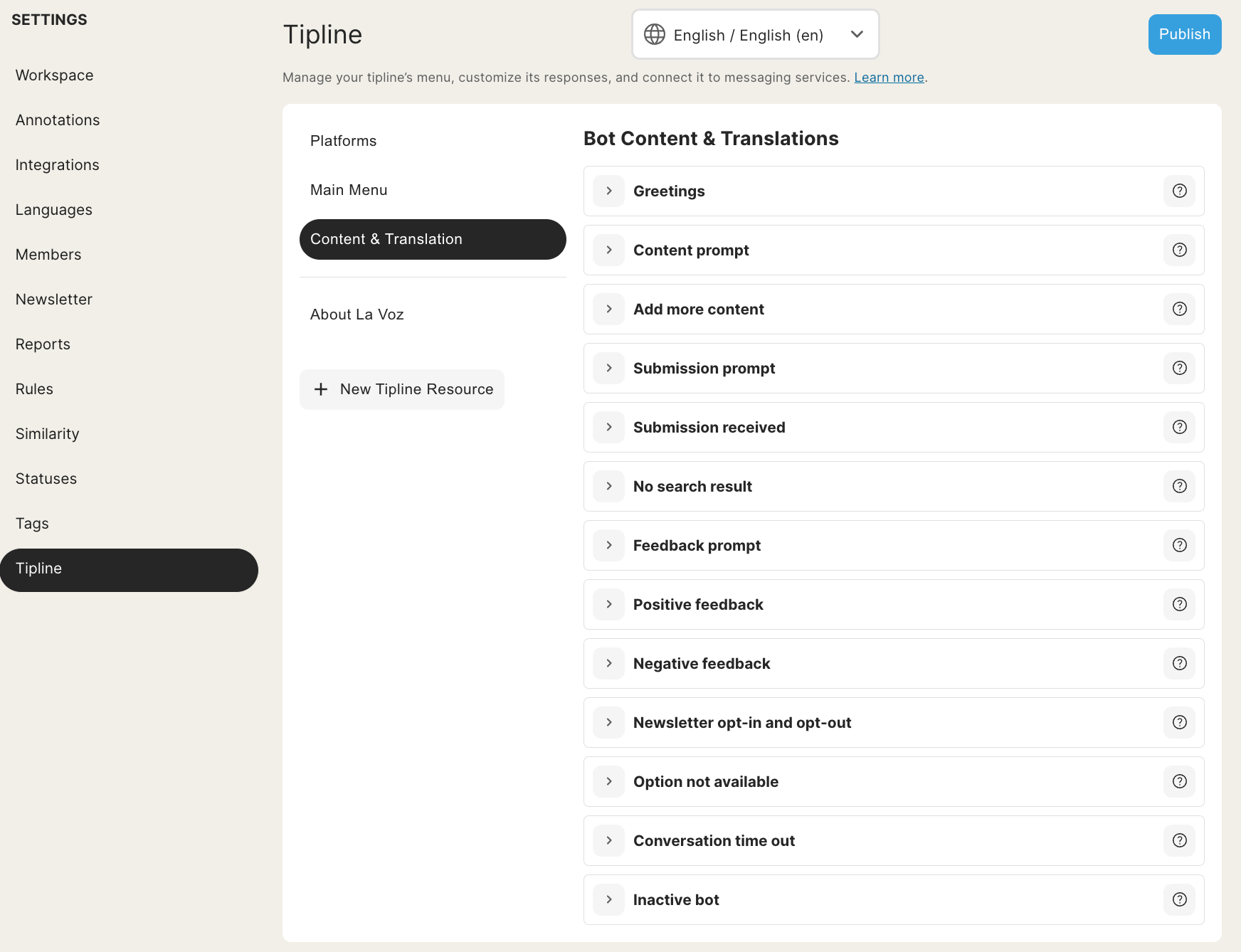
ℹ️ If running a multilingual bot, select a 🌐 language from the dropdown menu.
Click each question mark adjacent to the message to learn how it works.
For best practices, jump to the Success guides for examples of the messages - Success guides
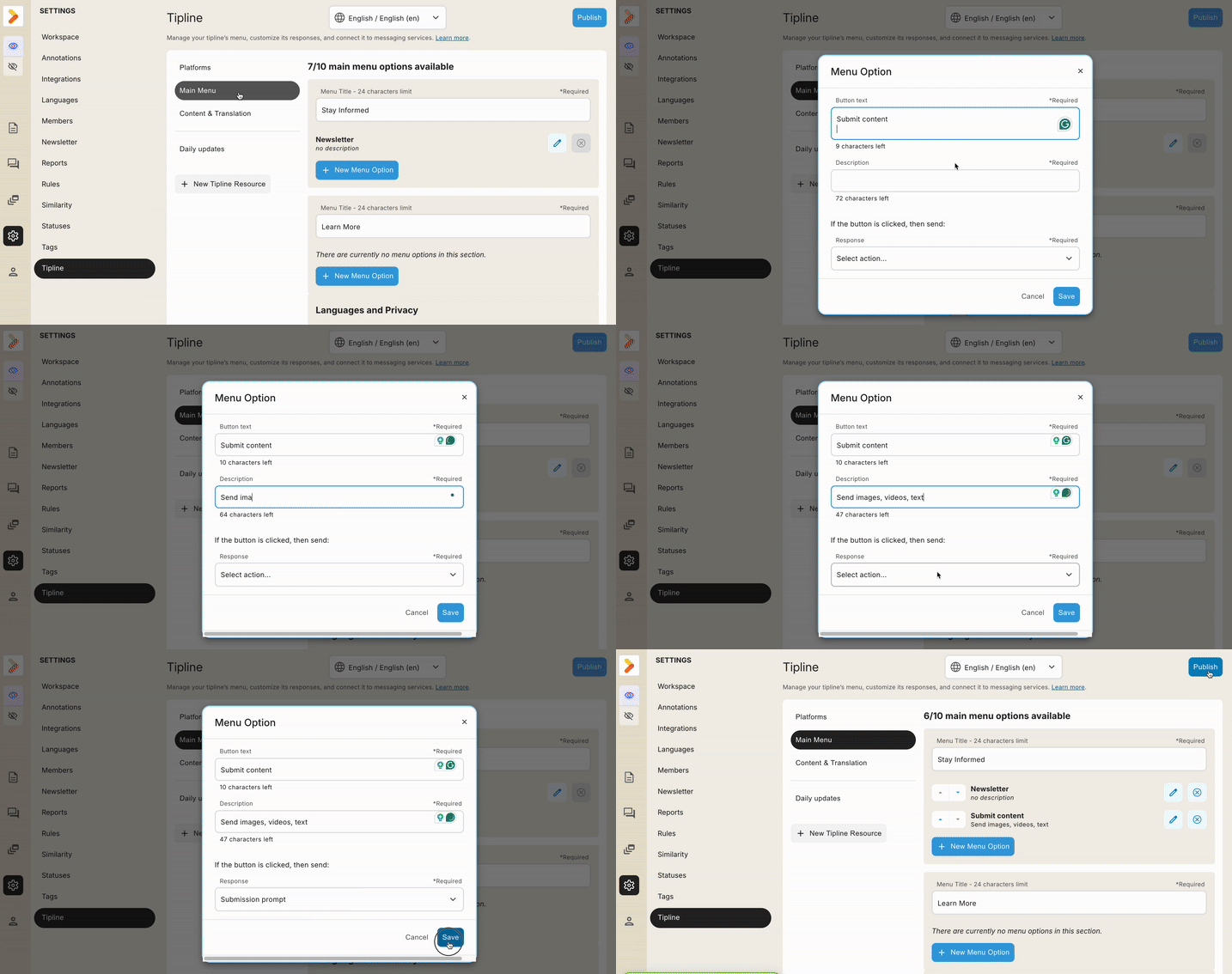
Click the Main menu
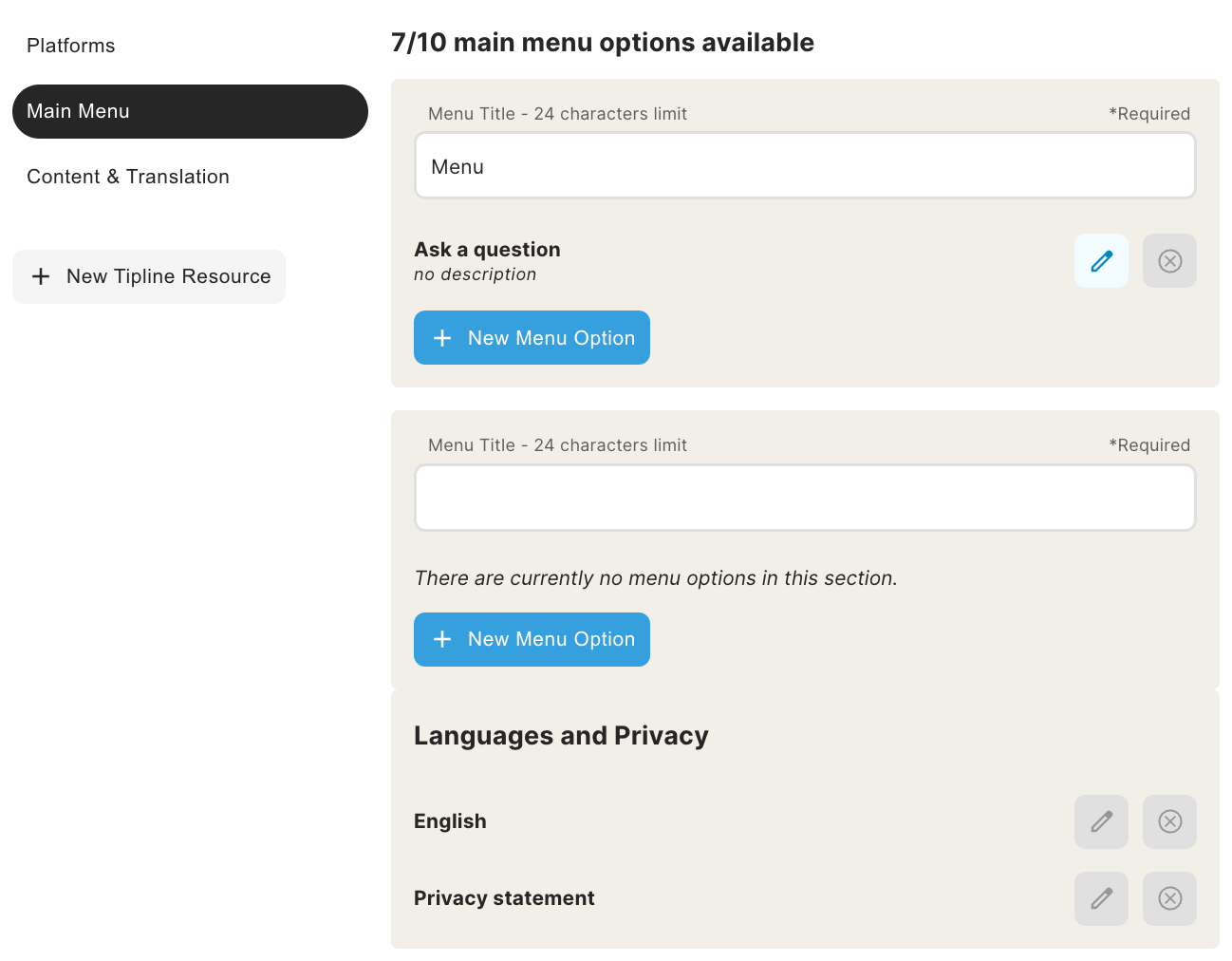
ℹ️ WhatsApp allows a maximum of 10 menu options, including all languages.
Integrate multimedia content into your tipline using Resources.
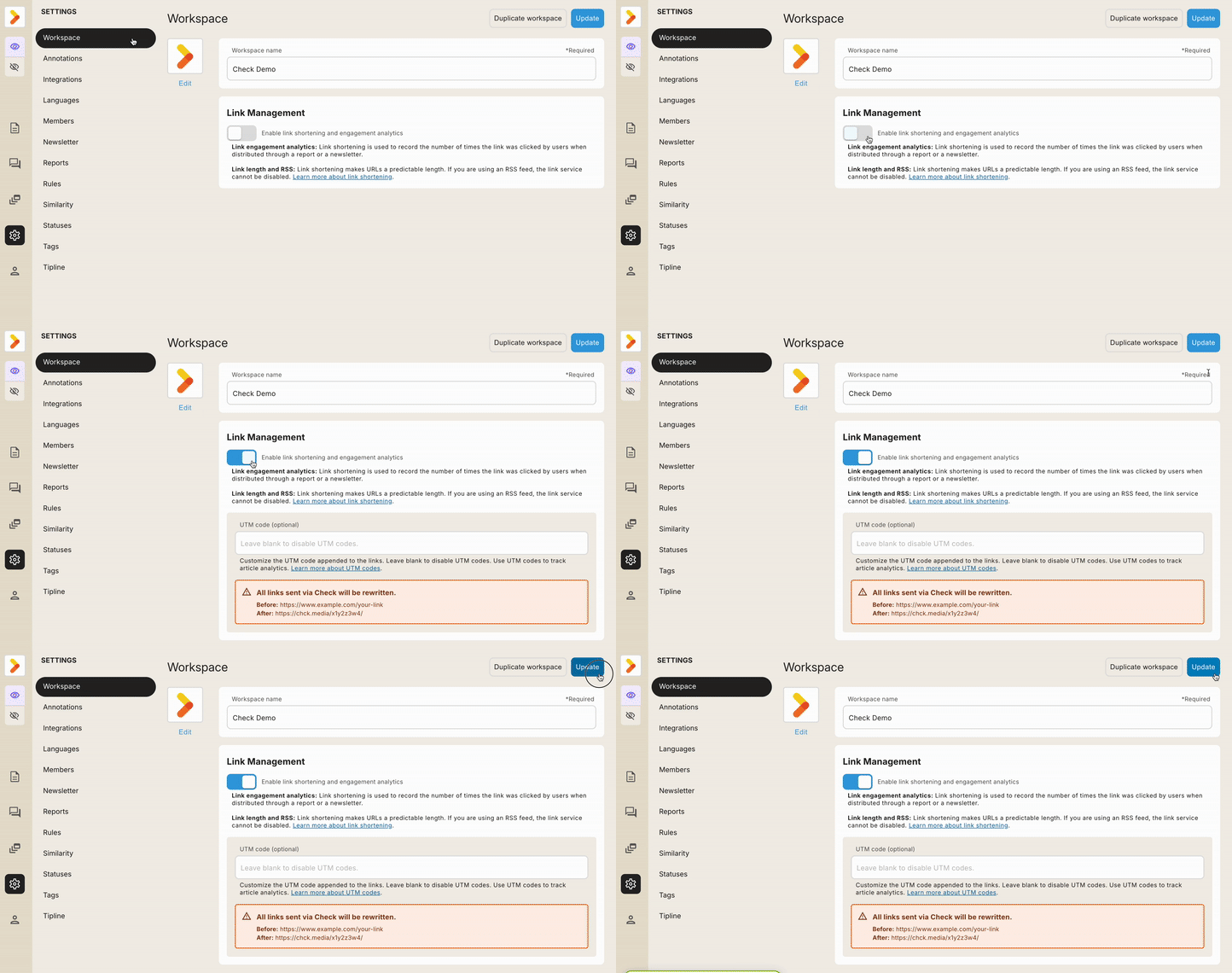
ℹ️ If you frequently use long URLs, consider enabling link shortening in the workspace settings.
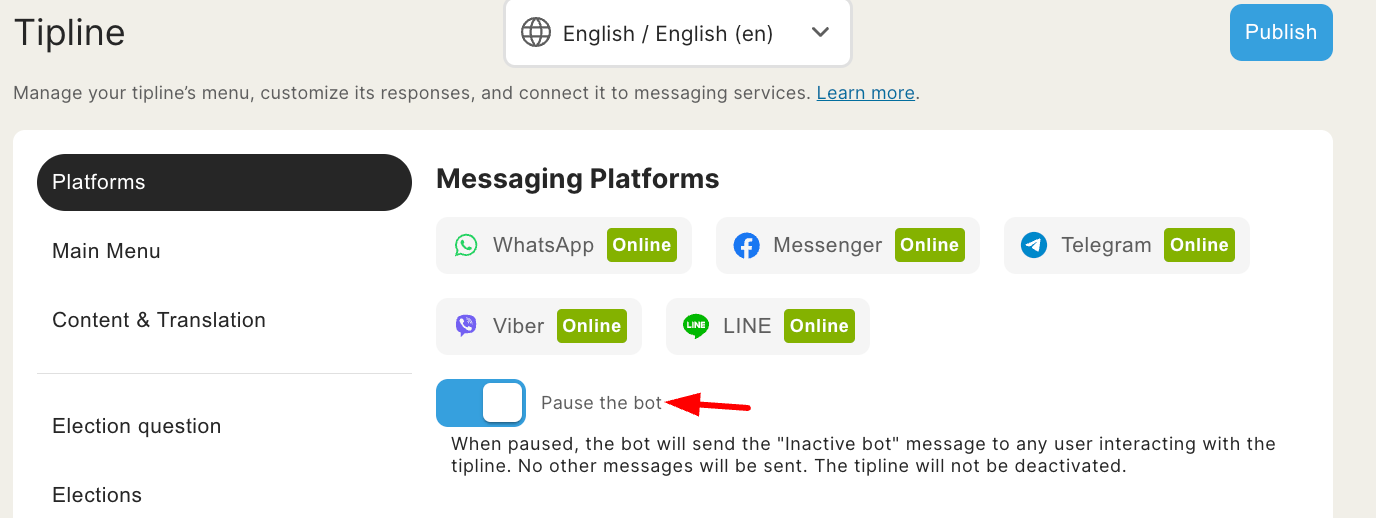
From "Platforms", enable the "Pause the bot" toggle to send the "Inactive bot" message to tipline users:
Click any messaging platform button and follow the steps to complete disconnection.
ℹ️ For WhatsApp click the help button to request disconnection.