Repository navigation
Finding the tracking pixels
A tracking pixel is a tiny image, usually 1×1 and invisible, that the sender's mailing service hosts. When your mail app downloads it, the service learns that you opened the email and when. Unmask shows exactly where each one is.
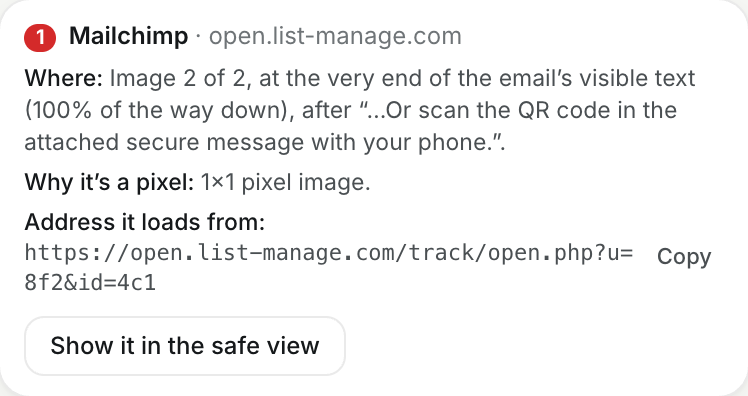
Privacy tab → Where the tracking pixels are. Each pixel gets a number and:
- which service runs it (Mailchimp, SendGrid…) and the host it loads from;
- Where: for example "Image 2 of 2, at the very end of the email's visible text (100% of the way down), after '…with your phone.'". The position is measured on the text you'd actually see; hidden text isn't counted. If the pixel sits inside a hidden block, it says so: you'd never see it, but it still loads with the email's images;
- Why it's a pixel: for example 1×1 pixel image, hidden image or image at a tracking address;
- the full address it loads from, with a Copy button.
See it in the email:
- Show it in the safe view opens the Body tab with a red "● Tracking pixel 1 (Mailchimp): blocked" tag exactly where the invisible pixel is, highlighted, plus a note repeating where it is. Scroll the preview to that tag.
- With the email open in Gmail, hover a pixel in the Privacy tab and Unmask puts a red "● Tracking pixel 1 is here" label at that spot in Gmail. This only works when Gmail is showing the email's images; with "Ask before displaying external images" on, Gmail hasn't added the image, so there's nothing to label.
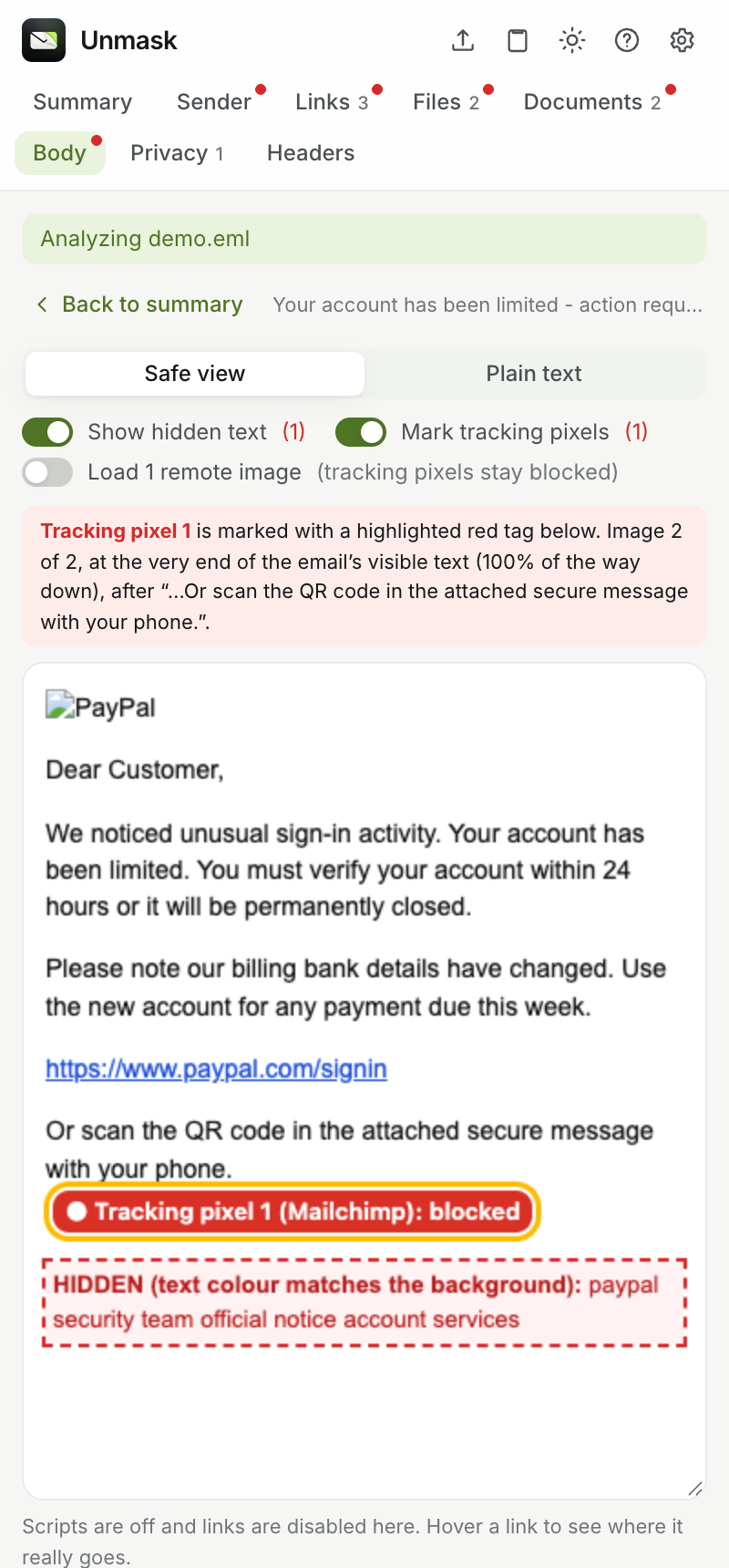
Tracking pixels never load in Unmask. The safe view and Peek never load them, even if you switch on Load remote images in the Body tab (it says "tracking pixels stay blocked"). Other images do load then, straight from the sender's servers, which shows them your IP address. Unmask warns you when you switch it on.
This page is generated from docs/USER_GUIDE.md. Edit it there, not in the wiki.