Repository navigation
Barry Simulator
Barry Simulator runs Barry Launcher apps on a Mac, a Windows PC or Linux, each in a window shaped like the AYN Thor's bottom screen. You don't need a Thor or a terminal: double-click the simulator, then double-click an app. It's the quickest way to see an app while you're making it.
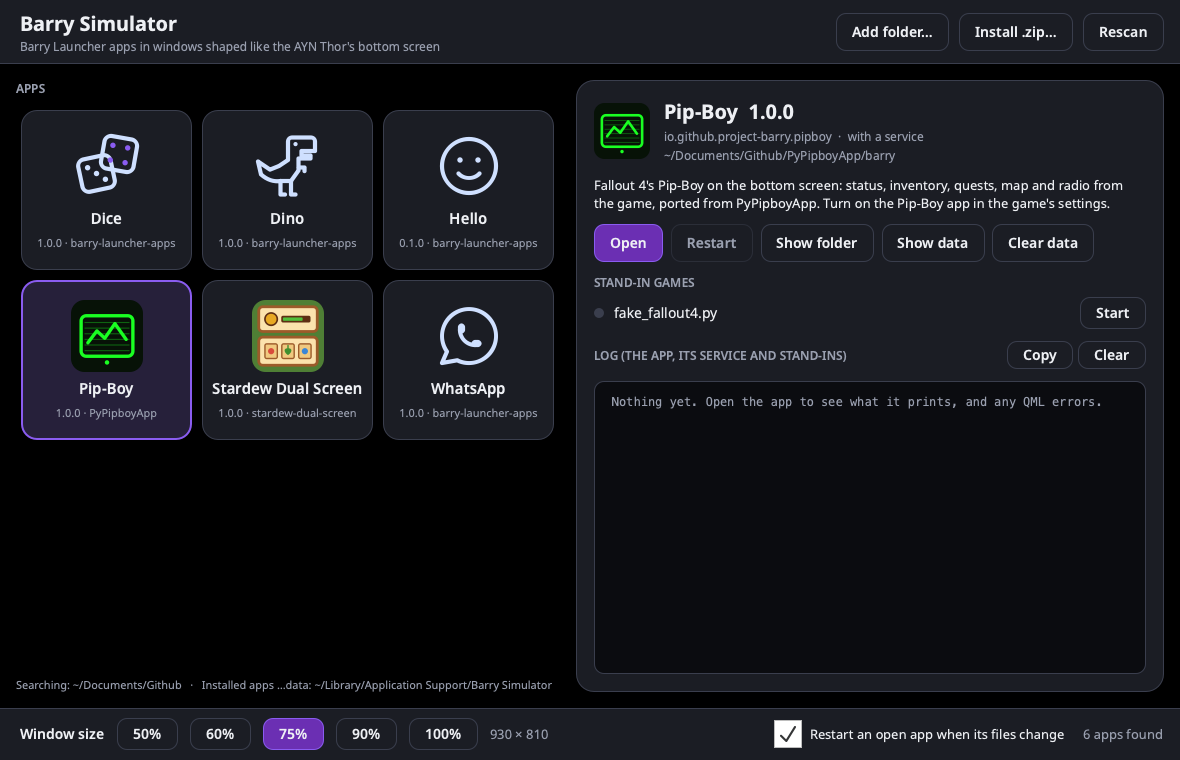
It runs apps the way Barry Launcher does:
- Barry Launcher's own app window (
AppHost.qml), so thebarryobject is the real one. - The app's service, if it has one. The service starts with the app and stops when the app closes.
- A data folder of the app's own, kept between runs, as on the Thor.
- Qt 6.8 and Noto Sans, the Qt version and font on PB-OS. What looks right here looks the same on the Thor.
- Download Barry-Simulator-Windows.zip from the Barry Simulator release (a newer one may be on the releases page).
- Right-click it, choose Extract All…, and extract it wherever you like, for example to your Documents folder.
- In the extracted Barry Simulator folder, double-click Barry Simulator.exe.
Nothing needs installing: Python, Qt 6.8 and Noto Sans are in the folder. Keep
Barry Simulator.exe in that folder, next to its python and site-packages folders. To make
it easy to find, right-click it and choose Pin to Start, or Send to › Desktop (create
shortcut).
The first time, Windows may say "Windows protected your PC", because the simulator isn't signed with a paid certificate. Click More info, then Run anyway. It's built on GitHub from this repository's code (see the build).
It's for 64-bit Windows 10 and 11. Windows on Arm runs it too, through Windows' own emulation.
- Download the AppImage for your computer from the Barry Simulator release: Barry-Simulator-x86_64.AppImage for most PCs, or Barry-Simulator-aarch64.AppImage for ARM computers.
- Let it run as a program: right-click it, choose Properties, and turn on Allow executing
file as program (the wording differs between file managers). In a terminal, that's
chmod +x Barry-Simulator-*.AppImage. - Double-click it.
It's one file with everything in it (Python, Qt 6.8 and Noto Sans), and it works on X11 and Wayland desktops. The x86_64 one runs on distributions from 2019 on (glibc 2.28: Ubuntu 20.04, Debian 11, Fedora 29 and later). The aarch64 one needs glibc 2.39 (Ubuntu 24.04, Fedora 40, or later).
If it doesn't start, your system may be missing FUSE, which AppImages use to open. Install your
distribution's fuse3 package, or run it as ./Barry-Simulator-x86_64.AppImage --appimage-extract-and-run.
The simulator is in this repository, in
tools/sim. You build
the app once, on your own Mac. That needs Terminal one time; after that, it's all
double-clicking.
-
Install Homebrew if you don't have it.
-
Open Terminal and run:
brew install python@3.13
git clone https://github.com/project-barry/barry-launcher-apps.git
barry-launcher-apps/tools/sim/build-mac-app.sh
-
When it says
Built /Applications/Barry Simulator.app, you can close Terminal. Open Barry Simulator from Applications, Launchpad or Spotlight.
The build downloads Qt (about 500 MB) and the Noto Sans font, so it takes a few minutes. It
needs Python 3.13 because the Qt 6.8 that PB-OS uses has no build for newer Pythons. The app uses
Homebrew's Python where Homebrew keeps it, so it works on the Mac that built it; build it again
on each Mac. To update the simulator later, git pull, then run build-mac-app.sh again.
When it opens, it looks for apps: any folder with a barry-app.json, up to three folders down
in the Github folder in your Documents (where GitHub Desktop puts repositories). Each tile shows the app's icon, its name, its version and the folder it
was found in.
| Button | What it does |
|---|---|
| Add folder… | Search another folder for apps. You can also pick a single app's folder. |
| Install .zip… | Install a packed app (barry-app pack, or a release download) with Barry Launcher's own installer. If the zip wouldn't install on the Thor, it won't install here either, and the message says why. Installed apps show installed under their name and have an Uninstall button. |
| Rescan | Look again, after you add or rename an app folder. |
An app whose barry-app.json has a mistake shows won't install under its name. Select it to
see the reason.
Double-click a tile, or select it and click Open. The app opens in a window of its own:
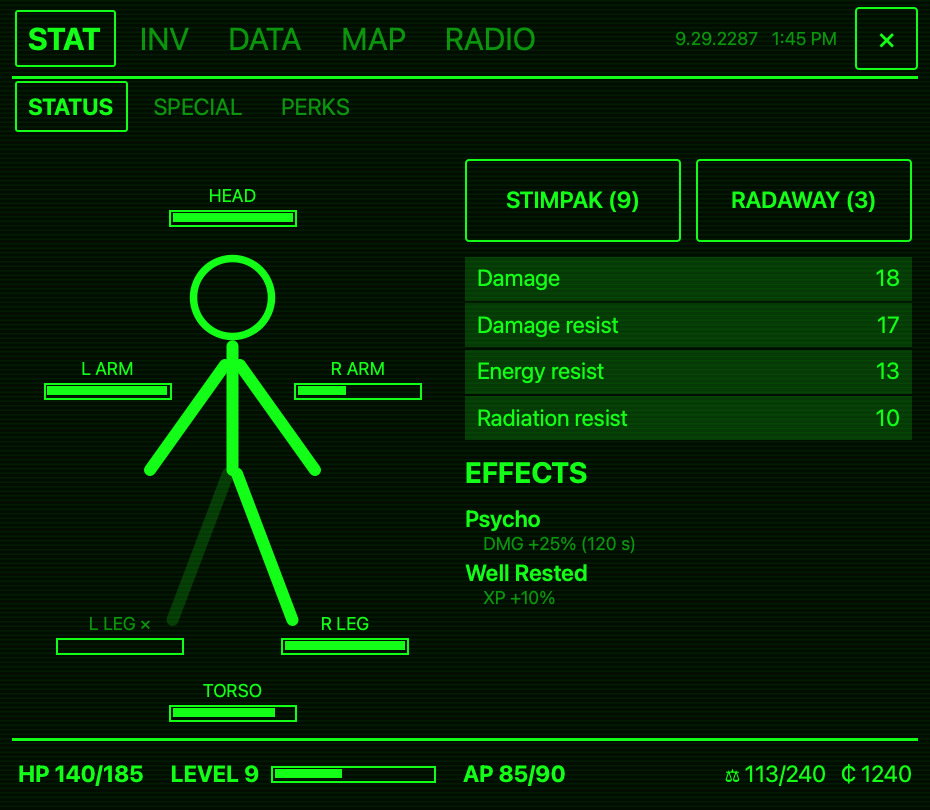
- Clicks are taps. Click-and-hold is a long press, and dragging works like a finger. A trackpad pinch is a pinch.
- The keyboard types into text fields. On the Thor, the Barry keyboard does that.
- Close the app with its own close button, its window's red button, or Close in the simulator. Any of these stops its service too.
- A green dot on the tile means the app is open. If you can't see its window, it's behind the simulator: click its icon in the Dock (Mac) or the taskbar (Windows, Linux).
Window size at the bottom sets how big app windows open. 100% is the Thor's bottom
screen pixel for pixel (1240 × 1080). On a laptop, 75% fits better. Apps size themselves with
barry.scale, so every size shows the same layout, smaller or larger. You can
also drag a window's edge to resize it. A size you pick applies to the next app you open.
Apps for a game are easier to try with a stand-in: a small program that acts like the game. If
the app's repository has one in tools/ (a file named fake_….py), it's listed under
Stand-in games. Click Start, then open the app.
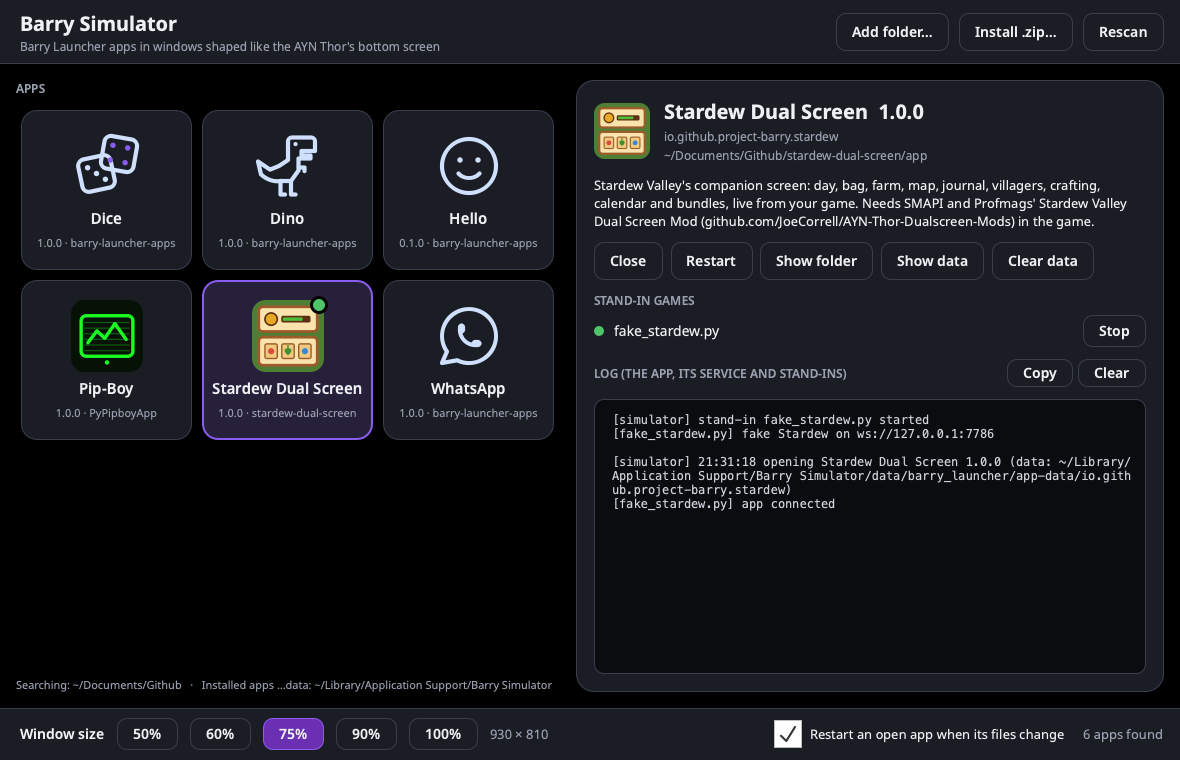
| App | Stand-in | What it does |
|---|---|---|
| Stardew Dual Screen | fake_stardew.py |
A made-up farm, spoken over the Stardew Valley Dual Screen Mod's socket |
| Pip-Boy | fake_fallout4.py |
A made-up character, spoken over Fallout 4's Pip-Boy protocol |
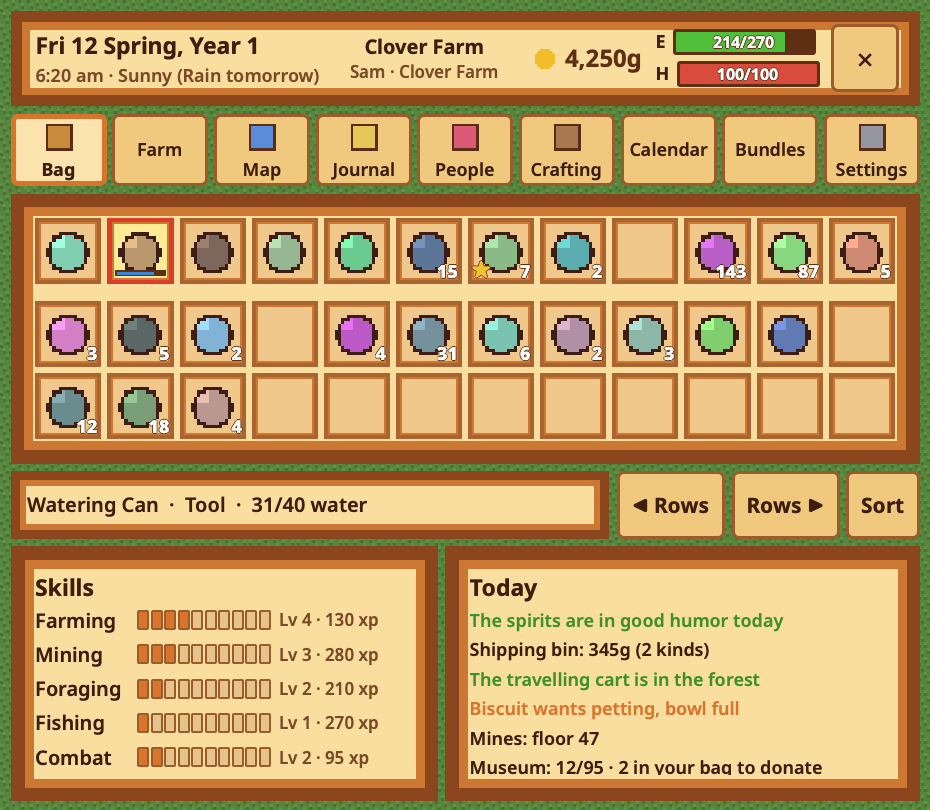
The stand-ins' pictures are simple shapes they draw themselves. With the real game, the app shows the game's art.
A stand-in keeps running until you click Stop or quit the simulator. It can serve the app again after you restart the app.
The Log shows everything the app prints: console.log(), warnings, and QML errors with the
file and line. It also shows its service's output and the stand-in's (in [brackets]). It's the
same output that goes to ~/.cache/barry_launcher/ID.log on the Thor (see
Testing and debugging).
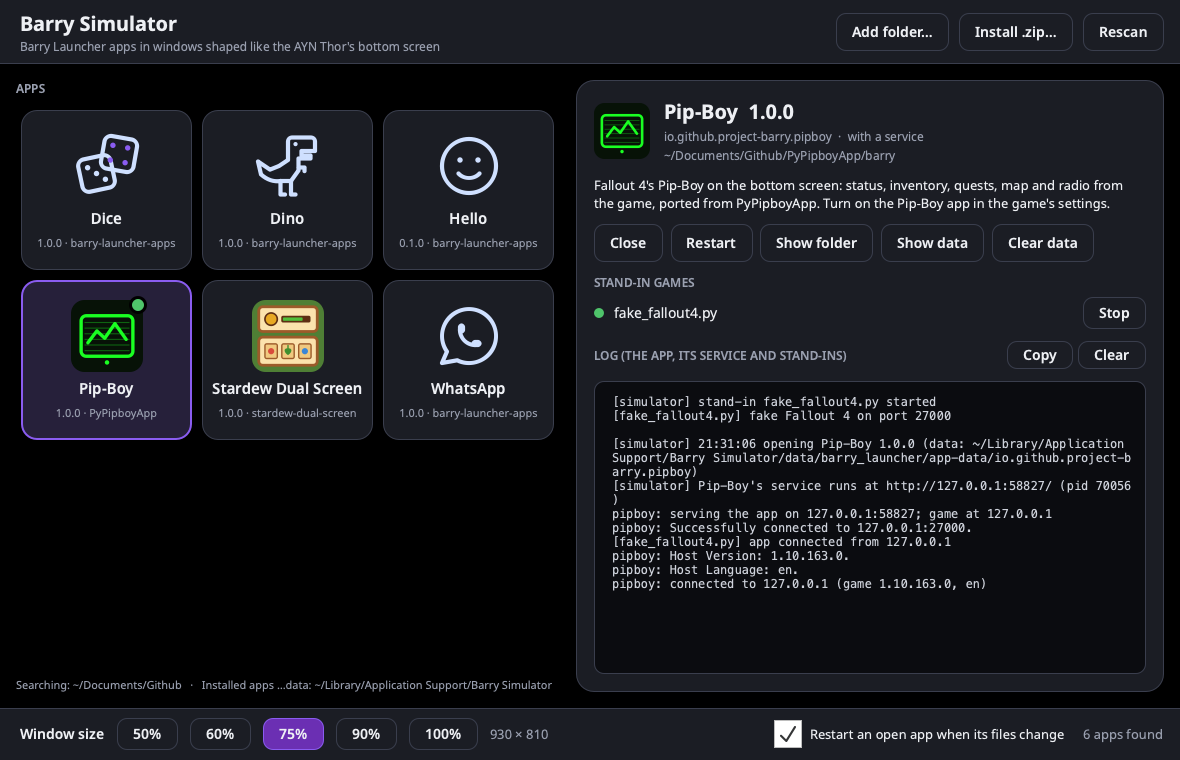
Copy puts the whole log on the clipboard, for a bug report. Clear empties it.
With Restart an open app when its files change ticked, saving any file in the app's folder closes the app and opens it again with your change, usually within a second. Keep the app's window and your editor side by side:
- Open the app in the simulator.
- Change a
.qmlfile and save it. - The app reopens, with your change. If you made a mistake, its window shows an error screen, and the log says where the mistake is.
Click Restart to reopen the app by hand, for example after changing its service.
Each app has its own data folder (barry.dataDir), kept between runs as on the Thor.
- Show data opens it in Finder.
- Clear data (click it twice to confirm) empties it, so the app starts as it would on a new device. If the app is open, the simulator closes it first and opens it again afterwards.
The simulator keeps its settings, installed apps and app data, and its own log (for when the simulator itself won't start), here:
| Settings, apps and data | The simulator's log | |
|---|---|---|
| Mac | ~/Library/Application Support/Barry Simulator |
~/Library/Logs/Barry Simulator.log |
| Windows | %APPDATA%\Barry Simulator |
%LOCALAPPDATA%\Barry Simulator\Barry Simulator.log |
| Linux | ~/.local/share/barry-simulator |
~/.local/state/barry-simulator/barry-simulator.log |
(On Windows, paste the path into File Explorer's address bar.)
A web app (like WhatsApp) opens in Firefox, in a window the bottom screen's shape with the app's zoom, if Firefox is installed.
The simulator shows how an app looks and behaves. Before you share an app, still try it on a Thor (Installing apps). The simulator can't show these differences:
- An app is a window on your desktop. On the Thor, it fills the bottom screen, under a game on the top screen.
- A mouse is one finger, plus a trackpad pinch. Try multi-touch on the device.
- Your computer is much faster than the Thor. Check animations and heavy pages on the device.
- Barry Launcher's home screen, opening an app with a game and the Decky plugin aren't simulated.
- The simulator runs services with Python 3.13. Check that a service also runs with the Python on PB-OS.