Repository navigation
Documents
Documents live beside the tasks, for reference material that has no date and never gets ticked. They are plain Markdown files, and search reads them too. A task can point at a document; a document never creates tasks.
For everything you can write inside one — callouts, tables, diagrams, math, widgets, code — see The Markdown editor.
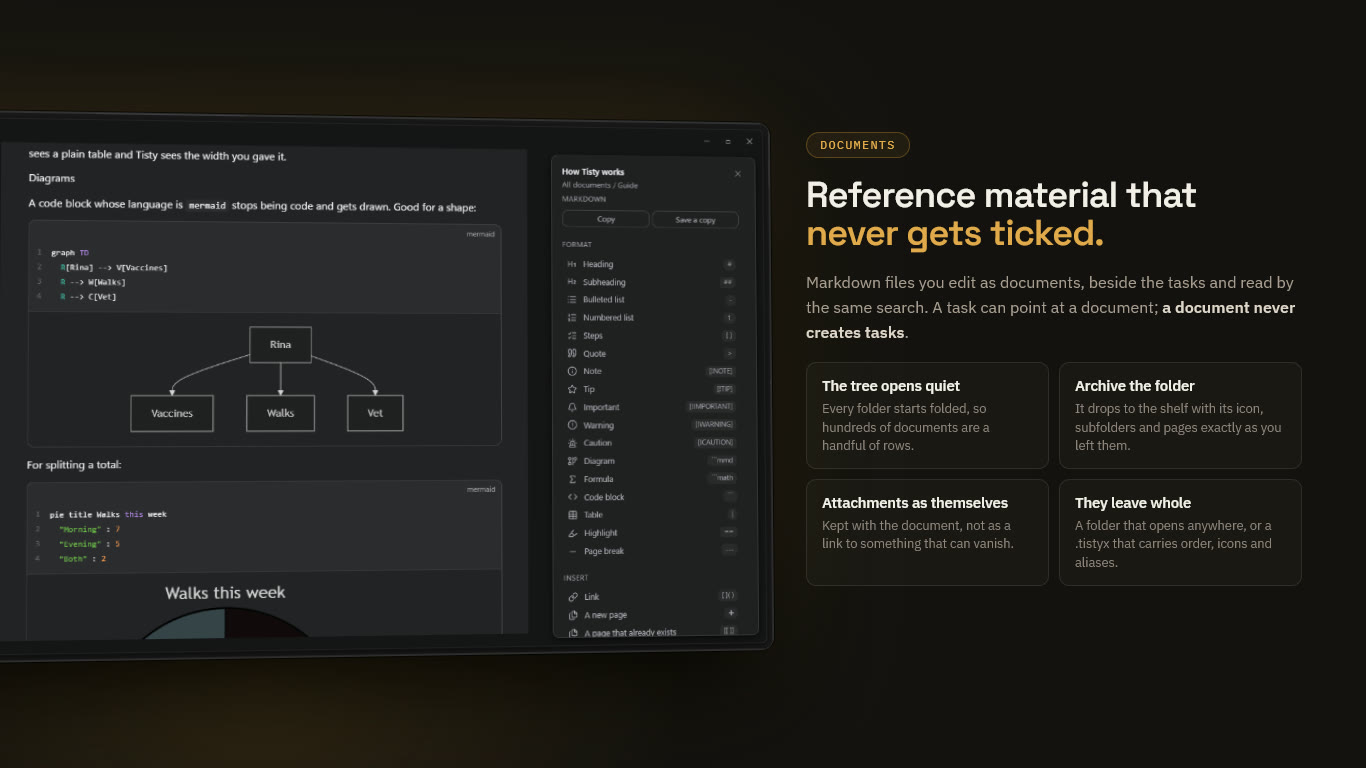
Go to Documents and use the + at the top: New document. The same button inside a folder makes it there. New folder groups them, and a folder can hold folders of its own.
The first line of the document is its title — there is no name to fill in.
Ctrl/⌘ + X and V move a document between folders.
- Every folder starts folded, so a store with hundreds of documents is a handful of rows until you go looking.
- Archive a whole folder with the right button when work is over: it drops to the Archived shelf at the foot of the tree with its icon, subfolders and pages exactly as you left them. There it reads and exports, but nothing writes into it and nothing new goes in.
- Bring it back and it returns the same — including documents you had archived by hand in there, which stay archived.
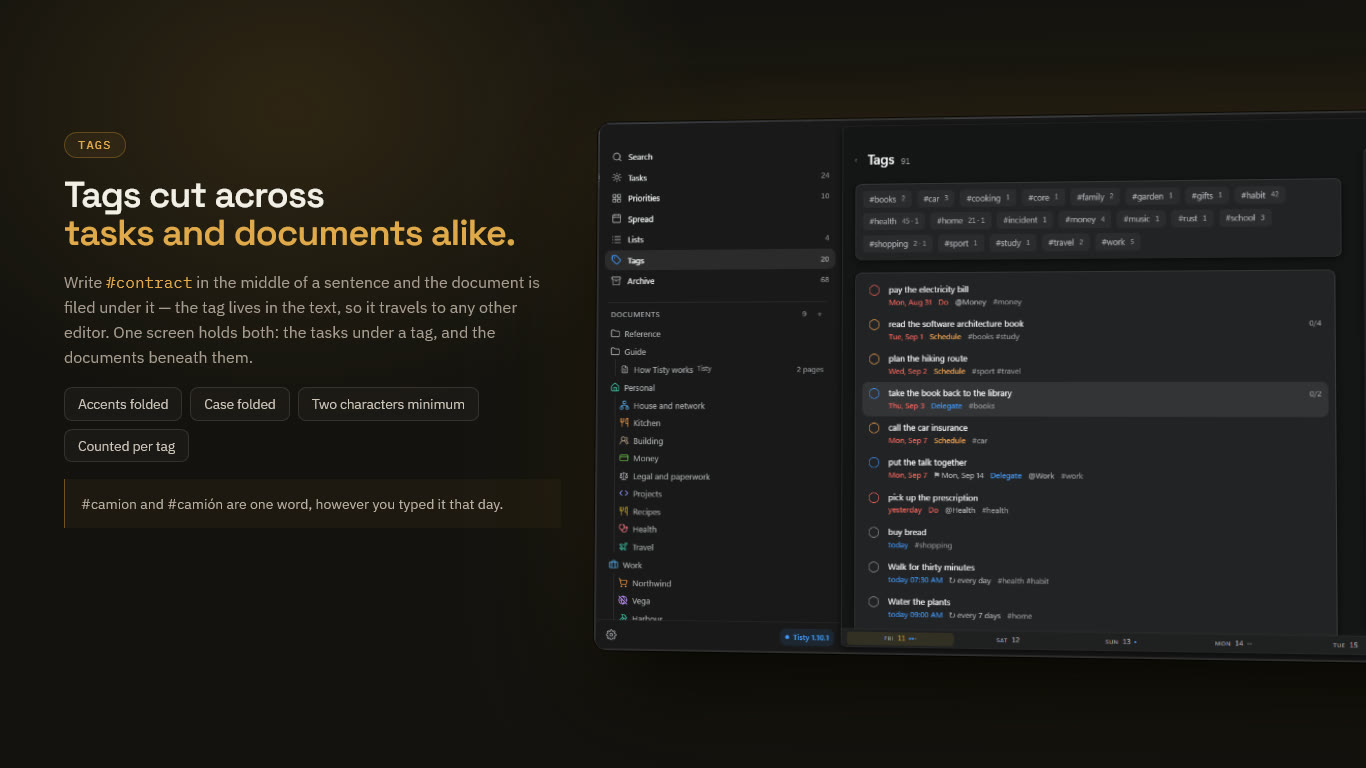
A document takes tags the way a task does: write #contract in the middle of a sentence and the document is filed under it. The tag lives in the sentence, not a hidden header, so taking the file to another editor takes the tag with it.
- The Tags screen shows the tasks under a tag and the documents beneath them. Pressing a tag inside a document opens exactly that.
- Accents come off and case is folded:
#camionand#camiónare one tag. - A bare number is not a tag (
#1234is a ticket), and neither is a single letter: two characters, one of them a letter.
Drag a file into a document or onto a task to attach it — the photo from the vet, the insurance PDF. It is kept as itself, inside Tisty, and travels with the document when you export it.
An attached .html file is drawn like a widget.
A long document in parts — a year of minutes, a book by chapters — is one document holding pages. See Pages and PDF.
Import a document in the tree takes a .md, .markdown or .txt file and brings it in, one at a time. A .tistyx from another Tisty unpacks whole.
Tasks have to be typed: there is no importer for another program's task list.
Tisty does not need to own a file to show it. Pick Tisty under Open with for a .md or .markdown file — it never takes over as the default program — or follow a tisty://open?path=… link, and the file opens read only in a window of its own, without coming into your store.
-
Contents and page (
Ctrl/⌘+\) opens a column with the file's headings, what the file is, and the width of the page: how wide it reads, and the paper of its PDF. - Reading and Markdown switch between the drawn page and its text.
- More has Find in the text, larger and smaller text, Copy as Markdown, Preview of the PDF it would make — ← Back to the document returns from it — Export to PDF…, Import without opening and Show in folder.
- Edit in Tisty brings it in as a document and opens it; the original stays where it was.
A widget inside such a file is not run until you edit it in Tisty. A tisty://open link reaches only a readable text file on this computer.
A document of yours opens the same way: Open in a window of its own, under Window in its panel, shows it read only beside your work, with the same column, menu and preview. Edit in Tisty takes you back to it, and Duplicate makes a copy. Its PDF there carries who wrote it and when unless you untick Signed in the preview.
A document leaves whole:
- Copy as Markdown.
- Write it out to a folder, with its pages and attachments beside it.
-
Export for Tisty into a
.tistyxfile, which also carries what Markdown cannot say: folders with their order, icon and colour, which document each page hangs from, what is archived, and the alias it was signed with. It includes aREADME.txt, so whoever receives it can read the documents without Tisty. - PDF — see Pages and PDF.
Exporting all of them asks who they are for: open, to hand to somebody, or locked with six digits for another machine of your own — which is what makes them arrive there as yours rather than as a stranger's. Either way, not one line of the history travels inside.
Write an alias in Settings — optional, and yours to choose — and every document is signed with it, while whatever arrives from somebody else keeps theirs. It travels with your sync and inside any parcel, so pick a name you are content for others to read. Your real name is never asked for.