Repository navigation
Guided Steps and Waypoints
For quests with authored RQE guidance, the Quest Helper displays the current step and the surrounding step list. Read the step text for what to do and where to go. RQE may advance when the relevant quest progress changes. Completing part of an objective is not always the same as moving to the next RQE step.
The optional StepIndex Forward/Back Controls in Frame Settings allow manual navigation. They are marked experimental in the addon; turn them on if you want to move between steps yourself, and check the active step after using them.
The focused quest can show map coordinates, a distance, and a waypoint for the next destination when that information is available. Some step text contains clickable coordinates that create a waypoint. Waypoints are guidance, not proof that a quest objective has been completed. If a quest has no authored location or the game cannot resolve one, RQE may have no direction to display.

The on-screen arrow and distance point toward the authored step location. The Quest Helper shows its map and coordinates; TomTom waypoints can be enabled in General Settings.
RQE can work alongside waypoint addons such as TomTom. If WaypointUI replaces RQE's chosen waypoint unexpectedly, see Compatibility.
Some guided steps provide a targeting or quest-item action. RQE's macro button can update when the relevant item becomes available; it may also show cooldown information. These actions depend on the quest and step, and protected game actions still require a player click. If a step has no applicable action, there may be no macro button to use. The examples below show two different quests: an extra action button and a targeting macro.
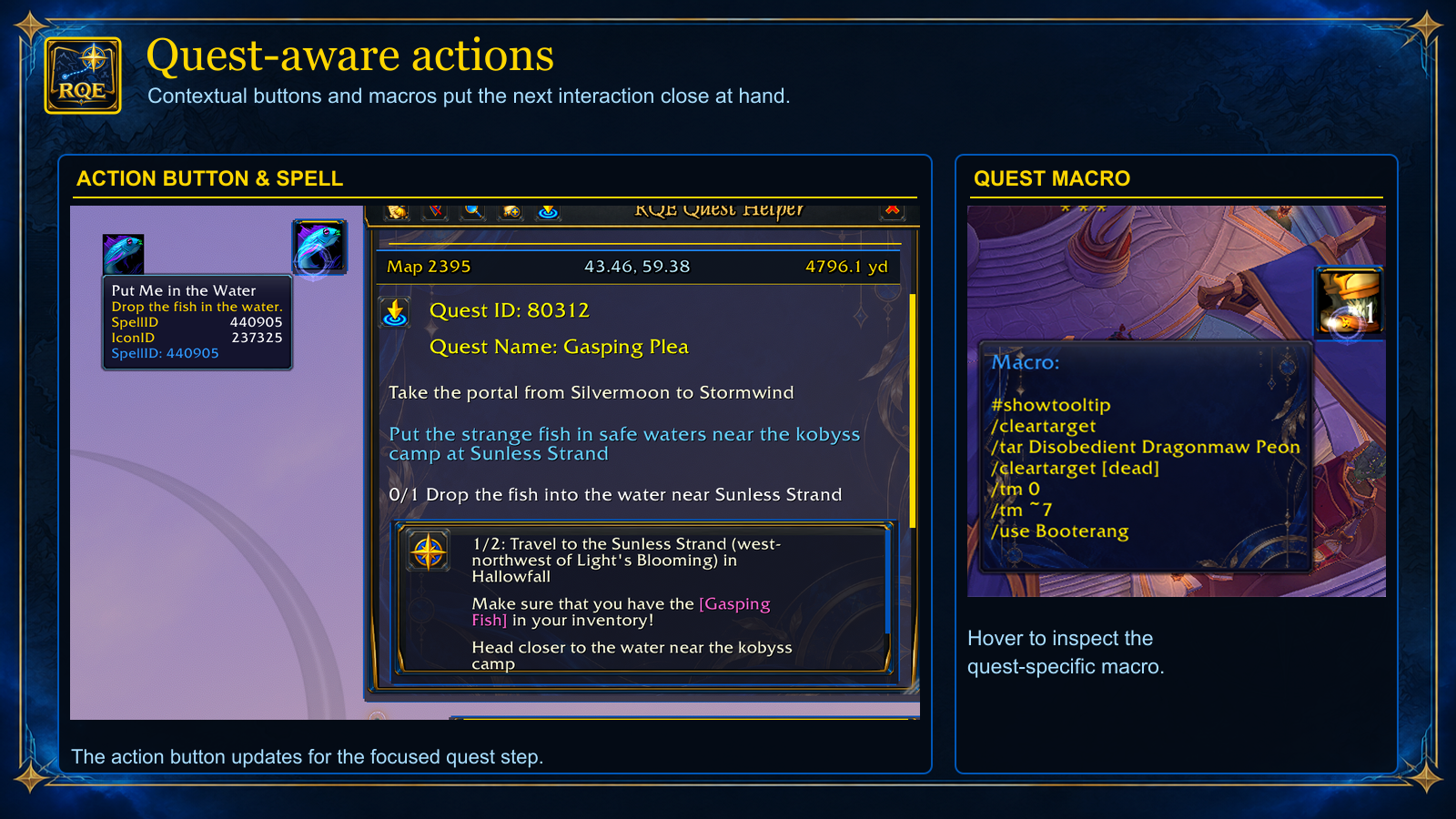
Highlighted item and spell names in step text can show their in-game tooltip when hovered, helping you identify the item to obtain or the action to use. The image pairs a guided step with its item and spell tooltips.

For eligible quests, RQE offers group-search controls from the quest interface. The available activity and results depend on World of Warcraft's group-finder data; not every quest has a matching listing.
Right-click a quest in the Quest Helper or Quest Tracker for Show Wowhead Link and Search Warcraft Wiki. RQE opens a movable in-game dialog with the quest name and a focused, selected address: press Ctrl+C to copy it into your browser. Press Escape or the X to close the dialog. Other available actions, such as View Quest and Print Questline, depend on the quest and game data. Watch the quest lookup demonstration.
