Repository navigation
Quest Helper and Tracker
RQE's two main frames have different jobs:
| Frame | Primary use |
|---|---|
Quest Helper (RQEFrame) |
Details and guidance for one focused or searched quest |
Quest Tracker (RQEQuestFrame) |
Watched quests, live scenario stages, tracked profession recipes, and achievement progress |
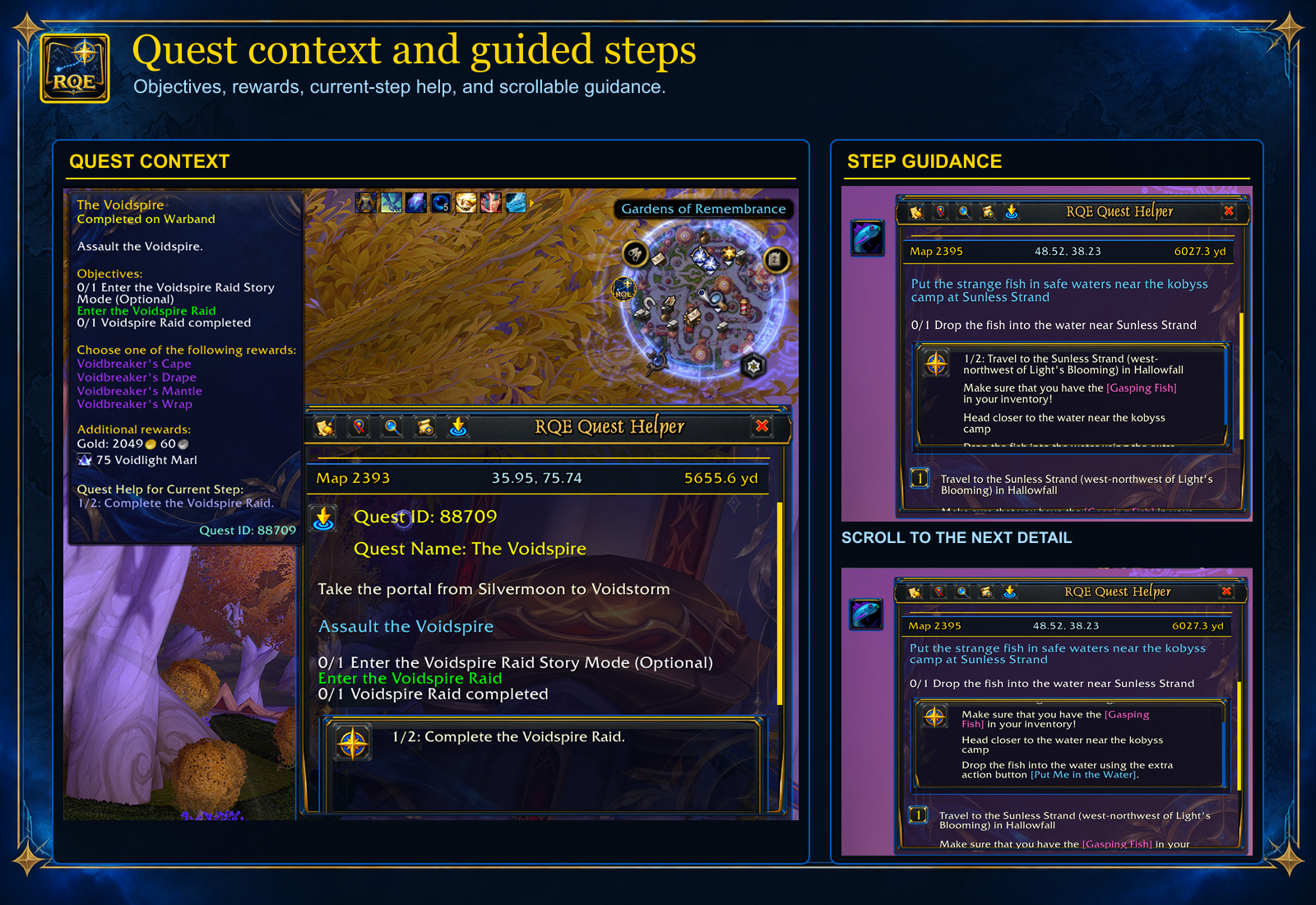
The Quest Helper can show the quest name and ID, map and coordinate information, a description and objectives, a Separate Focus panel for the active step, and the quest's step list. What appears depends on the quest and available data.
Supertracking a different quest changes the focus. You can also search for a quest, including one not in your log, to inspect available information. The C button clears the Quest Helper; it also closes a quest-linked NPC or object preview. Closing a preview with its own X does not clear the quest.
The Quest Tracker shows watched quests in a compact list with progress and other available details. Use its search and filter controls to find a quest; Restore returns from a filtered view. The Quest Tracker and Quest Helper can be shown or hidden independently in settings. The example below also shows a Wowhead link from a quest context menu; see Quest lookup and reference links for the copy-to-browser workflow.

The filter button opens a compact menu for common tracking choices. More filters opens the zone, quest-type, and quest-line choices; Contribution appears when RQE Contribution is loaded. The menu and its nested flyouts show quest counts where available.


On Retail, RQE shows Blizzard's live stage widgets inside the Quest Tracker's Scenario section when Mythic/Scenario Mode is off (the default for new profiles). With Azure & Gold enabled, each activity gets a distinct stage background while its live information stays readable: Torghast shows its floor, deaths, Phantasma, and Anima Powers; timed events such as Superbloom show the current stage countdown and objective; and Delves show their tier, objectives, and weighted progress when available. The panel below combines screenshots from three separate activities.

Hover Torghast powers or Delve stage icons for Blizzard's details. The Torghast Anima Powers control opens the power list. During Mythic+ runs, this section can also show the run countdown, keystone and affixes, and death penalty. Enable Mythic/Scenario Mode if you prefer Blizzard's Objective Tracker during scenarios; RQE restores its tracker afterward. For the smoothest transition into and out of scenarios, we recommend leaving that option off and using RQE's Scenario section. See Settings and controls for the setting.
The Azure & Gold stage card uses different artwork for Follower, Normal, and Heroic dungeons. Each of these cards has a difficulty badge. Mythic 0 and Mythic+ both retain Blizzard's simpler card and have no added difficulty badge, keeping the name, timer, and run icons clear. The Mythic 0 tile below shows that shared Blizzard background; it is not a Mythic+ run screenshot.

Hover the badge in a Follower, Normal, or Heroic dungeon to see its difficulty and player-count details. Follower identifies the mode as Follower Dungeon; Normal and Heroic use Blizzard-style difficulty and group-size tooltips. The examples below pair each hovered badge with its tooltip.

Each activity has its own artwork choices under Themes. Open a gallery to compare every style; the default for a new profile and that activity’s Reset button is named below. Mythic dungeon cards keep Blizzard’s artwork.
Follower dungeons — default: Gathered Camp

Normal dungeons — default: Moonlit Passage

Heroic dungeons — default: Sunward Citadel

Timed scenarios — default: Hourglass Sands

Delves — default: Gilded Slate

Torghast — default: Veiled Souls

Click the chevron on a section header to collapse its contents to a single header; click it again to expand. Campaign/Meta, Normal Quests, World Quests, Bonus Objectives, Task Quests, Profession, and Achievements can be controlled independently. Scenario has no section chevron. Other visible sections move up to fill the space, and each section remembers its state in the active profile. The Quest Tracker header has a separate control for minimizing the entire frame.

To change which section appears first, use Frame Settings → Tracker Section Order. Move sections with Up and Down, or restore the original order.
In the default order, Profession sits above Achievements and lists each tracked recipe with its required materials and the amounts you have. Material counts turn green when you have enough to craft one recipe. Totals include usable material qualities in your bags and available banks. A tracked recipe keeps the Quest Tracker visible even when you are watching no quests or achievements.

Hover a recipe title or ingredient for item details. Click either to open the profession recipe; unlearned recipes can be inspected too. Shift+left-click either to stop tracking that recipe.
The Achievements section shows each tracked achievement's criteria. Numeric objectives include both current/required progress and the objective text, while achievements without usable criterion text show their description. Completed criteria appear in green. Hover a title for its achievement tooltip, including category, icon, and completed-criteria summary. Click the title to open the achievement, or Shift+left-click it to stop tracking in RQE.

The criteria list stays scrollable even for longer achievements. The feature image shows completed raid criteria in green and unfinished criteria in white.
Use the mouse wheel over the Quest Helper to travel from the quest heading through objectives, the Separate Focus panel, and the steps below. With Azure & Gold enabled, a proportional gold thumb appears when there is content to scroll; drag it with the left mouse button as an alternative to the wheel.
The Separate Focus panel has its own blue thumb when its content overflows. Drag that thumb to scroll within the panel. With the pointer over the panel, a plain mouse wheel continues the main Quest Helper scroll; hold Alt, Ctrl, or Shift while wheeling to scroll the panel itself. The Quest Tracker likewise has a gold draggable thumb for long lists. Empty content does not need a visible thumb. The themed thumb colors are hidden with the theme off.
Drag a frame by its title area and resize it with its corner grip while unlocked. Right-click the Quest Helper or Quest Tracker to lock or unlock its position and size independently. Locking prevents mouse movement and resizing; it does not disable scrolling or the settings controls. You can still adjust position and size numerically in AddOn Settings or the standalone Config Window. Both frames default to unlocked, and their lock choices are saved with the RQE profile.