Repository navigation
Agents and MCP
An agent connected to BossConsole can use the tools contributed by the host and installed plugins: inspect tabs, work with terminals, navigate browser pages, interact with files, and perform supported automation.
- Install your preferred agent CLI separately.
- Sign in to BossConsole and ensure the Terminal plugin is loaded.
- Open Toolbox → MCP and use the attach controls for your installed client.
- Launch the agent in a BossConsole terminal and inspect the tools exposed to it.
Attachment workflows cover Claude Code, Codex, Gemini CLI, and OpenCode. For other clients, use the configuration shown by the MCP controls. Check the displayed endpoint rather than hardcoding a port; BOSS may select a different port if one is occupied.
The MCP server is local/loopback. cli.risaboss.com is the live-session viewer, not a public MCP endpoint for the desktop server.
In Toolbox → MCP, inspect the contributed tools and disable individual tools you do not want exposed. Account permissions and plugin availability also affect the visible toolset. Disabling a plugin removes the tools it contributes.
Read-only inspection and mutating actions have different policy treatment. Governed mutations normally ask for approval unless an applicable saved policy or session grant permits them. Explicit denials and disabled tools still apply.
The MCP access menu provides controls for session trust, saved tool policies, and trusted plugins. These controls are distinct from the per-tool exposure switches in Toolbox.
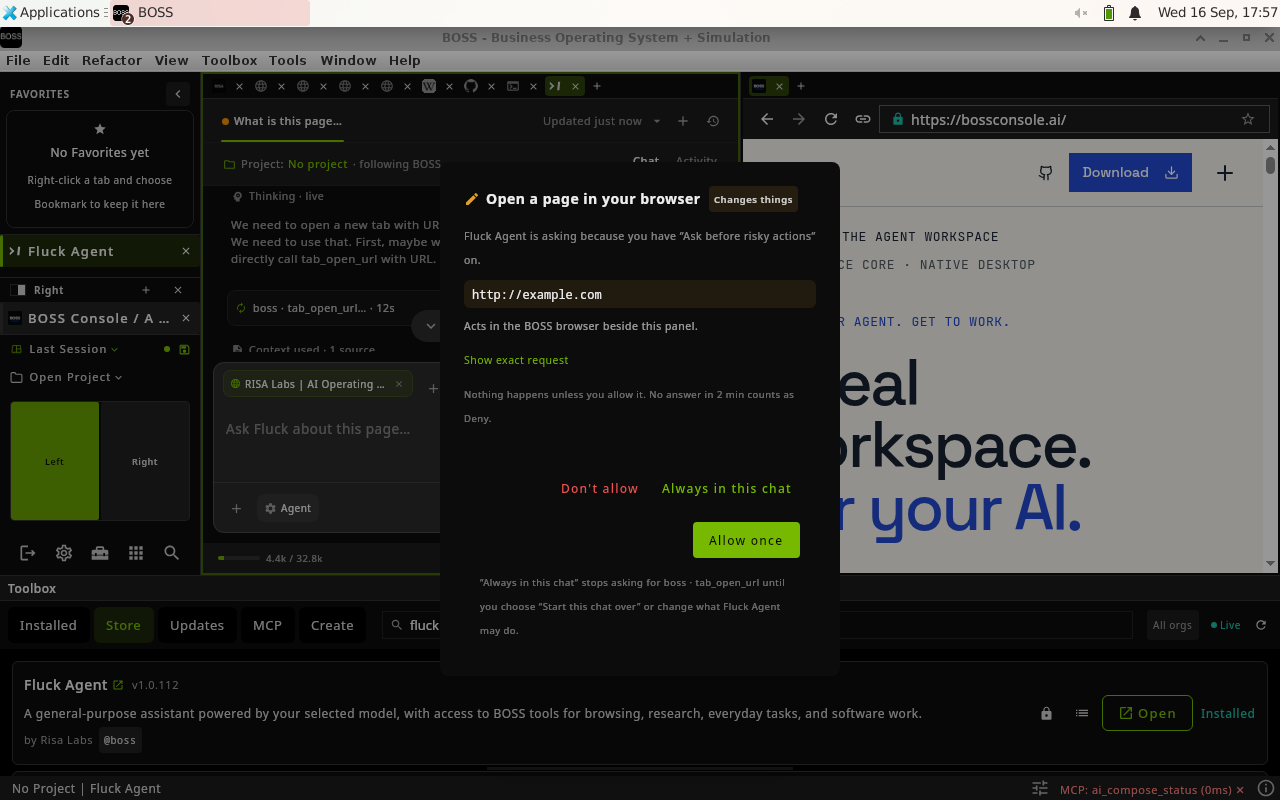
In this captured Fluck Agent session, the operator can inspect a requested browser destination before allowing the action. This is the plugin's own approval interface; other clients and governed tools can use different approval flows. BOSS v9.5.19 on Linux, September 2026; original screenshot.

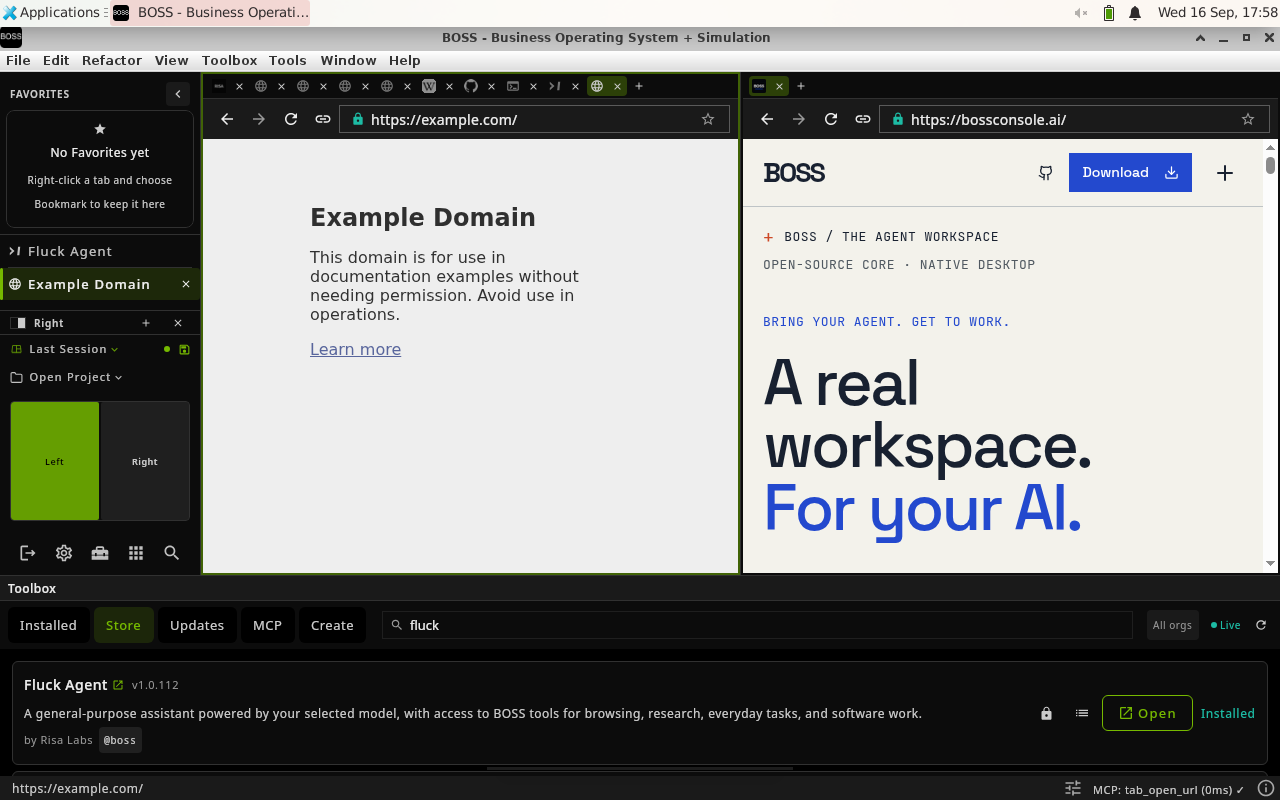
The approved action opens a browser tab whose result the operator can inspect. Same captured session; original screenshot. Click either image to view its full resolution.

YOLO mode skips ordinary approval prompts where the governing policy would ask. It does not override explicit denials, tool kill-switches, account permissions, or the separate approval requirement for secret-bearing governed calls. It is off at each launch.
Use the MCP access controls or Tools → MCP YOLO Mode to manage it when the deployment permits the feature.
Supported tools can use a stored credential through a reference instead of putting its value in the agent's text context. Secret-bearing governed calls still require approval. The guarantee concerns the model-facing data path; an authorized destination or tool can receive the credential.
See Security and privacy and the secret-reference contract for the exact scope.
boss status --json
boss doctor --json
boss mcp list
See CLI for tool descriptions, invocation, and ledger inspection.
Sources: agent attachment, MCP operator guide.
Continue: Home · ← Spaces and everyday use · Plugins →