Repository navigation
Product Walkthrough
See how the workspace fits together, then try it with your own task.

▶ Watch the 64-second launch film · View it on bossconsole.ai
This is the original 1080p video and poster used on the product website. The preview opens the video in a browser player.
Keep the agent conversation beside the page or file you are working with. In this captured session, Fluck Agent uses an attached webpage as context.
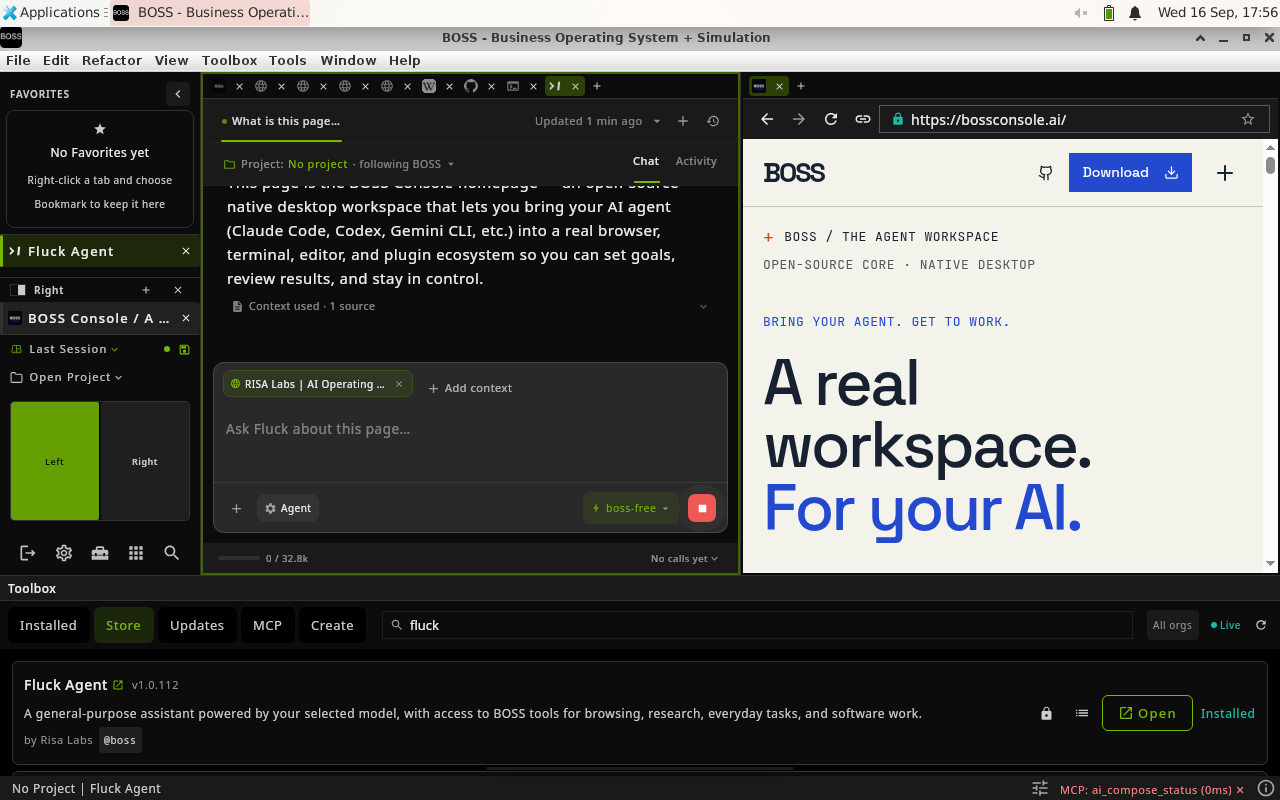
Try it: arrange two panes, open a page in one, and use your agent's supported context attachment in the other. See Spaces and everyday use.
The next capture shows Fluck Agent asking to open a specific destination. The operator can inspect the request and decide whether to allow it.
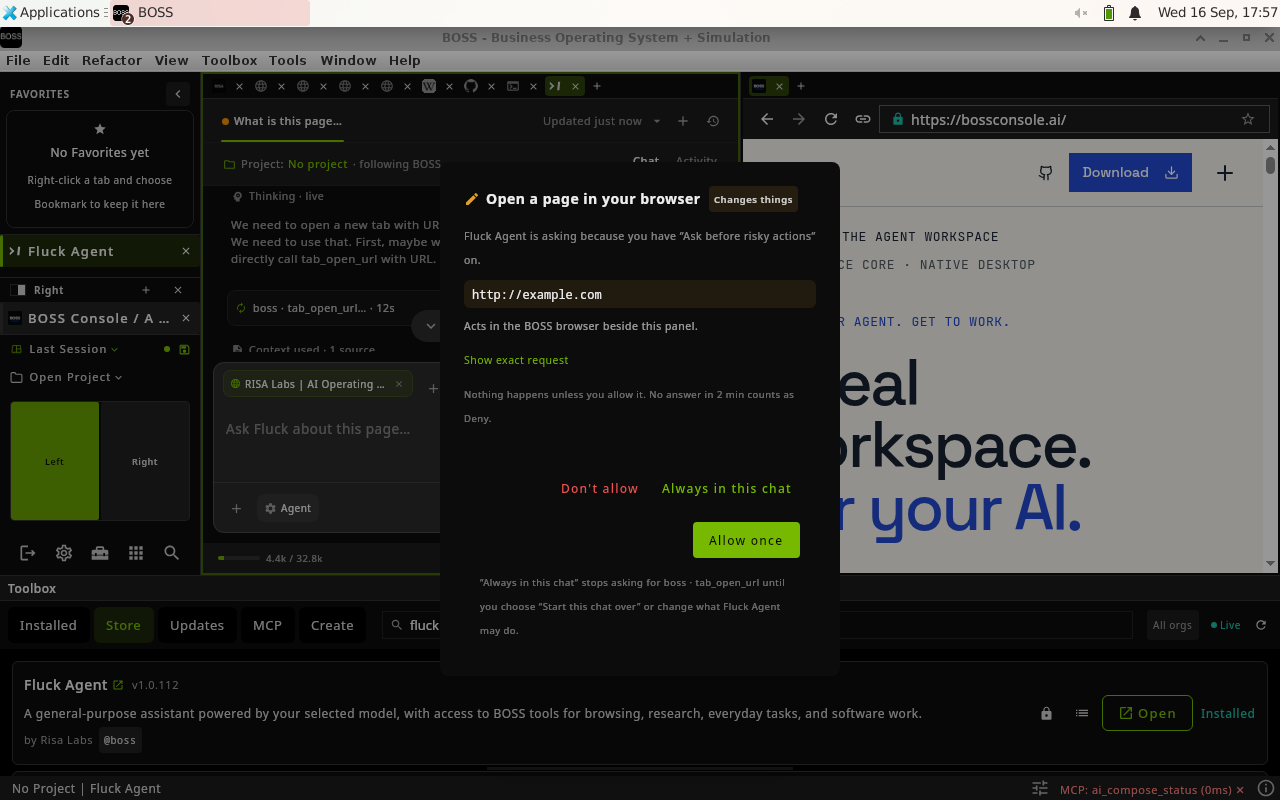
Try it: inspect the tools your agent can use in Toolbox → MCP. This screenshot shows Fluck Agent's own approval interface; other clients and governed tools can use different flows. See Agents and MCP.
After approval, the destination appears as a browser tab. You can interact with the result in the same workspace rather than relying only on a text description.
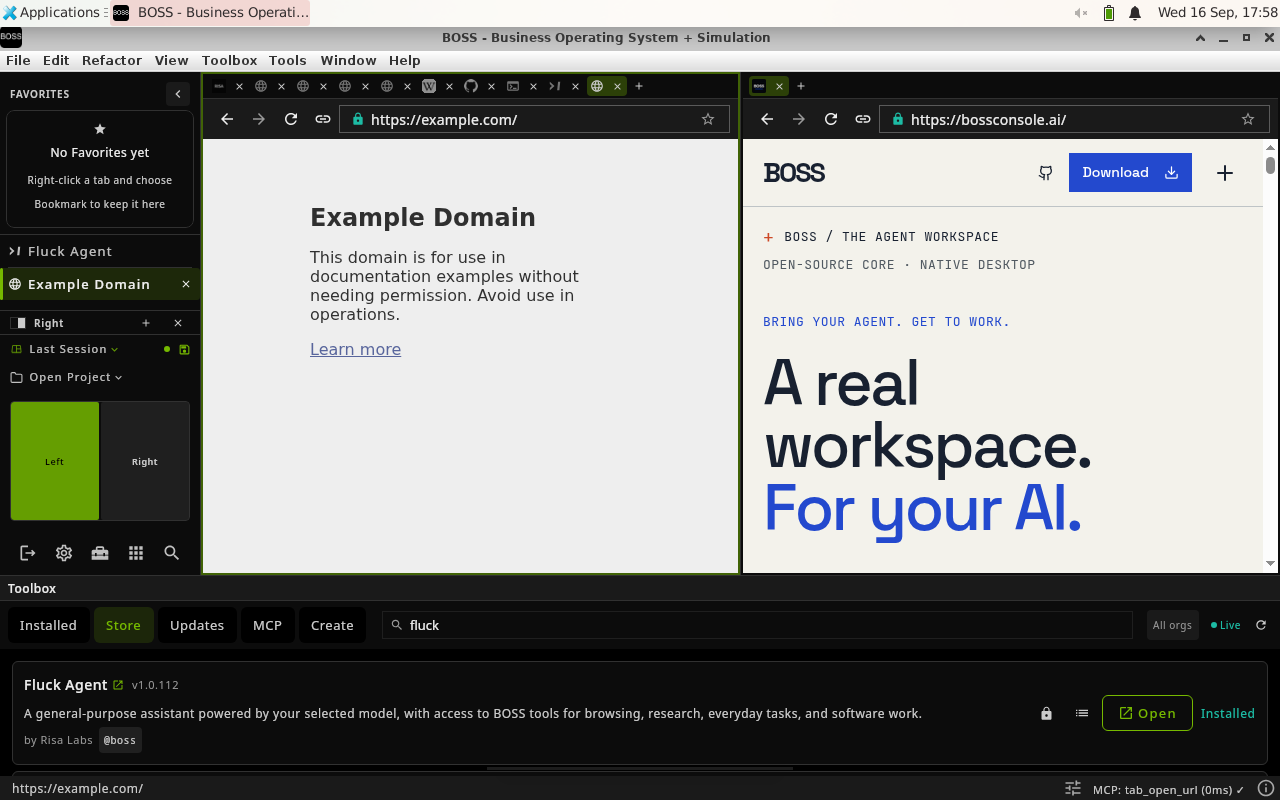
These three product captures were published on risaboss.com from BOSS v9.5.19 on Linux in September 2026. Click a capture to inspect its original 1280 × 800 image. The current interface can differ.
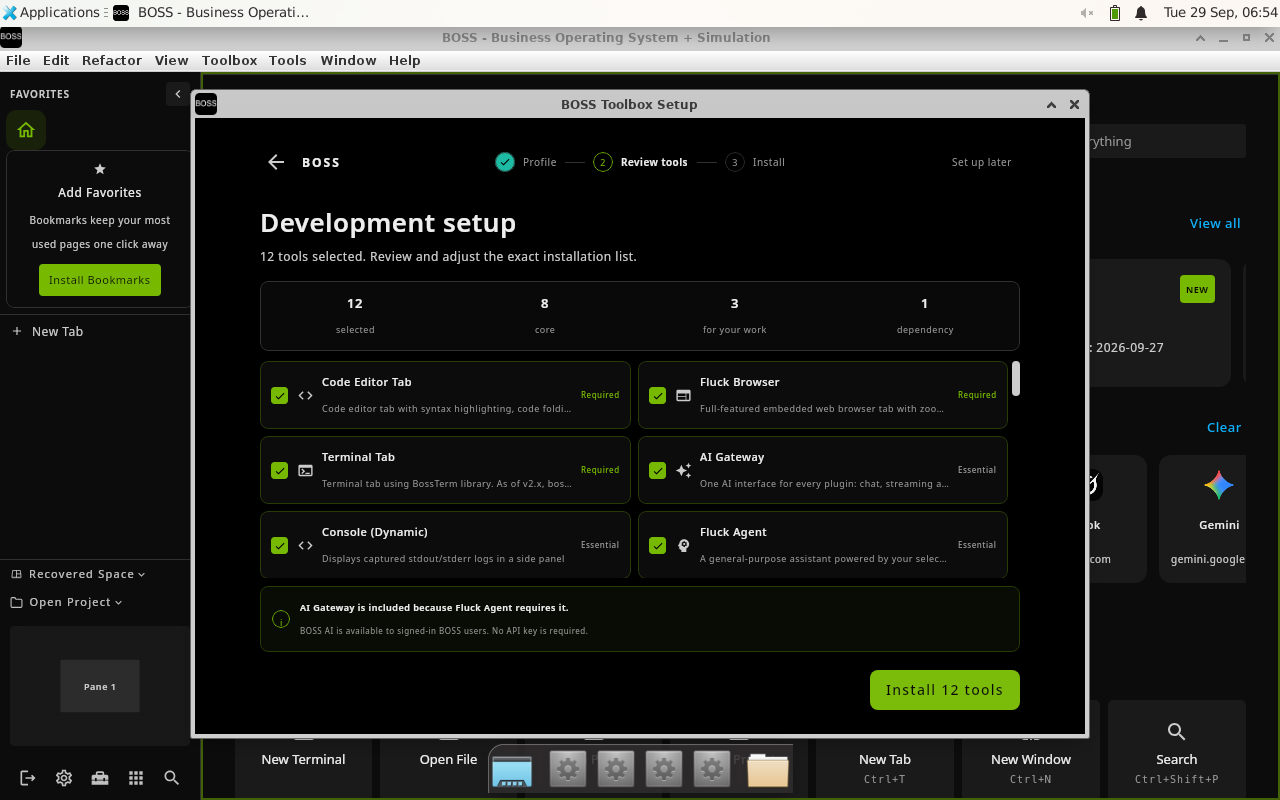
Review a suggested plugin selection before installation. This setup capture is from BOSS v9.5.32 on Linux, published on risaboss.com in September 2026. Plugin availability depends on version and account access.

Open cli.risaboss.com with the same BOSS account to find shared BossTerm terminals and BossConsole application windows. Your host keeps the session running while you view or control it remotely.
See Live sessions and window sharing for the current platform support, capture permission, and access settings.
| You want to… | Open |
|---|---|
| Install the app and start working | Getting started |
| Connect an existing agent CLI | Agents and MCP |
| Add a work surface or build a plugin | Plugins |
| Use the workspace from another device | Live sessions and window sharing |
| Understand credentials and tool access | Security and privacy |
Continue: Home · Getting started →