Repository navigation
Architectures and presets
The Architecture menu selects the model family. Each architecture needs its own models on the ComfyUI server; see Installation.
Tags in the menu, and beside the selected architecture, show what each one does. Texturing architectures texture the meshes already in the scene; Asset generation (TRELLIS.2) creates the mesh itself. Experimental and Deprecated mark architectures that are still new or no longer supported.
| Architecture | Checkpoint list comes from | Guidance | Notes |
|---|---|---|---|
| SDXL | models/checkpoints |
ControlNet (Depth, Canny, Normal) and IPAdapter | Supports every generation mode. |
| MOSS Image |
models/diffusion_models, filtered to MOSS-Image files |
Depth through the MOSS color/depth control adapter | Experimental. Runs the text-to-image workflows (Sequentially, Local Edit, UV Inpaint and the others) without ControlNet, IPAdapter or LoRA units. Apache-2.0. |
| Qwen Image Edit |
models/diffusion_models and GGUF models |
Reference images: a guidance map, previous or initial views, or an external style image | Uses the image-editing workflows: Generate, Refine, Local Edit and Masked Edit. |
| Qwen Image 2.1 |
models/diffusion_models, filtered to Qwen Image 2.1 files |
As Qwen Image Edit | The presets prompt for RGBA views; transparent pixels are excluded from projection. Non-commercial use only (Qwen Research License). |
| Qwen Image 2.1 Turbo |
models/diffusion_models, filtered to Qwen Image 2.1 Turbo files |
As Qwen Image Edit | Experimental. The few-step Turbo model with the Qwen Image 2.1 workflows, text encoder and VAE; its presets sample 8 steps at CFG 1. Same license as Qwen Image 2.1. |
| FIBO 2.0 Edit |
models/diffusion_models, filtered to FIBO files |
As Qwen Image Edit | Experimental. Bria FIBO 2.0 Edit Turbo with the image-editing workflows; its presets sample 4 steps at CFG 1 and generate at 1 MP, since above about 1 MP FIBO redraws the subject smaller and the views no longer line up with the mesh. Non-commercial use only (CC BY-NC 4.0). |
| TRELLIS.2 | — | — | Asset generation: builds a mesh from an image or prompt, then optionally textures it with one of the other architectures. See TRELLIS.2. |
The image-editing workflows (Qwen Image Edit, Qwen Image 2.1, Qwen Image 2.1 Turbo and FIBO 2.0 Edit) do not offer Grid or UV Inpaint. See Generation modes.
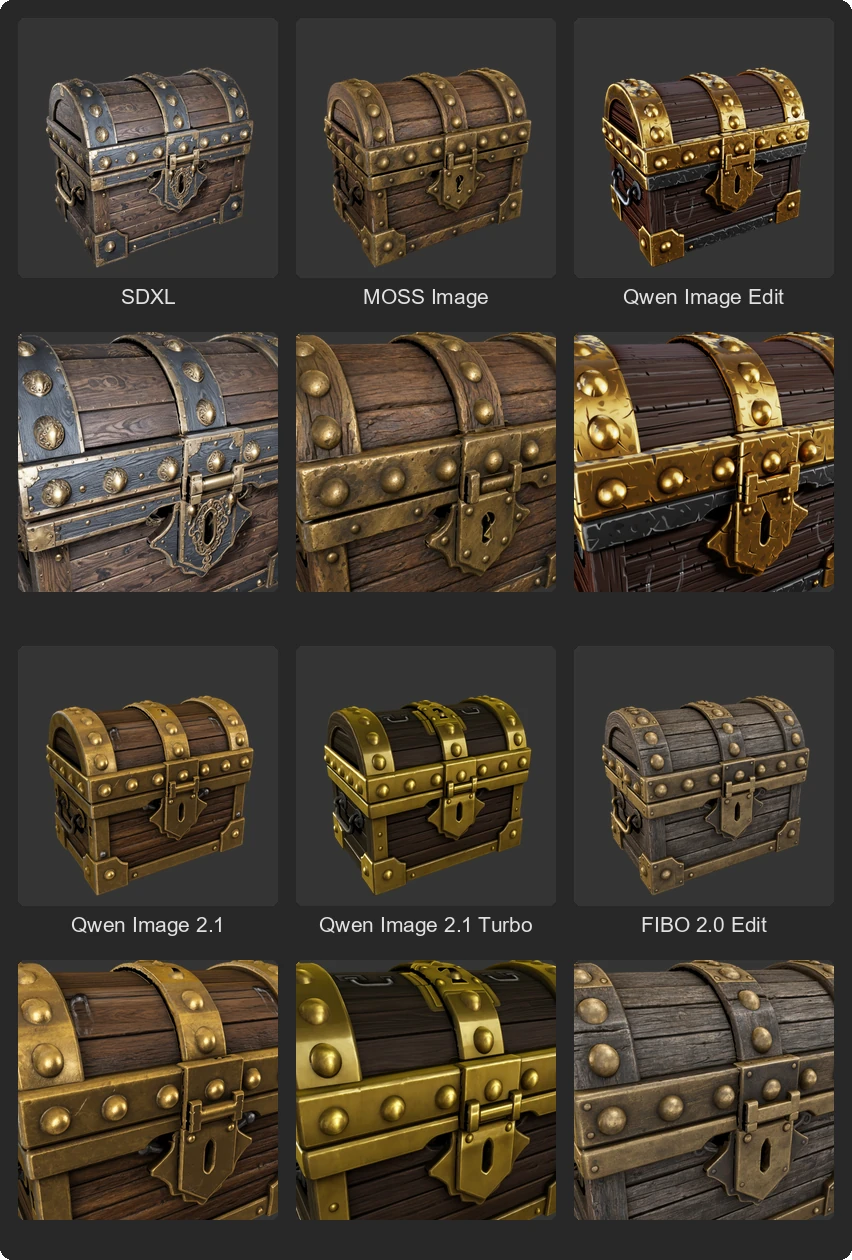
The same mesh, ten cameras, prompt and seed with each texturing architecture, using the default settings of one preset per architecture: SDXL with Default (RealVisXL V5.0), MOSS Image with MOSS Sequential, Qwen Image Edit with Qwen Precise (the Q3_K_M GGUF of Qwen-Image-Edit-2509), Qwen Image 2.1 with Qwen 2.1 Precise, Qwen Image 2.1 Turbo with Qwen 2.1 Turbo Precise and FIBO 2.0 Edit with FIBO Precise (Comfy-Org's int8 files for MOSS, Qwen Image 2.1, Turbo and FIBO). Results vary with the model, the prompt and the seed; this shows one run of each.
MOSS Image, Qwen Image 2.1 Turbo and FIBO 2.0 Edit are new; their results and settings may still change. They are shown by default. Disable Enable Experimental Architectures in the add-on preferences to hide them and their presets. A file saved with an experimental architecture keeps that selection while the option is off, but you must enable it again to apply its presets.
Install their models with packages 15 (Qwen Image 2.1 Turbo), 16 (MOSS Image) and 17 (FIBO 2.0 Edit) of installer.py; see Installation, or Manual installation (sections 13 to 15) to place the files by hand. All three use ComfyUI core nodes: MOSS Image needs ComfyUI 0.42.3 or newer, and FIBO 2.0 Edit a ComfyUI build with native FIBO 2.0 support, which is on the master branch since October 2026.
FLUX.1 and FLUX.2 Klein no longer receive support. They are hidden from the architecture menus, and their presets are hidden, unless Enable Deprecated Architectures is enabled in the add-on preferences. A file saved with a deprecated architecture keeps that selection and remains readable, but you must enable the preference to apply its presets.
A preset sets many generation and blending parameters at once. The built-in presets cover the common cases and are the recommended starting point.
In the StableGen panel, the Preset menu lists only the presets for the current architecture, and choosing one applies it immediately. In the legacy panel, choose a preset and click Apply Preset. Hover over a preset to read its description.
Because the menu shows one architecture at a time, the panel drops the model name from preset names: Qwen 2.1 Precise appears as Precise. Tags next to each preset show what it does, and the menu groups the presets in this order:
| Tag | Use |
|---|---|
| New texture | Textures the model from scratch. |
| Refine | Restyles or modifies the whole existing texture. |
| Local edit | Changes the areas that cameras point at. |
| UV inpaint | Fills untextured areas in the UV texture. |
| Mesh + texture, Mesh only | TRELLIS.2 presets, with the texturing architecture as a second tag. |
Variants such as Nunchaku and Experimental are shown as tags too. The legacy panel lists every preset under its full name, for example Qwen 2.1 Precise or Qwen Precise (Mesh + Texture); the tables below give both.
When you change a setting so that it no longer matches any preset, the menu shows Custom. Choosing the preset again restores its values.
There are 51 built-in presets. By default, 46 are shown: one is visible only with Enable Experimental Texturing Features, and four only with Enable Deprecated Architectures. The 13 presets of the experimental architectures are hidden when Enable Experimental Architectures is off.
| Preset | Tag | Use |
|---|---|---|
| Default | New texture | General-purpose texturing. |
| Model Is Important | New texture | As Default, with stronger depth ControlNet guidance. |
| Characters | New texture | Characters; uses the first view as an IPAdapter reference. |
| Characters (Alternative Masking) | New texture | Alternative masking for more consistent views; may produce more artifacts. Try it if Characters fails. |
| Quick Draft | New texture | Fast previews with the Grid workflow. |
| Architecture | New texture | Buildings and flat surfaces; each surface point takes the most direct camera (Separately). |
| Local Refine | Local edit | Adds detail to specific areas using cameras pointed at them. |
| UV Inpainting | UV inpaint | Fills untextured areas in UV space. Bake textures first to control the unwrap. |
| Preset (legacy name) | Tag | Use |
|---|---|---|
| Sequential (Moss Sequential) | New texture | Sequential texturing; every view follows its depth map through the control adapter. |
| Local Refine (Local Refine (Moss)) | Local edit | Re-renders the areas the cameras point at, with depth control, and blends them back. |
| UV Inpainting (Uv Inpainting (Moss)) | UV inpaint | Fills untextured areas in the baked UV texture. |
| Preset (legacy name) | Tag | Use |
|---|---|---|
| Precise (Qwen Precise) | New texture | Detailed results when cameras overlap well. |
| Precise+ (Qwen Precise+) | New texture | Precise with Confidence-Gated Context, Acquisition Quality Weighting and Depth/Part Projection Guard. |
| Safe (Qwen Safe) | New texture | Uses the first view as a reference for every later view; more consistent when coverage is limited. |
| Alt (Qwen Alt) | New texture | Combines context renders with sequential references. |
| Voronoi (Qwen Voronoi) | New texture | Assigns each surface point to its closest camera during generation, then blends softly. |
| Precise / Safe / Alt / Voronoi (Qwen … (Nunchaku)) | New texture, Nunchaku | The same four strategies for the Nunchaku model. Requires the Nunchaku nodes. |
| 2509 Full Steps (Qwen 2509 Full Steps (Experimental)) | New texture, Experimental | Base-model comparison without the Lightning LoRA. Shown only with experimental features enabled. |
| Refine (Refine (Qwen)) | Refine | Restyles the whole existing texture. |
| Local Edit (Local Edit (Qwen)) | Local edit | Targeted changes in areas the cameras point at. |
| Preset (legacy name) | Tag | Use |
|---|---|---|
| Precise (Qwen 2.1 Precise) | New texture | Projected context renders; best with overlapping cameras. |
| Precise+ (Qwen 2.1 Precise+) | New texture | Precise with Confidence-Gated Context, Acquisition Quality Weighting and Depth/Part Projection Guard. |
| Safe (Qwen 2.1 Safe) | New texture | Uses the first view as an appearance reference for every later view. |
| Context + Reference (Qwen 2.1 Context + Reference) | New texture | Combines projected context with the first view as a persistent reference. |
| Refine (Refine (Qwen 2.1)) | Refine | Restyles the whole existing texture. |
| Local Edit (Local Edit (Qwen 2.1)) | Local edit | Targeted changes in areas the cameras point at. |
The same six strategies as Qwen Image 2.1 (Precise, Precise+, Safe, Context + Reference, Refine, Local Edit; legacy names Qwen 2.1 Turbo Precise and so on), sampled with the Turbo model's 8-step schedule.
Precise, Safe, Refine and Local Edit (legacy names Fibo Precise, Fibo Safe, Refine (Fibo), Local Edit (Fibo)) follow the Qwen Image 2.1 presets of the same names and sample FIBO 2.0 Edit Turbo with 4 steps. FIBO has no transparency output.
| Preset (legacy name) | Tags | Use |
|---|---|---|
| Default (Default (Mesh + Texture)) | Mesh + texture, SDXL | General objects. |
| Characters (Characters (Mesh + Texture)) | Mesh + texture, SDXL | Characters; does not texture downward-facing surfaces. |
| Architecture (Architecture (Mesh + Texture)) | Mesh + texture, SDXL | Buildings and objects with flat walls and sharp angles. |
| Precise (Qwen Precise (Mesh + Texture)) | Mesh + texture, Qwen Image Edit | Detailed results when cameras overlap well. |
| Safe (Qwen Safe (Mesh + Texture)) | Mesh + texture, Qwen Image Edit | Uses the TRELLIS.2 input image as a style reference. |
| Alt (Qwen Alt (Mesh + Texture)) | Mesh + texture, Qwen Image Edit | General-purpose Qwen pipeline with additional context renders. |
| Voronoi (Qwen Voronoi (Mesh + Texture)) | Mesh + texture, Qwen Image Edit | Hard camera segmentation during generation, then soft blending. |
| Default (Trellis.2 (Mesh Only)) | Mesh only | Geometry only. |
- Adjust the settings. The preset menu shows Custom.
- Click Save (StableGen panel) or Save Preset (legacy panel).
- Enter a Preset Name and an optional Description. Include ControlNet Units and Include LoRA Units control whether those lists are stored.
The name is stored in upper case. Saved presets appear in the menu alongside the built-in ones, and the delete button removes them. Built-in presets cannot be deleted.
Saved presets are kept in memory only and are lost when Blender is closed.