Repository navigation
Quick start
This page walks through two common tasks in the StableGen panel: texturing a model you already have, and generating a new textured mesh with TRELLIS.2. It assumes you have completed Installation and that ComfyUI is running.
Press N in the 3D Viewport and open the StableGen tab. The StableGen panel is the default interface. To use the original panel instead, enable Use Legacy Panel in the add-on preferences.
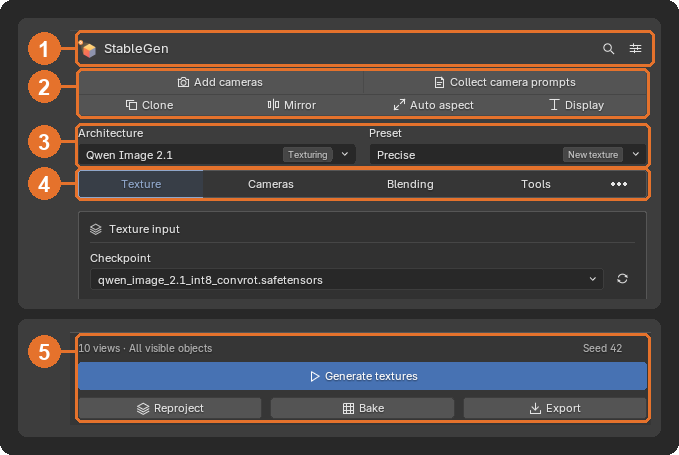
From top to bottom, the panel contains:
| Area | Contents | |
|---|---|---|
| 1 | Header | A search button (Ctrl K) for finding any setting, and a gear button that opens the add-on preferences. |
| 2 | Toolbar | Add cameras and Collect camera prompts, then Clone, Mirror, Auto aspect and Display. |
| 3 | Architecture and Preset | The model family, and a preset menu filtered to that family. Tags mark texturing and asset-generation architectures, experimental and deprecated ones, and what each preset does. Choosing a preset applies it immediately. The buttons beside the menu save, apply or delete presets. |
| 4 | Page tabs | Texture, Cameras, Blending and Tools for texturing. With the TRELLIS.2 architecture, a Mesh tab comes first and Tools moves to the More menu. More also opens Scene queue, Diagnostics, Mesh & rig, 3D printing and Experiments when they are available. |
| 5 | Footer | A status line, the main generate button, and Reproject, Bake and Export. While a job runs, the footer shows progress bars and a stop button. |
The status line shows the number of views and the target objects, or the reason generation is unavailable, such as ComfyUI offline. When the server is offline, a refresh button appears next to the generate button.
If the sidebar is narrow, the panel places settings in a single column. Drag the sidebar's left edge to widen it.
-
Prepare the scene. Add or open a mesh. StableGen textures all visible meshes by default; to texture only some, select them and set Target objects to Selected in step 5. Apply modifiers and convert curves to meshes first if needed; both commands are on the Tools page.
-
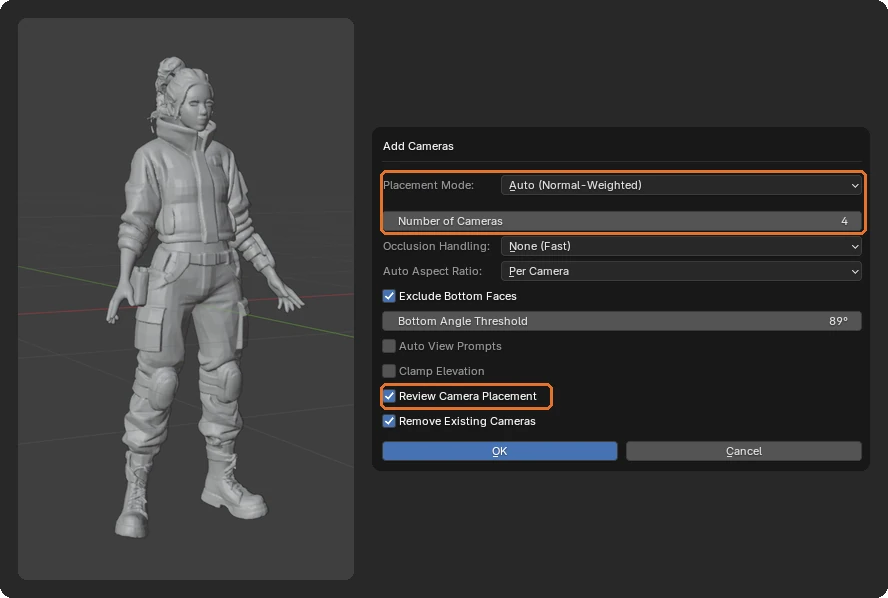
Add cameras. Select the mesh and click Add cameras. The defaults, Auto (Normal-Weighted) placement with four cameras, are a reasonable start for simple objects. For a character, raise Number of Cameras to six or more: with four, surfaces such as the inside of the legs may not be seen by any camera and stay untextured. With Review Camera Placement enabled, the viewport flies through each camera; adjust it if needed and press Space to move on. See Cameras for the other placement modes.
-
Choose an architecture and preset. Set Architecture to SDXL, Qwen Image Edit or Qwen Image 2.1, depending on the models you installed. Then choose a preset. Default and Characters are good SDXL starting points; Qwen Precise and Qwen Safe are the corresponding Qwen Image Edit presets. Hover over a preset for its description. See Architectures and presets.
-
Choose a checkpoint. On the Texture page, under Texture input, select a model in Checkpoint. If the list is empty, click the refresh button beside it.
-
Write the prompt. Describe the surface in Texture prompt, for example
weathered bronze statue, green patina. Leave Texture workflow as set by the preset; the presets mostly use Generate Sequentially (shown as Generate for Qwen). See Generation modes.
-
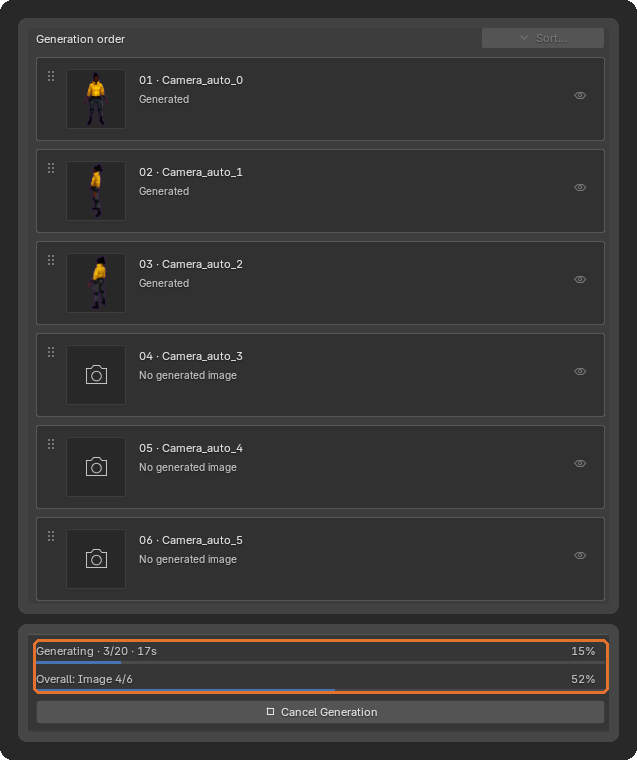
Generate. Click Generate textures. The footer shows the overall progress and the current step. You can follow the camera images as they arrive on the Cameras page.
-
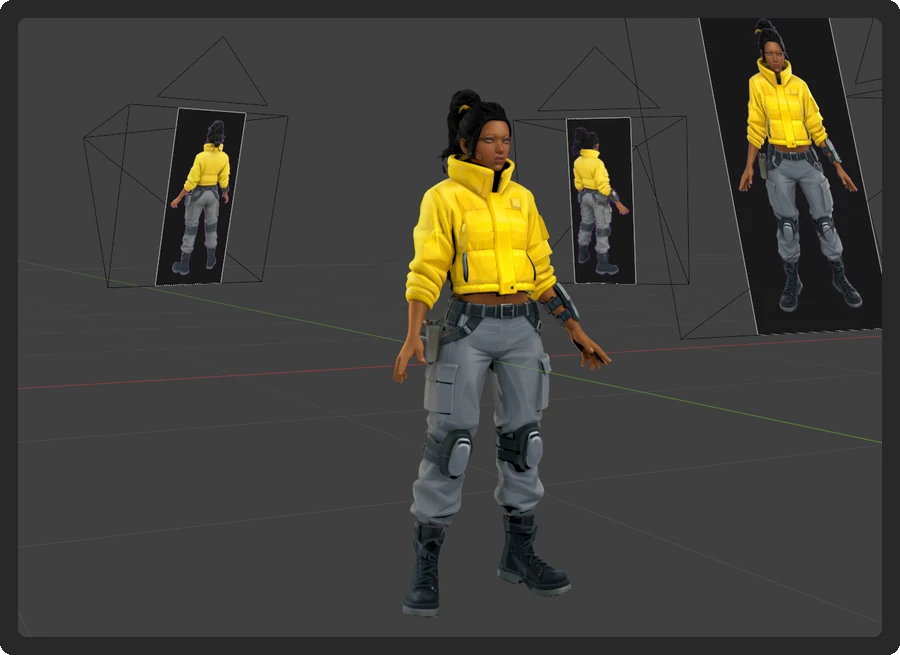
View the result. Switch the viewport to Rendered shading. The projection material is built for Cycles, which StableGen selects as the render engine, so the texture does not appear in Solid or Material Preview shading until you bake it.
-
Refine or finish. Change blending settings on the Blending page and click Reproject to rebuild the material from the same images without generating new ones. To regenerate individual views, select their cameras; the button changes to Regenerate selected views. When you are satisfied, click Bake to convert the result into ordinary UV textures, then Export. See Export.
Generated files are saved in the output directory. See Output files.
This requires the TRELLIS.2 package from the installer. On first use, ComfyUI downloads the TRELLIS.2 models (about 15 GB).
-
Choose the architecture. Set Architecture to TRELLIS.2. The Mesh tab appears.
-
Choose a preset. Presets tagged Mesh + texture generate a mesh and then texture it with the architecture in their second tag, SDXL or Qwen Image Edit. The Default preset tagged Mesh only produces geometry only. Default with the SDXL tag is a general starting point; the Qwen Image Edit presets suit stylized objects, legible text and image-to-3D work.
-
Provide the input. On the Mesh page, under Mesh input, set Generate mesh from:
- Image: choose an image in Input Image. The mesh follows that image.
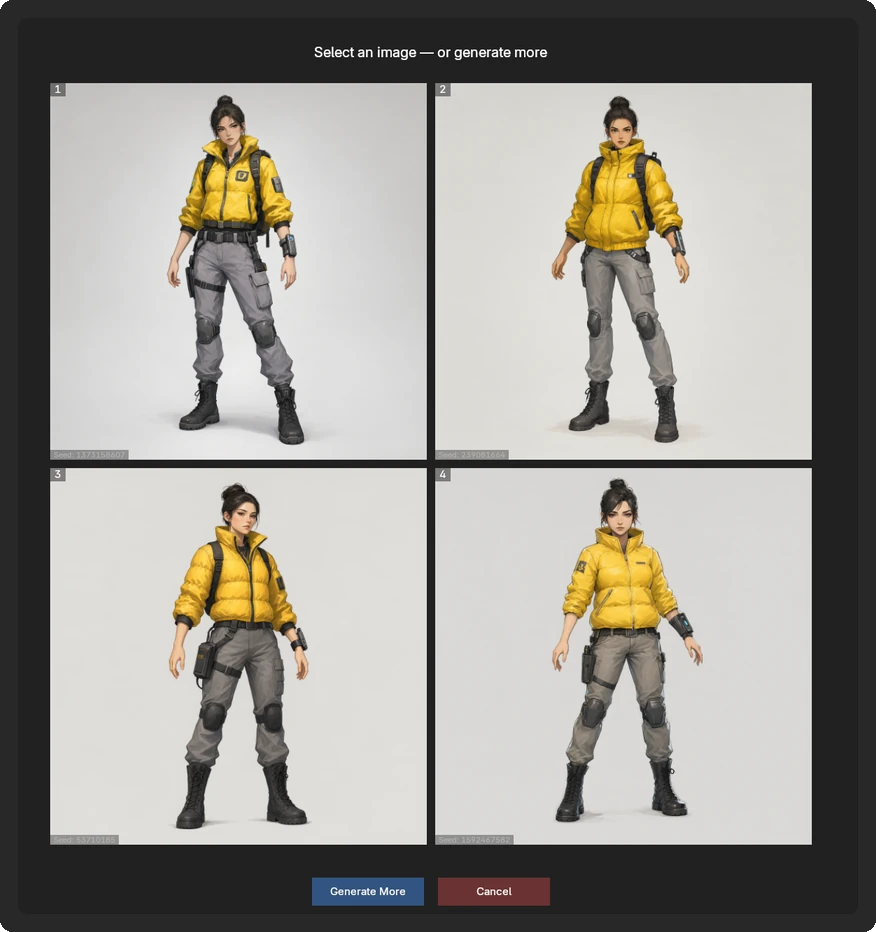
- Prompt: describe the object. StableGen first generates an image from the prompt, then builds the mesh from that image. Enable Preview gallery to generate several candidate images and pick one before the mesh is built.

-
Check the texture settings. On the Texture page, Texture mode selects how the mesh is textured: None, Native (TRELLIS.2), or a diffusion architecture. By default the mesh prompt is also used for texturing; enable Use separate texture prompt to describe the texture separately.
-
Optional: PBR maps. Enable PBR map extraction in the Output & materials section of the Texture page. See PBR maps.
-
Generate. Click Generate asset. StableGen generates the mesh, imports it, places cameras around it and runs the selected texturing workflow.
With Preview gallery on, the candidate images appear in the viewport first. Click the one to build the mesh from.
-
Refine. Adjust view prompts and regenerate individual views as for any textured model, or switch to the Local Edit workflow to change specific areas. See Generation modes.
To use the result in a game engine, click Bake. Meshes from TRELLIS.2 usually need new UVs: keep Unwrap Method at Smart UV Project, or use Cube Project for very dense meshes. Then click Export. See Export.
See TRELLIS.2 mesh generation for all settings, batch generation from a folder of images, and the third-party license terms.