Repository navigation
PBR maps

StableGen can derive physically based material maps from the generated images. After texturing, it runs material-estimation models on each camera image and projects the resulting maps onto the mesh in the same way as the color texture. The maps are estimates made from images; they are not measured material properties.

PBR extraction needs two ComfyUI custom nodes, plus optional model files for Marigold V2:
| Node pack | Used for | Installer package |
|---|---|---|
| ComfyUI-Marigold | Albedo, roughness, metallic, normal, height and the lighting residual | 9 (also included in 3, 4 and 10) |
| ComfyUI StableDelight | Highlight-free albedo | 10 (also included in 3 and 4) |
| Marigold V2 models (ComfyUI core nodes, September 2026 or newer) | Optional sharper albedo and normals; about 23 GB | 12 |
StableGen checks for both when it connects to the server. If either is missing, the PBR section shows PBR nodes not detected on server. The Marigold models download from Hugging Face on first use.
Enable PBR map extraction (1) in the Output & materials section of the Texture page, then switch on the maps you want; each map has its own card with its settings (Maps to Extract in the legacy panel).

| Map | Source |
|---|---|
| Albedo | Depends on Albedo Source (below). |
| Roughness | Marigold IID-Appearance. |
| Metallic | Marigold IID-Appearance. |
| Normal | Depends on Normal Model: Marigold Normals or Marigold V2. Converted from camera space to world space. May cause triangle artifacts on voxel-remeshed geometry. |
| Height | Marigold depth estimation. Connected to the material's Displacement node, scaled by Material displacement scale. |
| AO | Geometry-based ambient occlusion using Blender's AO shader node, not a model. Bake it to get an image map. |
| Emission | Experimental. Detects self-illuminating regions (see below). |
Albedo, Roughness, Metallic and Normal are enabled by default.

Albedo Source is the Extraction model menu on the Albedo card (2).
| Option | Behavior |
|---|---|
| Marigold IID (Flat Albedo) | Removes all lighting. May lose texture detail and tends to desaturate colors. |
| StableDelight (Delighted) | Removes specular highlights only and keeps diffuse shading and detail. Delight Strength controls how strongly. |
| Marigold IID-Lighting (Vibrant) | Albedo from the IID-Lighting model; usually more saturated. |
| Marigold V2 (Sharp Albedo) | Removes lighting while keeping fine texture detail and color, at up to Marigold V2 resolution (px). Albedo of metals tends to come out dark. |

Correct Albedo Saturation (Correct saturation on the card) compares the albedo with the original render and adjusts saturation to match. Only the object is measured; the area outside the generated image's alpha is ignored. It is recommended for Marigold IID (Flat Albedo), and choosing that source turns it on. Choosing Marigold V2 turns it off, because the V2 albedo already keeps the generated colors and the correction would only dull them. Saturation Mode (Correction across views) chooses how the per-camera correction ratios are combined: Median (default), Mean or Per Camera.
Use Albedo as Base Color (Use as material base color, on by default) uses the extracted albedo instead of the generated color texture as the material's base color.
The method is the Detection method menu on the Emission card (3).
| Method | Behavior |
|---|---|
| IID-Lighting Residual | Runs Marigold IID-Lighting and uses the residual between the image and albedo times shading. Costs an extra model pass. |
| HSV Threshold | Selects bright, saturated pixels using Minimum saturation and Minimum brightness, blurred by Detection blur (px). Fast; suits neon or sci-fi styles. |
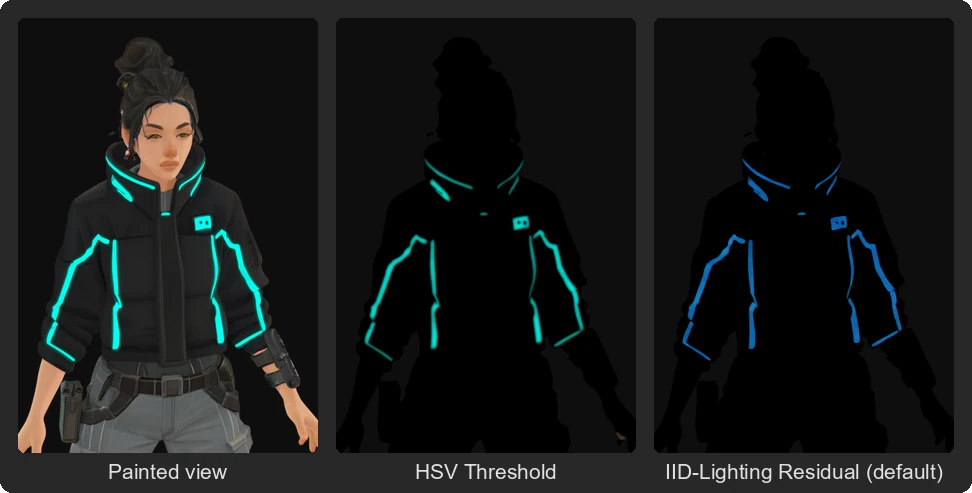
Both methods can mistake highlights for emission. Emission detection cutoff removes weak candidates; Emission Strength sets the material's emission multiplier.
| Setting | Effect |
|---|---|
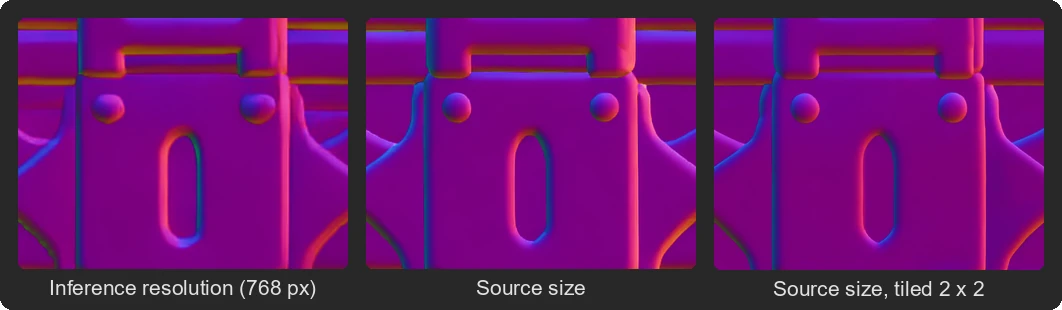
| Use source size for inference | Run the models at the generated image's size instead of Inference resolution (px) (default 768). On by default. |
| Tiling | Process maps as a grid of tiles for more pixels per region: Off, Selective (albedo only, default), All, or Custom (choose the maps). |
| Tile grid | 2, 3 or 4, giving 4, 9 or 16 tiles. Time grows with the tile count. |
| Tile inference | Tile Source Size (default) processes each tile upscaled to the source image's size; Inference Resolution processes each tile at Inference resolution (px). |
| Keep tiled output resolution | Keep the larger tiled result instead of resizing to the source size. Uses more memory. |
| Inference steps | Sampling steps per map (default 4). |
| Predictions per map | Number of predictions averaged for each map (default 1). |
| Marigold V2 resolution (px) | Longest edge Marigold V2 processes at (default 2048). Images are processed at their own size within 1024 px and this limit. Marigold V2 ignores the other settings in this table. |
Studio Lighting adds a three-point light rig after projection to show the materials.
StableGen stores the settings used for each map and reuses existing maps when you reproject without changing them.
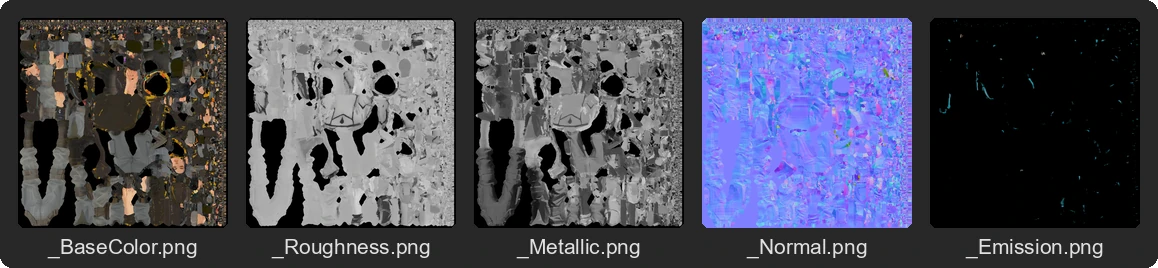
Bake turns the projected maps into UV image textures. With Bake PBR Maps enabled (the default), each channel connected to the material is baked to its own file in the baked folder: <object>_BaseColor.png, _Roughness, _Metallic, _Normal, _Emission, _Height and _AO. Normal maps are baked in tangent space.
| Option | Effect |
|---|---|
| Pack ORM Texture | Also writes <object>_ORM.png with ambient occlusion in red, roughness in green and metallic in blue. Requires roughness and metallic maps; red is white if there is no AO map. |
| Normal Convention | OpenGL (Y+) for glTF, Unity and Blender, or DirectX (Y-) for Unreal Engine, which flips the green channel. |
See Export for the other bake options.